Buy Albino-3 Legend Upgrade from Albino-3, get a free gift with purchase:

Please Note: this is an upgrade for existing owners of Albino-3.
The resurrection of a legendary and groundbreaking software synthesizer from the past!
Originally released in 2006, Albino- 3 was the result of a collaboration between Virtual Instrument designer Peter Linsener and Dutch sound designer and musician Rob Papen. Now reborn as Albingo-3 Legend and with in-house programmers now at the helm, it now has added VST3 support, different GUI sizes, and compatibility with the latest PC and Mac operating systems and processors.
The Albingo-3's key features include high-quality presets in a wide range of styles, an easy-to-use interface, highly flexible oscillators, four types of stereo filters, an enormous range of processing and modulation options, a powerful, flexible arpeggiator and a layer system that allows you to combine up to four layers in one preset.
Features
- Sound Presets consist of 4 separate Layers for rich, complex sound synthesis.
- Unlimited sound programs, Sound Browser
- +2100 presets by Rob Papen and various artist
- 4 oscillators per Layer, 4 types. Oscillator modules include Analog-type, Digital-type, Noise-type and Audio Input-type. FM modulation and AM modulation. Oscillator Sync in Analog Oscillator 2 and 4
- Stereo Filters, 4 types. Filter modules include Silk-type, Cream-type, Scream-type, and Comb-type. 3 multimode filters (Silk, Cream and Scream), each with a different basic design thus producing different sounding filters. Filters are stereo with panning and panning modulation options.
- Saturation knob precedes each filter to add overdrive to the sound before it enters the filter. Four types of Saturation are available.
- 8 envelopes, 2 types. ADSFR type and 5-stage envelope type with loop function. Each envelope stage has separate slope/curve settings. Each oscillator has its own volume envelope.
- 4 LFOs with various waveforms and midi-syncable. LFO Waves have adjustable start-phase and waveform-symmetry. LFOs can also be set to mono mode.
- Modulation Matrix which includes 16 routings with 27 sources and 36 destinations. Separate control section for Velocity to: AMP, Filter 1 and Filter 2.
- Arpeggiator with 32 step rhythm sequencer, step length, clock settings, various modes including modulation and chord, switchable keyboard retrigger, swing, velocity mix, save/load functionality.
- Spread function for each Oscillator for ultra fat detuned sounds.
- Chord memory mode (saved with the preset)
- 4 effects units per layer each containing 12 stereo effects including two Choruses, two Delays, Filter, Phaser, Reverb, Flanger, Gator, Wah Wah, Compressor and LoFi.
- Mono/Polyphonic Portamento/Glide featuring Fingered mode, switchable constant Time/constant Rate and Auto-Bend Modes
- Sound programs are stored directly on hard disk so providing a virtually unlimited number of storage locations. Sounds are sorted into style-maps for easy search. Integrated Sound Browser, MIDI program change and bank change supported.
- Adjustable Precision setting for recreating the warmth of true analog synthesizers
- Gen (randomize) function for experimentation and preset fun
- Microtonal support (Scala file import) for different scales (Indian, Arabic, etc.)
- Adjustable keyboard velocity response curve.
- 32-voice polyphony
- Adjustable voice limit (mono, 1...12, oo).
- MIDI activity display (also triggers a C3 when clicked)
- Several parameters are located on the "rear panel" so they are not changed accidentally during use.
- Controller hardware (faderbox or synth) settings can be saved and restored.
- Dial operation is switchable between circular and linear modes
System Requirements
PC:
- 64-bit VST3, VST, and AAX for Windows 7 or higher.
- (Note: PC AAX for PT 12 or higher)
Mac:
- 64-bit AU, VST3, VST, and AAX, for OS-X 10.13 or higher.
- M1/M2 ARM processor compatible.
Serial/license system with activation whilst registering the product. The activation system is offline, which means that there is no direct connection between the plugin and the robpapen.com homepage. The software can be installed on 2 of your own computer systems.

(SubBoomBass is used as the example).
Mac
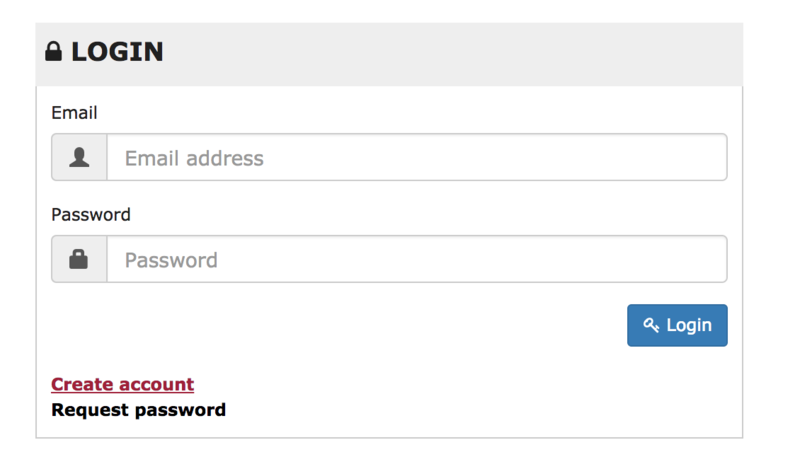
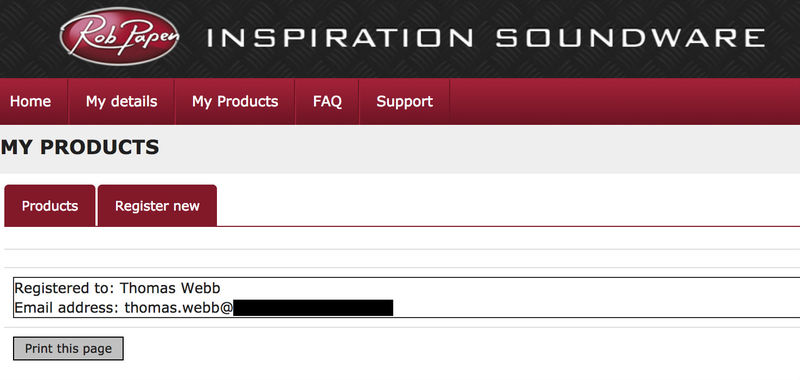
1. Visit Rob Papen and create an account by selecting 'Create Account'.


Note: If you already have an account set up with Ron Papen, 'Login' to your account and skip to step 4. of the installation process.


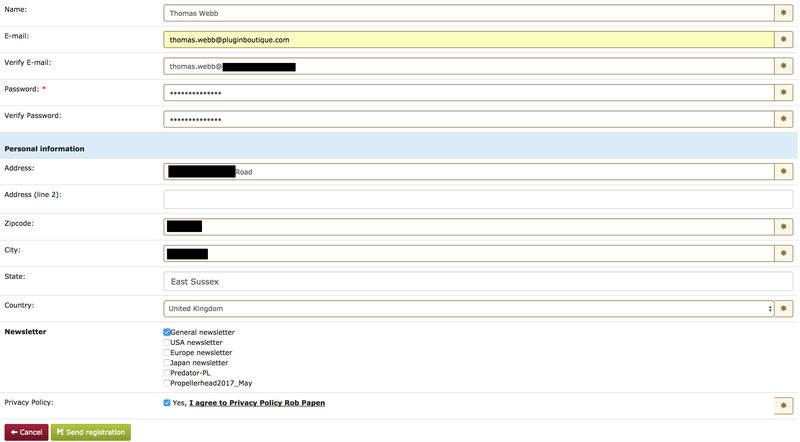
2. Enter your personal details, and once completed check the tick box that reads 'Yes, I agree to Privacy Policy Rob Papen' before clicking 'Send Registration'.

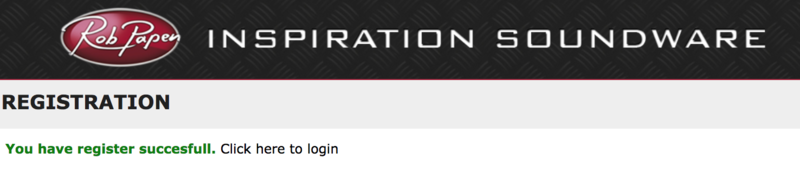
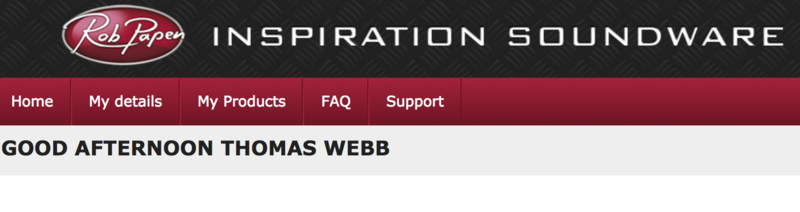
3. The registration of your account has successfully been completed > select 'click here to login' to access your account area.

4. Select the 'My Products' tab, which is located at the top-left corner of your account area.


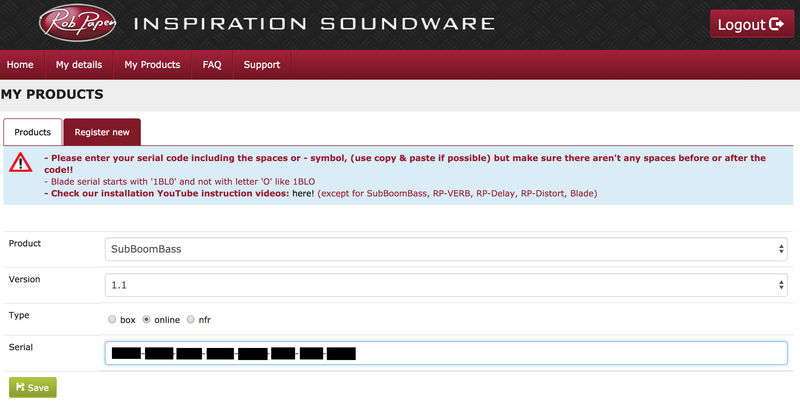
5. Click the 'Register New' option.


6. Select the product that you have purchased, as well as the most recent version number (which in this instance is 'Online'), before manually entering/copying and pasting the 32-digit Serial Number that is provided within your User Account > once completed, click the 'Save' tab to register your software.
Note: Ensure that you select the correct 'Product' and 'Type', as well as checking that there are no spaces/mistakes when entering your Serial Number > if you receive a code error message of any kind, refresh the web page and manually enter the digits (including the '-' hyphens) before re-clicking the 'Save' option.

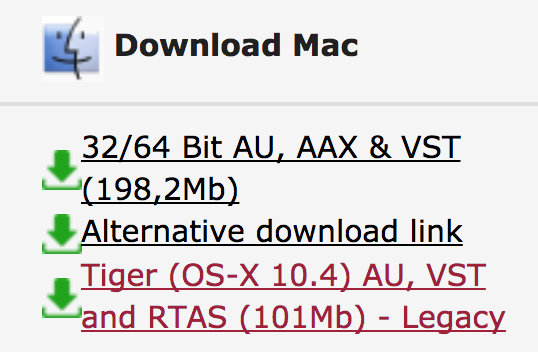
7. The registration of your software has successfully completed > select the 'Download latest version: SubBoomBass' hyperlink to navigate to the software download area.

8. Select the relevant format installer download (s) in accordance with your DAW's compability specifications, to inititiate the downloading of your purchased software.
Note: The product user manual is also obtainable from this location.


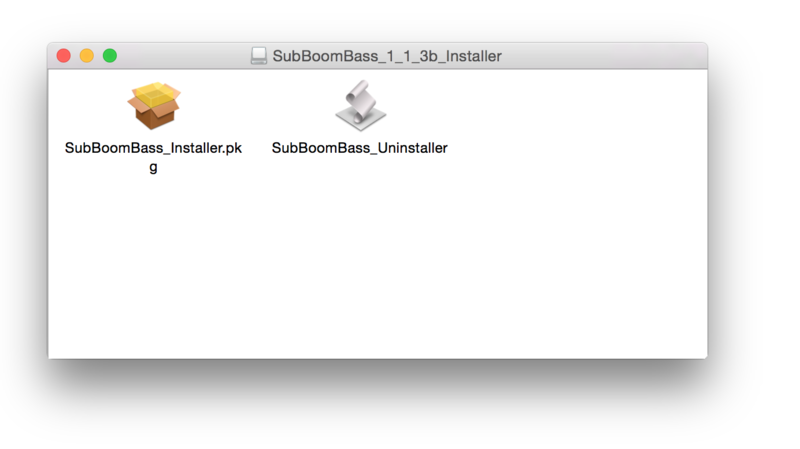
9. Once the software installer file has finished downloading, click the file entitled 'SubBoomBass_Installer.dmg' to launch the application installer application.
10. Double-click the 'SubBoomBass_Installer.pkg' application icon begin the installation process.

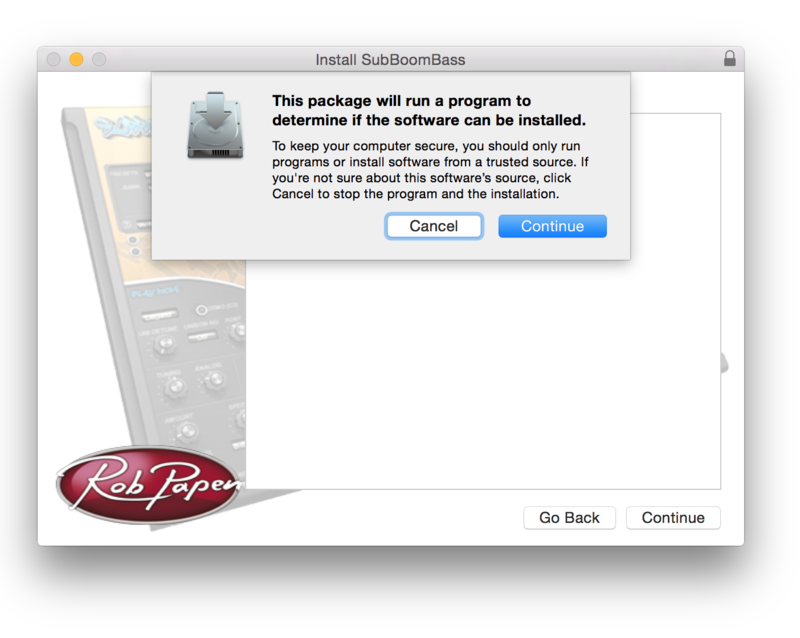
11. Click 'Continue' to verify the installation, if prompted to do so.

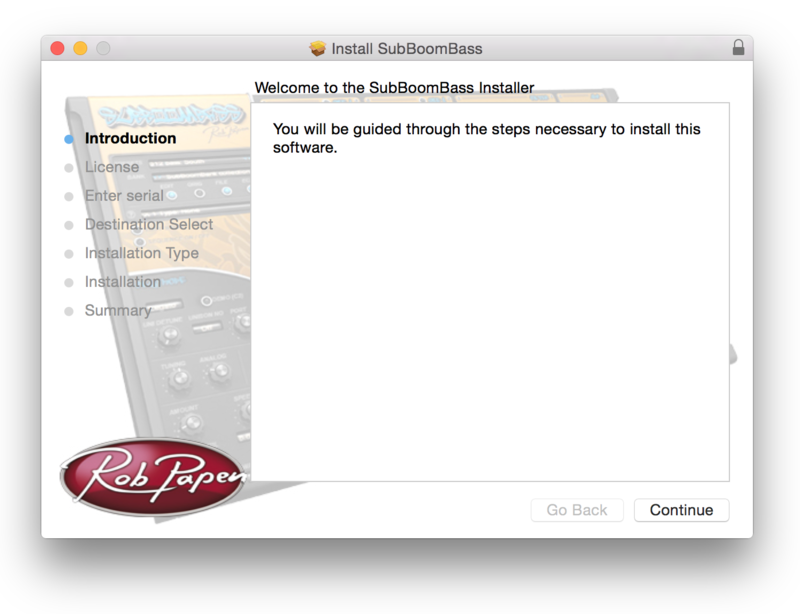
12. Click 'Continue' once again.

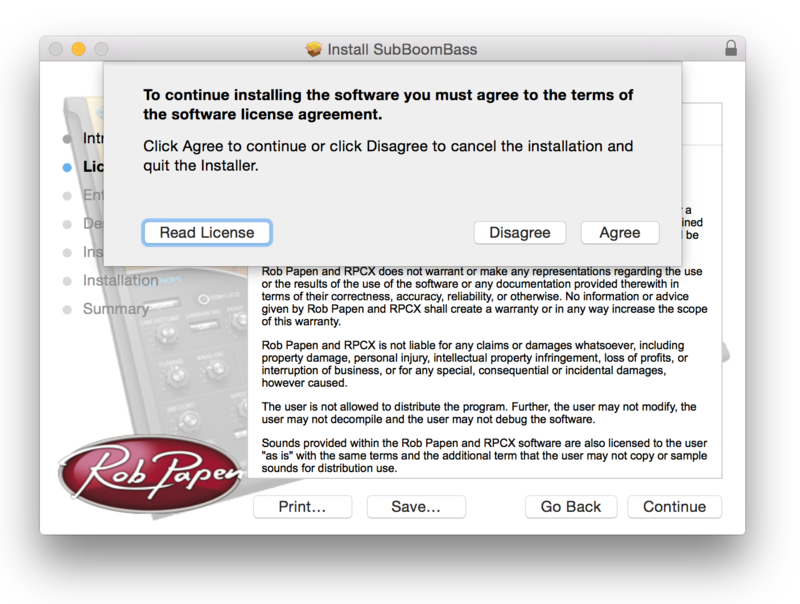
13. Read through the Licence Agreement > click 'Continue' then 'Agree'.

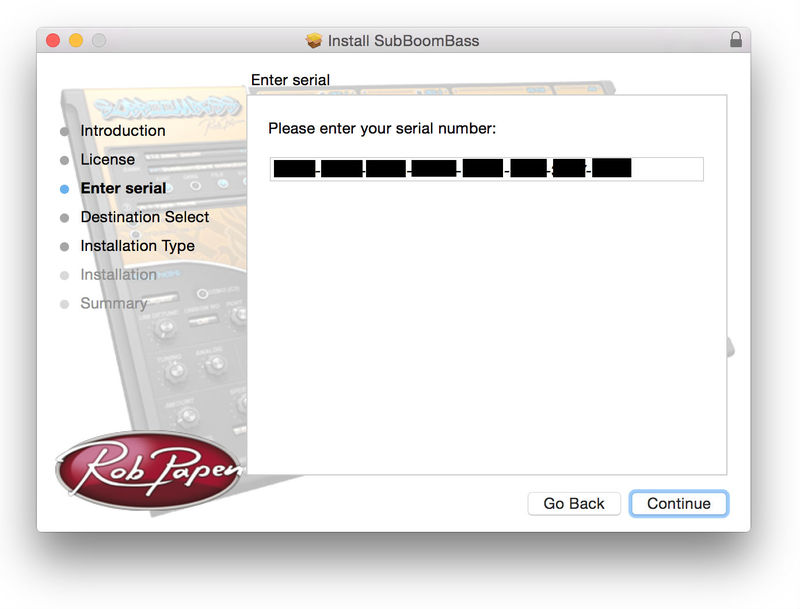
14. Manually enter/copy and paste the original 32-digit Serial Number that you were provided with, before clicking 'Continue' (the Serial Number is located in both your Plugin Boutique and Rob Papen User Accounts).
Note: Ensure that you select the correct 'Product' and 'Type', as well as checkingt that there are no spaces/mistakes when entering your Serial Number > if you receive a code error message of any kind, manually enter the digits (including the '-' hyphens) before re-clicking the 'Continue' option.

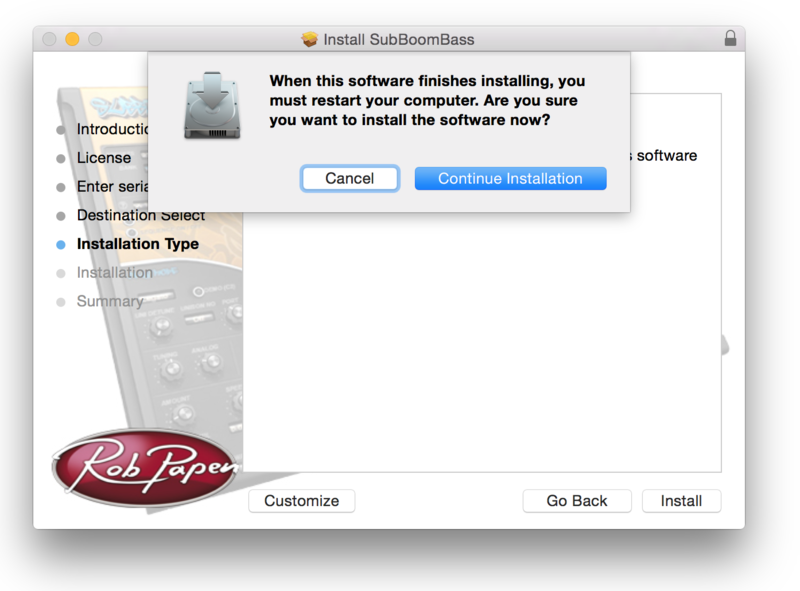
15. Review the installation before clicking 'Install', and then 'Continue Installation'.

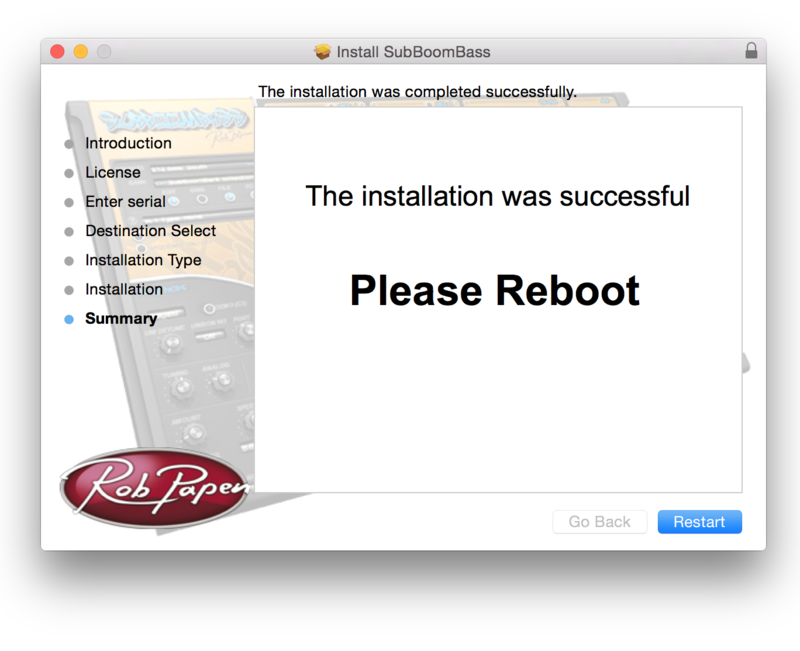
16. The installation of your software has successfully completed > click 'Restart' to reboot your computer.
Note: Ensure that you have saved any important work that may be open within the applications you currently have open, before selecting the 'Restart' option.

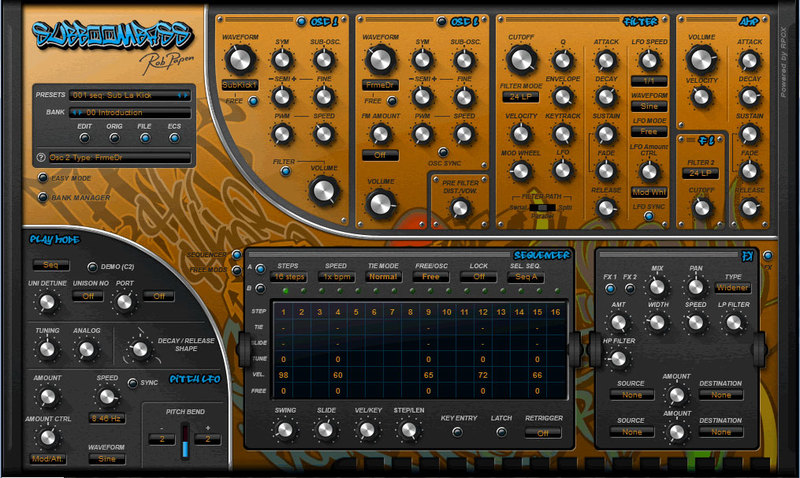
17. After your computer has successfully restarted, open your DAW and locate/open your newly installed/activated software VST.
Note: If the software fails to appear, rescan your DAW's Plug-in selection.
The Software is now Activated and Ready for Use Within Your DAW!

Windows
1. Visit Rob Papen and create an account by selecting 'Create Account'.


Note: If you already have an account set up with Ron Papen, 'Login' to your account and skip to step 4. of the installation process.


2. Enter your personal details, and once completed check the tick box that reads 'Yes, I agree to Privacy Policy Rob Papen' before clicking 'Send Registration'.

3. The registration of your account has successfully been completed > select 'click here to login' to access your account area.

4. Select the 'My Products' tab, which is located at the top-left corner of your account area.


5. Click the 'Register New' option.


6. Select the product that you have purchased, as well as the most recent version number (which in this instance is 'Online'), before manually entering/copying and pasting the 32-digit Serial Number that is provided within your User Account > once completed, click the 'Save' tab to register your software.
Note: Ensure that you select the correct 'Product' and 'Type', as well as checking that there are no spaces/mistakes when entering your Serial Number > if you receive a code error message of any kind, refresh the web page and manually enter the digits (including the '-' hyphens) before re-clicking the 'Save' option.

7. The registration of your software has successfully completed > select the 'Download latest version: SubBoomBass' hyperlink to navigate to the software download area.

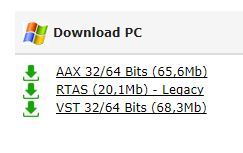
8. Select the relevant format installer download (s) in accordance with your DAW's compability specifications, to inititiate the downloading of your purchased software.
Note: The product user manual is also obtainable from this location.


9. After the software installer file has finished downloading, double-click the file entitled 'SubBoomBass_Installer' .zip folder to extract the .exe installer file.
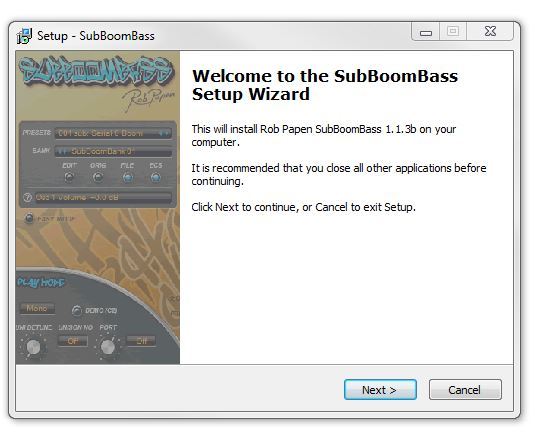
10. Once extracted, double-click the .exe installer file to begin the installation process > click 'Next'.

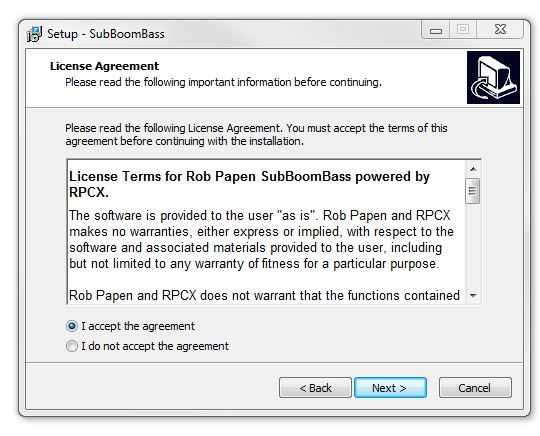
11. Read through the Licence Agreement and select 'I accept the agreement' > click 'Next'.

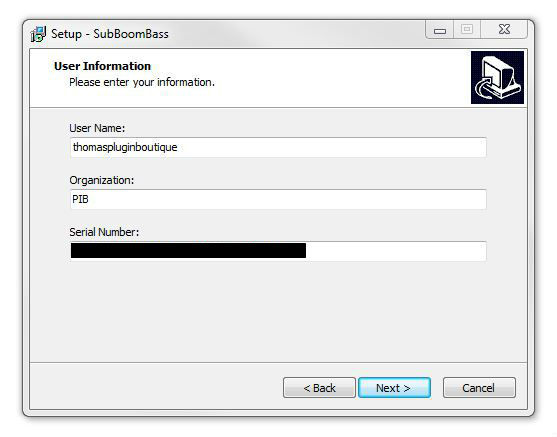
12. Type in your preferred User Name, Organization and manually enter/copy and paste the original Serial Number that you were provided with, before clicking 'Continue' (the Serial Number is located in both your Plugin Boutique and Rob Papen User Accounts).
Note: Ensure that you select the correct 'Product' and 'Type', as well as checking that there are no spaces/mistakes when entering your Serial Number > if you receive a code error message of any kind, manually enter the digits (including the '-' hyphens) before re-clicking the 'Next' option.

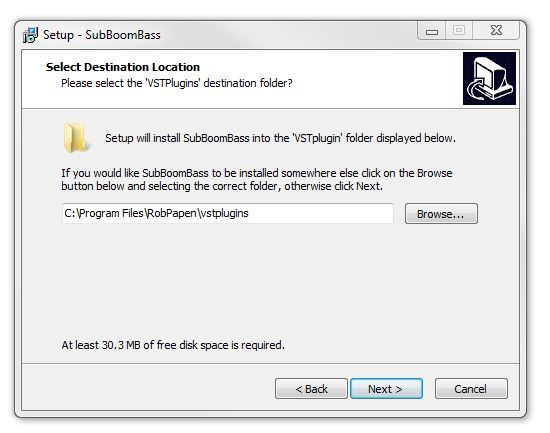
13. Select a computer VST Plug-ins folder destination in which to install/save your software to > click 'Next'.

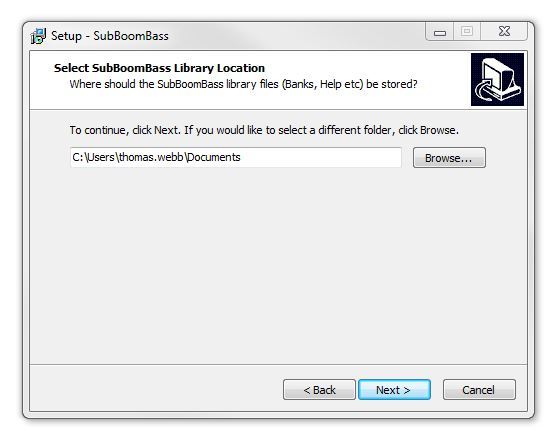
14. Select a computer Library location in which to install/save your software to > click 'Next'.

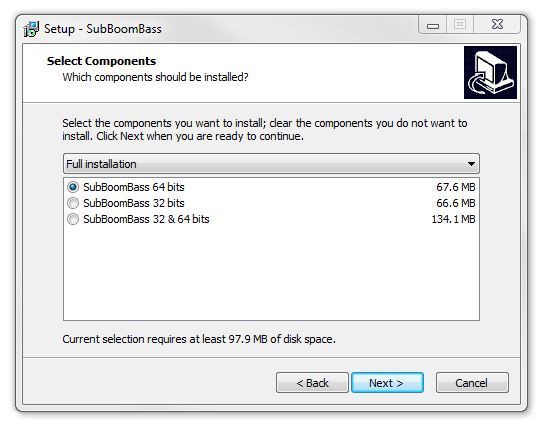
15. Select the software format (s) that you wish to install > click 'Next'.

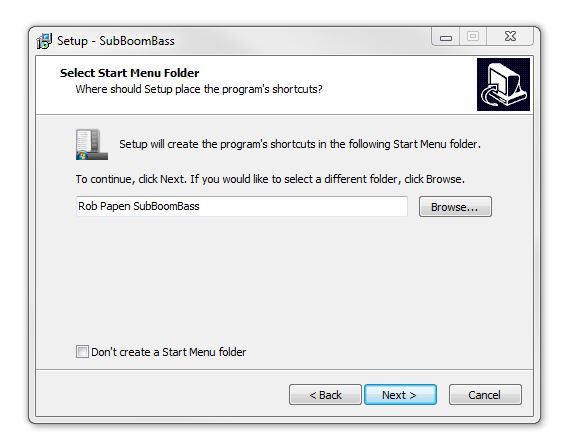
16. Select a Start Menu Folder to create a shortcut to your new software installation > click 'Next'.

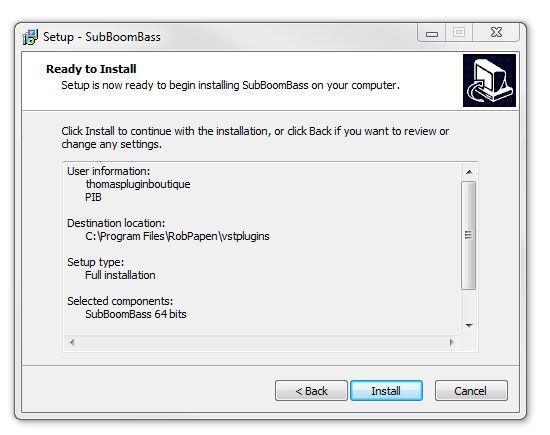
17. Review the installation and click 'Install'.

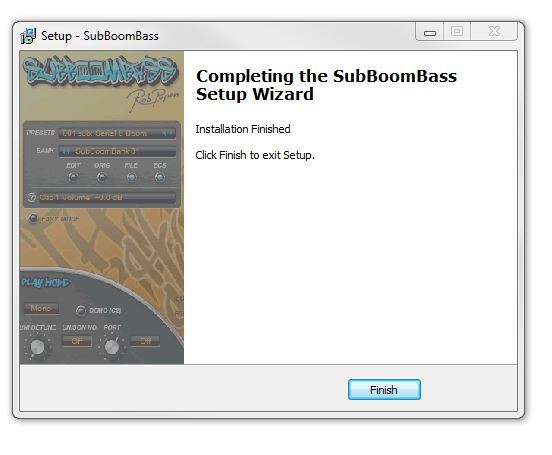
18. The installation of your software has successfully completed > click 'Finish'.

19. After your computer has successfully restarted, open your DAW and locate/open your newly installed/activated software VST.
Note: If the software fails to appear, rescan your DAW's Plug-in selection.
The Software is now Activated and Ready for Use Within Your DAW!