/ Spectral Analysis / SA-3 Spectral Processor
McDSP

SA-3 Spectral Processor

4.8 (5 Reviews)
$69.00 $129.00

46% off until Dec 08

McDSP SA-3 Spectral Processor
SA-3 Spectral Processor - Full Product Overview gallery thumbnail
Buy Now
Product information

The SA-3 Spectral Processor takes the algorithms of the Engineering Emmy Award winning SA-2 Dialog Processor to another level. Like the SA-2, the SA-3 is great for removing unwanted spectral spikes in dialog, vocals, and many other kinds of audio inputs. The SA-3 is also able to track and eliminate persistent peaks, at nearly any frequency in the audio spectrum. New features include adding over 1,000 bands of processing, a user programmable Bias curve, unique Focus, Range, and Density control over spectral processing, side chain support and mid/side processing.

Features

  • Over 1,000 bands of processing
  • Detect and Monitor controls to identify and remove signal spikes and persistent overtones
  • User programmable Bias curve
  • Unique Focus, Range, and Density control over spectral processing
  • Double precision processing
  • Side chain support
  • Mono and stereo versions

System Requirements

Mac

  • macOS 10.13 or higher (64-bit only) (macOS 12 Monterey compatible)
  • McDSP plugins run natively on Intel and M1 Apple Silicon processors
  • McDSP plugins support Mac OS 10.13.x (High Sierra), 10.14.x (Mojave), 10.15.x (Catalina), 11.x (Big Sur), 12.x (Monterey), and Windows 10
  • Mac OS version 10.12.x (Sierra) may work but is not officially supported. Earlier Mac OS versions are not officially supported

Windows

  • Windows 10+

Activation:

  • McDSP plugins require an iLok2 or iLok3 USB Smart Key, or an iLok License Manager account and iLok Cloud for activation.

Important note: McDSP plugins require an iLok2 or iLok3 USB Smart Key, or a FREE iLok License Manager account and iLok Cloud session for authorisation. Each McDSP v7 plugin contains two activations per authorisation.

Installation Instructions

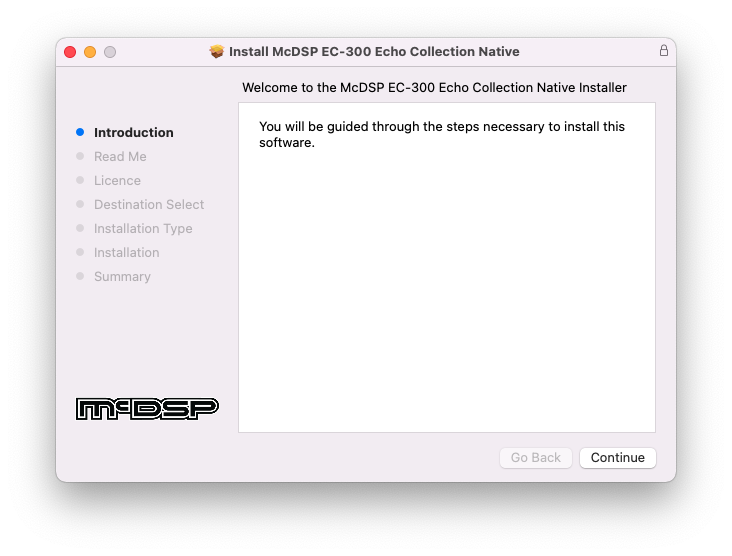
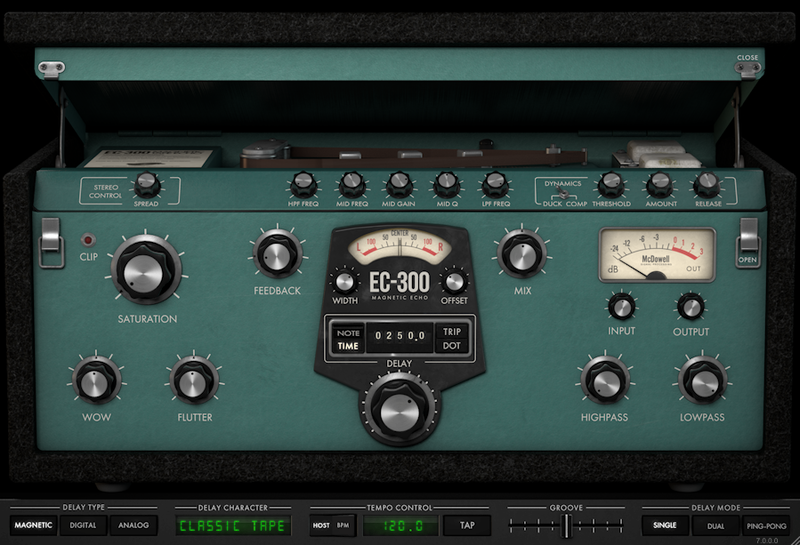
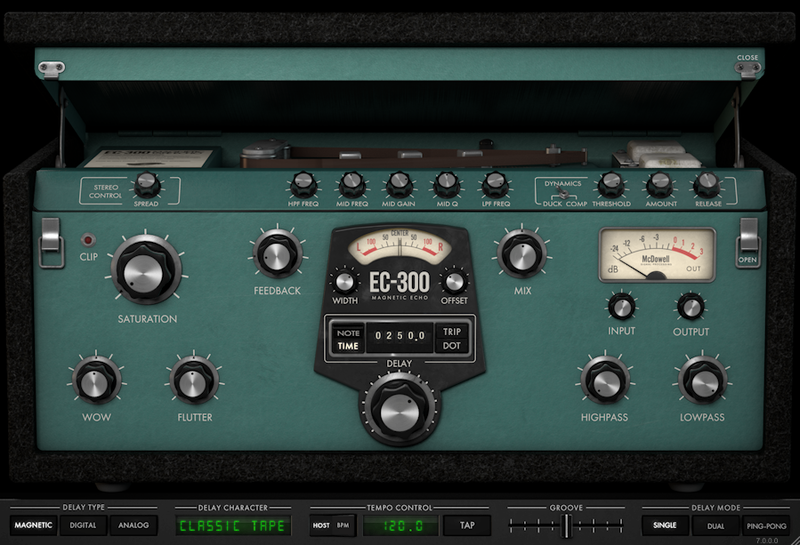
EC-300 Echo Collection is used as an example.

Please Note: You must have an account at ilok.com to be able to use the trial and purchased versions of any McDSP software.

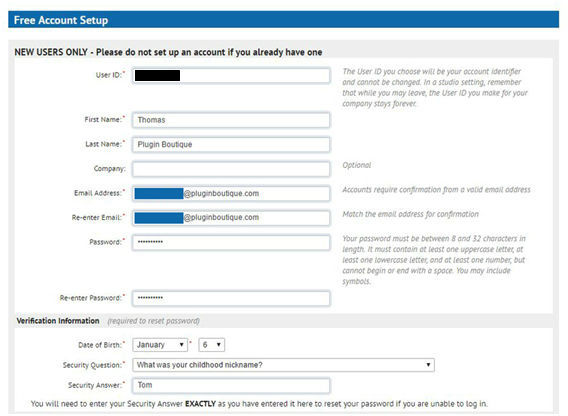
iLok Registration

1. Go to the iLok website and create a new account if you are not currently registered and do not have the iLok Licence Manager installed on your computer.

Note: Skip to the 'iLok Activation' procedure if you are already an iLok registered user.

2. Download and install the iLok License Manager.

iLok Activation

1. Open your iLok license manager application > click 'Sign In'.

2. Enter your iLok registered User ID and password > click ‘Sign In'.

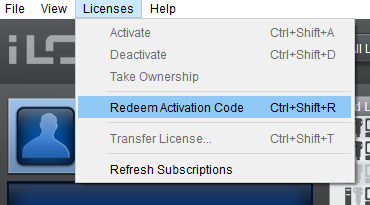
3. Navigate to 'Licenses'. Click 'Redeem Activation Code'.

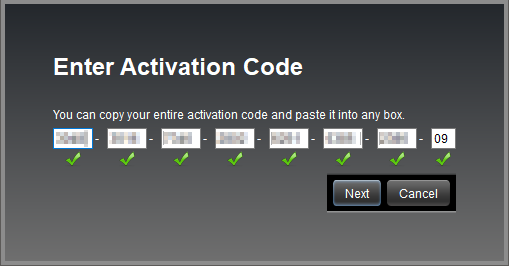
4. Copy and paste the 30-digit code from your Plugin Boutique User Account into the available Activation Code boxes > Click ‘Next'.

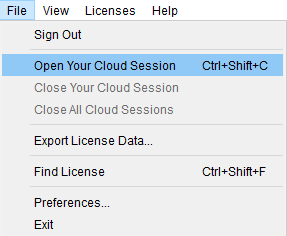
5. In the top-left corner of the application, click 'File > Open Cloud Session' to activate your license to the iLok cloud.

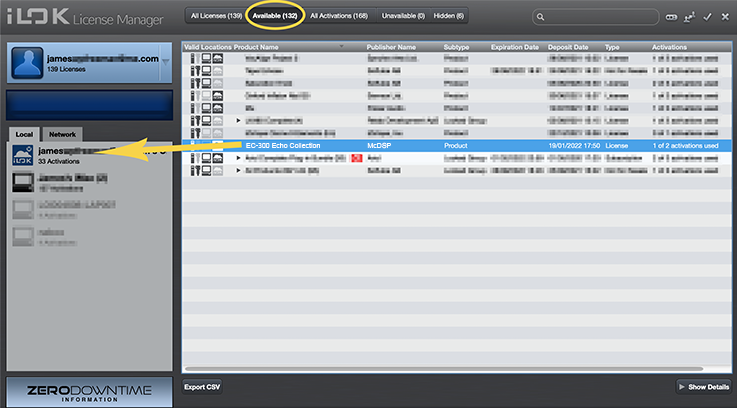
6.  Navigate to the 'Available' tab > Locate your new license > Drag the license to your iLok Cloud Session on the left-hand menu.

Mac Software Installation

1. Download the installer file from your Plugin Boutique User Account.

2. Double-click the .zip folder to reveal the installer file.

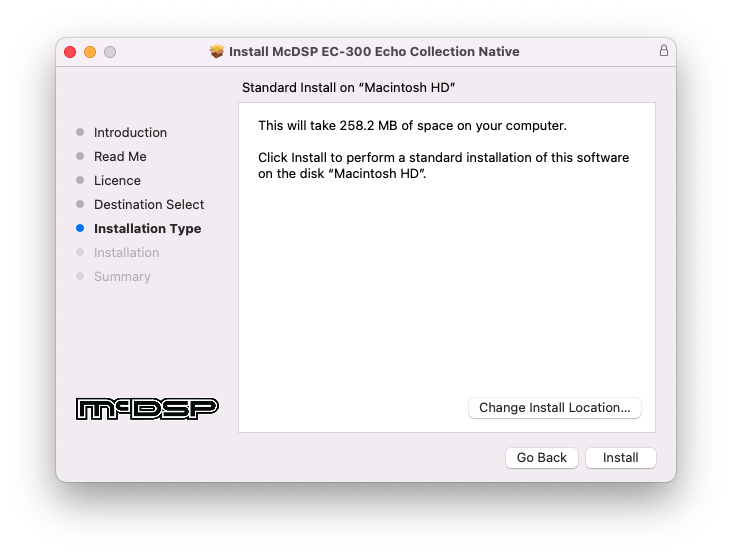
3. Double-click the .pkg installer file to begin the installation process > Click 'Continue'.

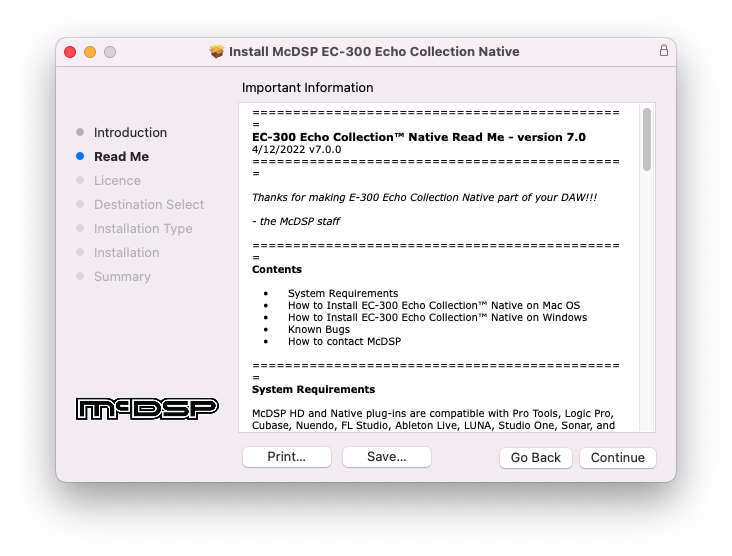
4. Read through the information > Click 'Continue'.

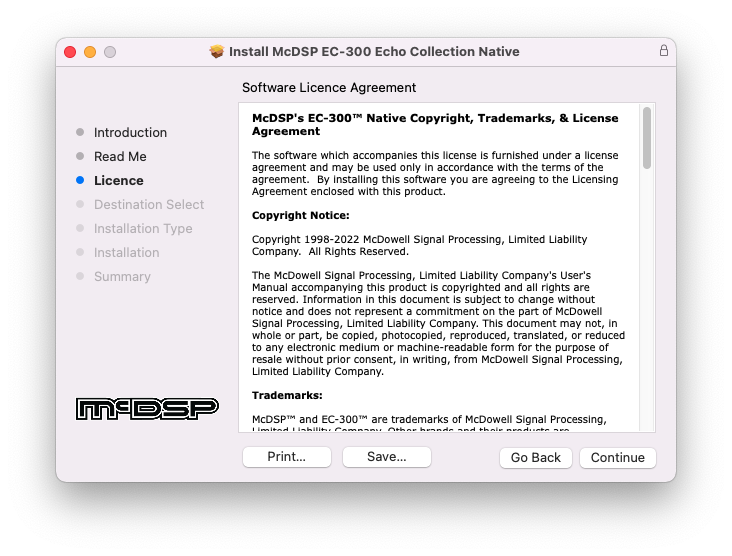
5. Read through the license agreement > Click 'Continue'.

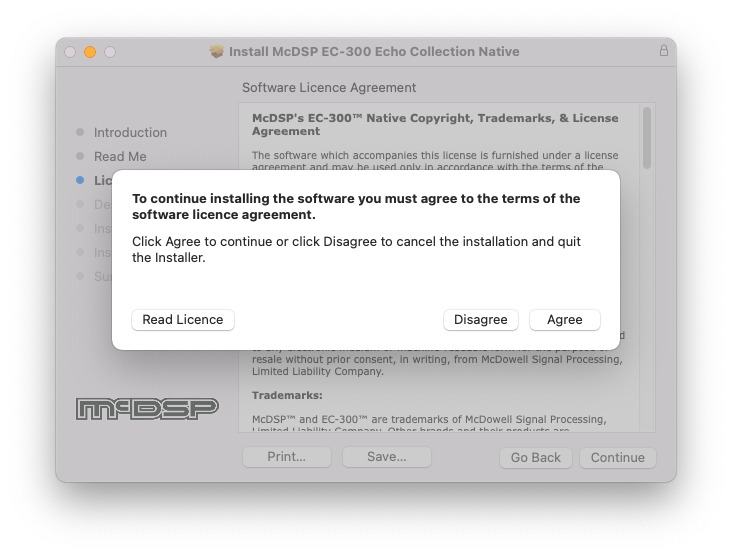
6. Click 'Agree'.

7. Click 'Install'.

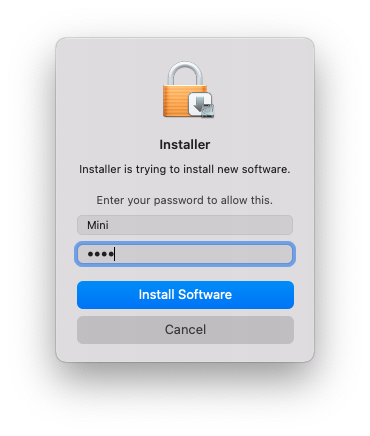
8. Enter your system password > Click 'Install Software'.

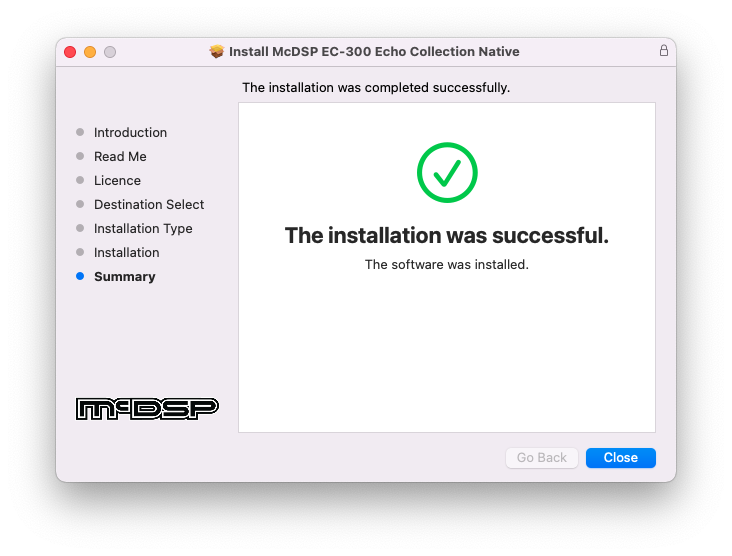
9. Installation is now complete > Click 'Close'.

10. Open the software within your DAW.

Your software is now installed, activated, and ready to use.

Windows Software Installation

1. Download the installer file from your Plugin Boutique User Account.

2. Double-click the .zip folder to reveal the installer file.

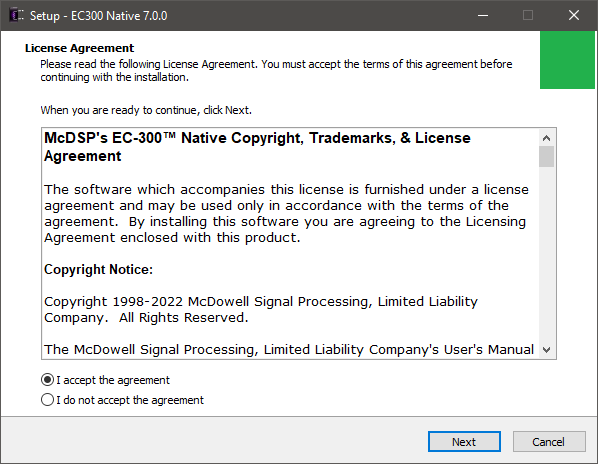
3. Double-click the extracted .exe installer file to begin the installation process > click 'Next'.

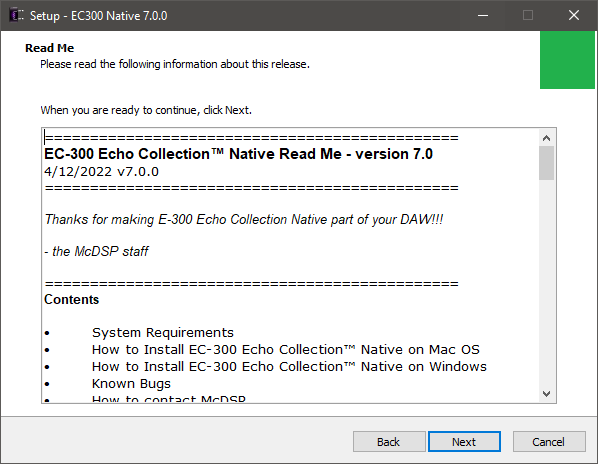
4. Read through the information and select 'I accept the terms of the licence agreement' > click 'Next'.

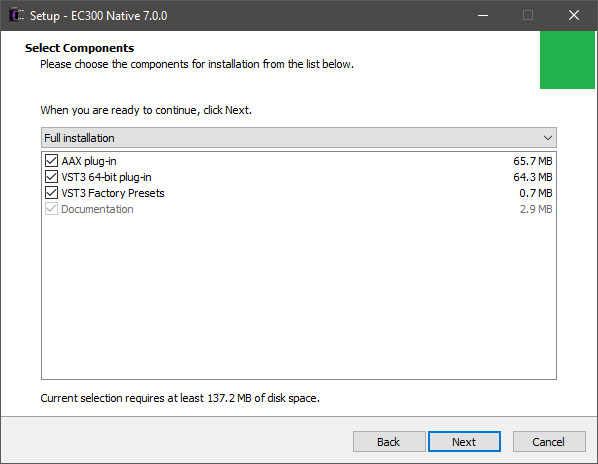
5. Select your formats to be installed > click 'Next'.

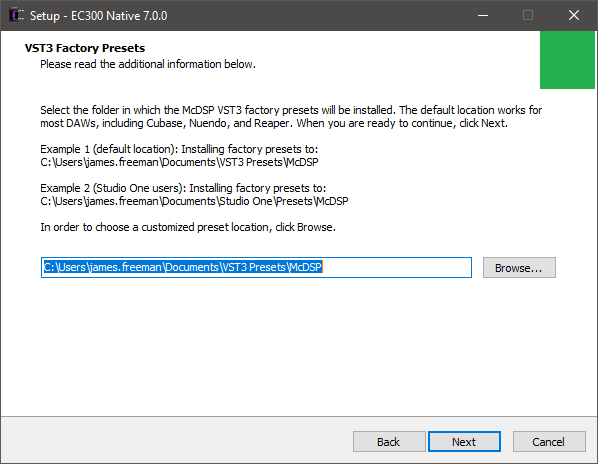
6. Select a location for presets to be installed (default is recommended) > click 'Next'.

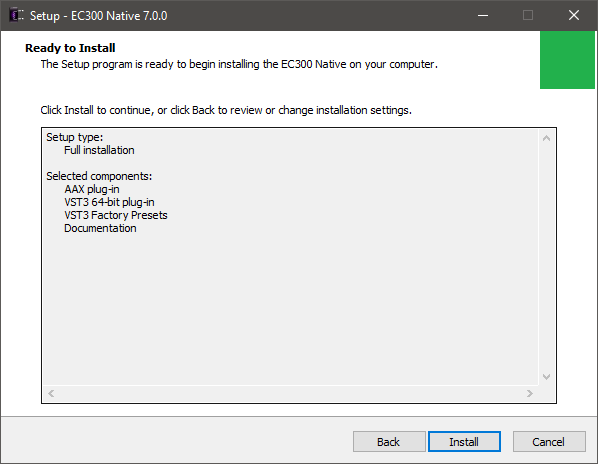
7. Click 'Install'.

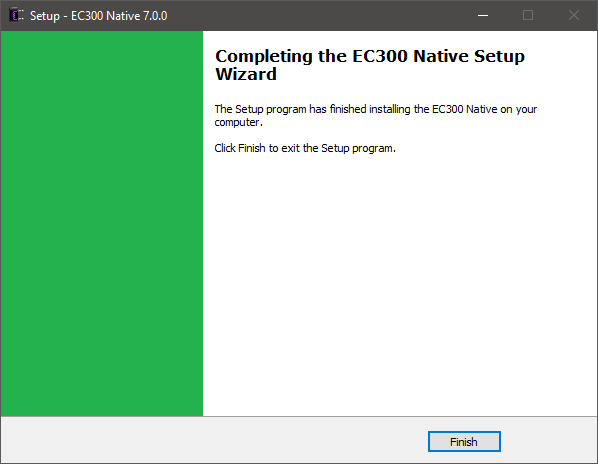
8. Installation is now complete > Click 'Finish'.

9. Open the software within your DAW.

Your software is now installed, activated, and ready to use.

Plugin Boutique Rewards

Discover the most rewarding loyalty programme among all plugin retailers.

  • Free Loopmasters Samplepacks
  • Discounts on products and courses
  • Extra Virtual Cash claimed immediately at checkout
Find out more

Follow us:

X (Twitter) Facebook YouTube Instagram
Logo Logo

Plugin Boutique Limited, Part of the Beatport Group LLC.

Copyright © 2011-2025 Plugin Boutique. All rights reserved