Log In

Free gifts available with your purchase
Product information
Modulate your notes with a classic, lush vibrato effect. From subtle, emotional waves to intense pitch fluctuations
Unleash a wave of sonic expression with Kuassa EFEKTOR Vibracula, your undulating way to add a world of dynamic and emotion to your rhythm and melodies. Developed with precision and driven by innovation, this plugin takes your guitar playing to new heights by infusing your notes with wobbling, organic, and flowing character. Elevate your performance with a touch of vibrato magic – Kuassa EFEKTOR Vibracula is here to make your instruments flow like never before.
Features
- Generates gentle to insane vibrato effect
- Auto vibrato simulates a guitar’s vibrato arm
- Link left and right channel in stereo mode
- Precise pitch modulation
- User friendly interface: Straightforward single screen GUI.
- Available as an Amplifikation 360 module
System Requirements
Windows:
- Windows 7 or Later (64 bit)
- Core2 Duo, or AMD Phenom ii X4 or better (latest Intel i3, AMD Ryzen, or better is recommended) with 4GB minimum RAM
- VST or VST3 compatible host/DAW
- Pro Tools 11 or later for AAX format
Mac:
- Mac OSX 10.11 or later (64 Bit).
- Core2 Duo, or better (latest Intel i3 recommended) with 4GB minimum RAM
- Native Apple Silicon Processors Compatible (M1 & M2)
- VST, VST3, or Audio Units compatible host/DAW
- Pro Tools 11 or later for AAX format
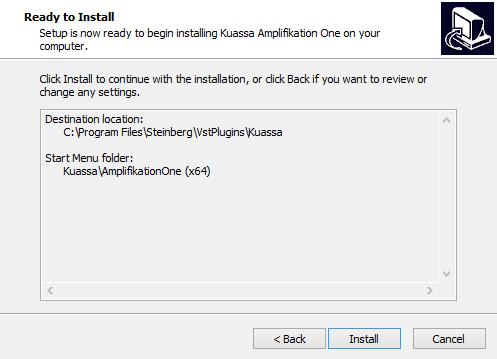
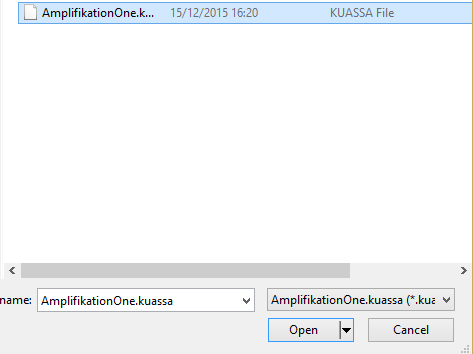
Installation Instructions