


 Log In

Free gifts available with your purchase
Versatile Unison Effect
Efx REFRACT is a stereo multi-effect with versatility at its core. Combining unison-based processing with a variety of secondary effects and modulation options. Effortlessly enrich, texturise and transform any sound, from experimental distortions to detuned harmonics.
Dramatic Unison
Based on super unison architecture, Efx REFRACT delivers instantaneous size and character to your sound. Whether marking key moments or making sweeping transformations - bring any track to life with flare and multi-effect dispersion.
Effortless Impact
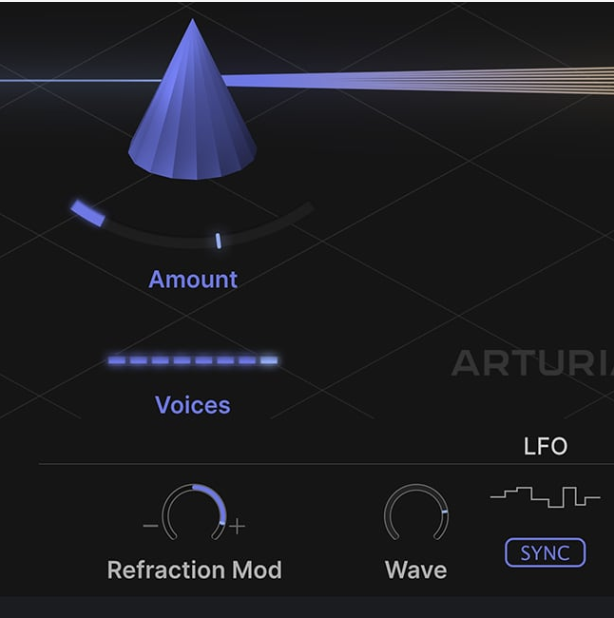
Move from unfiltered stems to a wide and powerful sound with multiple voices. This can be particularly effective for building tension and emphasizing salient moments in a composition.
Spread Your Sound

Efx REFRACT’s super unison architecture duplicates the signal up to 8 stereo voices. This can be used to spread and broaden any sound, and is the method behind the magic of this versatile multi-effect.
Geometric Sound Design
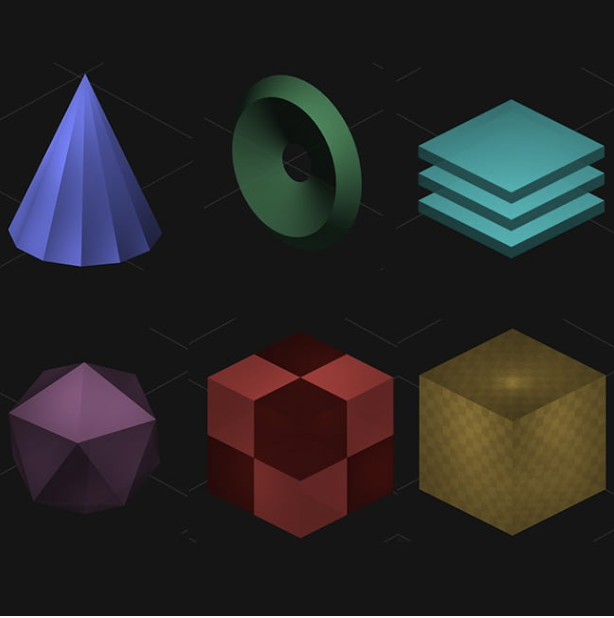
With an animated and responsive visual interface, weave various FX combinations together for a dispersion pathway that fits your wildest imaginations. Easily select the voices, filters, Mode FX, and LFO and watch the geometry evolve, along with your sound.
Expressive Presets
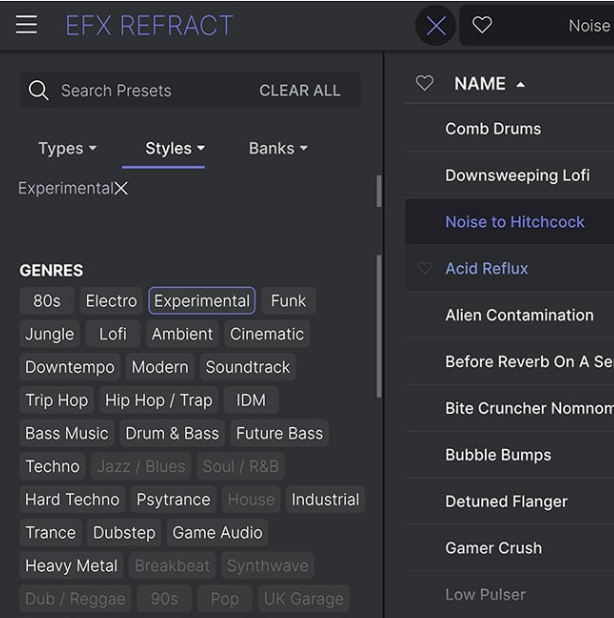
Efx REFRACT comes with a host of presets to convey its multi-effect capabilities. Explore unique combinations of sonic dispersion and Mode FX, from Delay and Distortion to Texture and Transition.
Multi-effect Magic
Efx REFRACT takes any audio source and spreads it across a dynamic and modifiable FX chain, allowing you to add energy, movement and power to your heart’s content.
The Sound of Unison
Unison refers to a process of multiplication, where the same sound or note is duplicated and played in parallel.
Like a string section in an orchestra, which has a wonderfully rich sound as a result of many instruments playing at once, unison replicates this for a chorus-like effect; with slight differences in phase leading to a sound that is more filled-out and enriched.
Efx REFRACT takes this approach of using multiple voices to enlarge and extend the width of a sound, which you can choose to do with or without the addition of powerful Mode FX.
5 FX Modes
Choose to refract on its own, which can be used to enrich and widen a sound. Or disperse one of the powerful Mode FX, and unlock the uniquely expressive potential of Efx REFRACT.
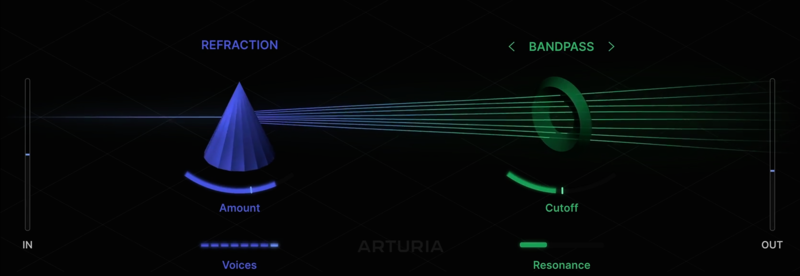
Use the Bandpass filter for a classic attenuation effect, allowing you to create sweeping moods and muted atmospheres. Each dispersion voice will have a different Cutoff frequency centred around the ‘Cutoff’ control, creating a filtered widening effect.
Preset Library
Need some quick-fire movement, variety, or texture? Efx REFRACT preset library contains everything from mix enhancements to pure chaos in motion - all you need to do is click.
Features
- Super Unison refraction engine with up to 8 stereo voices
- Dynamic and responsive user interface with real-time 3D graphics
- 5 Mode FX to choose from, each with specific controls, for a wide range of creative results
- Bandpass
- Comb Filter
- Bitcrusher
- Distortion
- Harmonizer
- 4 Distortion Algorithms
- 12 Harmonizer Chords
- Simple control scheme that represents complex multi-parameter mapping and unique dispersion effect
- Input and output filters
- Pre-configured LFO with synced rates
- 47 built-in presets
- A/B Comparison
System Requirements
-
VST, AAX, Audio Unit, NKS (64-bit DAWs only).
Mac
- Mac OS 11+
- 4 GB RAM
- 4 cores CPU, 3.4 GHz (4.0 GHz Turbo-boost) or Apple Silicon CPU
- 1GB free hard disk space
- OpenGL 2.0 compatible GPU
Windows
- Win 10+ (64bit)
- 4 GB RAM
- 4 cores CPU, 3.4 GHz (4.0 GHz Turbo-boost)
- 1GB free hard disk space
- OpenGL 2.0 compatible GPU
- ARM processors not supported on Windows


