Log In

Free gifts available with your purchase
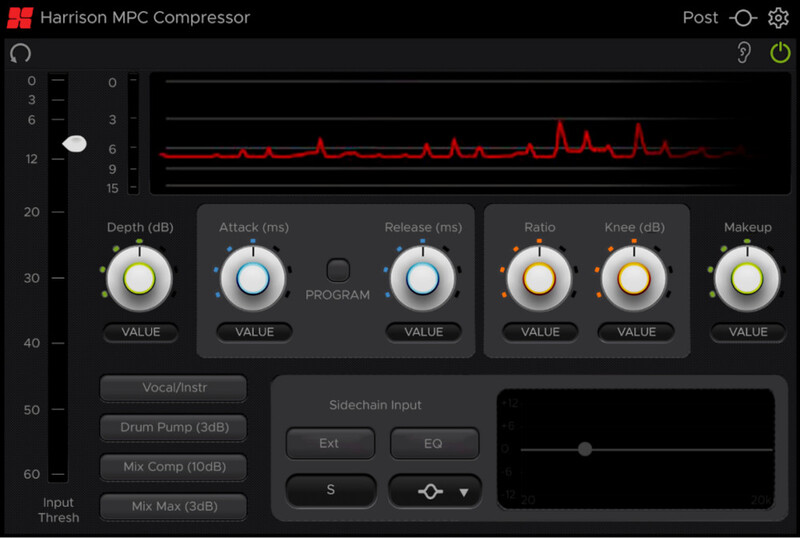
The MPC Console Compressor is the most advanced compressor developed by Harrison, with a full suite of professional-level features from their digital consoles including:
A scrolling history of your compressor action; a Program (Pgm) button that controls dynamics while retaining PUNCH; an innovative Depth control to limit the maximum gain reduction, a Sidechain EQ with 7 shapes to focus your compressor's sensitivity, and an External Sidechain input which allows you to choose any other track as the 'key' source for the MPC Console Compressor.
Features
- Full-featured compressor with Threshold, Ratio, Attack, Release and Makeup Gain
- Additional features Depth, Knee, and Pgm (Program) allow the compressor to retain its character even with very challenging, dynamic material
- Change the character of the compressor with the sidechain EQ: drive the compressor to sound modern, vintage, or out-of-this-world.
- An external sidechain input with a sidechain ‘listen’ button allow extreme flexibility in music or post-production sessions.
- 8 presets are provided as starting-points for various common compression tasks
Controls
The main input meter, and threshold slider (on the left) controls how much material is passed into the plugin (-60dB - 0dB). Moving the threshold slider down (a lower threshold) will increase the overall compression effect.
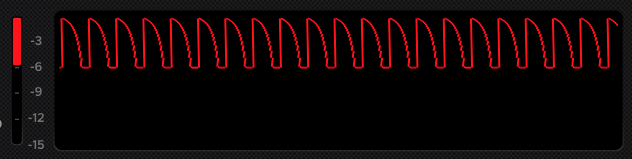
Reduction and Reduction history
The red meter indicates the gain reduction being applied, while the graph to the right provides a history view, helping you see ‘exactly’ what the compressor is doing to your signal:
Depth
The Depth Knob sets the maximum gain reduction that the compressor will apply. In some cases, this allows you to use a lower threshold and a higher ratio, but prevent over-compression when the signal momentarily gets very loud.
Attack, Release, and Pgm (Program)
The Attack knob controls how long it takes the signal above the threshold to reach full compression.
The Release knob controls how long it takes the signal, once it falls below the threshold, to return to an uncompressed state.
The Pgm (Program) button engages 3 parallel signal detectors, each tuned to operate at different speeds. This helps the compressor operate more consistently when applied to signals with a high dynamic range. If the signal stays loud for a long(ish) time, the compressor will not decay fully but will instead stay at some lesser gain-reduction, prepared to operate on the next peak.
The term ‘program’ alludes to broadcast radio; a signal which often alternated between the announcer/dj voice and music. When given such widely varied signals, a compressor needed special tuning to work correctly on both.
Ratio, Knee
The Ratio control defines how much gain-reduction is applied when the signal exceeds the threshold. Increasing the ratio will make the effect of the compressor stronger.
The Knee control changes the onset of the ratio, so that a progressively louder input signal results in a progressively higher ratio. A ‘knee’ of 6dB means that the signal must exceed the threshold by 6dB before the full ratio setting takes effect. Using the knee control can result in a softer-sounding effect that is comparable to vintage opto-coupled compressors.
Makeup Gain
As the primary effect of a compressor is to reduce the level of ‘loud’ parts (and thereby raise the perceived loudness of quieter parts whether this is instrument sustain, reverb, or noise), the Makeup Gain control allows you to apply additional gain to the output signal, to ‘make up’ for the attenuation applied by the compression, and bring more sustain-y reverb-y noisy loudness.
Sidechain Controls
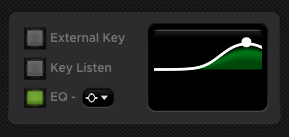
The External Key button allows you to select a separate signal, provided by the DAW, to drive the compressor’s detector circuit.
If External Key is enabled, then:
- The main input meter and threshold will be referenced to the KEY (sidechain) input, not the plugin’s main input.
- Clicking “Key Listen” will audition the external sidechain signal, not the compressor’s input signal
The sidechain EQ is applied to the key input signal.
Sidechain EQ
The sidechain EQ is a single-band equalizer. By setting the shape of the band ( high/low-pass filter, bell, or high/low shelf ) you can modify the signal that drives the compressor’s detector circuit.. For example, you can use the filter to remove all high frequencies from the sidechain input, and use only the low-frequency energy to drive the compressor bands.
Anecdotally, here are some tasks that you can accomplish with the sidechain EQ:
- Boost the high frequencies with a ‘bell’ or ‘shelving’ filter, to make the compression more sensitive to harsh or sibilant vocal. Many vintage tube compressors included a high-frequency lift in the sidechain to get their character
- Lessen the low frequencies with a high-pass filter or shelf: this avoids compressing the kick&bass elements of a full music mix, and keep the mix sounding fuller/stronger
- Boost a ‘bell’ filter to a troublesome/ringing note. The compressor will engage more
System Requirements
Mac
- macOS 11 Big Sur - macOS 13 Ventura (64-bit only) (M1 Mac supported)
- Intel Dual-Core Mac running at 2.4GHz or higher
- 4 GB of RAM minimum (8 GB of RAM recommended)
- AU, VST2, VST3, AAX Native
Windows
- Windows 10 - Windows 11 (64-bit only)
- Intel Core 2 (or comparable) CPU running at 2.4GHz or higher
- 4 GB of RAM minimum (8 GB of RAM recommended)
- VST 2, VST3, AAX Native
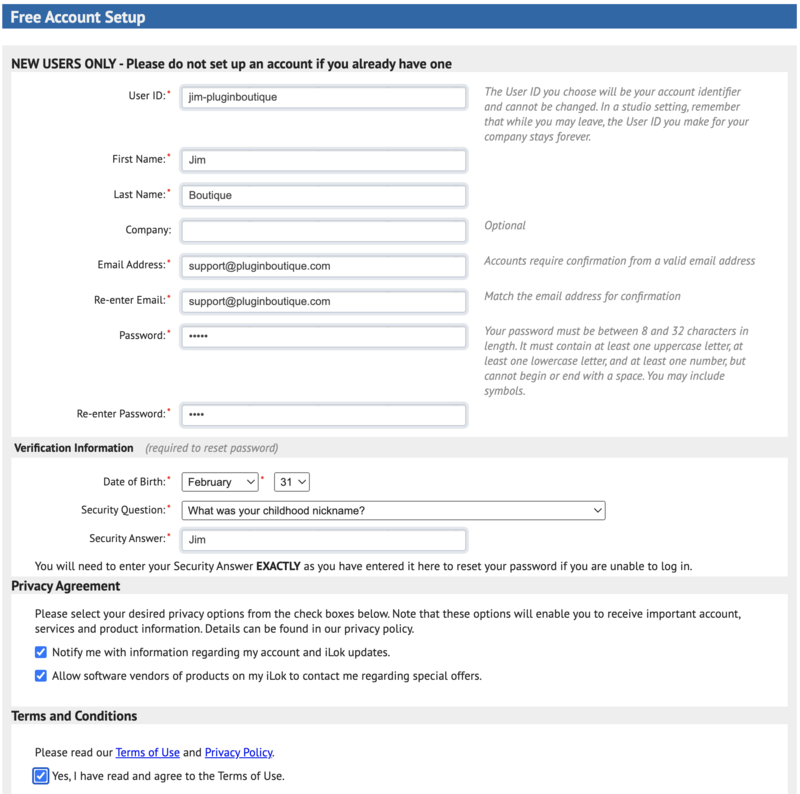
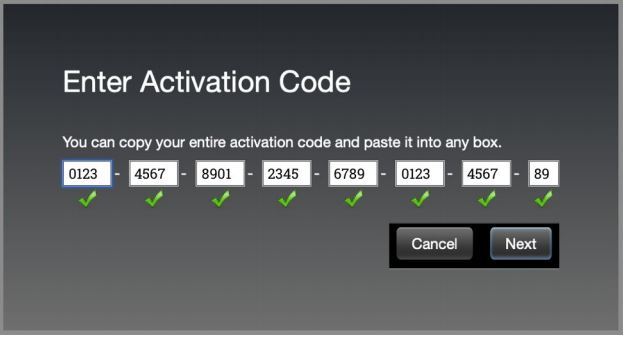
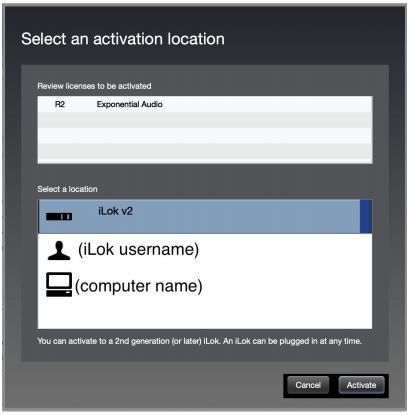
Please Note: A FREE iLok Account is required for the authorisation of this software.