Log In

Free gifts available with your purchase
Reimagined resonances from India
Naada is the Sanskrit term for "sound" or "tone". Rooted in the ancient wisdom of Nada yoga, practitioners believe that sound waves, or nadas, serve as the invisible thread linking the outer and inner cosmos. According to this philosophy, the universe itself resonates with the vibrations of nadas, hidden energies that connect all existence. With Naada, MNTRA Instruments present a contemporary instrument rooted in millenary practices and instruments from both the north and south of India.
Ten years ago, MNTRA founder Brian D'Oliveira's first trip to India sparked a profound transformation, rekindling a connection to his Indian roots and childhood spent in an Ashram, and igniting a lifelong passion for the boundless world of Indian Classical Music. A decade later, guided by his teacher, the esteemed violinist Sangeeta Shankar, daughter of the legendary N. Rajam, MNTRA Instruments embarked on a collaborative journey to create a playable sound world highlighting India's rich musical tradition.
This journey led to some of India's finest musicians in Chennai, where MNTRA meticulously recorded instruments such as the South India Nadaswaram, and North India Sarangi, and Sarod. Back in their studio in the serene wintery woods of Québec, they enriched this collection with instruments gathered during extensive travels across India -Tanpuras and Shruti box, and percussion instruments like the Kanjira and Pakhawaj.
From the outset of this project, MNTRA also wanted to highlight the 22 shruti system, which gives precise access to the specific intonation and tuning of each note in a Raga. Informed by the research of Dr. Vidyadhar Oke, they incorporated presets that harness this system, offering a glimpse into the distinct characters of some of the most popular Ragas.
Unique to Naada is the Anahata-a custom-built one-of-a-kind Indian cello crafted in collaboration with genius luthier Alexandre Letellier at Nouvelle Luthier Labs. With the resonance of 23 sympathetic strings and the deep warmth of its five main playing strings, MNTRA sampled the Anahata in long evolving performances that through round robins and sample start modulation (SSi.l), infinitely change spatial position and expression on every note highlighting its magical qualities.
To further extend the creative possibilities, MNTRA incorporated ambient field recordings from deep within South India's countryside and the vibrant community of Auroville, and then spent several weeks creatively processing and re-amping our recorded sources through a myriad of modular outboard and guitar pedals. This collection of sources creates a harmonious blend of past and present that are multifaceted and can be reinterpreted in a myriad of genres and rhythms.
Designed to inspire creativity across musical styles, Naada invites you to embark on your musical journey. Whether you're exploring ancient ragas or crafting new sonic landscapes, may Naada be your gateway to the universal vibrations that connect us all.
Features
- 190+ Presets
- 40+ Presets with Shruti tuning
- 105 Instrument Sample Maps
- Up to 20 Round Robins
- Up to 4 Microphone Channels
System Requirements
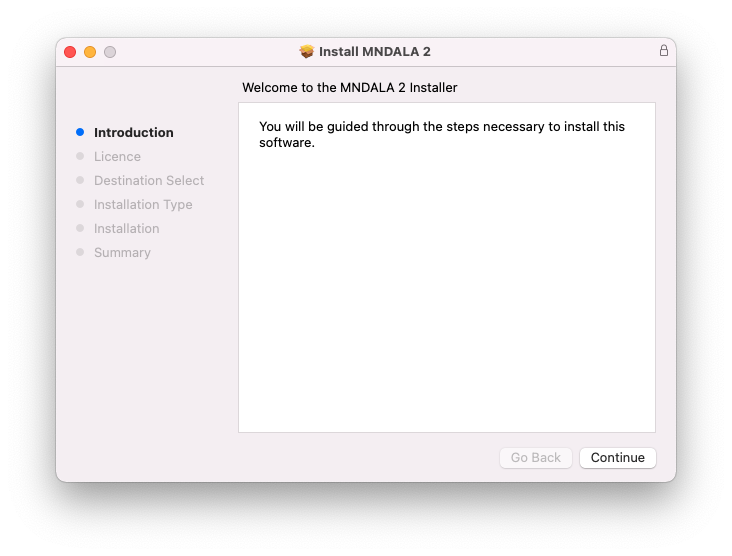
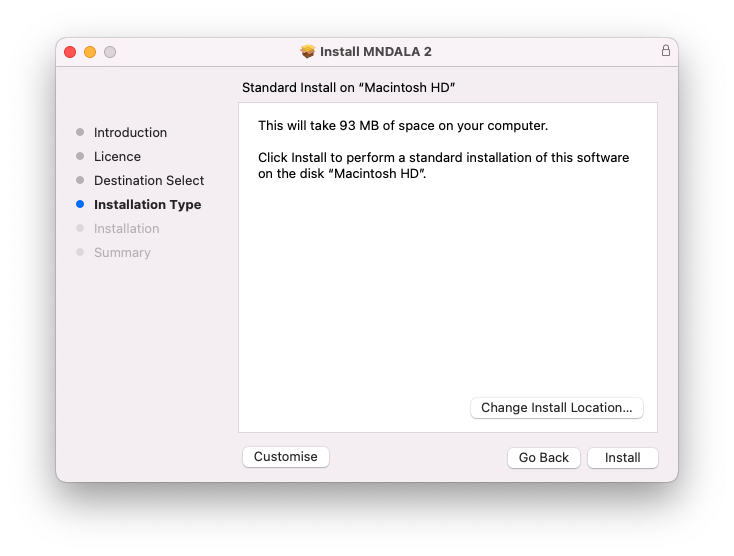
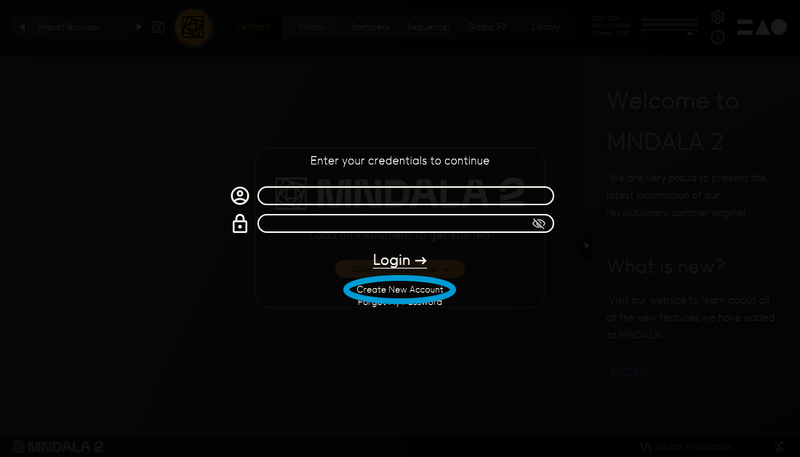
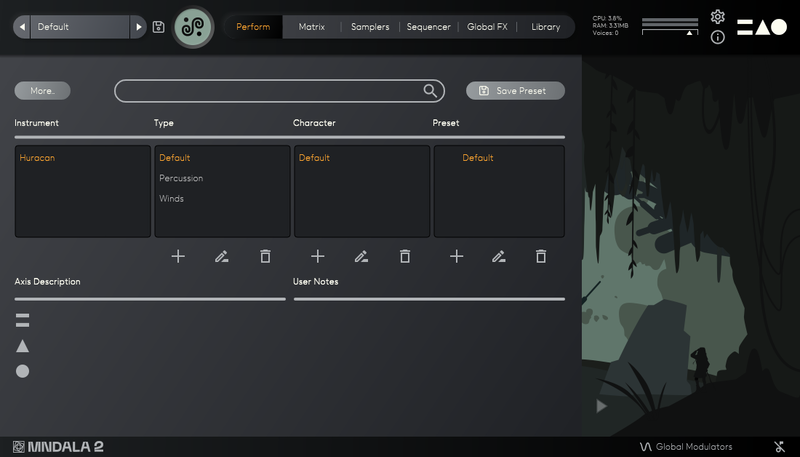
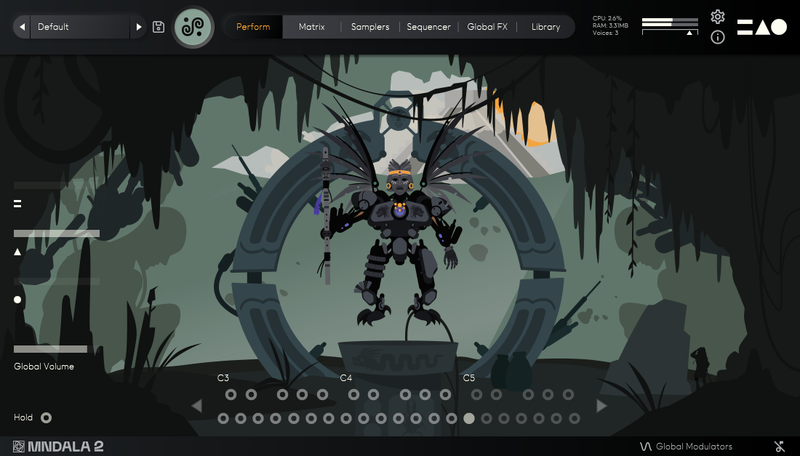
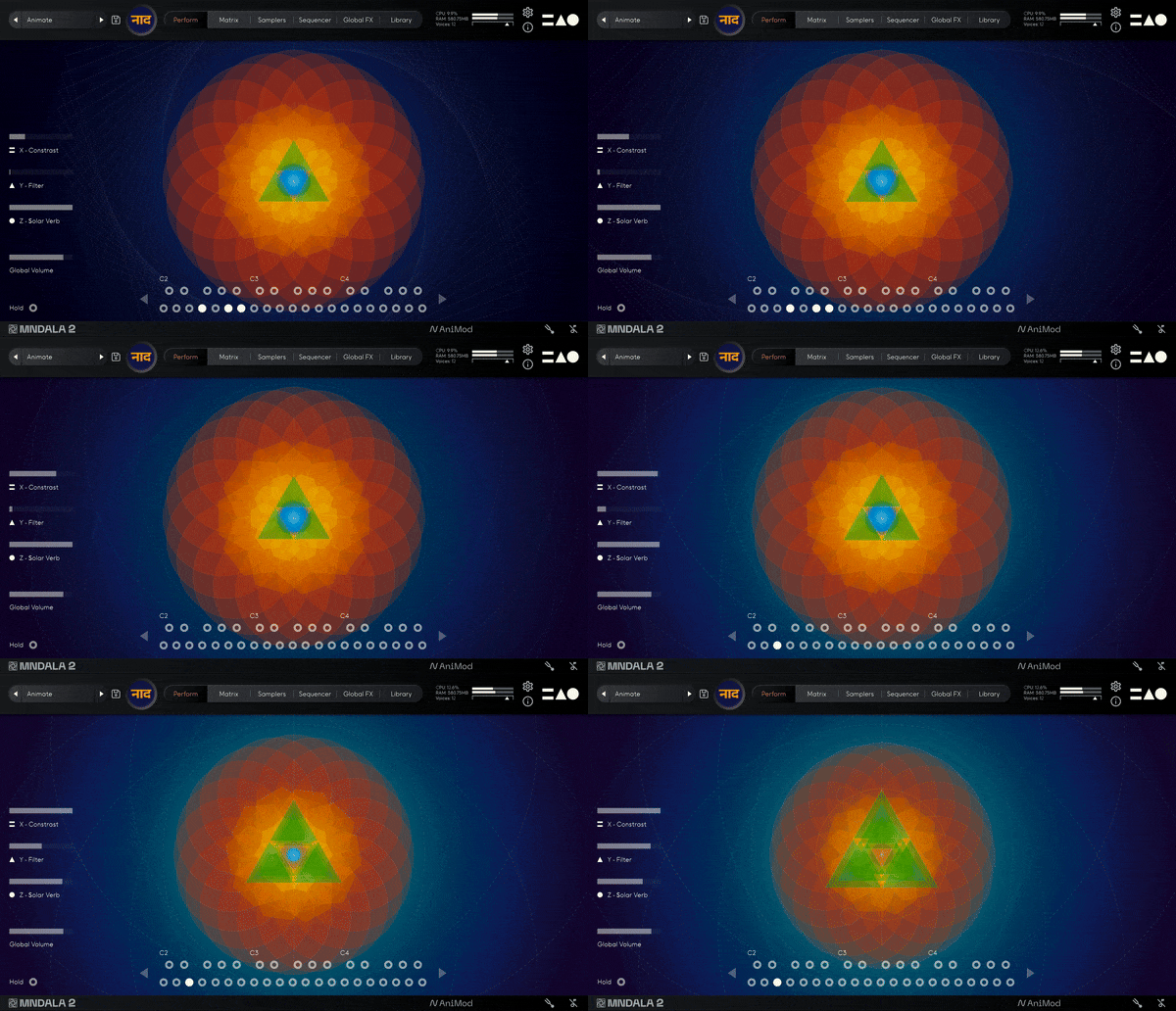
- Engine/parent product: MNDALA 2
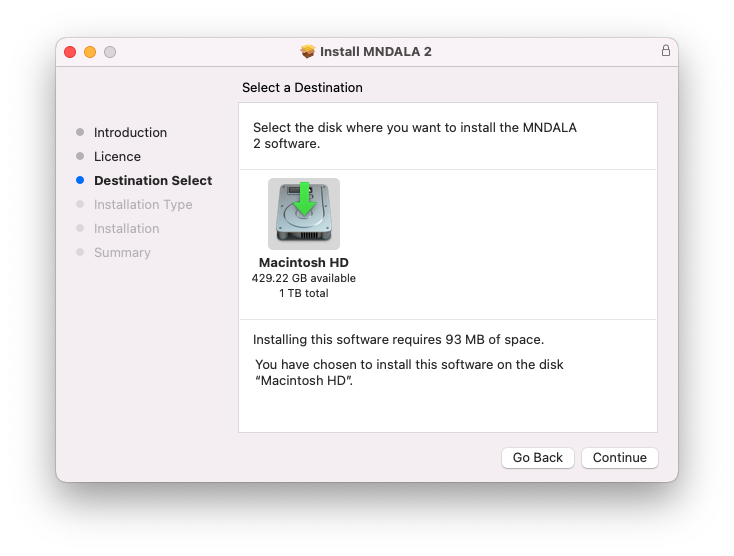
- macOS 10.11+
- Windows 10+
- AAX, VST3 and AU formats available to be used in most DAWs *Mixcraft Pro 9 not supported