/ Filter / Dub Filter
AudioThing

Dub Filter

4.5 (35 Reviews)
$33.63 $59.00

43% off until Jan 05

Main Image
Main Image
Youtube Overview gallery thumbnail
Dub Filter - King Tubby’s Big Knob Plugin - Demo gallery thumbnail
Buy Now
Product information

Vintage High Pass Filter

King Tubby’s Big Knob

Dub Filter is a filter plugin modeled after King Tubby’s iconic Big Knob, a passive high-pass filter with eleven frequency steps from 70Hz to 7.5KHz. This filter defined the sound of the entire “roots” era of Jamaican music.

On top of the main stepped Frequency knob and the Impedance (resonance), the filter also offers control over its behavior including Magnetism, Character, Dynamics, and Artefacts controls.

Also included are two modulation sources, LFO and Envelope Follower, to enhance the creative possibilities of the plugin, from rhythmic pulsations to organic filter movements.

Altec 9069B High Pass Filter

Dub Filter is based on the Altec 9069B High Pass Filter as used by King Tubby (and many others) at King Tubbys Studio in Waterhouse, Jamaica. Known infamously as King Tubby’s Big Knob.

Altec launched the 9069B filter in the 60s. It was a passive inductor-based T-network filter that provided 18 dB/oct attenuation with 10 positions.

King Tubby is considered a true pioneer of dub music and his experimentation with an MCI console and Altec filter, along with spring reverbs and delays, led to the creation of his signature style.

The Plugin

AudioThing meticulously replicated the original filter’s behavior, expanding it with additional controls and modulation. In particular, three controls allow you to modify the filter behavior in depth:

  • Magnetism: Controls the non-linear model of the inductance being used in the circuit emulation, affecting the slope and intensity of the generated harmonic content
  • Character: Controls the non-linear behavior of the filter, controlling the amount of harmonic content generated
  • Dynamics: Controls how smooth is the frequency change made by the non-linear physical model of the inductance; with extreme settings, the model might sound like an envelope filter

Features

  • Stepped High Pass Filter
  • LFO modulation with multiple waves
  • Envelope Follower modulation
  • Non-linearities and Inductance controls
  • Resizable Window
  • Preset system with randomizer
  • Brightness and Contrast Controls

System Requirements

Windows

  • Windows 7-11
  • 2GHz CPU, 4 GB RAM
  • VST2, VST3, AAX, CLAP (64-bit)   

Mac

  • OS X 10.13 – macOS 14
  • 2GHz CPU, 4 GB RAM
  • VST2, VST3, AU, AAX, CLAP (64-bit)
  • Universal 2 Binary
  • Apple Silicon (M chips) Native (Universal 2 Binary)
Installation Instructions

Please note: Speaker is used as the example.

Windows

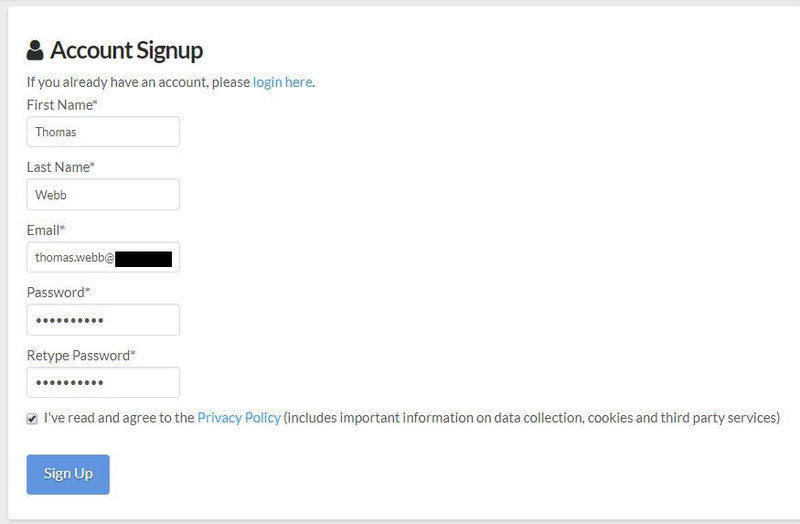
1. Visit the AudioThing Login/Registration Page and enter your personal details to set up an account > then read the 'Privacy Policy' and tick the box before clicking 'Sign Up'.

Note: If you already have an existing AudioThing account, Login here and skip to step 3 of the installation process. 

2. A confirmation email will now be sent to your registered email > click the link within the email to activate your account and Login here.

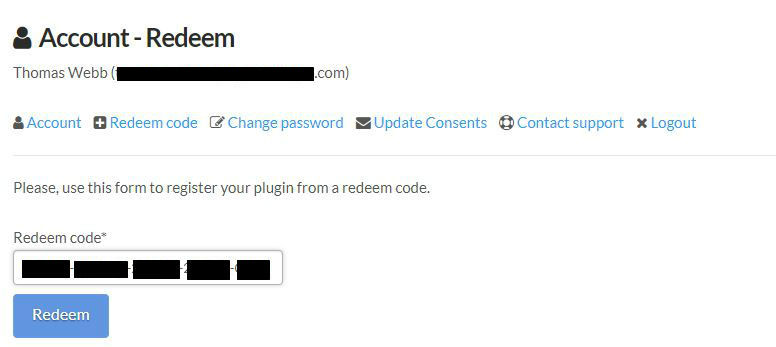
3. Once logged into your account, visit the Redeem Page and copy and paste the serial number from your User Account into the box provided > then click 'Redeem'.

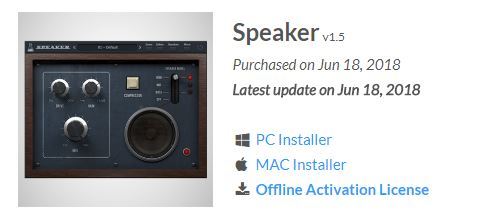
4. Download your preferred installer as well as the Activation Licence Key.

Note: Click the ‘license.atl’ file, e.g ‘speaker_license.atl’ to download it to your computer > be sure to save this to a memorable computer location so that you can easily locate and upload it when activating your software. 

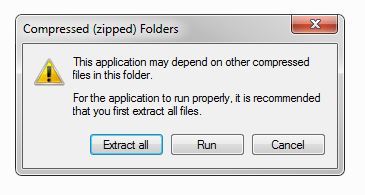
5. Double-click the compressed folder to reveal the installer file.

6. Double-click the extracted .exe file > click ‘Run' to open the installation window. 

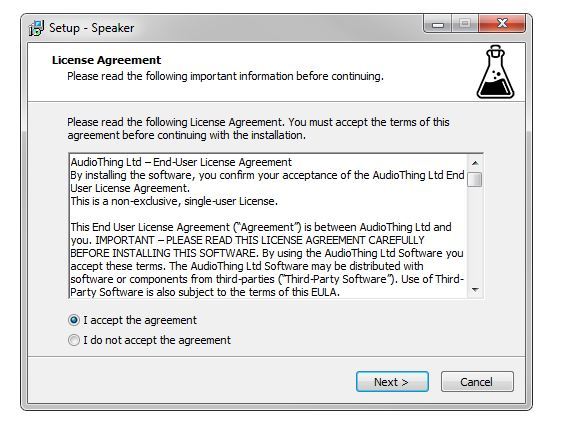
7. Read through the license agreement and click ‘I accept the agreement’ > click ‘Next’.

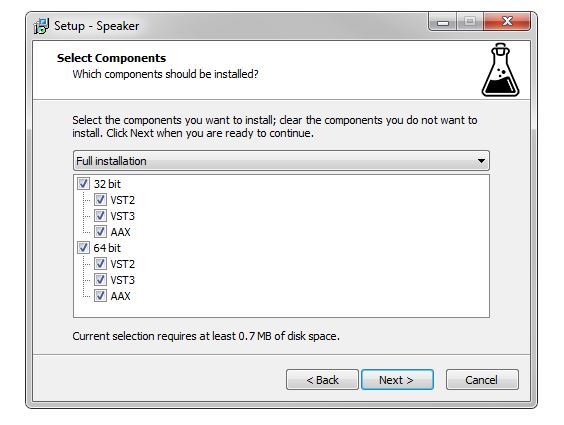
8. Select the component (s) that you wish to install > click ‘Next’.

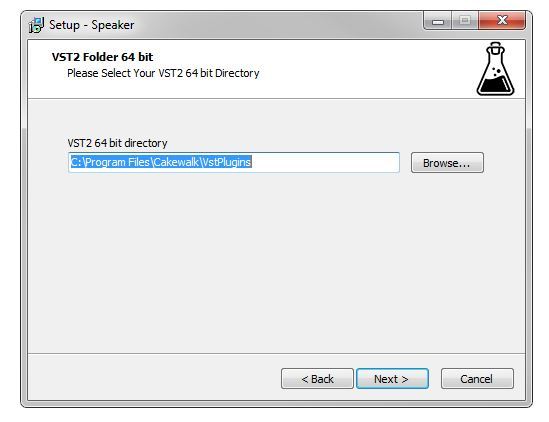
9. Choose and confirm the 64-bit plugin directory in which to save your software to > click ‘Next’. 

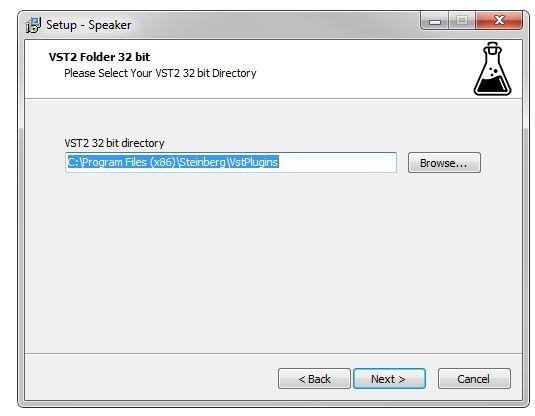
10. Choose and confirm the 32-bit plugin directory in which to save your software to > click ‘Next’.

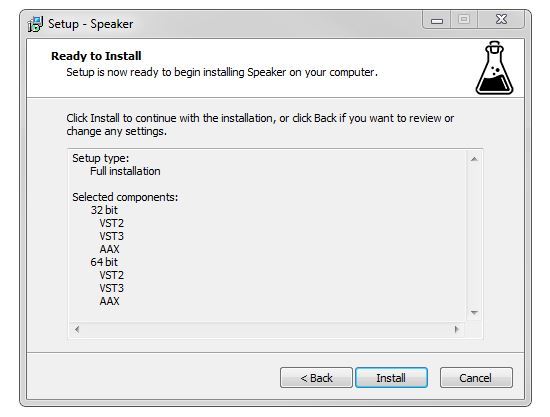
11. Review the installation and click ‘Install’. 

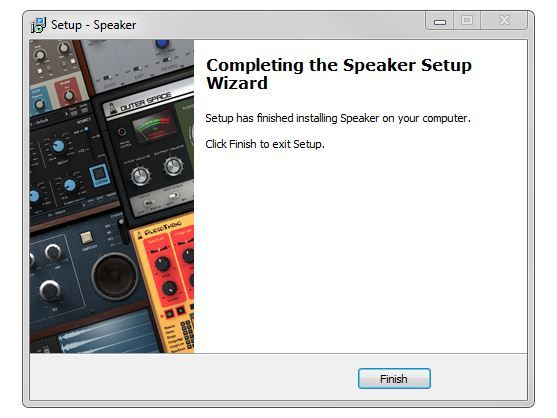
12. The installation of your software has successfully completed > click ‘Finish’.

Offline Activation

1. Restart your DAW, and rescan your plugin selection to show the new installation (in the event it fails to appear). 

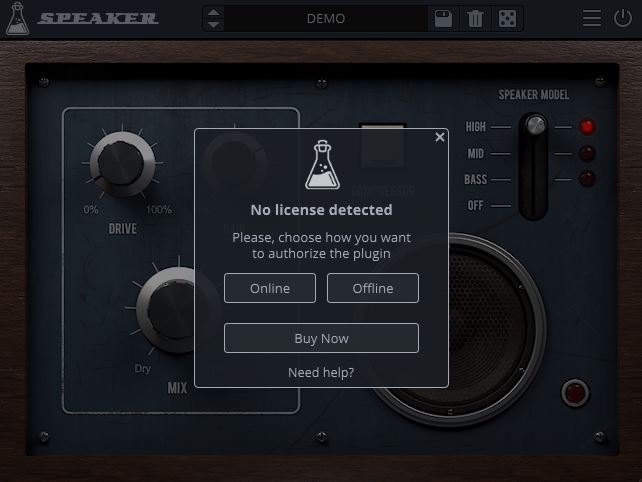
2. Locate and open the plugin on an appropriate track. You will be greeted by the window shown below > click 'Offline'.

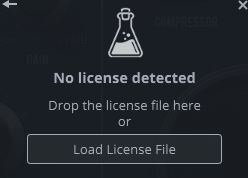
3. Load or drag and drop the downloaded Key License File into the box to activate your software. 

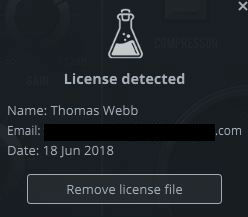
4. The software is now activated and ready for use within your DAW.

Online Activation

1. Restart your DAW, and rescan your plugin selection to show the new installation (in the event it fails to appear). 

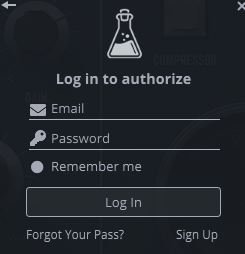
2. Locate and open the plugin on an appropriate track. You will be greeted by the window shown below > click 'Online'.

3. Enter your registered account email and password details > click 'Log In'.

4. The software is now activated and ready for use within your DAW.

Mac

1. Visit the AudioThing Login/Registration Page and enter your personal details to set up an account > then read the 'Privacy Policy' and tick the box before clicking 'Sign Up'.

Note: If you already have an existing AudioThing account, Login here and skip to step 3 of the installation process. 

2. A confirmation email will now be sent to your registered email > click the link within the email to activate your account and Login here.

3. Once logged into your account, visit the Redeem Page and copy and paste the serial number from your User Account into the box provided > then click 'Redeem'.

4. Download your preferred installer as well as the Activation Licence Key.

Note: Click the ‘license.atl’ file, e.g ‘speaker_license.atl’ to download it to your computer > be sure to save this to a memorable computer location so that you can easily locate and upload it when activating your software. 

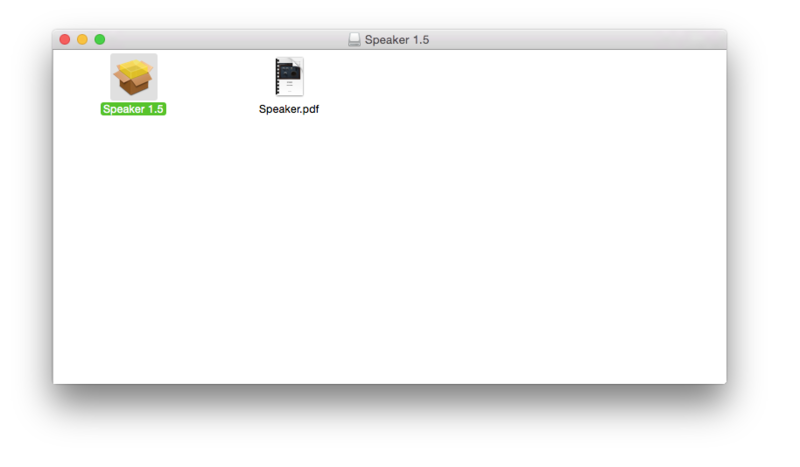
5. Double-click the .dmg file to open the installer window. 

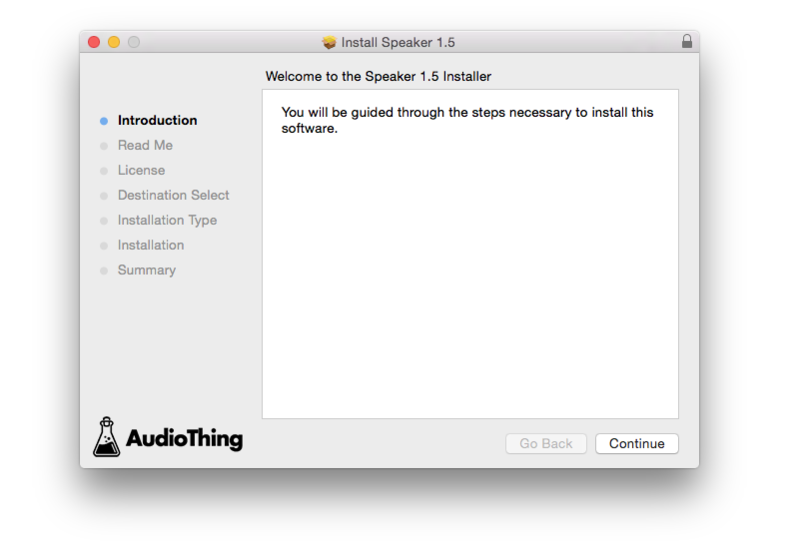
6. Double-click the installer icon to begin the installation process > click ‘Continue’.

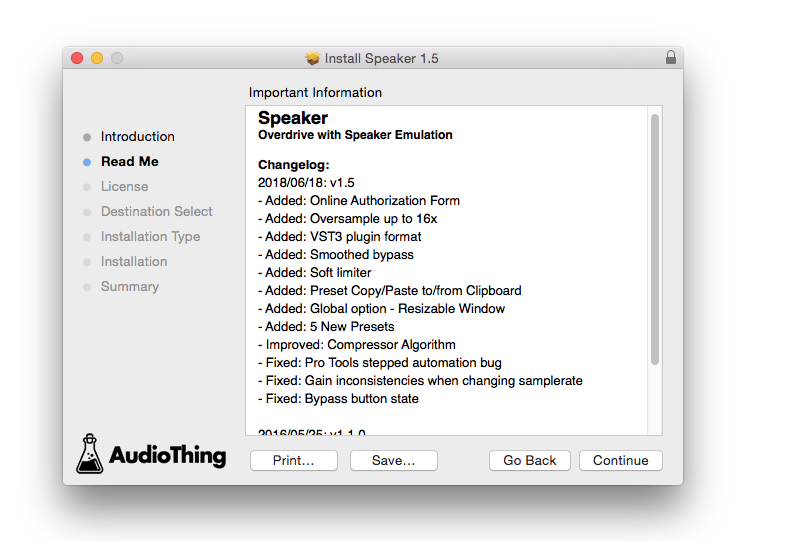
7. Read the info and click ‘Continue’.

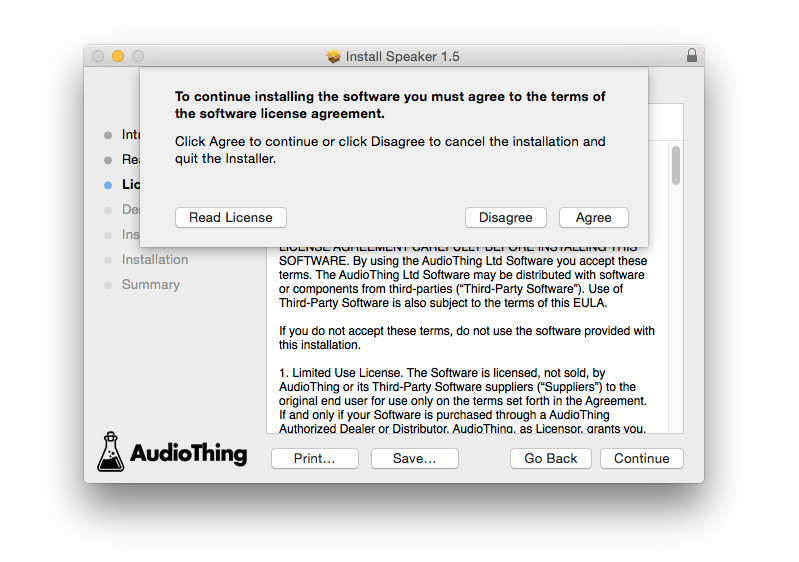
8. Read the Software License Agreement > click ‘Continue’ and then ‘Agree’.

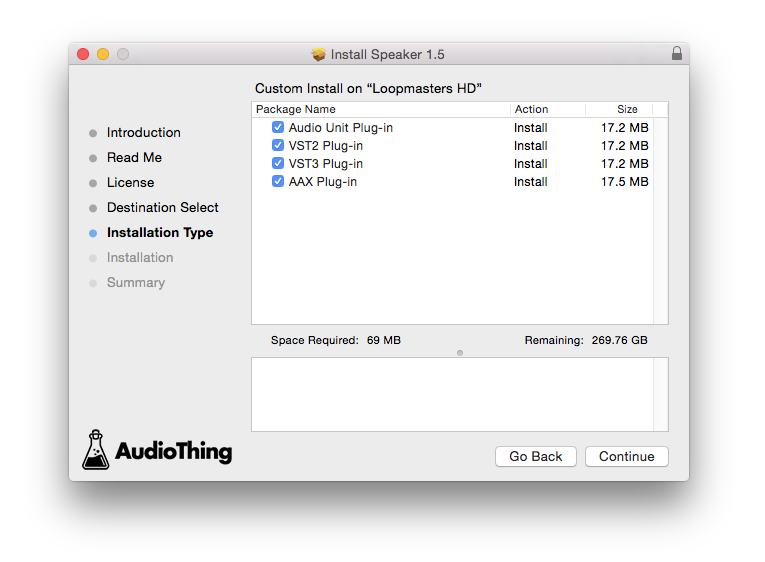
8. Select the component (s) that you wish to install to your computer, and click ‘Continue’. 

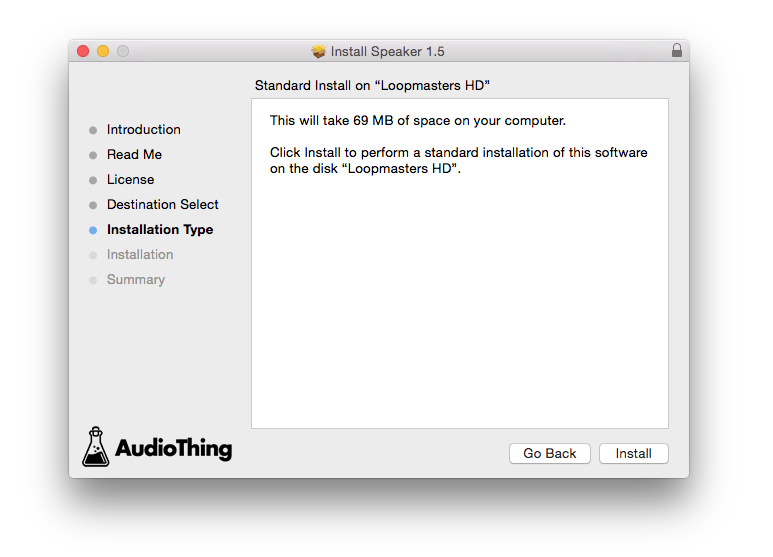
9. Review the installation and click ‘Install’.

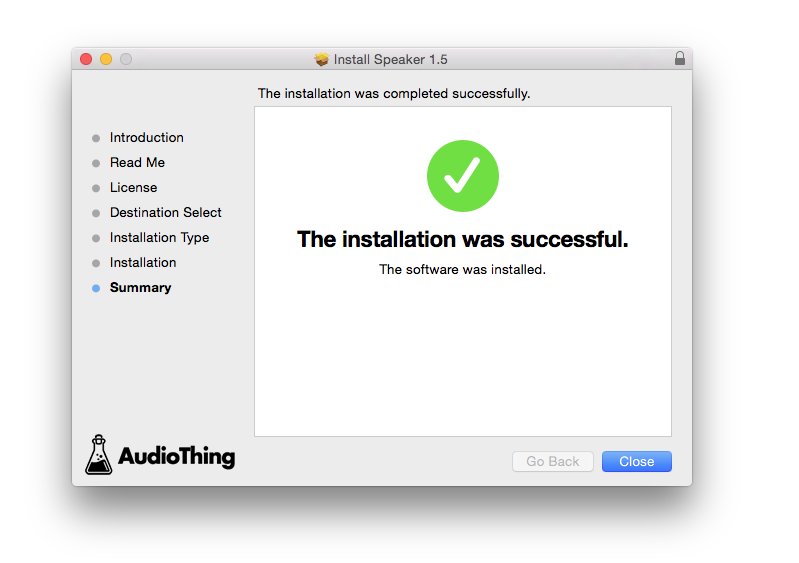
10. The installation of your software has successfully completed > click ‘Close’. 

Offline Activation

1. Restart your DAW, and rescan your plugin selection to show the new installation (in the event it fails to appear). 

2. Locate and open the plugin on an appropriate track. You will be greeted by the window shown below > click 'Offline'.

3. Load or drag and drop the downloaded Key License File into the box to activate your software. 

4. The software is now activated and ready for use within your DAW.

Online Activation

1. Restart your DAW, and rescan your plugin selection to show the new installation (in the event it fails to appear). 

2. Locate and open the plugin on an appropriate track. You will be greeted by the window shown below > click 'Online'.

3. Enter your registered account email and password details > click 'Log In'.

4. The software is now activated and ready for use within your DAW.

Plugin Boutique Rewards

Discover the most rewarding loyalty programme among all plugin retailers.

  • Free Loopmasters Samplepacks
  • Discounts on products and courses
  • Extra Virtual Cash claimed immediately at checkout
Find out more

Follow us:

X (Twitter) Facebook YouTube Instagram
Logo Logo

Plugin Boutique Limited, Part of the Beatport Group LLC.

Copyright © 2011-2025 Plugin Boutique. All rights reserved