Buy Things – Fold, get a free gift with purchase:
Dynamic Wavefolder
Things – Fold is a versatile wavefolder plugin designed for both subtle and extreme dynamic saturation. Inspired by the legendary Serge Wave Multipliers, known for their classic diode-based circuit design, Fold combines wavefolding with an envelope follower, low-pass and high-pass filters, and adjustable feedback. This combination allows for a wide range of creative sound design possibilities, from gentle harmonics to crunchy distorted sounds.
Wavefolding is a type of waveshaping where the signal is folded back on itself. Instead of clipping the signal, wavefolding inverts the waveform, creating a series of peaks and valleys. It can be highly effective for adding complex harmonics to basic waveforms. Depending on the settings, wavefolding can also be used for mild saturation to subtly color a signal or pushed to extremes for intense, aggressive distortion.
Things – Fold is available for MAC, PC, and LINUX (VST, VST3, AU, AAX, CLAP, 64-bit only)
Features
- Dynamic Wavefolder
- Envelope Follower
- High Pass + Low Pass Filter
- Feedback
- Preset System with Randomizer
- Resizable Window
- Brightness and Contrast Controls
System Requirements
Windows
- Windows 7 – 11
- 2GHz CPU, 4 GB RAM
- VST2, VST3, AAX, CLAP (64-bit)
Mac
- macOS 10.13 – macOS 14
- 2GHz CPU, 4 GB RAM
- VST2, VST3, AU, AAX, CLAP (64-bit)
- Universal 2 Binary
Linux
- Ubuntu 20.04 LTS
- 2GHz CPU, 4 GB RAM
- VST2, VST3, CLAP (64-bit)
Note: Wave Box is used as the example.
Windows
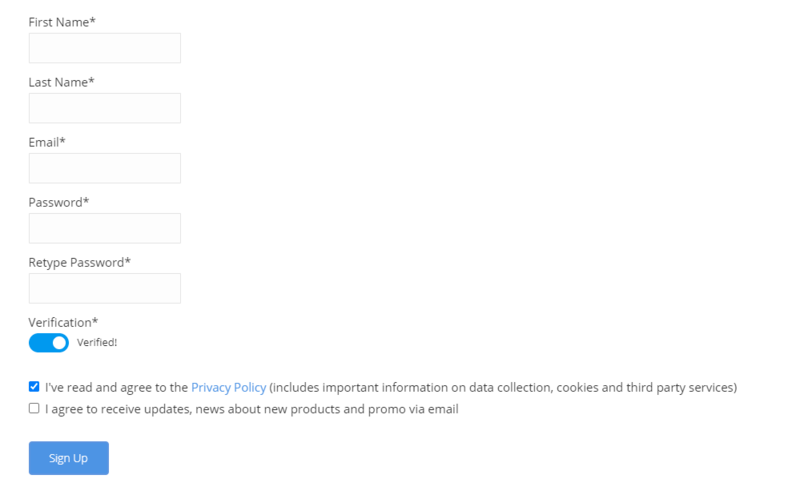
1. Visit the AudioThing Account Signup Page and enter your personal details to set up an account. Click the Verification and "I've read and agree to the Privacy Policy" > Click Sign Up.
Note: If you already have an existing AudioThing account, Login here and skip to step 3 of the installation process.

2. A confirmation email will now be sent to your registered email > click the link within the email to activate your account and Login here.
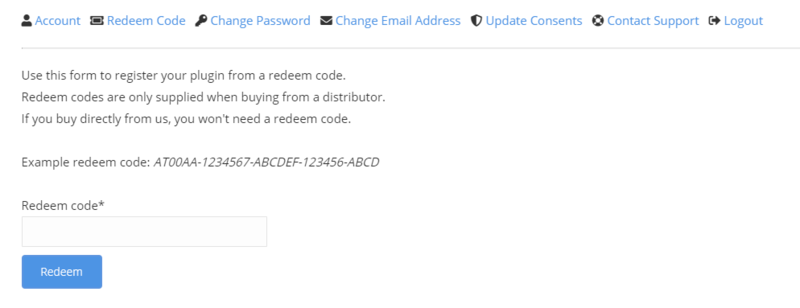
3. Once logged into your account, visit the Redeem Page and enter Redeem Code from your Plugin Boutique User Account into the box > Click 'Redeem'.

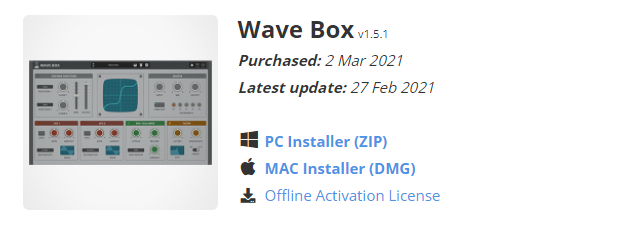
4. Download the PC installer and the Offline Activation License.
Note: Save the Offline Activation License to a memorable location on your computer for activating the software.

5. Double-click the downloaded .zip folder to extract its contents.
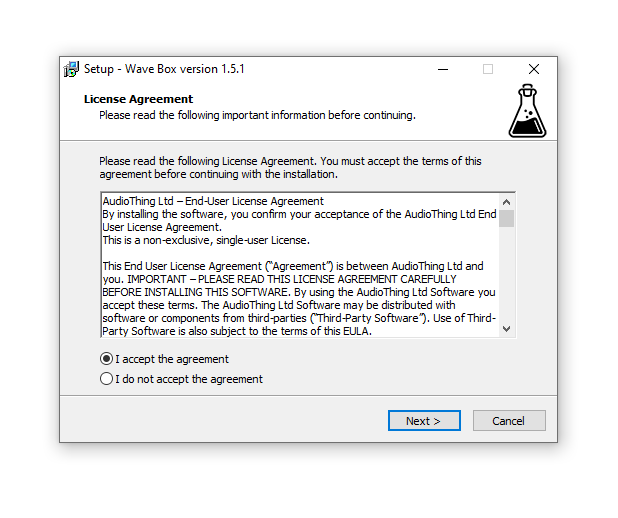
6. Double-click the extracted .exe file > click 'I accept the agreement and click 'Next'.

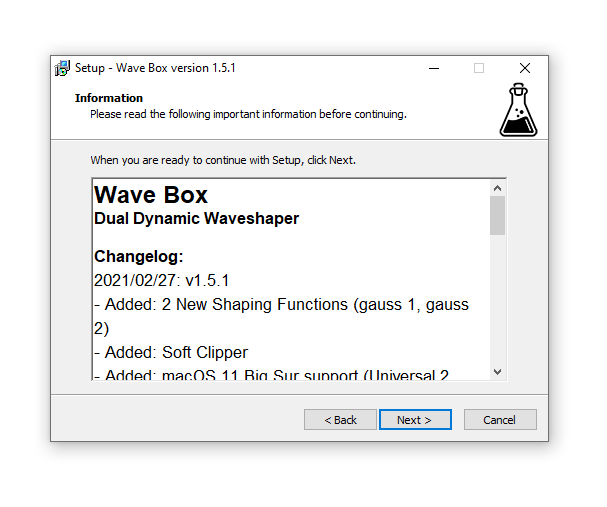
7. Click 'Next'.

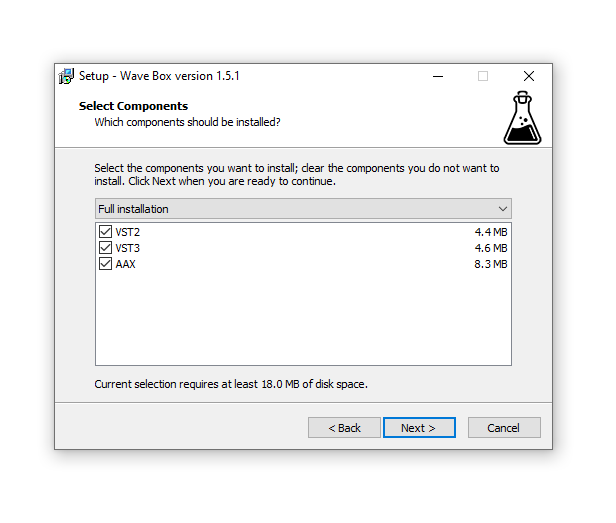
8. Select the components that you wish to install > Click ‘Next’.

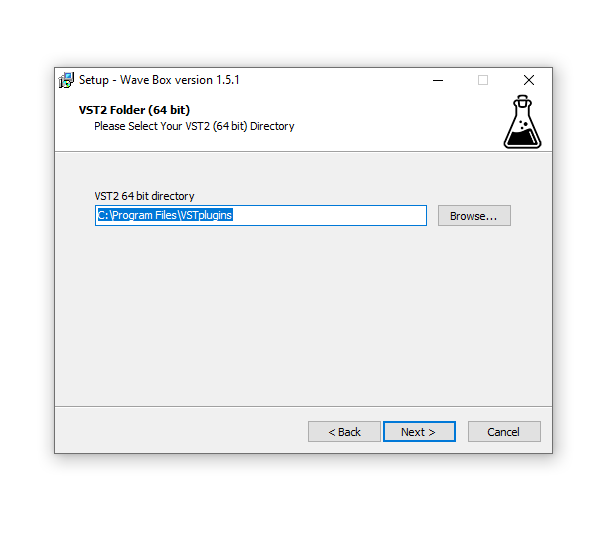
9. Click ‘Next’.

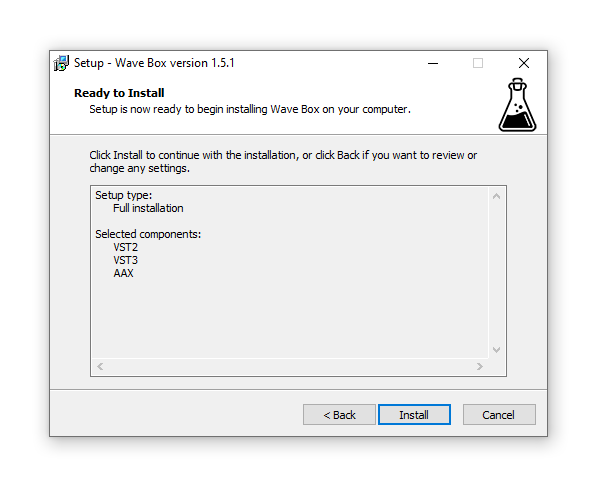
10. Click 'Install'.

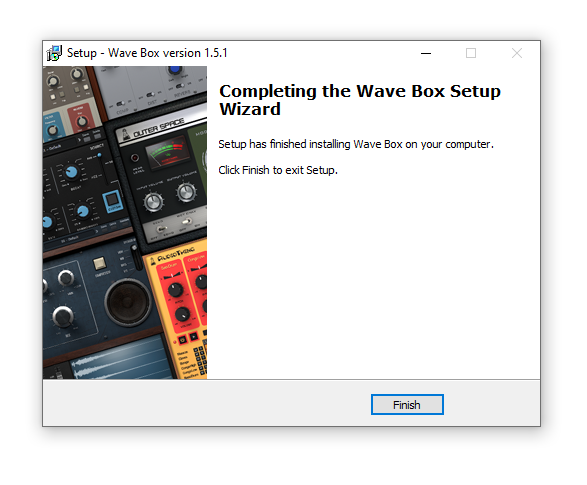
11. Click ‘Finish’.

Offline Activation
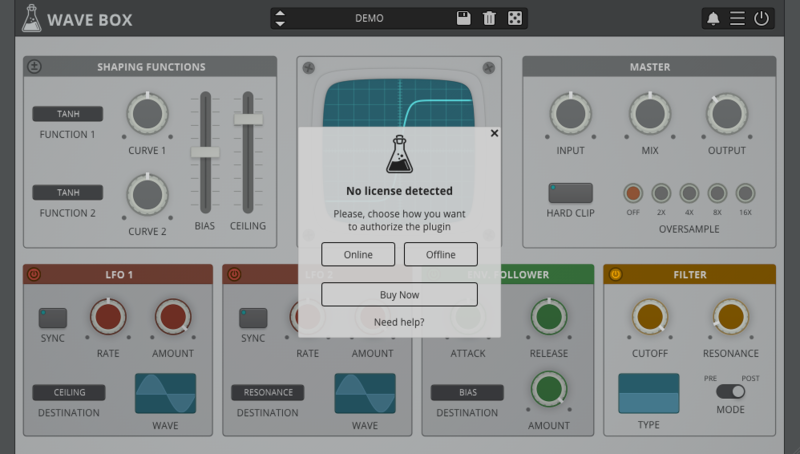
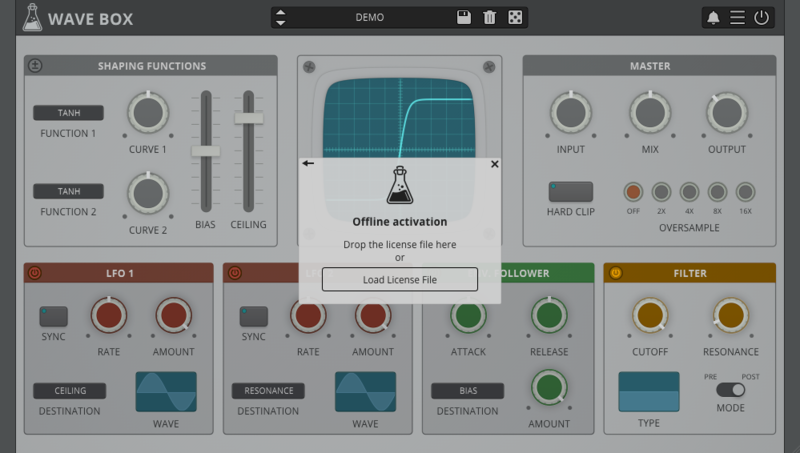
1. Open Wave Box inside of your DAW > Click 'Offline'.

2. Click 'Load Licence File' and navigate to your Offline Activation License.

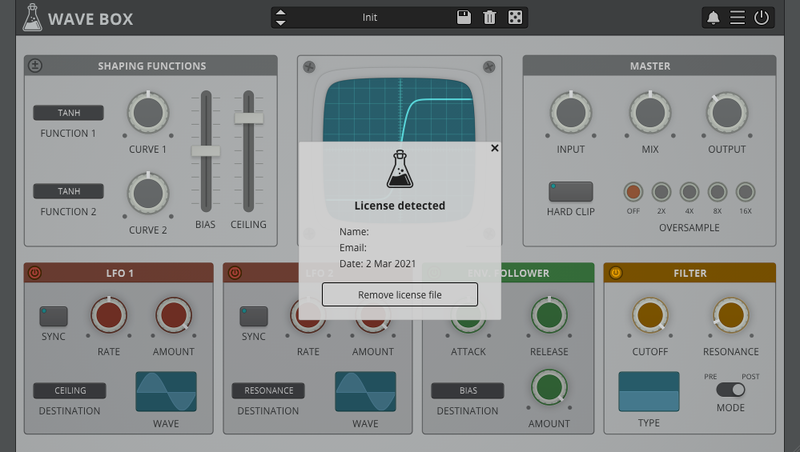
3. Click the X to close the box.

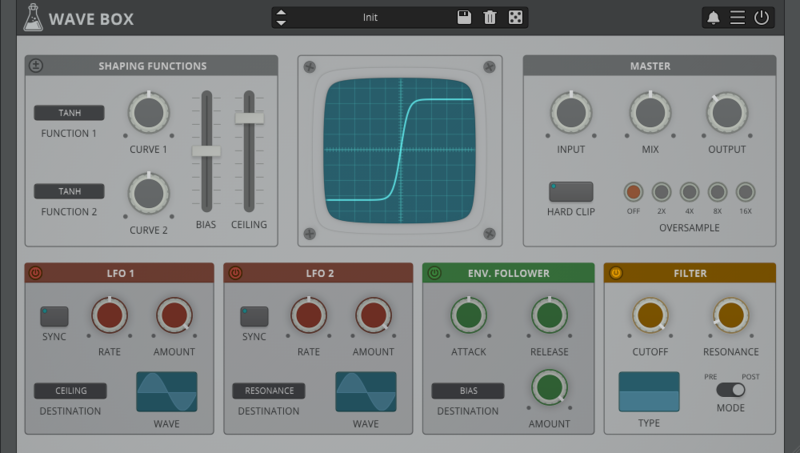
The software is now activated and ready to use inside your DAW!

Online Activation
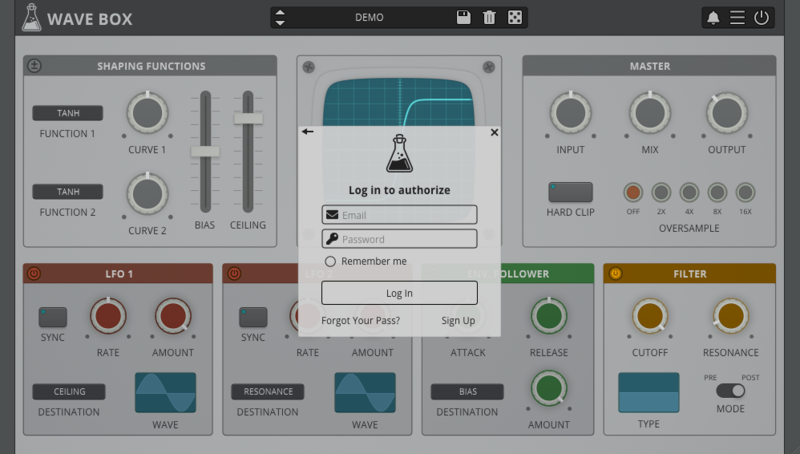
1. Open Wave Box inside of your DAW > Click 'Online'.

2. Enter your AudioThing email and password > Click 'Log In'.

3. Click the X to close the box.

The software is now activated and ready to use inside your DAW!

Mac
1. Visit the AudioThing Account Signup Page and enter your personal details to set up an account. Click the Verification and "I've read and agree to the Privacy Policy" > Click Sign Up.
Note: If you already have an existing AudioThing account, Login here and skip to step 3 of the installation process.

2. A confirmation email will now be sent to your registered email > click the link within the email to activate your account and Login here.
3. Once logged into your account, visit the Redeem Page and enter Redeem Code from your Plugin Boutique User Account into the box > Click 'Redeem'.

4. Download the MAC installer and the Offline Activation License.
Note: Save the Offline Activation License to a memorable location on your computer for activating the software.

5. Double-click the downloaded .dmg folder to extract its contents > Double-click the .pkg file to run the installer
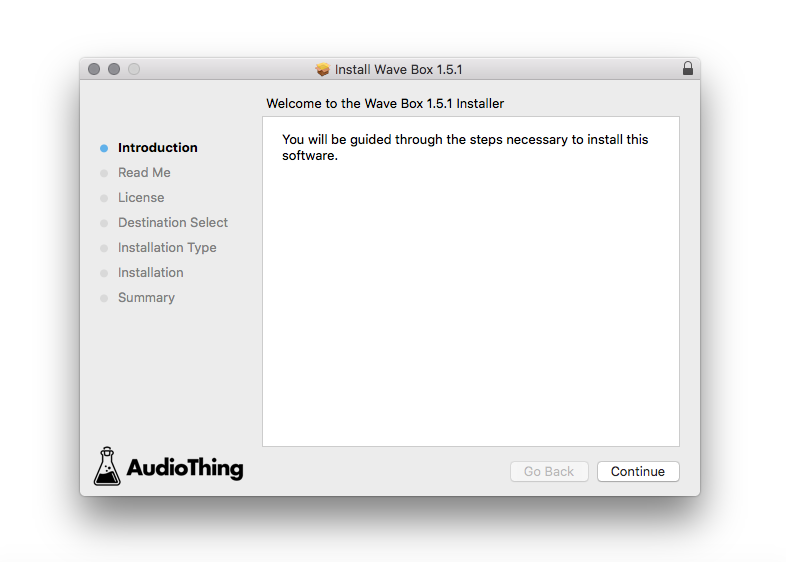
6. Click 'Continue'.

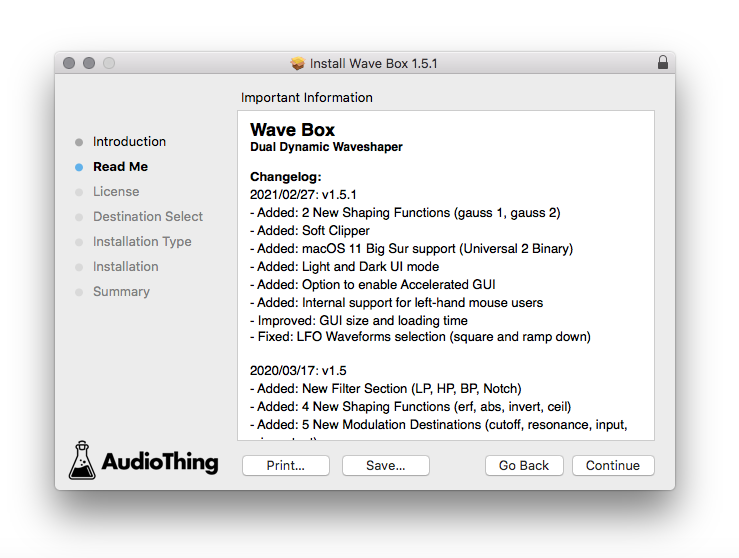
7. Click ‘Continue’.

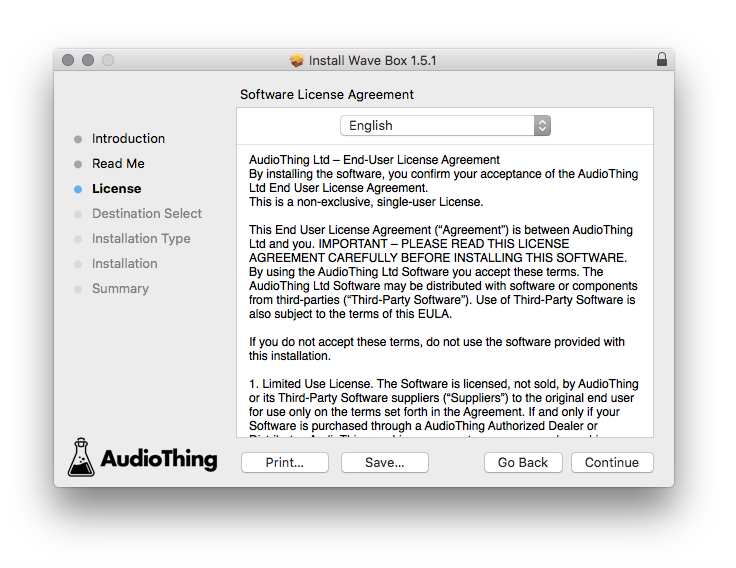
8. Click 'Continue'.

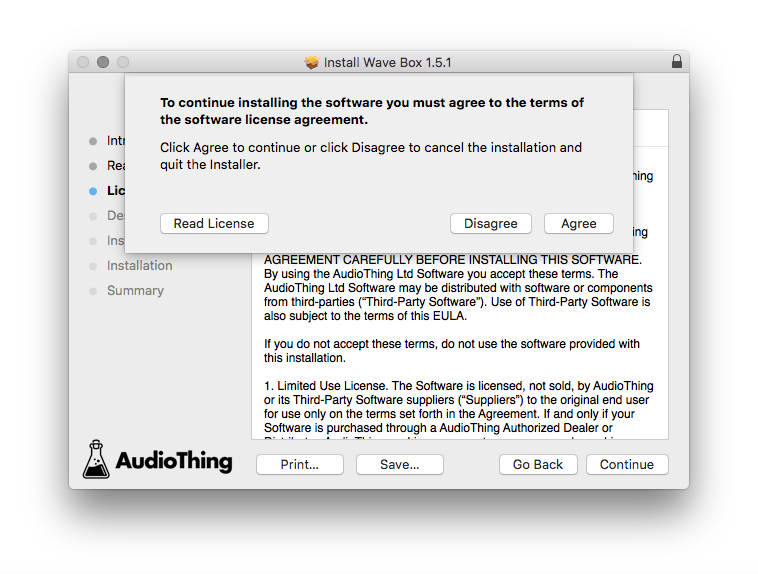
9. Click ‘Agree’.

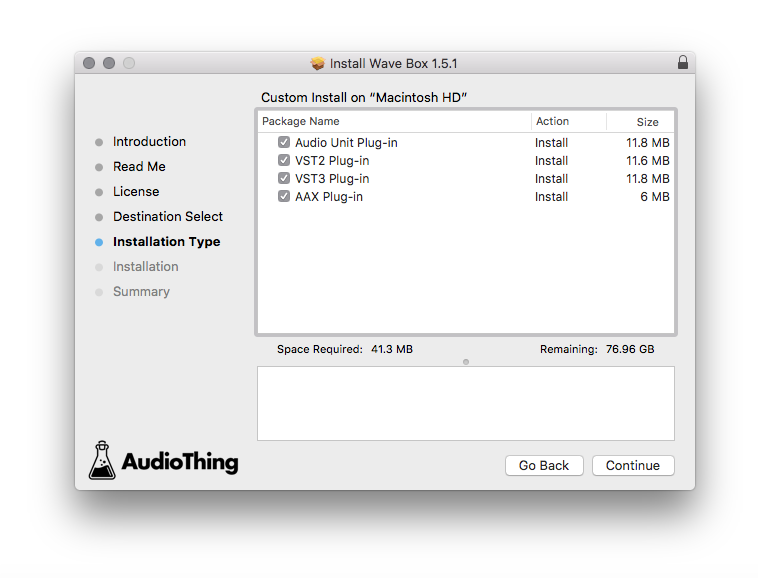
10. Select the components you would like to install > Click 'Continue'.

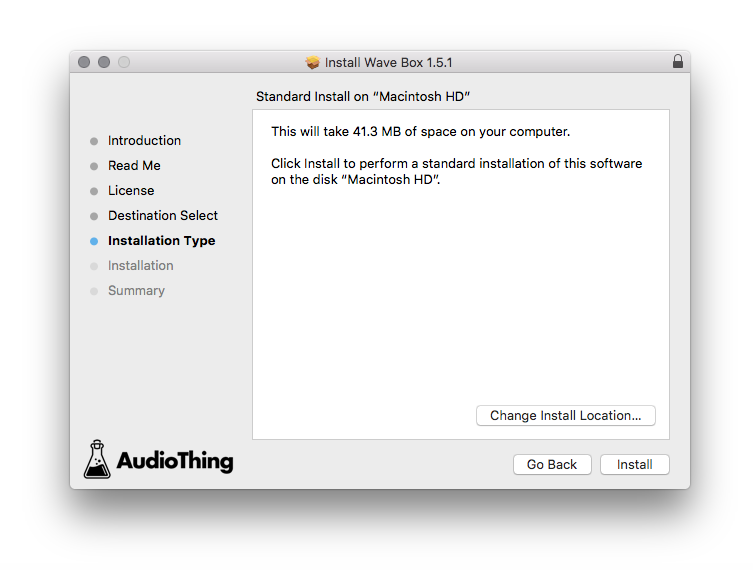
11. Click ‘Install’.

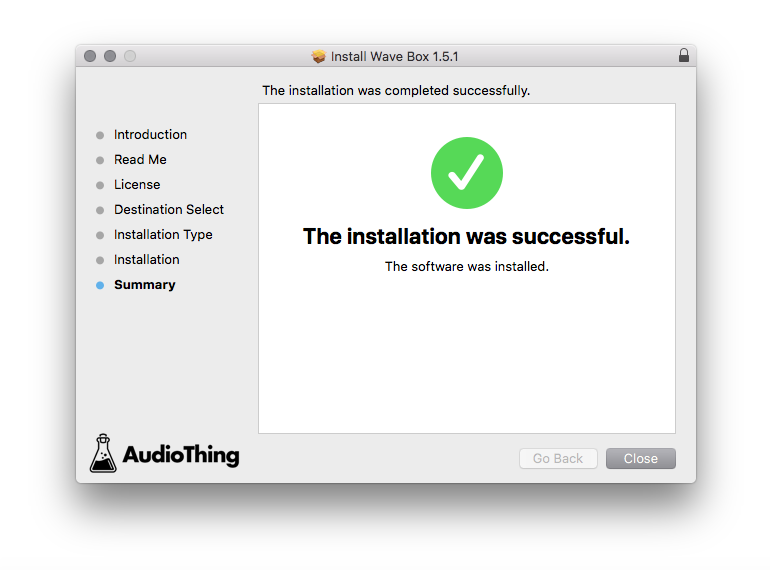
12. Click 'Close'.

Offline Activation
1. Open Wave Box inside of your DAW > Click 'Offline'.

2. Click 'Load Licence File' and navigate to your Offline Activation License.

3. Click the X to close the box.

The software is now activated and ready to use inside your DAW!

Online Activation
1. Open Wave Box inside of your DAW > Click 'Online'.

2. Enter your AudioThing email and password > Click 'Log In'.

3. Click the X to close the box.

The software is now activated and ready to use inside your DAW!