


 Log In

Free gifts available with your purchase
Product information
AudioTrack
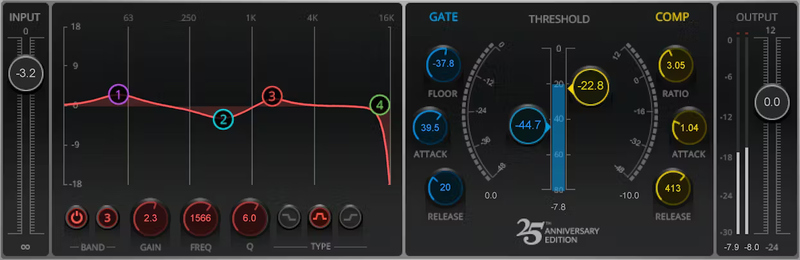
EQ and Dynamics in One Easy-to-Use Interface
When working in your DAW, there’s no need to put together a basic channel strip from multiple plugins—AudioTrack has already done the work for you. Optimize tone with four bands of parametric EQ, banish noise with gating, and tame or boost peaks with compression/expansion.
Because of its low CPU power, AudioTrack can also save time: to have EQ and dynamics available as soon as you start a project, insert an instance in every channel of a basic song template.
Features
- Select bell, high-shelf, or low-shelf response for all 4 bands
- Choose filter responses for the low and high bands
- Tame peaks and add power with compression
- Emphasize percussive peaks with upward expansion
- Touch-friendly multipoint user interface
- Choose Modern dark interface, or Legacy light interface
- Prevent clipping, by using input and output faders for gain-staging
- Extensive metering gives visual feedback on the audio’s status
- Easily covers podcasting, narration, and voiceover needs
- Includes 48 presets for guitar, voice, drums, keyboards, etc.
System Requirements
Mac
- macOS Monterey 12, Ventura 13, Sonoma 14, Sequoia 15
- VST / AU / AAX
PC
- Windows 10+
- VST / AAX
Installation Instructions














