


 Log In

Free gifts available with your purchase
Product information
Q10 Equalizer
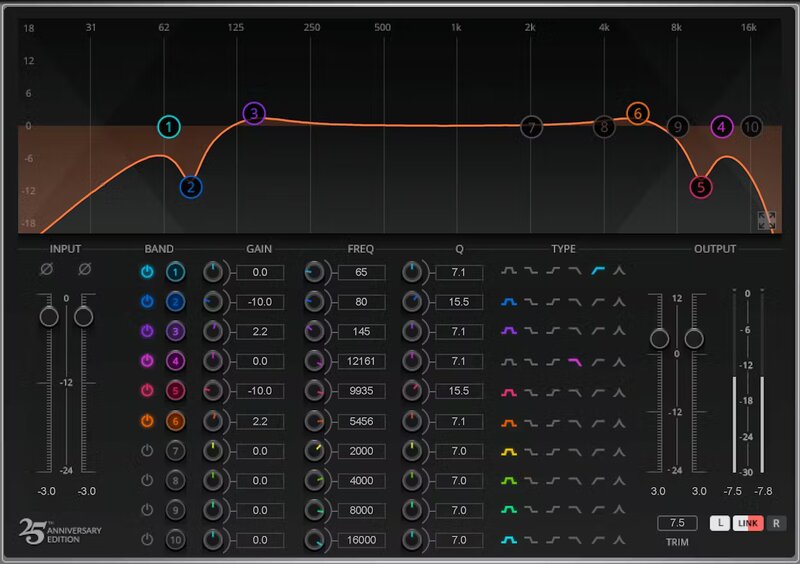
Pinpoint Precision with True Transparency
As it celebrates 30 years of service to the pro audio industry, the reason for the Q10’s longevity is simple: it solves problems. The recent 25th anniversary update retains the transparency, versatility, and efficiency of this industry standard, but raises the bar yet again with significant improvements.
With an added proportional-Q curve, double-precision math, and a modern interface that shows all bands or focuses on one, the Q10 is primed for 30 more years of equalization excellence.
Features
- EQ left and right channels independently, or link together
- 10 parametric bands with 6 curves, and controls for Q, freq, and gain
- Combine and stack filters for ultra-deep, steep, or broad curves
- Hipass, lowpass, bell, proportional, high shelf, low shelf for each band
- Modern multitouch-friendly, or space-saving legacy, interface
- Proportional-Q curve keeps the Q proportional to gain
- Enter specific, numeric values for extra precision
- Focus view expands the display, and shows one band’s controls
- Comes with instant expertise—50 factory and artist presets
- Accuracy for surgical fixes, transparency for tone shaping
System Requirements
Mac
- macOS Monterey 12, Ventura 13, Sonoma 14, Sequoia 15
- VST / AU / AAX
PC
- Windows 10+
- VST / AAX
Installation Instructions














