


 Log In

Free gifts available with your purchase
Product information
SSL G-Equalizer
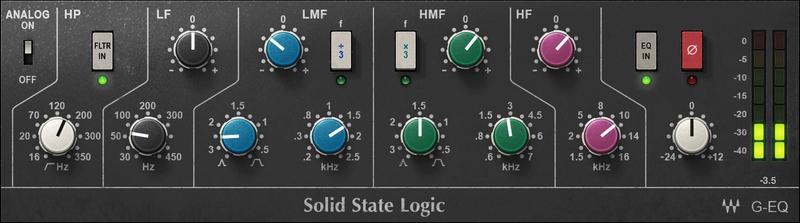
Prioritize Character with This Classic SSL EQ
The channel strip EQ in SSL consoles has been a huge factor in the enduring popularity of the SSL sound. SSL produced several channel strip EQ variations over the years, with each type having its own special, distinct character. The 292 was one of the last iterations of SSL’s famed EQ designs.
The G-EQ is modeled after the rack-mounted version of SSL’s G 292 EQ, boasting the “pink knob” EQ. When engineers prioritize character and shape over detail, the fabled 292 is often their EQ of choice.
Features
- Proportional-Q design for gentler tonal shifts, and smooth sound
- 2 fully parametric stages, 2 shelving stages, 2 filters (LP, HP)
- HMFx3 and LMF÷3 buttons switch center frequencies with one click
- Steep high-pass filter for tight, low-frequency control
- Analog on/off switch for analog character, or digital transparency
- Parametric stages have greater boost and cut than previous EQs
System Requirements
Mac
- macOS Monterey 12, Ventura 13, Sonoma 14, Sequoia 15
- VST / AU / AAX
PC
- Windows 10+
- VST / AAX
Installation Instructions














