


 Log In

Free gifts available with your purchase
Product information
X-FDBK
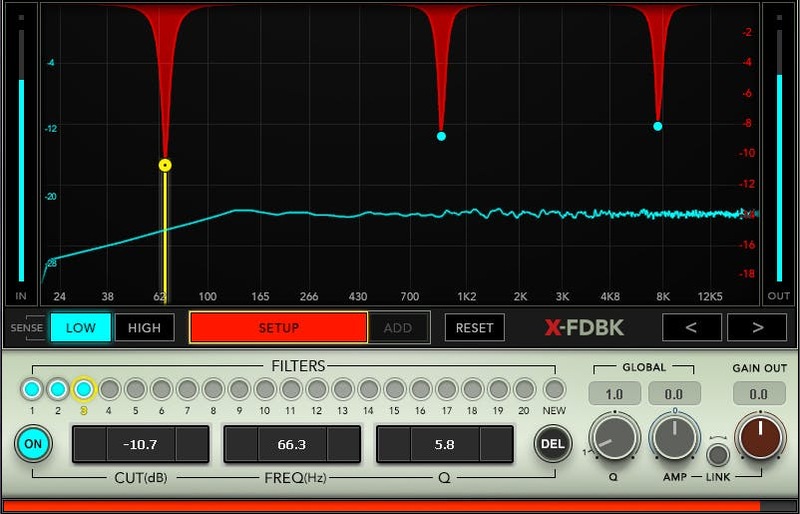
Eliminate Feedback Automatically in Live Shows
Feedback is despised by everyone—audience, performers, and live sound engineers. Fortunately, X-FDBK doesn’t like feedback either, and will do everything possible to eliminate it, efficiently and automatically—in a way that dramatically reduces your setup time.
X-FDBK helps you ring out the PA quickly and accurately, in a set-it-and-forget-it way. The plugin identifies the main frequencies that cause feedback, and notches them out automatically—so you can get on with the show, and start mixing.
Features
- Get clearer, louder, feedback-free sound from your monitors and PA
- X-FDBK automatically cuts the frequencies that cause feedback
- Regain several dB’s of extra headroom before feedback occurs
- Automated setup requires only one person to ring out the PA
- Up to 20 filters are available to notch feedback frequencies
- Automatically optimizes filter bandwidth and amount of cut
- Compensate for unexpected changes, with global filter controls
- Display analyzes incoming audio, and overlays notch filter responses
System Requirements
Mac
- macOS Monterey 12, Ventura 13, Sonoma 14, Sequoia 15
- VST / AU / AAX
PC
- Windows 10+
- VST / AAX
Installation Instructions














