


 Log In

Free gifts available with your purchase
Product information
WNS Noise Suppressor
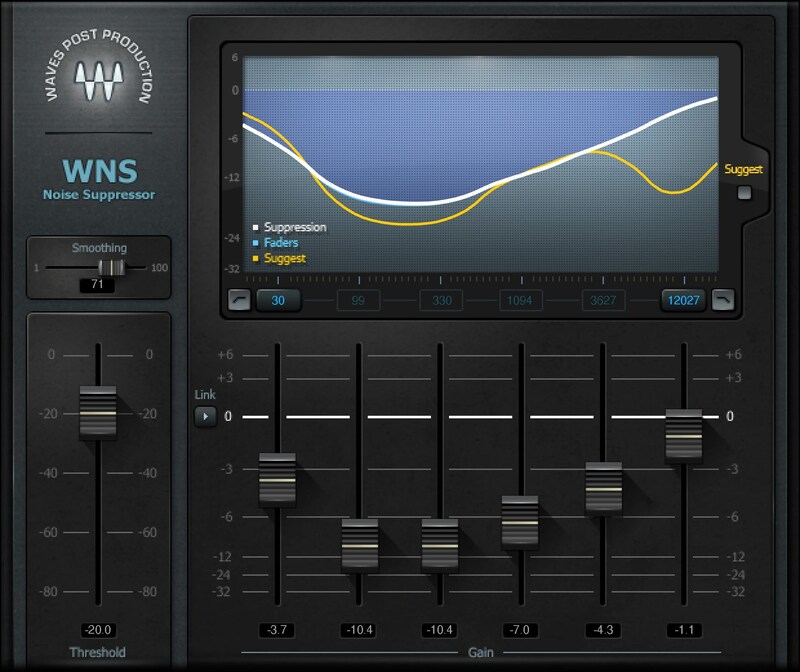
Clean Up Vocals—Quickly, Gently, and Effectively
Noise is always an unwelcome guest with vocal-based projects. But to banish unwanted room reflections, background noise, and room tone, sometimes the goal of noise reduction isn’t surgical removal of specific short-term noise—it’s about highlighting the voice, by pushing down the noise.
WNS Noise Suppressor is designed specifically for these common situations. It prioritizes bringing the voice forward and retaining its natural qualities, while minimizing distracting backgrounds.
Features
- Gentle, natural-sounding noise reduction
- Reduces background noise using a 6-band dynamic EQ engine
- “Suggest” button provides an initial potential setting
- Adjustable frequency ranges for maximum flexibility
- Improves sound for untreated spaces and outdoor recordings
- Display with visual feedback simplifies tweaking
- Real-time operation, with light CPU load
- Also works with amps and miked instruments
System Requirements
Mac
- macOS Monterey 12, Ventura 13, Sonoma 14, Sequoia 15
- VST / AU / AAX
PC
- Windows 10+
- VST / AAX
Installation Instructions












Customer Reviews
(1)


