/ Utility / Feedback Hunter
Waves

Feedback Hunter

$49.99 $149.00

66% off until Dec 07

Waves Feedback Hunter
Waves Feedback Hunter gallery thumbnail
Buy Now
Product information

Feedback Hunter

Effortless Feedback Control for Live Sound Engineers

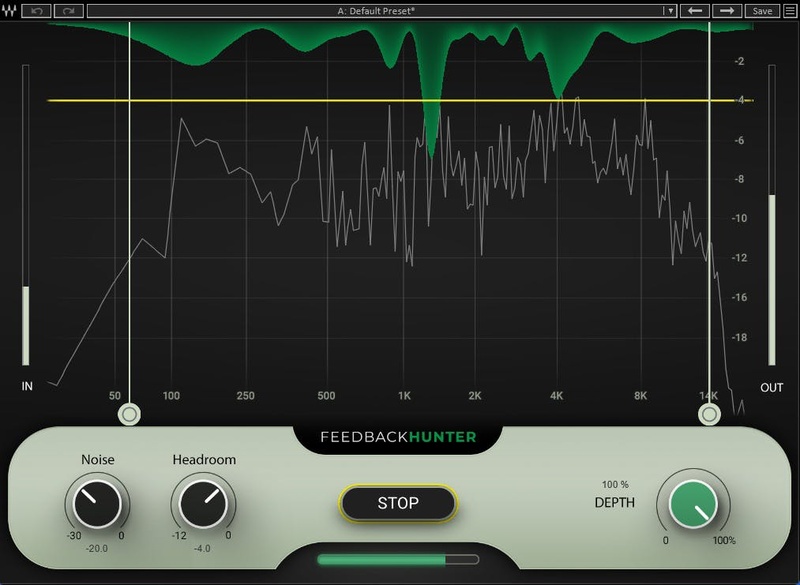
Feedback Hunter is an innovative tool designed for FOH and live sound engineers to ensure maximum gain before feedback—fast. It revolutionizes the way stage monitors and PA systems are set up by analyzing the mic and monitor’s response and creating an EQ curve that optimizes the relationship. This ensures clear sound throughout your live shows, with less risk of feedback.

No more complex, time-consuming processes: Feedback Hunter’s setup can take as little as 30 seconds. With its user-friendly interface, Feedback Hunter is not just for the seasoned sound engineer but for anyone who seeks excellent live sound.

Unlike X-FDBK, which can be used during a live show and produces single notch bands for problematic frequencies, Feedback Hunter processes the whole frequency spectrum and should be used during the setup time, when you are ready to ring out your wedges or PA.

Features

  • Maximize gain before feedback
  • Eliminate the need for ringing-out speakers
  • As little as 30 seconds for the entire process
  • Customize the affected frequency ranges
  • Works in noisy environments
  • Adaptable target headroom

System Requirements

Mac

  • macOS Monterey 12, Ventura 13, Sonoma 14, Sequoia 15
  • VST / AU / AAX

PC

  • Windows 10+
  • VST / AAX
Installation Instructions

1. Head to https://www.waves.com/create-account

2. Enter your email and choose a password to create an account (if you already have a Waves account, choose Log in, enter your details and head to Step 5) > click 'Submit'

3. Open your email inbox > click the activation link in the email from Waves

4. Click 'Log in here' > Log in to your Waves account

5. Click 'Register New Products'

6. Enter the Serial Number found in your Plugin Boutique user account > click 'Submit'

7. Click download in your Plugin Boutique user account or head to https://www.waves.com/downloads/central > download the Waves Central app for your operating system

8. Install Waves Central > Open Waves Central

9. Click 'Log in' > enter your log in details

10. Click the 'Install Products' tab

11. Tick the blue dot on all products you wish to install or click the top dot to install all products > click 'Install & Activate'

12. Click 'OK'

13. Open your DAW > open the Waves plugin

Your Waves plugins are installed and ready to use, enjoy!

Plugin Boutique Rewards

Discover the most rewarding loyalty programme among all plugin retailers.

  • Free Loopmasters Samplepacks
  • Discounts on products and courses
  • Extra Virtual Cash claimed immediately at checkout
Find out more

Follow us:

X (Twitter) Facebook YouTube Instagram
Logo Logo

Plugin Boutique Limited, Part of the Beatport Group LLC.

Copyright © 2011-2025 Plugin Boutique. All rights reserved