


 Log In

Free gifts available with your purchase
Clarity Vx Pro
Clean Dialogue with Unparalleled Quality—in a Fraction of the Time
Eliminate hours of tedious post-production work: Clarity™ Vx Pro’s AI-powered noise reduction cleans voice and vocal recording quickly, in real time, delivering artifact-free results.
Forget about ADR, re-doing scenes, or combining multiple processors and hoping they work: Just insert Clarity Vx Pro, turn the single main knob, adjust a few advanced controls if needed—done.
Clarity’s pioneering Neural Networks are the result of millions of voice files fed into an advanced machine learning engine, with the results vetted by meticulous human evaluation. The outcome: a perfect combination of instant real-time workflow and no-compromise audio quality—a revolution in dialogue post-production.
Features
- Industry-leading noise reduction for voice, exceptional quality
- Real-time with full automation—game changer for post-production
- Fast results—performs all noise reduction tasks in a single pass
- Powered by groundbreaking Waves Neural Networks®
- Edit & mix dialogue in context, inside DAW with all video and audio tracks playing
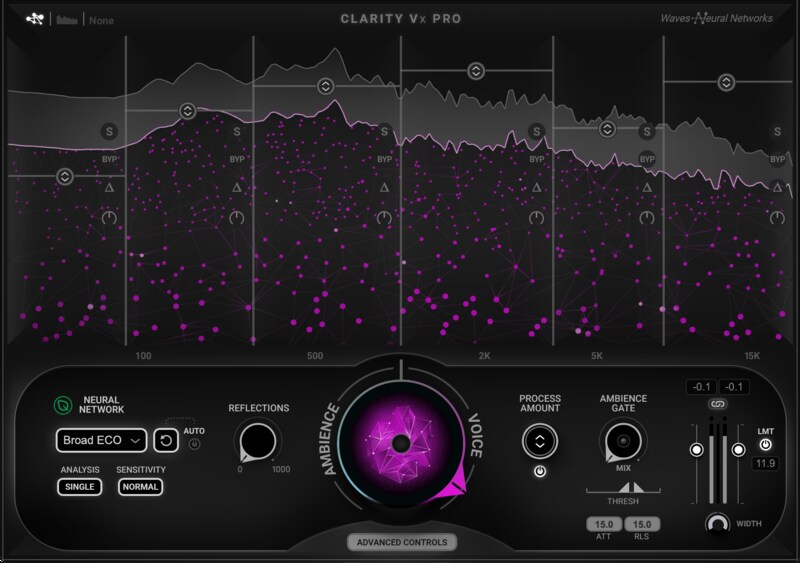
- 6 bands with process amount, solo, delta, bypass, pure gain adjustment, VCA control
- Automate your settings—no need for multiple instances
- Keep background ambience and remove voice to create ‘fills’
- Choose from 4 neural networks to suit your exact needs
- Reflections control smoothly brings back natural reflections
- Neural networks ambience gate to lower voice level between replicas
- Mono/Stereo width control
System Requirements
Mac
- macOS Monterey 12, Ventura 13, Sonoma 14, Sequoia 15
- AU/AAX/VST
PC
- Windows 10+
- VST/AAX














