Log In

Free gifts available with your purchase
PSP EasyVerb v.2, is a multipurpose algorithmic reverberation processor designed to simulate physical spaces or popular reverb machines such as plate and spring reverbs. In developing this plug-in, the PSP team tried to make it simple to use, while offering enough control over each algorithm for you to customize the effect to your specific needs. In other words, they wanted to offer you a reverb that is operationally “easy,” but sonically complex!
PSP EasyVerb consists of ten algorithms: Ambience, Room, Chamber, Club, Hall, Arena, Cathedral, Spring, Plate and Reverse. Each of algorithm exists in three variations. The Legacy variation is the room tuning from PSP EasyVerb version 1, for current users who don’t want to lose their original sounds. The other two variations, Alt1 and Alt2, are new as of version 2.
Each of the algorithms can also be set to one of three sizes: Small, Medium, and Large. The Medium size corresponds to the setting for PSP EasyVerb version 1 – use this setting with the Legacy algorithm to faithfully recreate the sound of version 1.
Each algorithm has adjustable parameters for Decay (reverb time), Damp (high frequency damping to simulate darker rooms) and Predelay. The reverb's frequency spectrum can be then shaped with a 3-band semi-parametric equalizer.
Features
Algorithm Variations:
- Legacy: This is the original sound from PSP EasyVerb version 1, for seamless compatibility with your existing projects – and it still sounds amazing, too!
- Alt1 & Alt2: These new variations, introduced in version 2, give you expanded creative options with their lush new tonalities.
Algorithm Size Options:
- Small, Medium*, and Large:
*Medium: Matches the Room size setting from PSP EasyVerb version 1. When you combine Medium size with the Legacy algorithm, you’ll have access to the authentic (and beloved!) sound of PSP EasyVerb version 1.
Adjustable Parameters:
- Decay: Controls the reverb time to shape the overall room character.
- Damp: High-frequency damping for darker room simulations.
- Predelay: Adjusts the delay before the reverb starts to help you build convincing large spaces.
3-Band Semi-Parametric Equalizer:
- This EQ offers upper and lower shelving bands (that can also work as highpass and lowpass filters) as well as a peaking mid band. You can shape the reverb's frequency spectrum for precise tonal adjustments or to create drastic new effects.
System Requirements
Mac
- OS 10.14 Mojave - 15 Sequoia (64-bit)
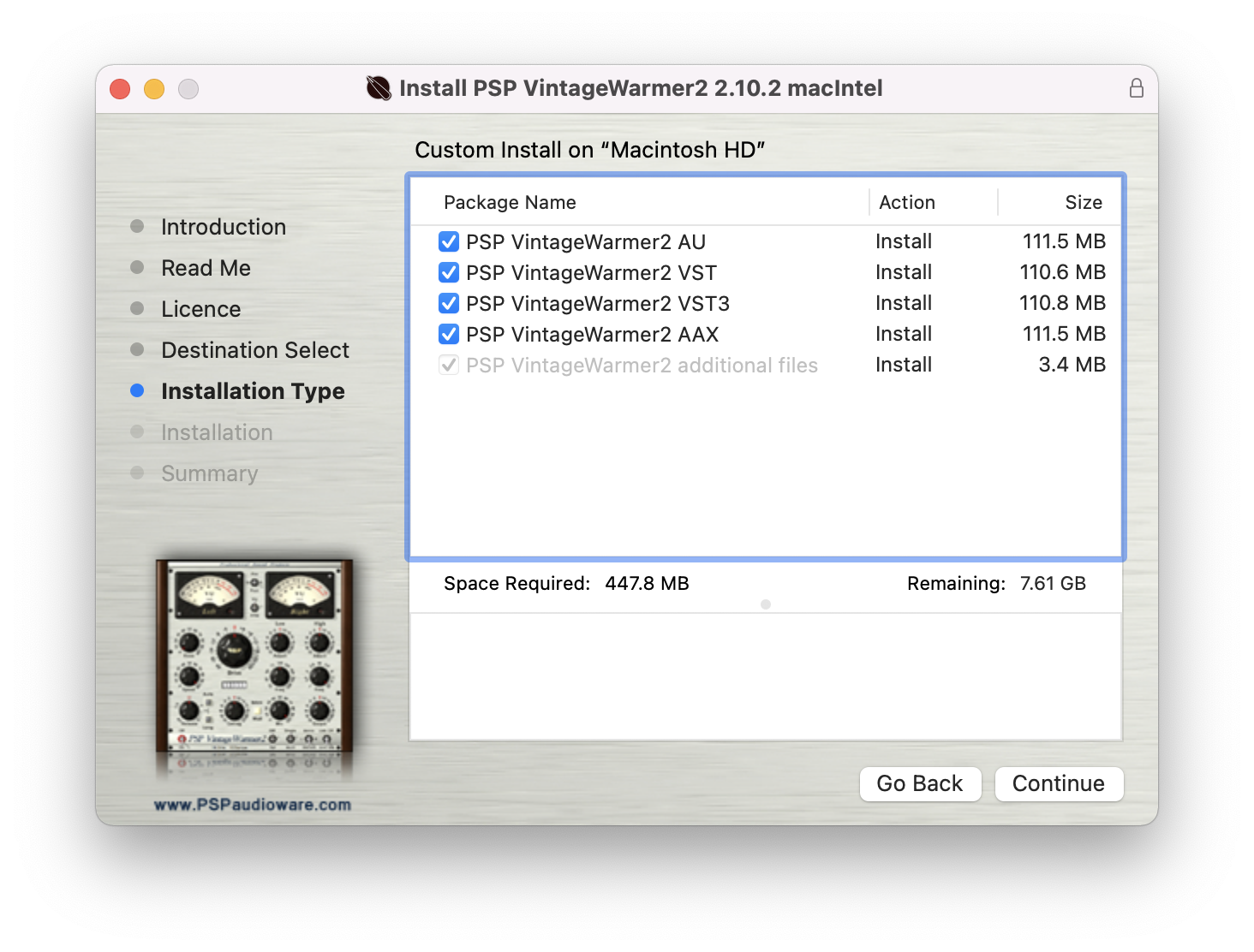
- AU / VST / VST3 / AAX compatible host application
- Up-to-date iLok License Manager application required
Windows
- Windows 7 - 11
- VST / VST3 / AAX compatible host application
- Up-to-date iLok License Manager application required