Buy Glasis, get a free gift with purchase:

A 1950's glass xylophone enhanced for imaginary times.
Glasis is an instrument born from the celestial and pure sounds of small bars of tuned glass, as found in the R.D. Russell MFG and Co Ltd glass xylophone we unearthed in a rural antiques shop. It's been warped, refined, and presented to you in a three voice version that speaks of celestial visions of a tomorrow in a prism filled sky, far away.
- NORMAL - Using a set of vintage ribbon and tube microphones, DDD captured round robin samples of each note of the instrument in detail.
- STRETCH - with the aid of a carefully selected combination of hardware and software time stretching devices, the Stretch voice allows for un-earthly and supernatural sustain of the glass bars.
- BROKEN - The sound of two half functioning walkmans, a broken space echo, and lofi effects pedals combined give the Broken sound. Nostalgic, strange and evocative of somewhere you went in a past life that was slightly dangerous.
System Requirements
- Operating System
- Windows: 10 or 11 (64-bit, latest Service Pack).
- macOS: 12, 13, or 14 (latest update).
- Kontakt 8 Full or Player is requires to use this instrument

Note: This product is compatible with the FREE Kontakt 8 Player
Please Note: Trinity Drums 2 by Sonuscore is used as an example.
Mac
1. Download the zip file from your Plugin Boutique account > extract the .dmg installer
2. Double-click the .dmg file to install Native Access.
3. Open Native Access > Create a new Native ID if you do not have one already. If you do, skip ahead to step 5.

4. You will then receive an email with a confirmation link > Open the email and click 'CONFIRM EMAIL'.
5. Log in to Native Access with your Native ID.

6. Click 'Add a serial'

7. Enter your Serial Number found in your Plugin Boutique account > Click 'ADD SERIAL'.

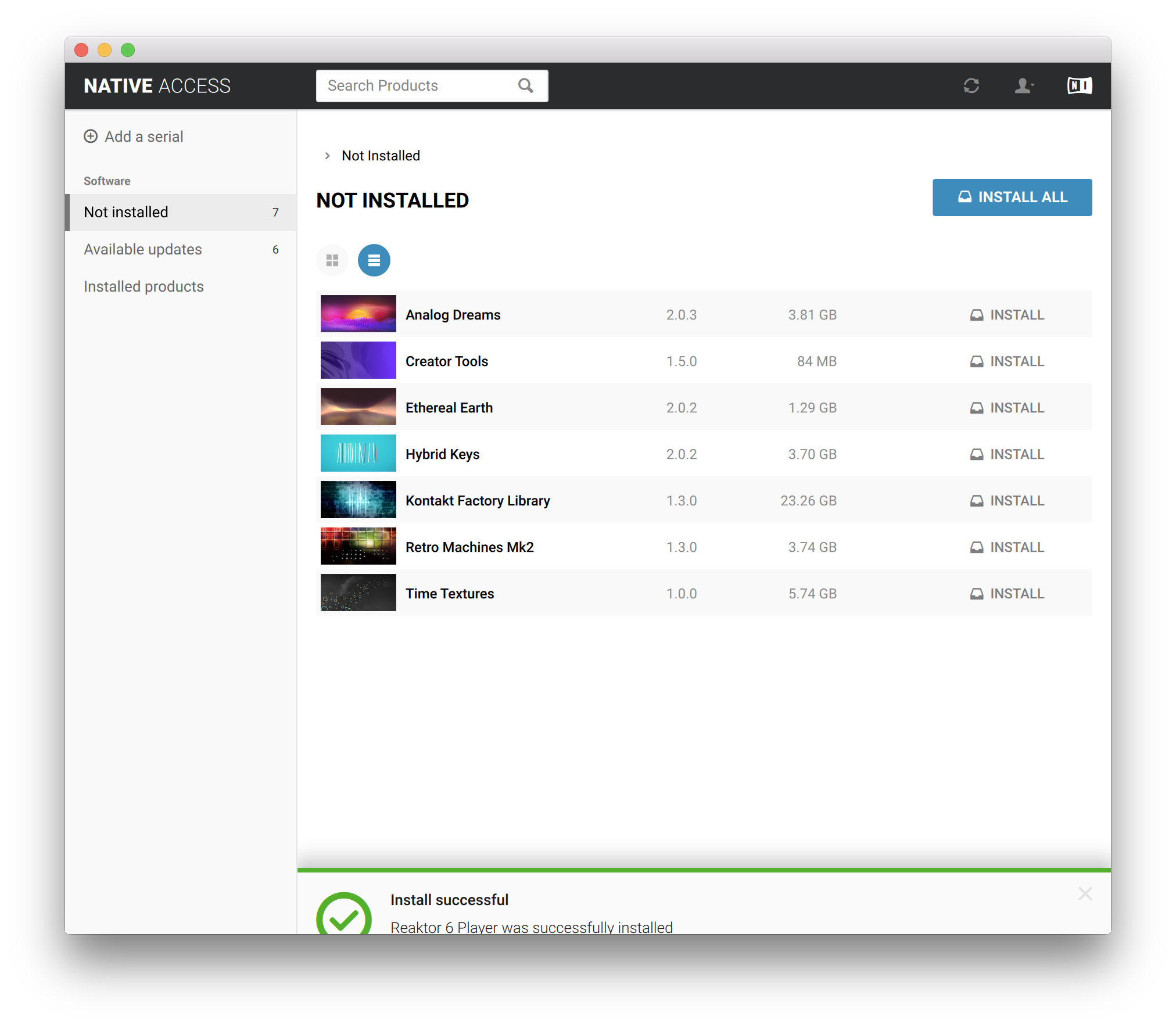
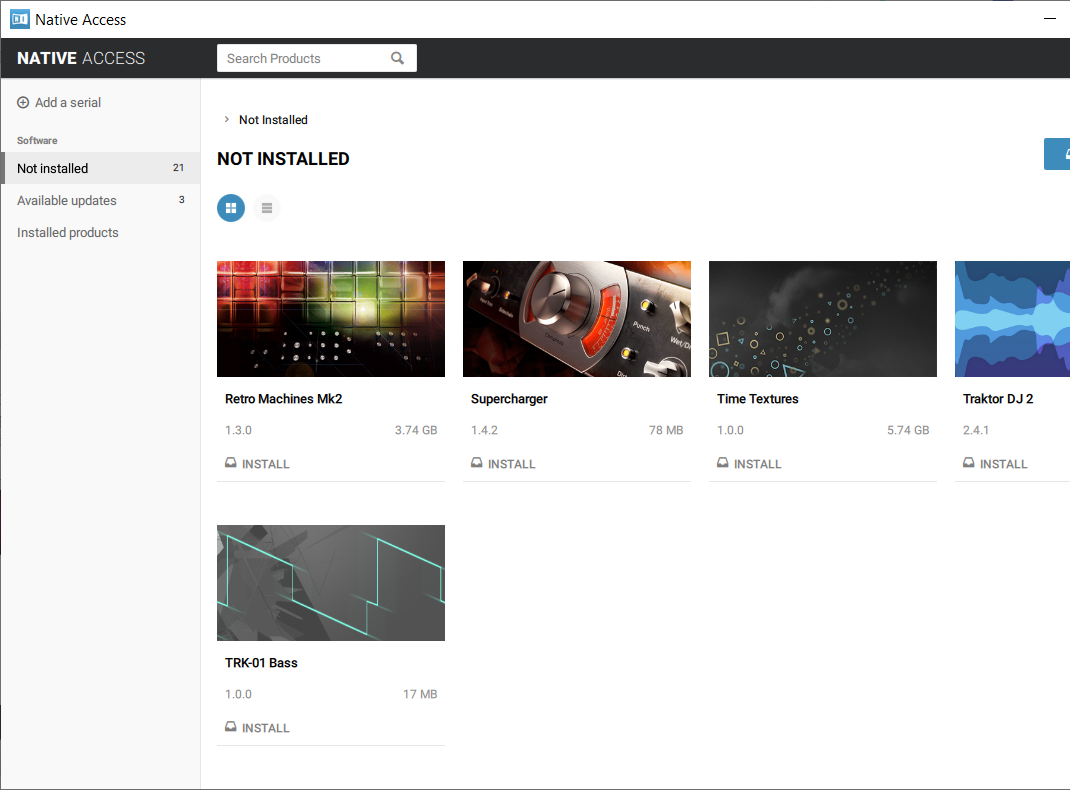
8. Click the 'Not installed' tab > Locate Time Textures > Click 'INSTALL'.

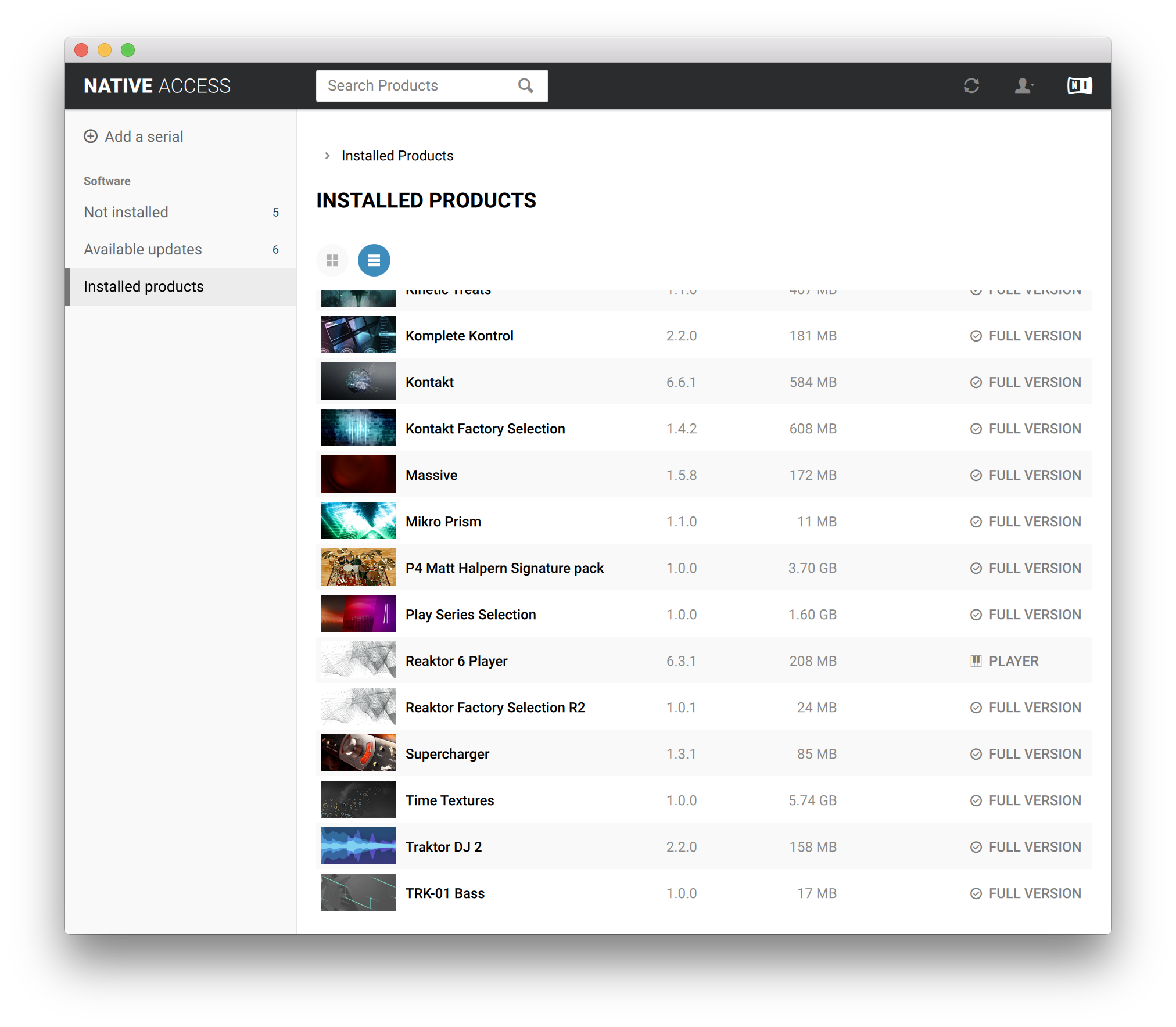
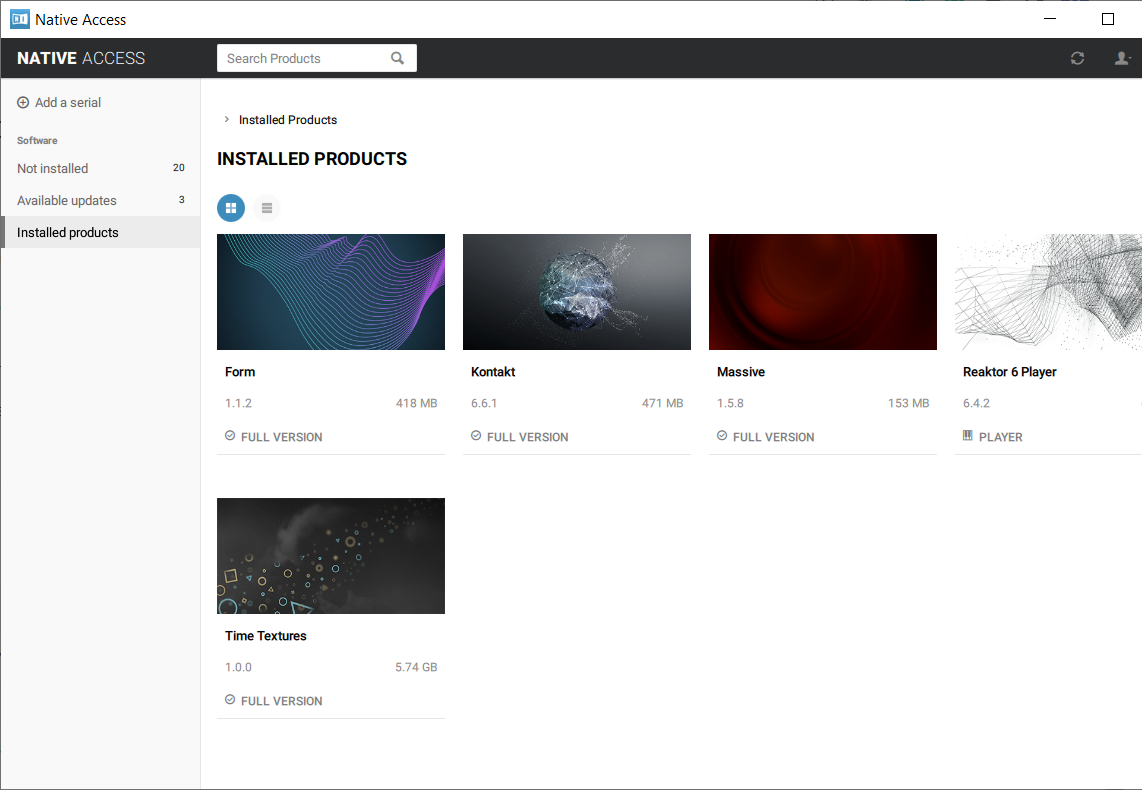
9. Time Textures is now installed on your system.

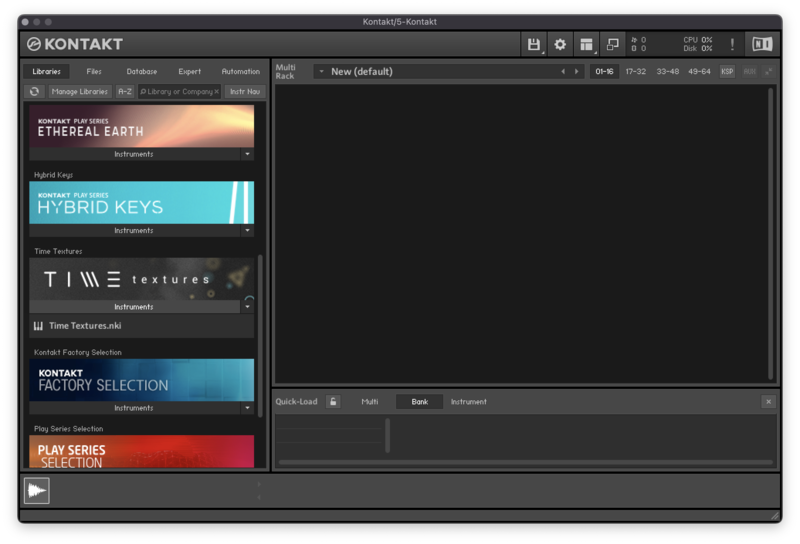
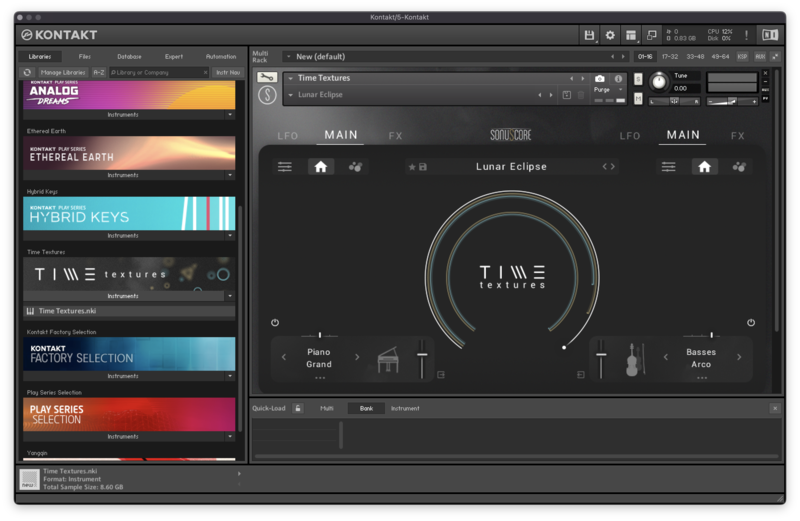
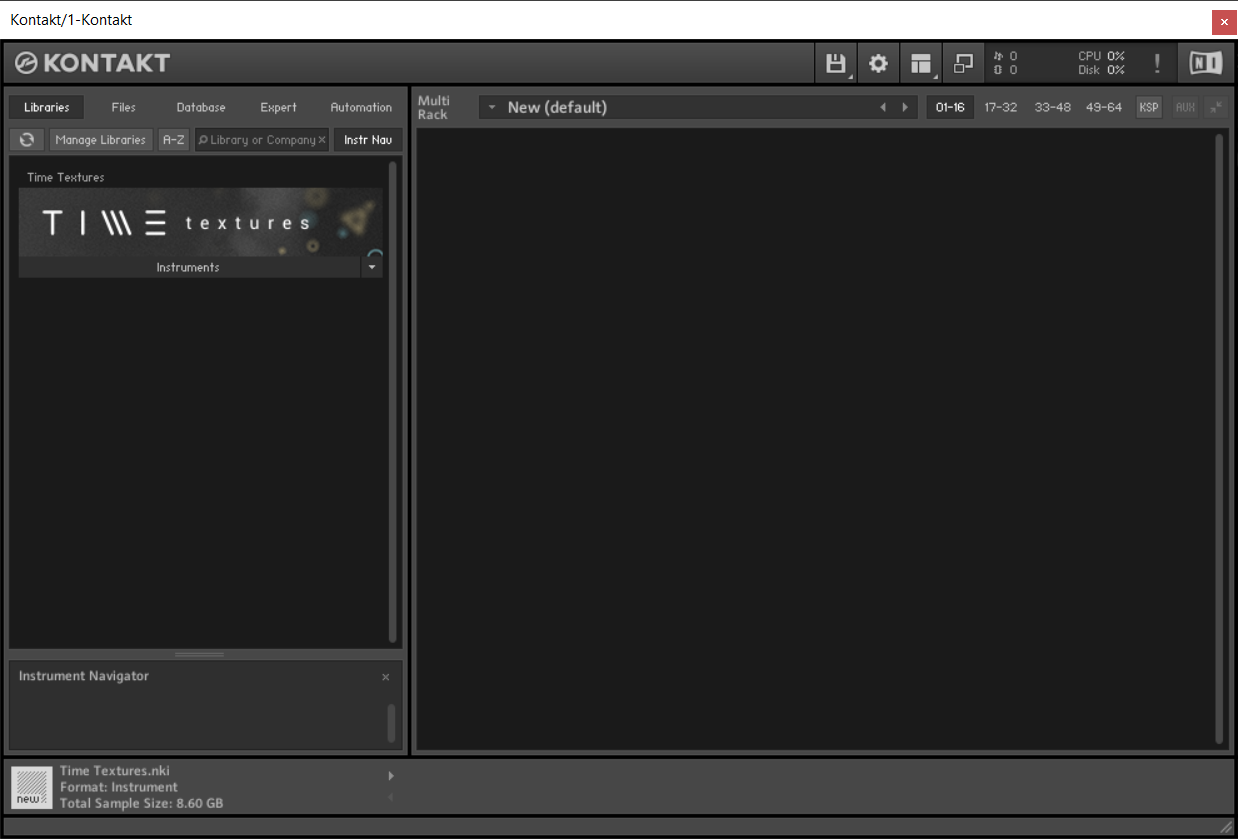
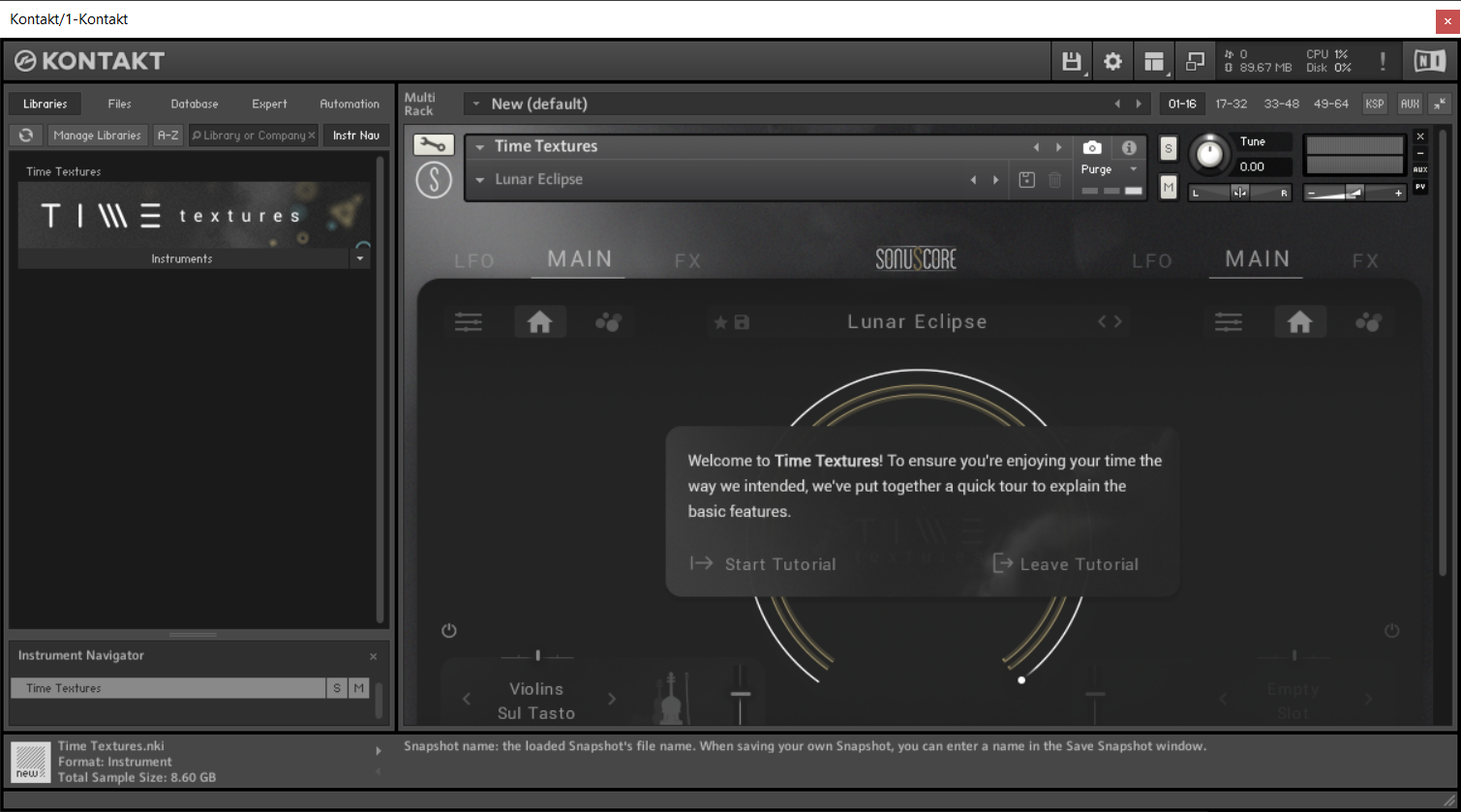
10. Open Kontakt in your DAW > You should see Time Textures on the left sidebar > Click the drop-down bar and drag the .nki file into the middle of the window.

Your software is now ready to use in your DAW!

Windows
1. Download the .zip installer file from your Plugin Boutique account.
2. Double-click the extracted .exe file to begin the installation process > click ‘Run’.
3. Read the welcome message > click 'Next'.

4. Click 'Next' to begin the installation.

5. Native Access has now been installed > Click 'Finish'.

6. Open Native Access > Create a new Native ID if you do not have one already. If you do, skip ahead to step 8.

7. You will then receive an email with a confirmation link > Open the email and click 'CONFIRM EMAIL'.
8. Log in to Native Access with your Native ID.

9. Click 'Add a serial'.

10. Enter your Serial Number found in your Plugin Boutique account > Click 'ADD SERIAL'.

11. Click the 'Not installed' tab > Locate Time Textures > Click 'INSTALL'.

12. Your new Kontakt Instrument is now installed on your system.

13. Open Kontakt in your DAW > You should see Time Textures on the left sidebar > Click the drop-down bar and drag the .nki file into the middle of the window.

Your software is now ready to use in your DAW!