Log In

Free gifts available with your purchase
Dark Cinematic Resonances from an Abandoned Silo
The Dark Tower is a percussive virtual instrument born from an extraordinary acoustic space—a towering grain silo where multi-story concrete chambers create natural reverb unlike any studio. This decommissioned industrial monument became the MNTRA team's recording environment, its weathered metal infrastructure and vast vertical shafts offering a unique sonic palette. To capture The Dark Tower, they ventured into this hollow silo where several stories resonate into the sky, with the cylindrical concrete chamber creating a natural reverb chamber unlike any studio could replicate.
But before they could harvest these hidden industrial tones, the MNTRA team had to find the right sources within the tower itself. Deep in the structure, they discovered massive sheets of metal, interconnected resonating staircases, ventilation shafts, and random unusual metallic structures—every piece of the silo's skeleton becoming a new source for percussive sound.
The recording process was equal parts archaeological expedition and musical exploration. The silo's towering acoustics meant each sound traveled through multiple stories of concrete and metal before capture, creating natural delays and reverbs impossible to replicate artificially. Every strike became a conversation between performer and architecture. What emerged was something between industrial percussion and ambient sculpture. The Dark Tower delivers more than percussion—it's a focused dark acoustic environment built for modern production. Ideal for trailer music composers seeking massive impacts, film scorers crafting tension, and electronic producers pushing industrial boundaries.
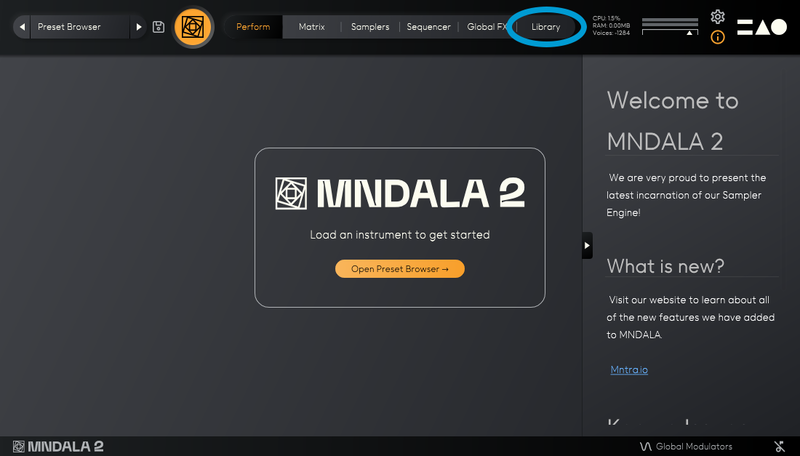
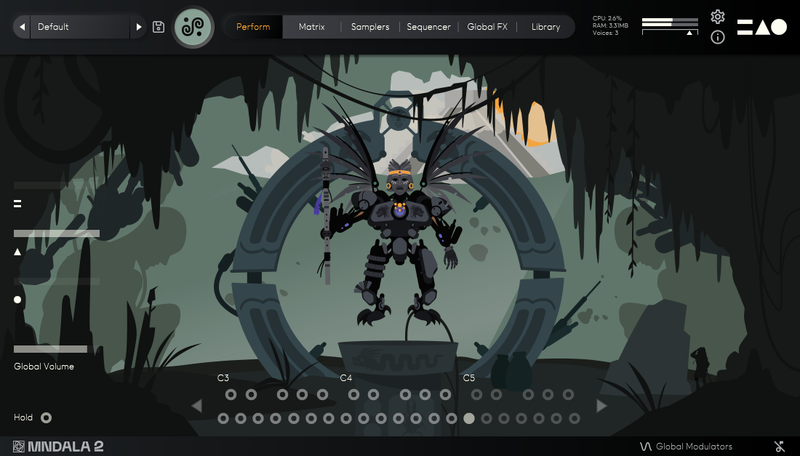
Using MNDALA 2, these sounds were brought to life through its sequencer, live effects, and the use of macros in the X, Y, and Z axes. MNTRA transformed these sounds into musical sources that are perfectly suited for electronic, industrial, and experimental music. The percussive sounds become synths as you modulate them and shape them with the never-ending possibilities in MNDALA 2.
The Dark Tower is the first installment of MNTRA's Microfield Recording Series—living instruments that let you step into a place where industry meets artistry, where abandonment breeds creativity. It's an interactive virtual instrument that expands your sonic palette with textures rarely accessible outside their architectural source. What was discovered in that concrete tower surprised the MNTRA team, and they hope it transforms your music too.
Features
- Presets: 52
- Atelier Presets: 30
- Sample Maps: 22
- Size: 250 MB
- Round Robins: Up to 8
- SSM powered samples: All sample maps enabled
- Recording format: 192 kHz / 24 bit
- Sample Format: 96 kHz / 24 bit
System Requirements
- 500 MB free disk space recommended for setup
- Minimum 16 GB of RAM and an i5 or better CPU required, SSD drive recommended
- Support for all popular VST/AU/AAX compatible DAWs