Buy LX122 Pro, get a free gift with purchase:
Organ and Keyboard Companion
At the middle of the last Century, Mr. Leslie was disappointed by the sound of his just bought B3 Style organ, comparing to what he has heard in the large showroom of the store. He then tried to design a system, which gave the same feeling of a pipe organ by a moving speaker. Further experimentations resulted in the familiar combination of a rotating drum and horn for bass and treble frequencies respectively, creating special audio effects using the Doppler effect.
Although there is a lot a various models, the classic Leslie speaker consists of two driver units - a stationary treble unit with spinning horns (called Horn here), and a stationary woofer and spinning rotor (called Drum here), with two filters, which divide the frequency spectrum between the horn and the woofer.
Both the horns and a sound baffle for the bass are rotated to create Doppler effect based vibrato, tremolo and chorus effects. The rotating elements can be stopped, switched between slow (chorale) and fast (tremolo), or transitioned between the two settings. Not only the unit gives this particular effect, but also the ensemble it creates with the room where it is located.
The LX122 emulates the Horn and the Drum, as well as the room where various coherent reflections are occurring when they are rotating. It also emulates the tube base amplifier as well as the intrinsic characteristics of the Drum (woofer response and drum size) or the Horn (Tweeter response, horn size and diffusers).
The internal cabinet reflections, which give this known mellow specific sound, are also taken into account but with the never done possibility to increase or decrease their effects, going from a standard closed cabinet to a opened air rotating speakers.
Features
Core Modules:
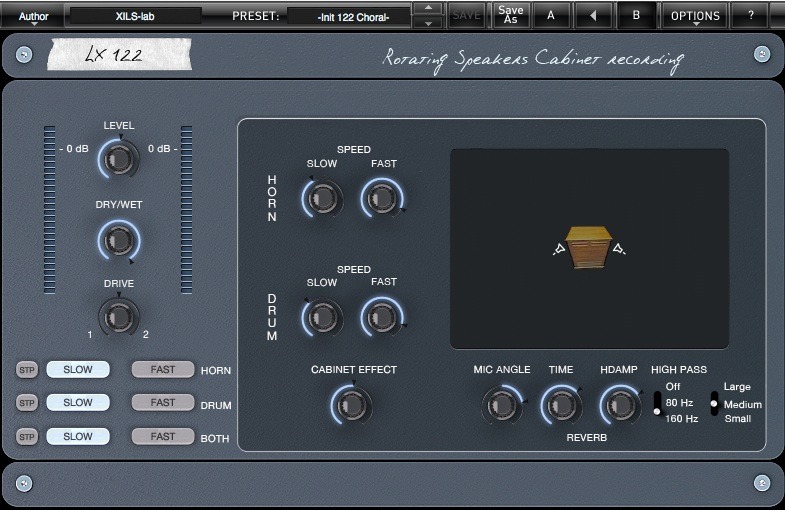
- One finely emulated rotating speakers, treble output in a rotating Horn, bass output in a rotating drum.
- True Stereo Dynamic Engine (TSDE) places the cabinet in a room, from which it is recorded by two microphones.
- Three Reverb types, to give even more space to your recordings
- Slow to Fast mode buttons, midi controlable to play with the inertia.
- Tube amplifier emulation.
Particular settings for the LX122:
- The speed of the Horn and the Drum can be tweaked at your convenience.
- The reverb time and frequency response are easily adjusted.
- A high pass filter before the reverb to avoid blurry sounds when organists are doing fool with their feet.
- The angle of the recording microphone can be changed, adding more or less room effects.
- A drive parameter help you to get more heavy rock sounds
System Requirements
LX122 Pro isavailable in the following formats :
- Mac OSX 10.5 and later : VST, Audio Unit, RTAS (Protools 7.0 and later), AAX (32&64 bits, native)
- Windows XP, Vista and 7&8 ; VST, RTAS (Protools 7.0 and later), AAX (32&64 bits, native)
LX122 and LX122 Premium are 32 bit and 64 bit plug-ins.
Minimum system requirements: 1 Gigabyte of RAM and a 2 GHz processor.
LX122 Pro is a plug-ins and must be used within a Digital Audio Work Station (DAW) or VST hosts.
Mac
Registration/Installation
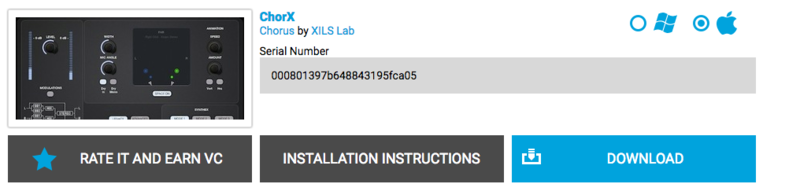
1. Select the Apple icon from your User Account, and click the DOWNLOAD tab to obtain your Mac installer.
Note: You can also download and install the most recent version of your software from the XILS Lab Download Area.

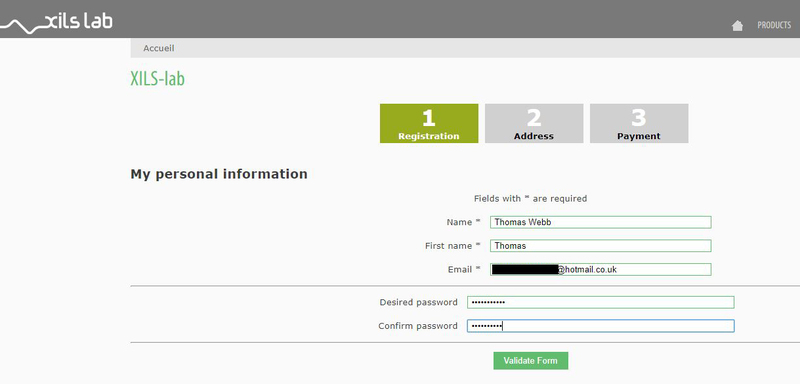
2. Visit XILS Lab to log into/create your user account > enter your email address and password when creating a new account, then click 'Validate Form.'
Note: If you already have an existing XILS Lab account, skip to step 4.

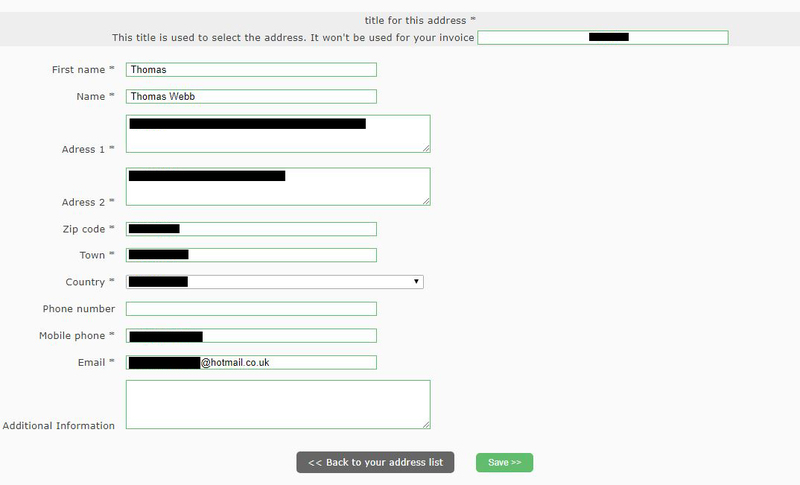
3. Enter your the required details that are marked with an asterix (*) symbol and click 'Save.'

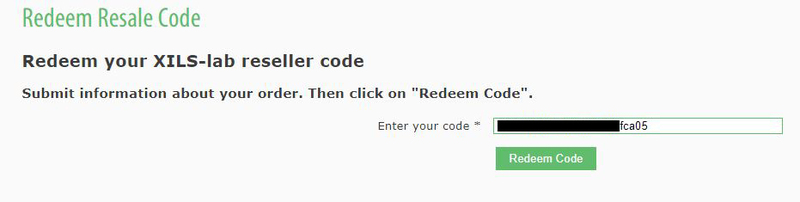
4. Visit the XILS Lab Redemption Page and copy and paste/manually enter the serial number that is provided within your User Account > click 'Redeem Code.'

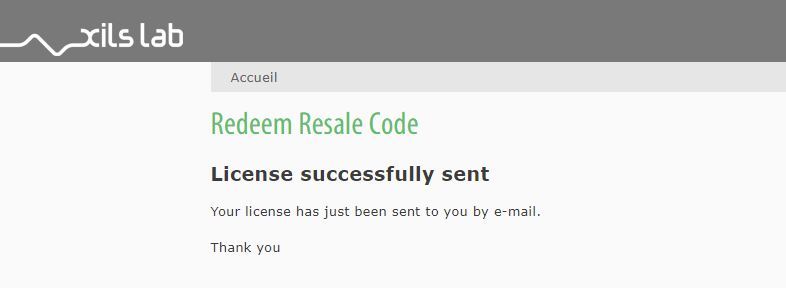
5. The serial number has successfully been redeemed, and the software licence (AC code) has been sent to the inbox of your registered XILS Lab email.

6. Log into your XILS Lab registered email inbox to locate the licence code, or alternatively find it within the 'My downloads, My Products' area of your XILS Lab account.
Note: If the message and licence fails to be delivered via email, check your junk/spam folders.
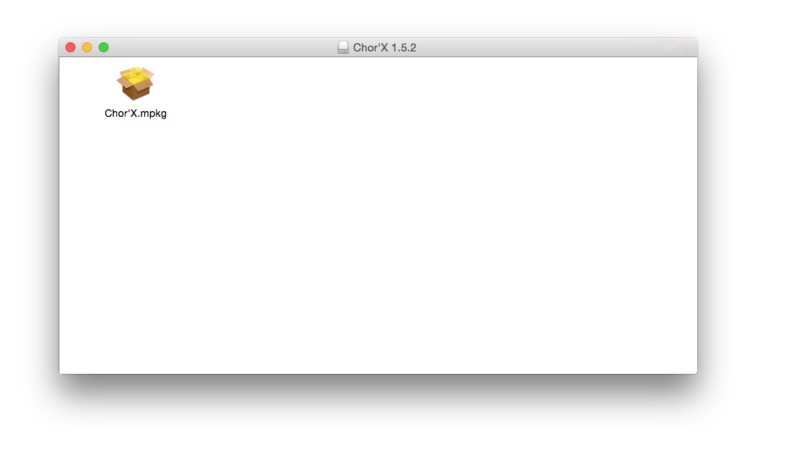
7. Locate the software .dmg installer file from the downloads section of your computer, and double-click it to launch the .mpkg installer application.

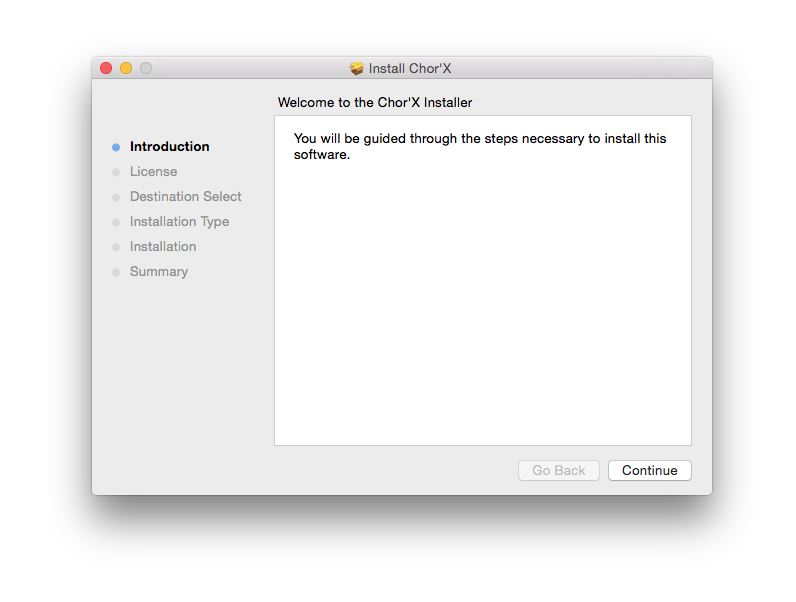
8. Double-click on the .mpkg file to begin the installation process > click 'Continue.'

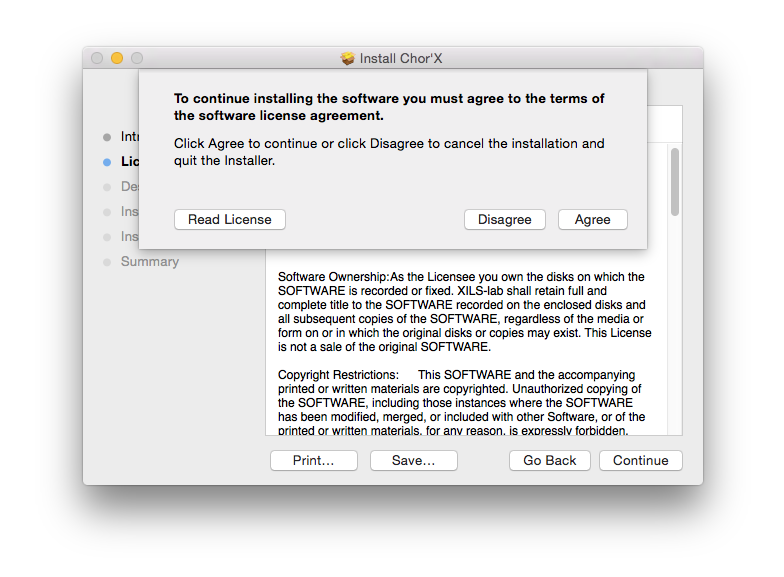
9. Read through the Terms & Conditions of the Licence Agreement > click 'Continue' > click 'Agree.'

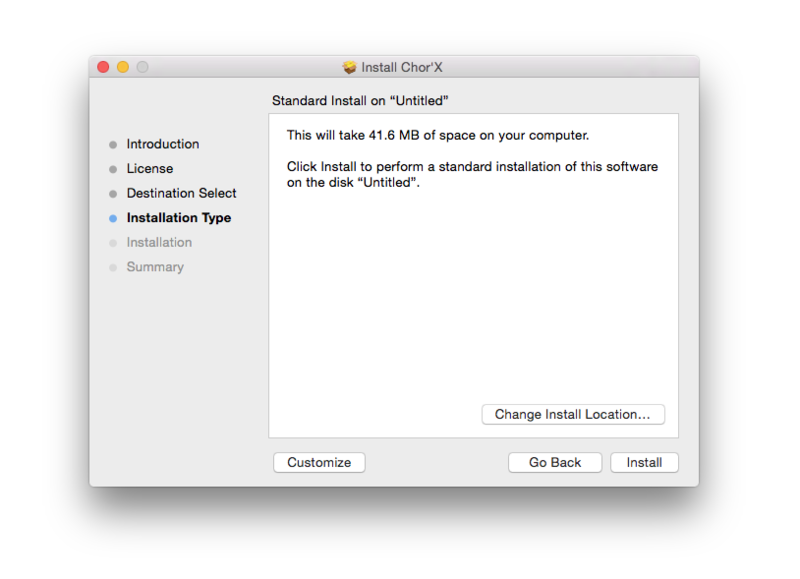
10. Review the installation and click 'Install.'

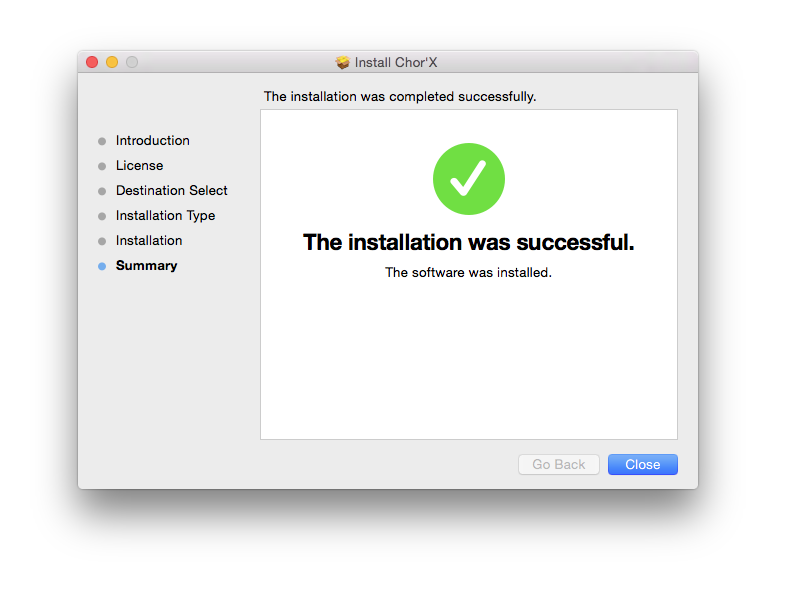
11. The installation of your software has successfully completed > click Close.

Activation
1. Locate and open the software within your DAW.
Note: Restart your DAW and/or rescan its Plugin selection, in order to show the new installation (in the event that it fails to appear).
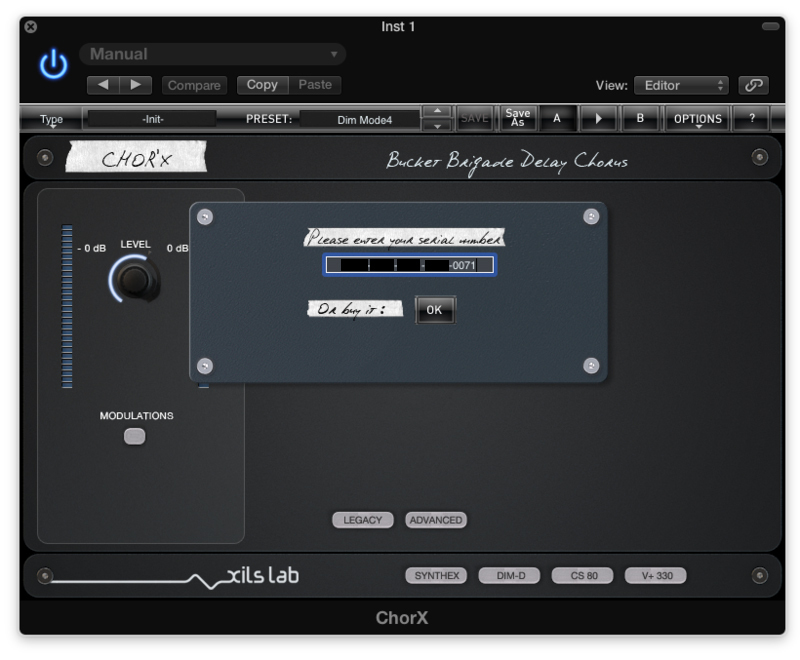
2. Copy and paste the Software Licence from the 'My downloads, My Products' area of your XILS Lab account, into the tab provided > click 'OK.'

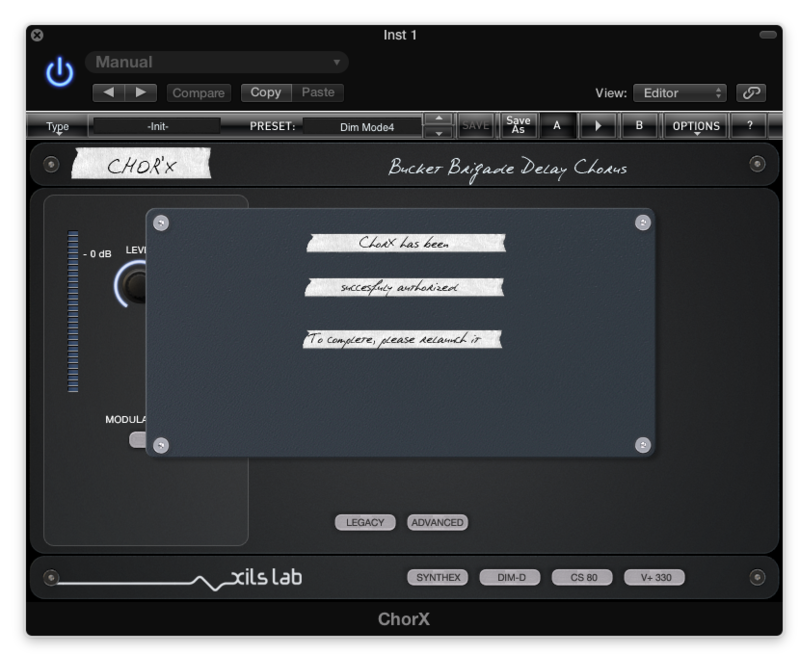
3. The activation of your software has successfully been authorised > close and relaunch the VST to complete the process.

The Software is Now Activated and Ready for Use Within Your DAW!

PC
Registration/Installation
1. Select the Windows icon from your User Account, and click the DOWNLOAD tab to obtain your PC installer.
Note: You can also download and install the most recent version of your software from the XILS Lab Download Area.

2. Visit XILS Lab to log into/create your user account > enter your email address and password when creating a new account, then click 'Validate Form.'
Note: If you already have an existing XILS Lab account, skip to step 4.

3. Enter your the required details that are marked with an asterix (*) symbol and click 'Save.'

4. Visit the XILS Lab Redemption Page and copy and paste/manually enter the serial number that is provided within your User Account > click 'Redeem Code.'

5. The serial number has successfully been redeemed, and the software licence (AC code) has been sent to the inbox of your registered XILS Lab email.

6. Log into your XILS Lab registered email inbox to locate the licence code, or alternatively find it within the 'My downloads, My Products' area of your XILS Lab account.
Note: If the message and licence fails to be delivered via email, check your junk/spam folders.
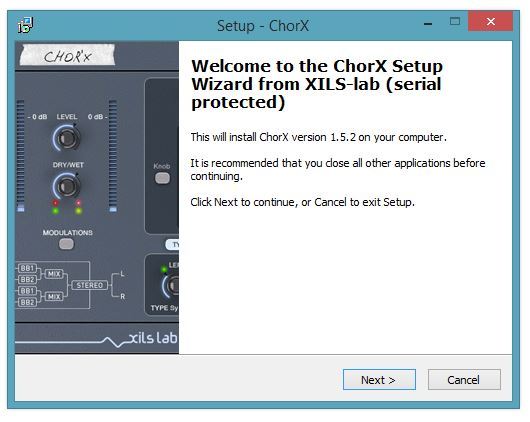
7. Locate the .exe software installer file from the downloads section of your computer and double-click it to begin the installation process > click 'Next.'

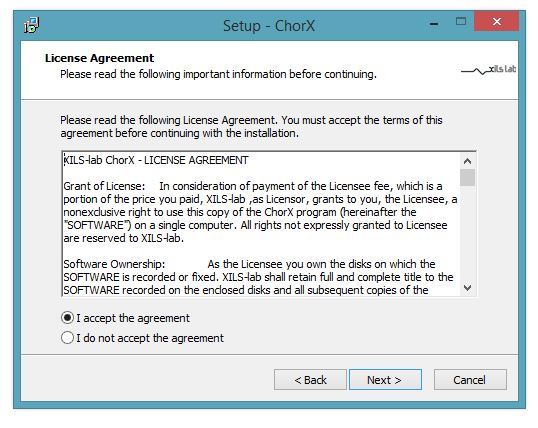
8. Read through the info and select 'I accept the agreement' > click 'Next.'

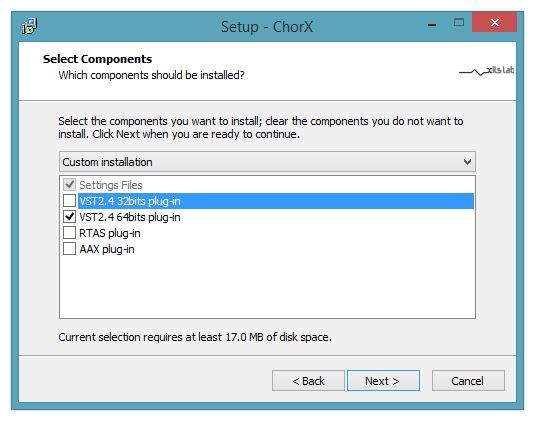
9. Select the software component (s) / compatible DAW format (s) that you wish to install, and click 'Next.'

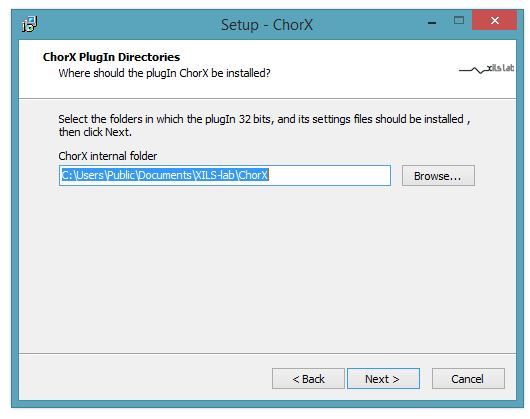
10. Select the folder in which to install the 32-bit version of your software to > click 'Next.

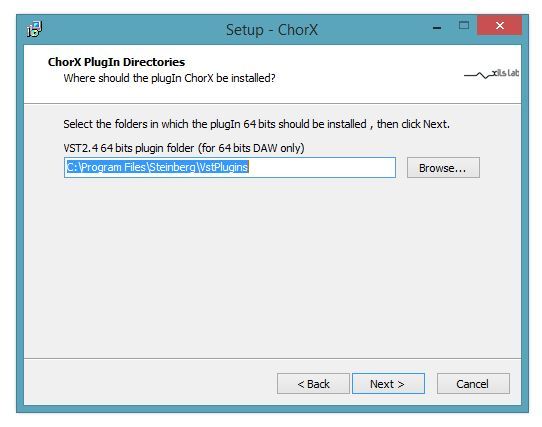
11. Select the folder in which to install the 64-bit version of your software to > click 'Next.
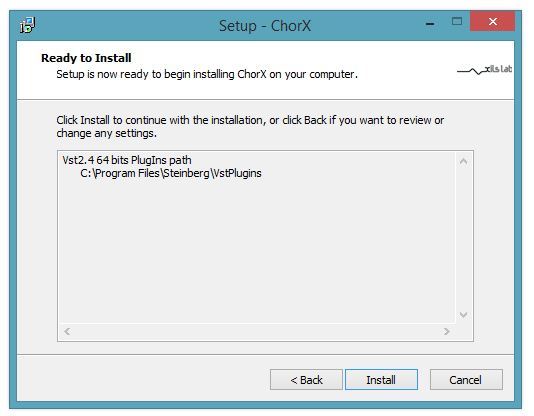
12. Review the installation and click 'Install.'

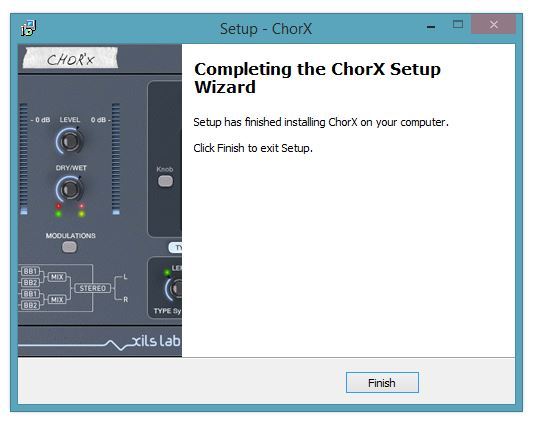
13. The installation of your software has successfully completed > click 'Finish.'

Activation
1. Locate and open the software within your DAW.
Note: Restart your DAW and/or rescan its Plugin selection, in order to show the new installation (in the event that it fails to appear).
2. Copy and paste the Software Licence from the 'My downloads, My Products' area of your XILS Lab account, into the tab provided > click 'OK.'

3. The activation of your software has successfully been authorised > close and relaunch the VST to complete the process.

The Software is Now Activated and Ready for Use Within Your DAW!