Important Notes:
- You must have a Native Instruments account and Native Access installed on your computer in order to activate this software. You can create an account and download the application at the Native Instruments website.
- You must have Kontakt Player 8.1.0 or higher installed on your computer in order to use this library. You can download the Kontakt Player from within the Native Access application.
Mac
Installation
1. Download the Kontakt library from within your Plugin Boutique User Account.
2. Double-click the zip folder to extract the files > Move the library folder to a location of your choice.
Activation
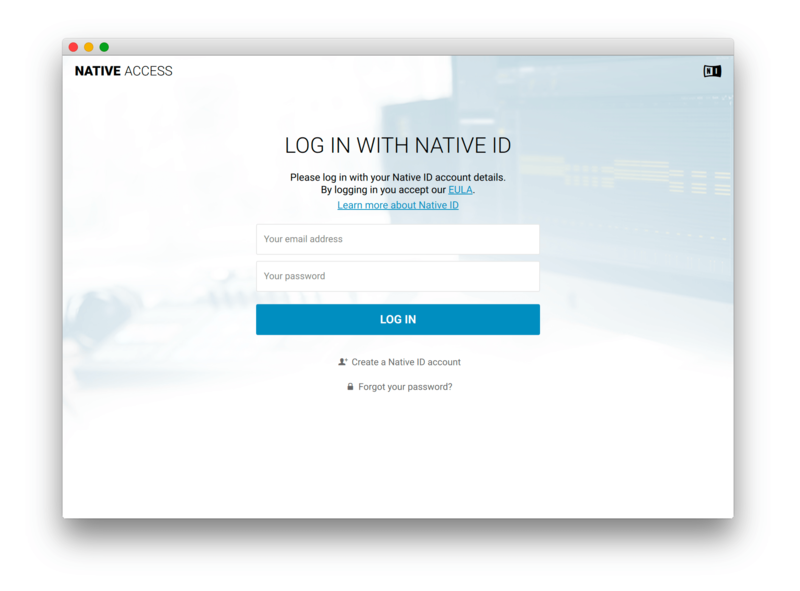
1. Open Native Access and enter your Native Instruments-registered email address and password > Click 'LOG IN'.
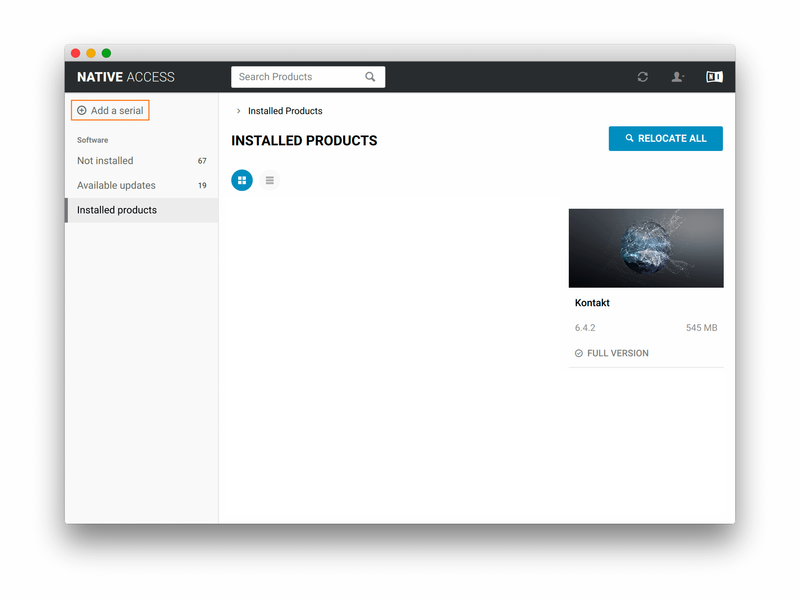
2. Click 'Add a serial' in the top left corner of the application window.
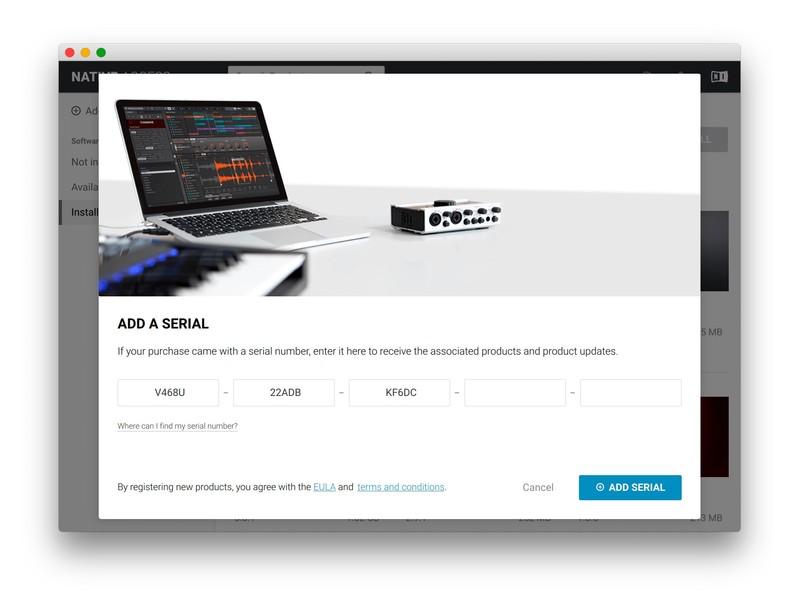
3. Enter the serial number found within your Plugin Boutique User Account. > Click 'ADD SERIAL'.
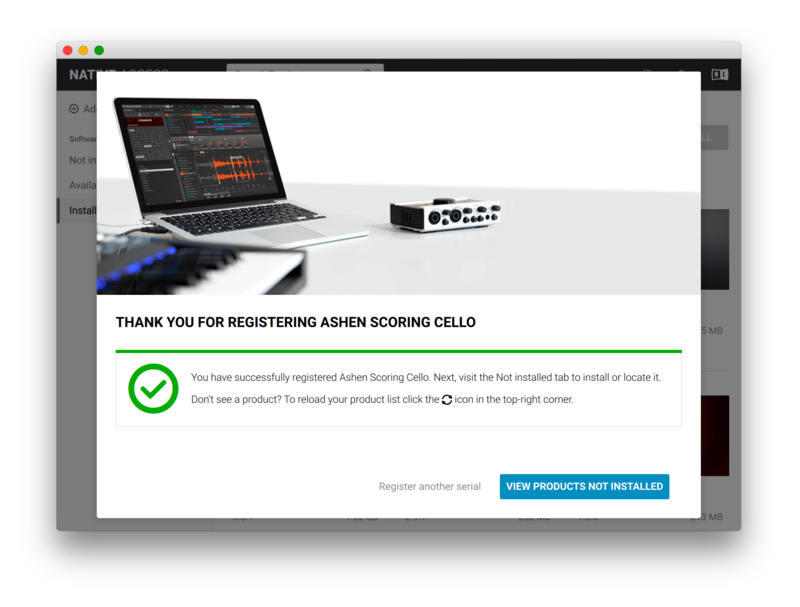
4. Click 'VIEW PRODUCTS NOT INSTALLED'.
5. Navigate to your library > Click 'ADD LIBRARY'.
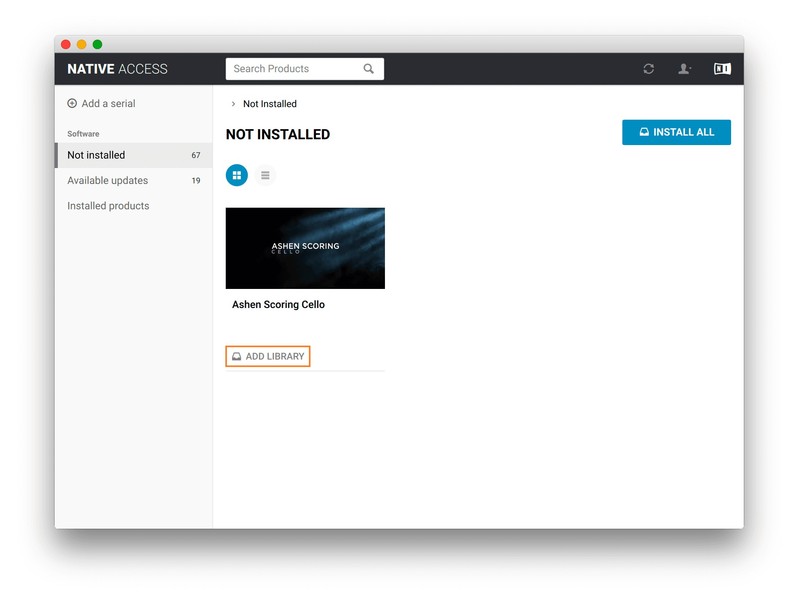
6. Click 'BROWSE'.
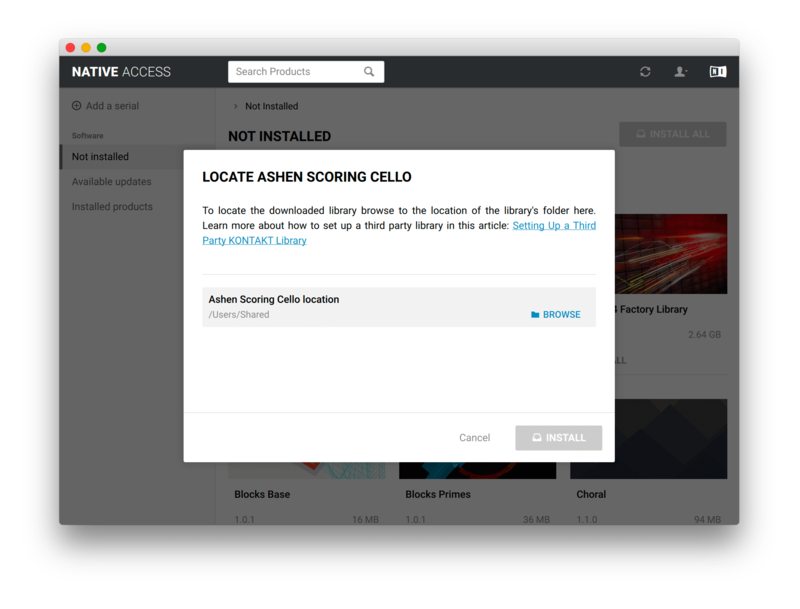
7. Navigate to the library folder you installed in step 2 of the installation process > Click 'Open'.
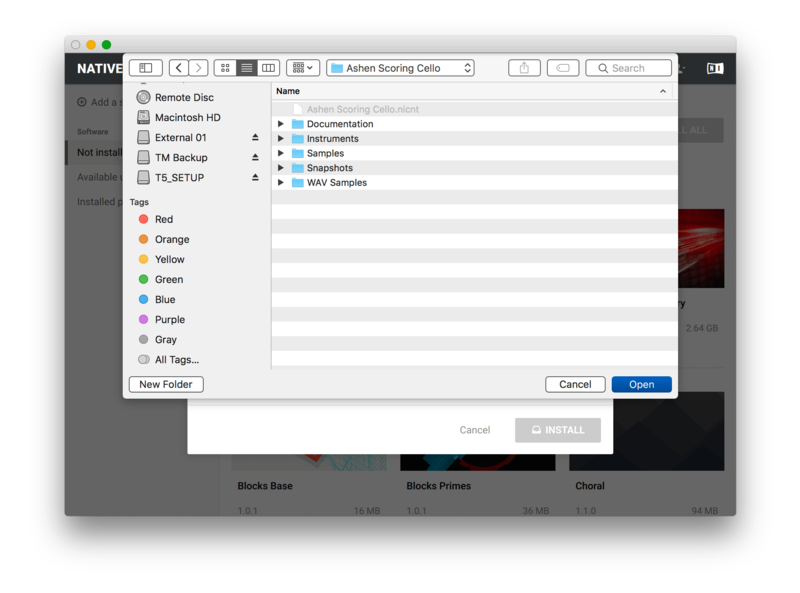
8. Click 'INSTALL'.
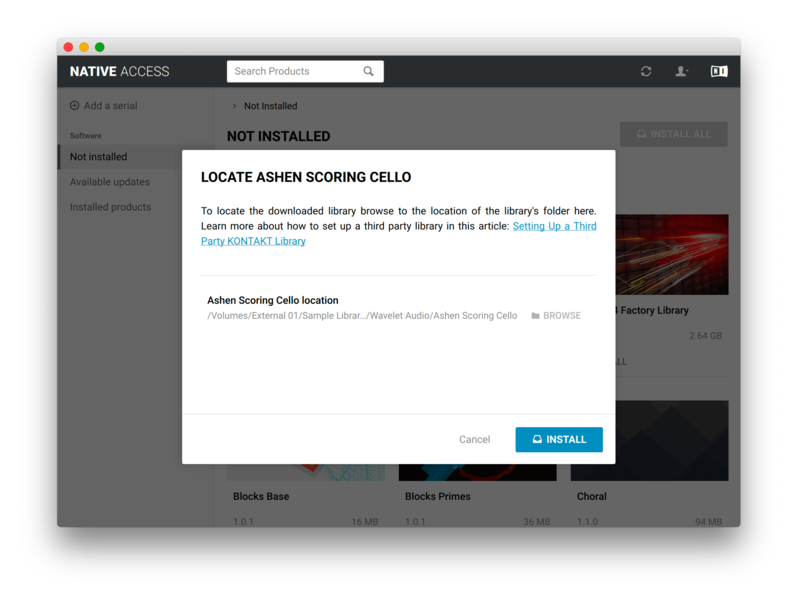
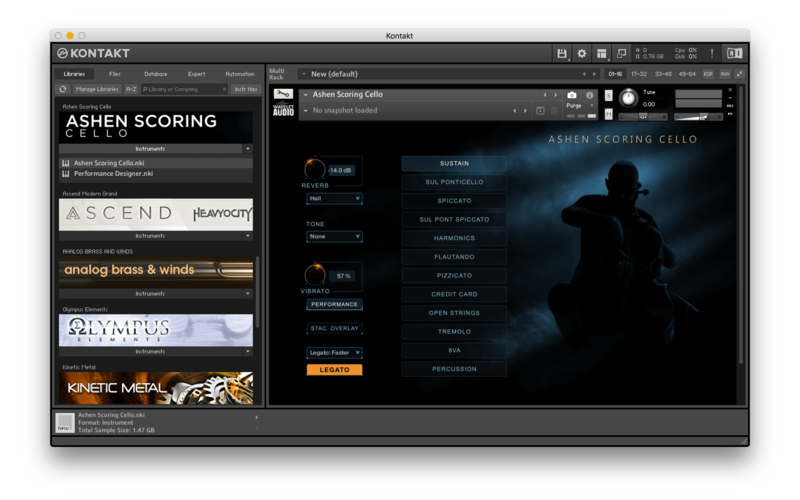
9. Open Kontakt and go to the 'Libraries' tab.
Your Library is now activated and ready to use in standalone or within your DAW.
Windows
Installation
1. Download the Kontakt library from within your Plugin Boutique User Account.
2. Double-click the zip folder to extract the files > Move the library folder to a location of your choice.
Activation
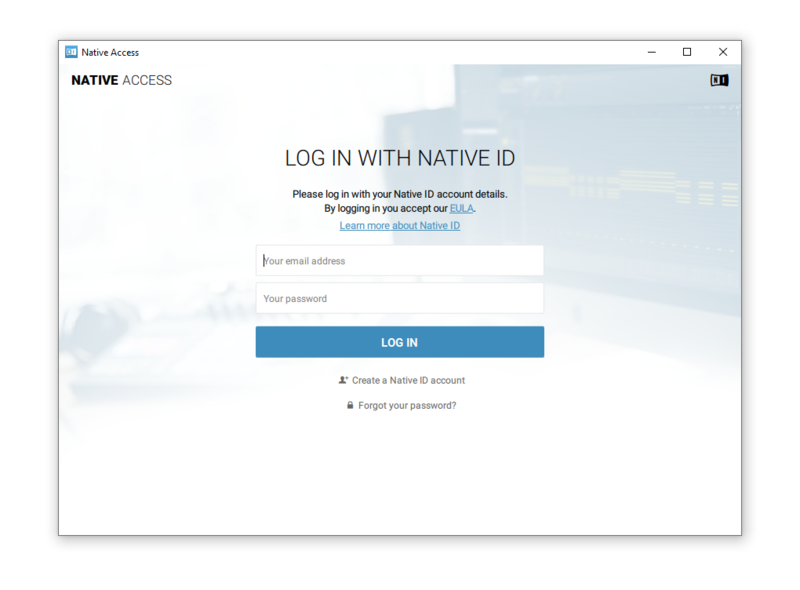
1. Open Native Access and enter your Native Instruments-registered email address and password > Click 'LOG IN'.
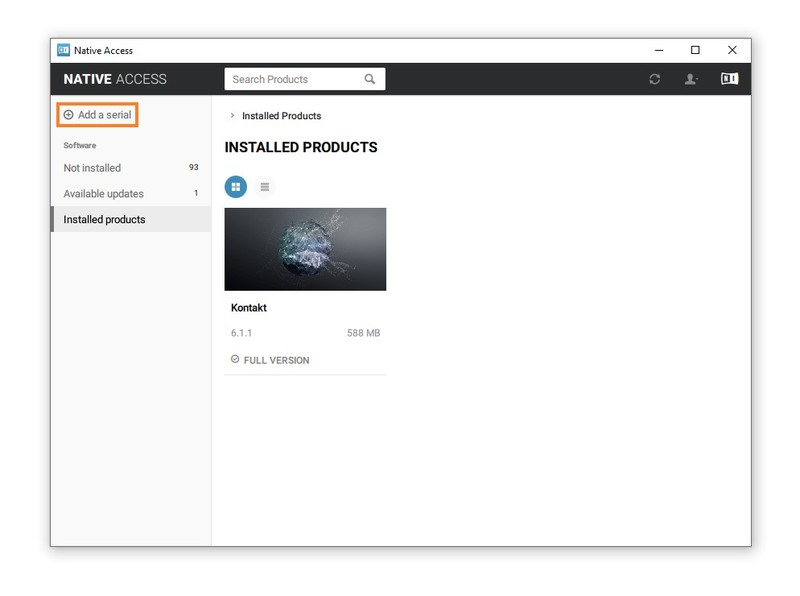
2. Click 'Add a serial' in the top left corner of the application window.
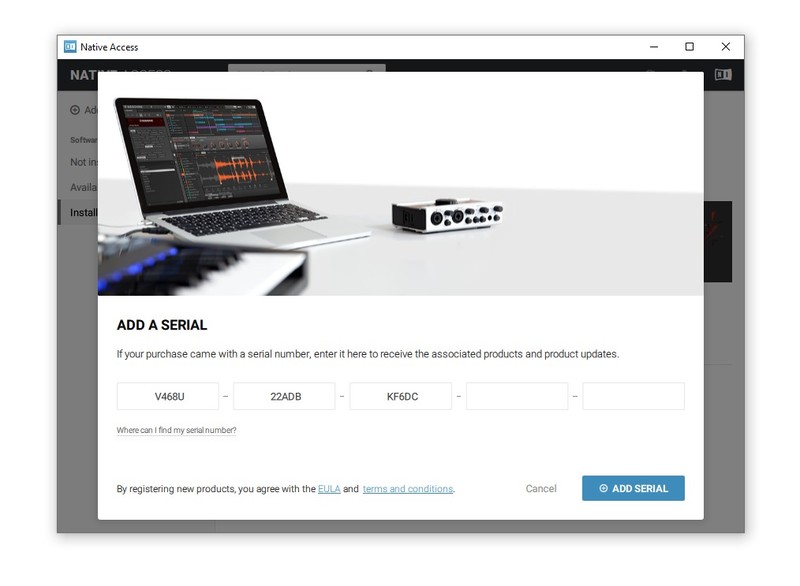
3. Enter the serial number found within your Plugin Boutique User Account. > Click 'ADD SERIAL'.
4. Click 'VIEW PRODUCTS NOT INSTALLED'.
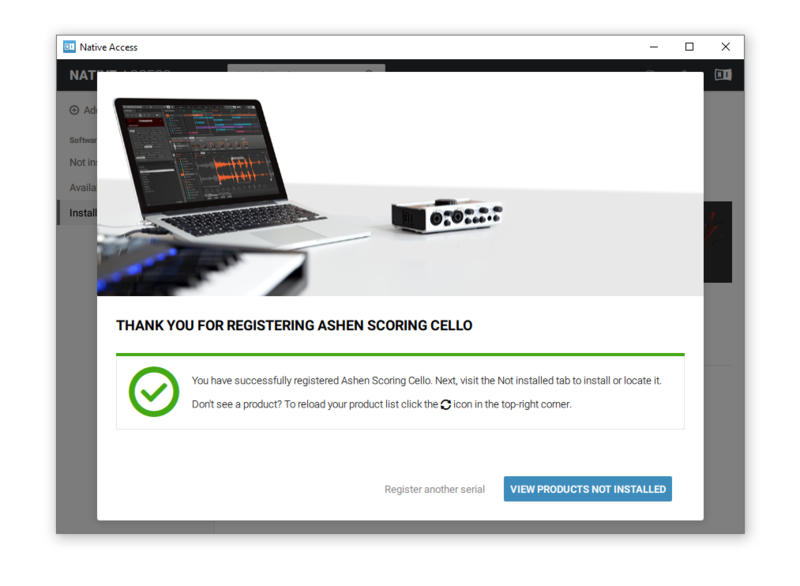
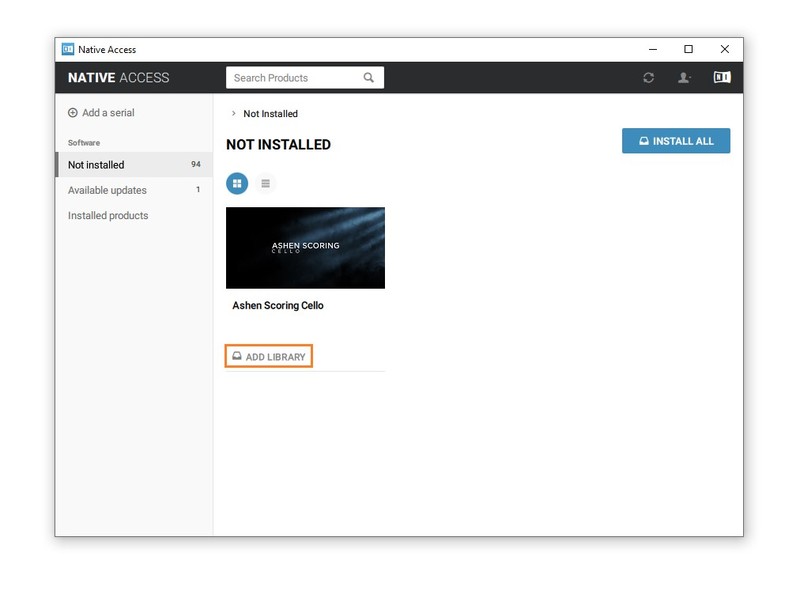
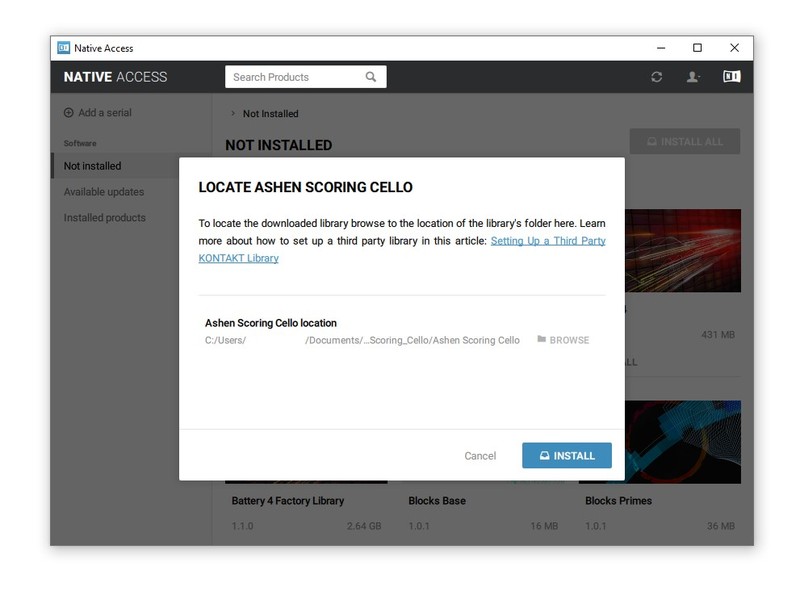
5. Navigate to your library > Click 'ADD LIBRARY'.
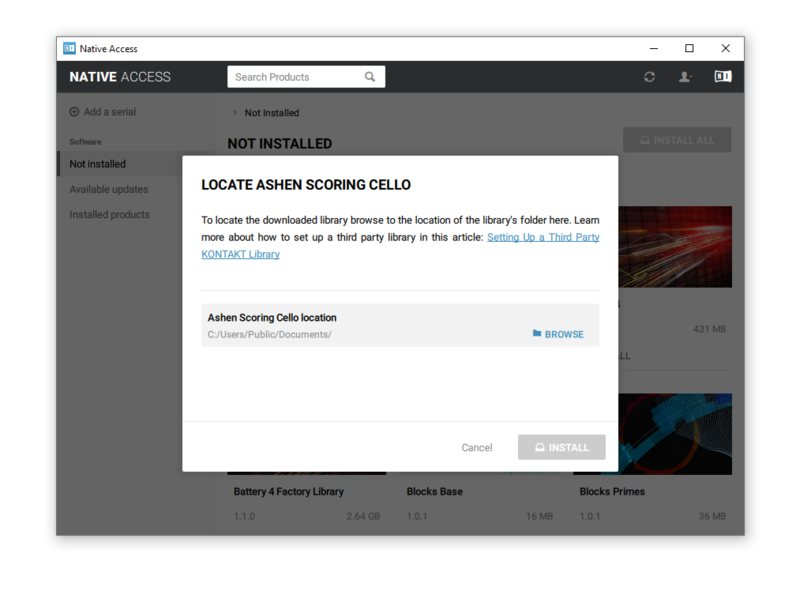
6. Click 'BROWSE'.
7. Navigate to the content folder you installed in step 2 of the installation process > Click 'Select Folder'.
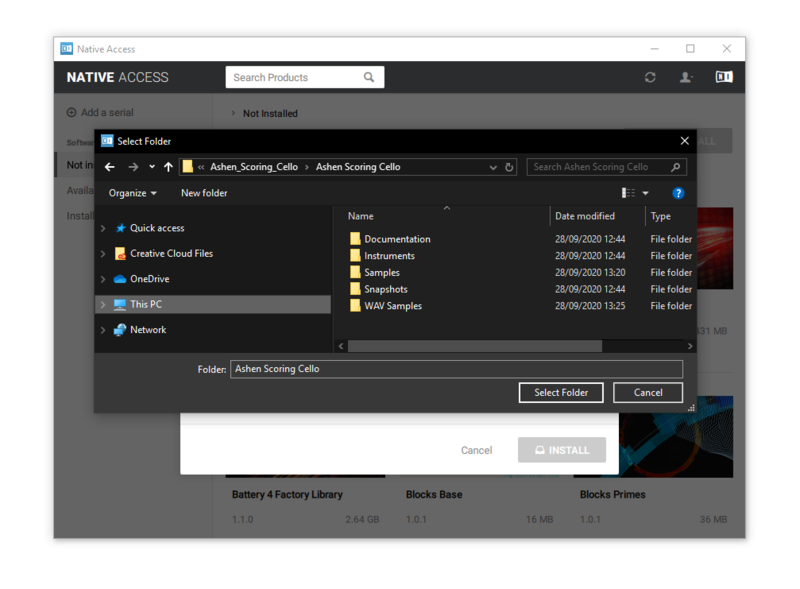
8. Click 'INSTALL'.
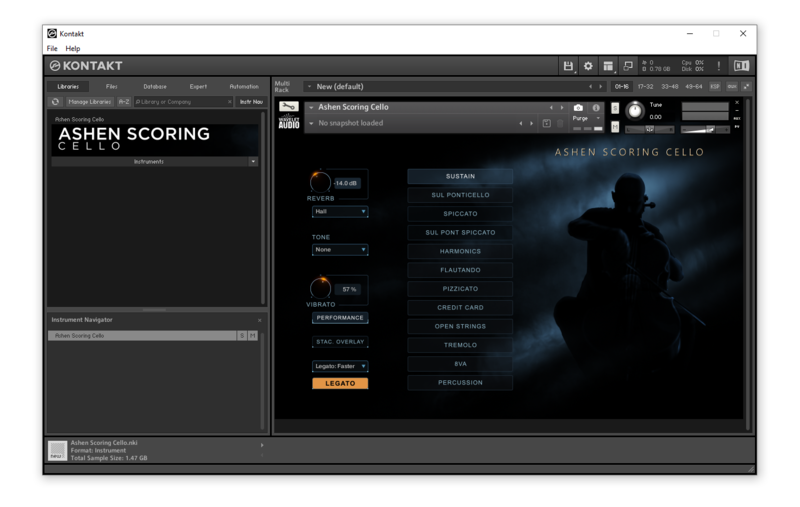
9. Open Kontakt and go to the 'Libraries' tab.
Your Library is now activated and ready to use in standalone or within your DAW.


 Log In


