/ Drum Machine / Synsonic BD-909
Synsonic Instruments

Synsonic BD-909

4.4 (286 Reviews)
FREE
Synsonic BD-909 - Main Image
Synsonic BD-909 gallery thumbnail
Product information

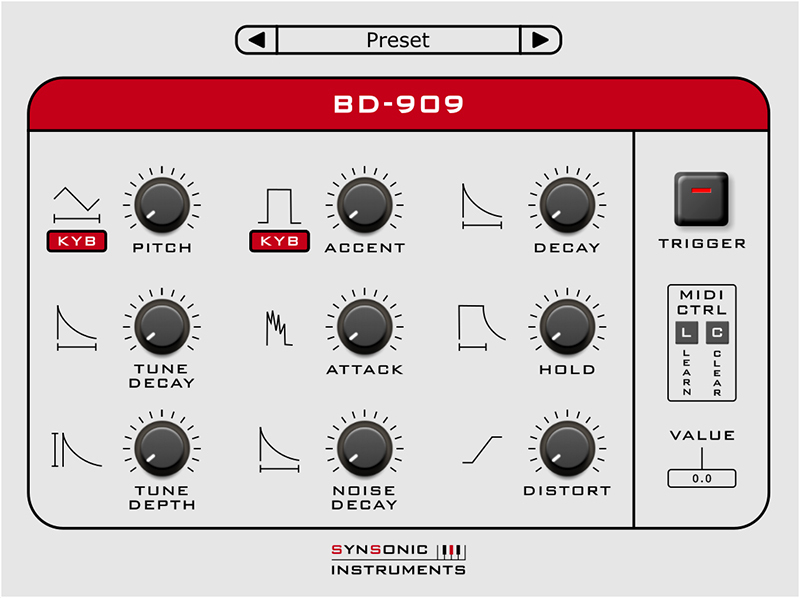
The Synsonic BD-909 is a model of the TR-909 Bass Drum.

We have analysed the original circuit and created an accurately digital model.

There are also more soundshaping possibilities like distortion, noise decay, tune depth and hold and pitch.

The plugin includes factory presets and you can also create your own presets now.

Check out Synsonic Instruments BDE-01 (Bass Drum Engine) HERE

System Requirements

Mac

  • AU - Audio Units (32 & 64-Bit)
  • VST (32 & 64-Bit)

PC

  • VST (32 & 64-Bit)

Supported Sample Rates:

  • 44.1kHz, 8 kHz and 96 kHz

Tested and Certified in:

  • Cubase, Logic and Ableton Live
Installation Instructions
Mac

1. Download the .zip folder from your User Account.

2. Double-click the .zip folder to extract and reveal its contents.

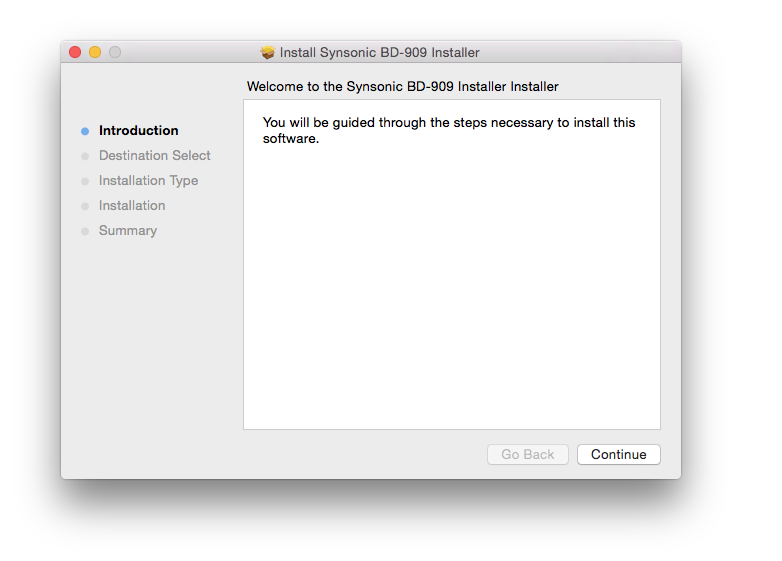
3. Double-click on your preferred AU and/or VST installer file to begin the installation process > click 'Continue.'

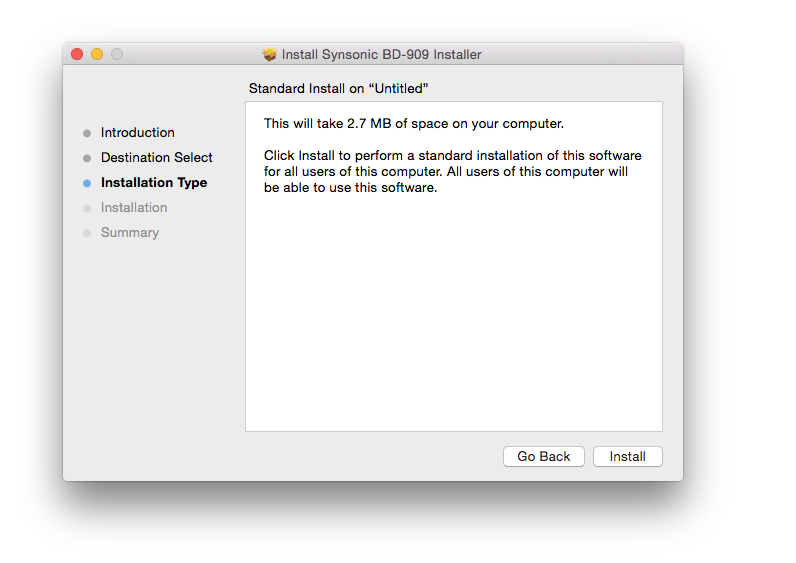
4. Read through the installation details and click 'Install.'

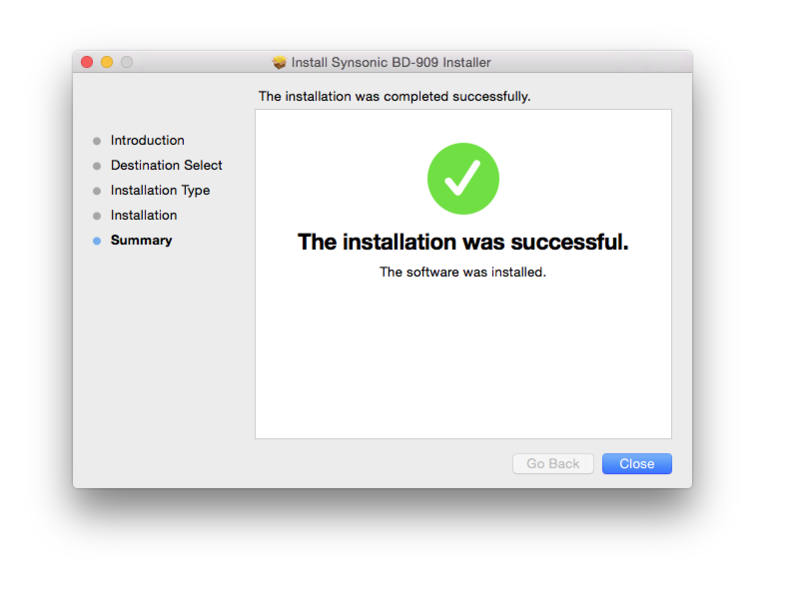
6. The installation of your software has successfully completed > click 'Close.'

7. Restart your DAW and/or Rescan your Plugin List within the 'Plugin Manager' area in order to show the new installation, and select the software from the 'Instruments' drop-down selection. 

Your Software is now Ready for Use Within Your DAW!

PC

1. Download the .zip folder from your User Account.

2. Double-click the .zip folder to extract and reveal its contents.

3. Double-click on your preferred 32 and/or 64-bit .exe installer file to begin the installation process.

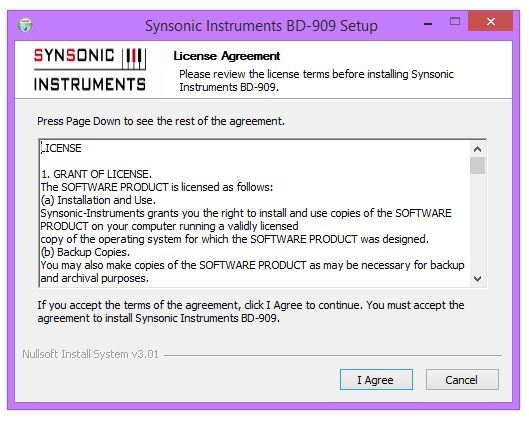
4. Read through the Licence Agreement and click 'I Agree.'

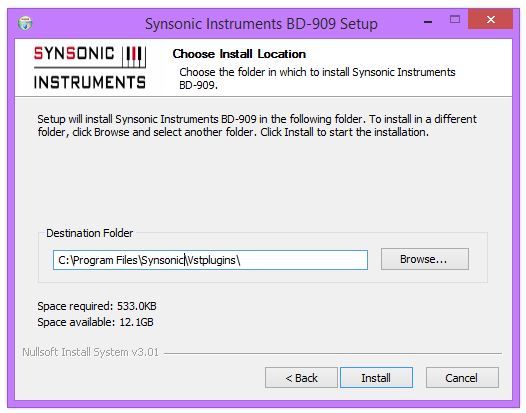
5. Select the VST computer folder in which to save your software to > click 'Install.'

Note:

  • For the 32-bit version of this software (on 64 bit systems), select the folder path similar to: C:\Program Files (x86)\Synsonic\Vstplugins\
  • For the 64-bit version of this software, select the folder path similar to: C:\Program Files\Synsonic\Vstplugins\

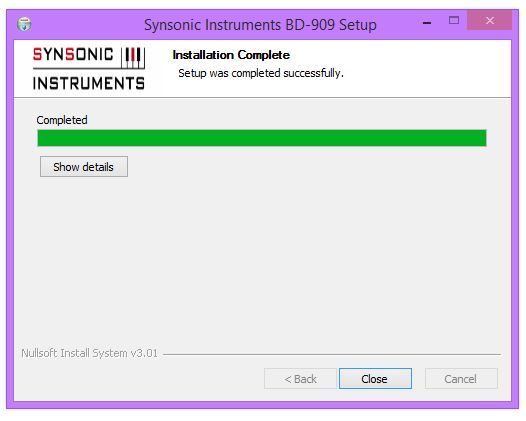
6. The installation of your software has successfully completed > click 'Close.'

7. Restart your DAW and/or Rescan your Plugin List within the 'Plugin Manager' area in order to show the new installation, and select the software from the 'Instruments' drop-down selection. 

Your Software is now Ready for Use Within Your DAW!

Plugin Boutique Rewards

Discover the most rewarding loyalty programme among all plugin retailers.

  • Free Loopmasters Samplepacks
  • Discounts on products and courses
  • Extra Virtual Cash claimed immediately at checkout
Find out more

Follow us:

X (Twitter) Facebook YouTube Instagram
Logo Logo

Plugin Boutique Limited, Part of the Beatport Group LLC.

Copyright © 2011-2025 Plugin Boutique. All rights reserved