Mac
1. Download the .zip folder from your User Account.
2. Double-click the .zip folder to extract and reveal its contents.
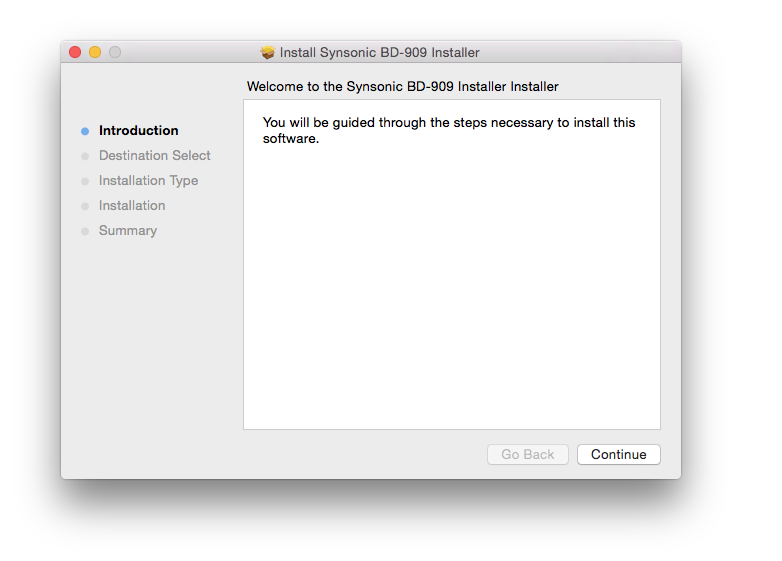
3. Double-click on your preferred AU and/or VST installer file to begin the installation process > click 'Continue.'

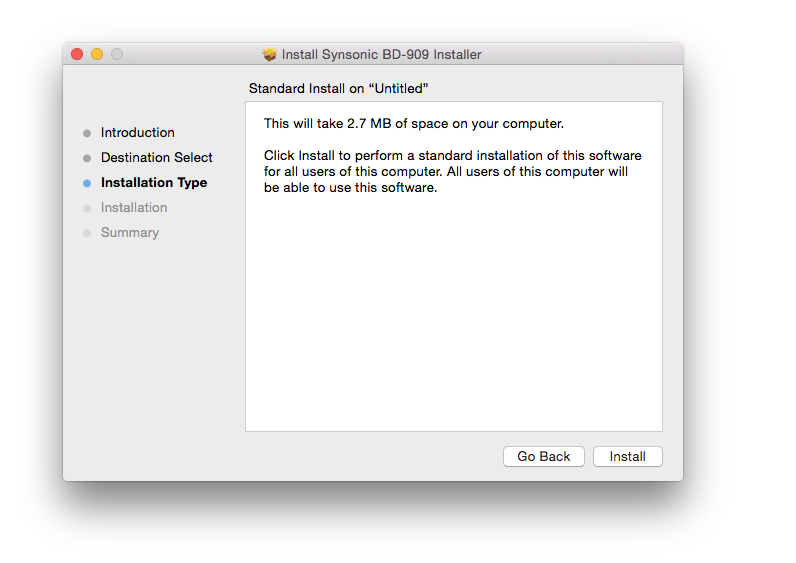
4. Read through the installation details and click 'Install.'

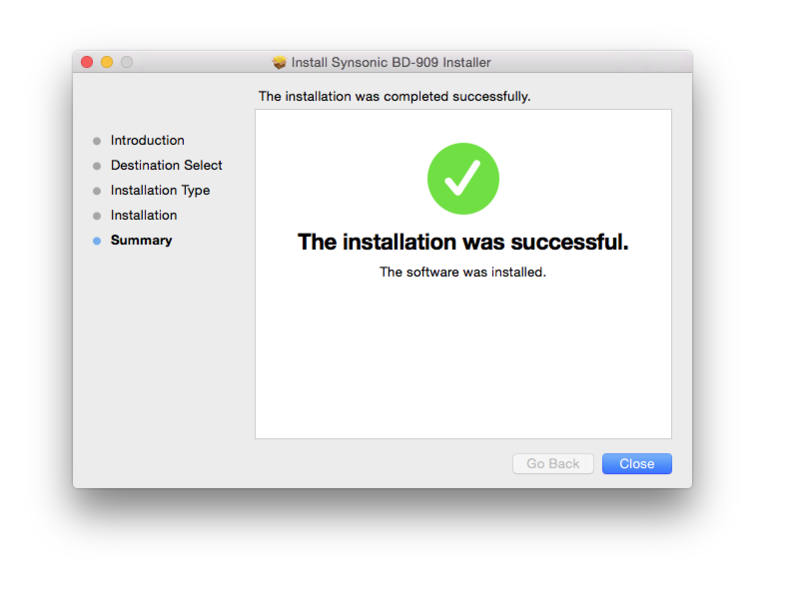
6. The installation of your software has successfully completed > click 'Close.'

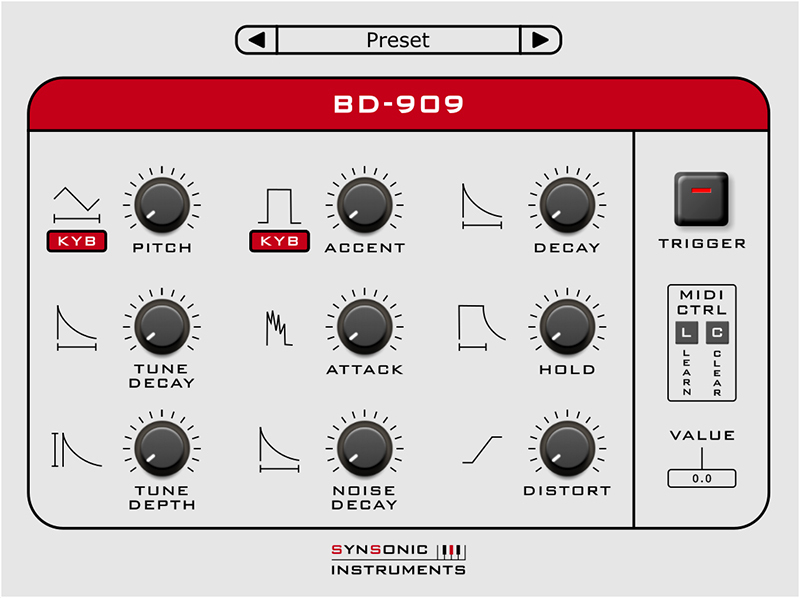
7. Restart your DAW and/or Rescan your Plugin List within the 'Plugin Manager' area in order to show the new installation, and select the software from the 'Instruments' drop-down selection.
Your Software is now Ready for Use Within Your DAW!

PC
1. Download the .zip folder from your User Account.
2. Double-click the .zip folder to extract and reveal its contents.
3. Double-click on your preferred 32 and/or 64-bit .exe installer file to begin the installation process.
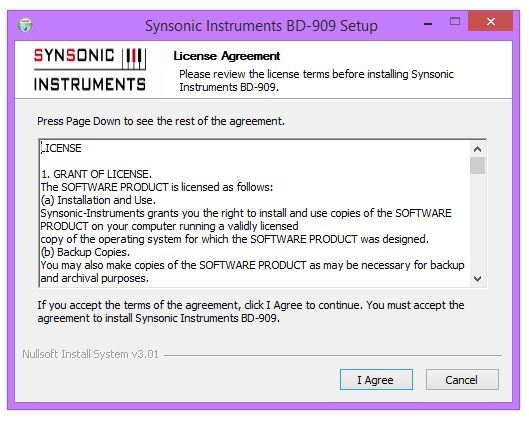
4. Read through the Licence Agreement and click 'I Agree.'

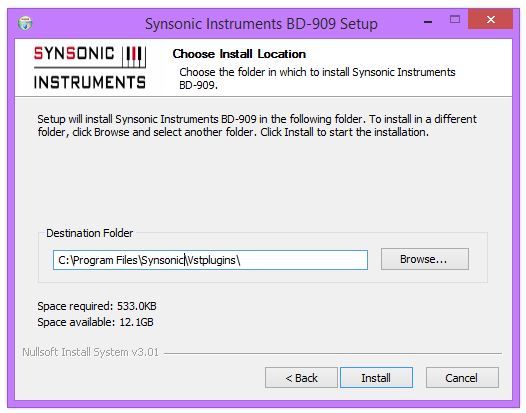
5. Select the VST computer folder in which to save your software to > click 'Install.'
Note:
- For the 32-bit version of this software (on 64 bit systems), select the folder path similar to: C:\Program Files (x86)\Synsonic\Vstplugins\
- For the 64-bit version of this software, select the folder path similar to: C:\Program Files\Synsonic\Vstplugins\

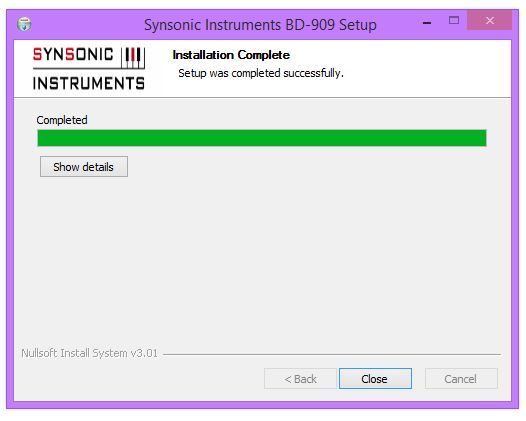
6. The installation of your software has successfully completed > click 'Close.'

7. Restart your DAW and/or Rescan your Plugin List within the 'Plugin Manager' area in order to show the new installation, and select the software from the 'Instruments' drop-down selection.
Your Software is now Ready for Use Within Your DAW!