


 Log In

Free gifts available with your purchase
No single phaser could please Paul Wolff. He wanted them all in one. All the stages, the sweeps, the tones. From the mind of Paul Wolff, here is the Fix Phaser.
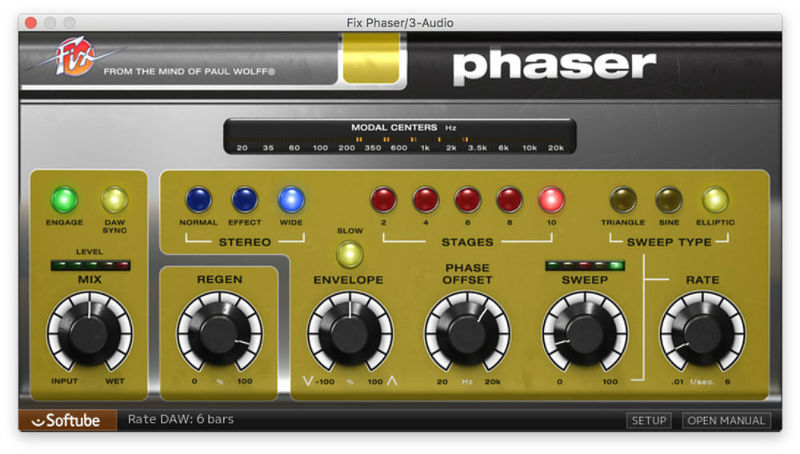
Have you ever worried that your guitar just doesn't sound enough like a spaceship? We know we have. Coming from the ever-fertile mind of audio legend Paul Wolff, Fix Phaser perfectly covers this concern and many others too. Create subtle movement and texture in a string section or synth pad, wash a drum kit in stratospheric swirling attitude, create a throbbing, oscillating vibrato in a vocal, or simply swoosh and whoosh things to your heart's content.
Turn mono into stereo
The wide mode can create natural, convincing stereo soundscape from a mono track. Especially useful on guitars, vocals, drums and other instruments that sound static and lifeless.
What it does
With a clean and easy-to-navigate modern interface, the Fix Phaser loses none of that quintessential 70s/80s sound and style and can transform a flat, dull track into a vibrant living beast in no time, and in a number of different ways. Sweep your phase centre at a rate anywhere between 0.01 and 6Hz, or let the incoming signal bump and pump the effect with the in-built envelope follower. Phase offset and regen settings allow further customisation of the sound, and three different stereo settings give the user control over the spread of the effect, from both mono and stereo sources.
Fix Phaser builds on the mind-warping technical concepts already presented in the Fix Flanger and Doubler, completing the "Fix" modulation series. Never again will you reach into the toolbox and find an empty space where your spaceship should be.
In short
- Lush vintage phasing sound in a modern plugin package
- Wide and versatile feature set
- Mix knob allows blending of wet and dry signals to taste
- Create stereo soundscapes out of mono sources
- Generate subtle movement in flat or dull-sounding instruments
- Out-of-this-world whooshing effects
System Requirements
- macOS Big Sur 11, Monterey 12, Ventura 13
- Windows 10 (64-bit), Windows 11
- Softube account
- iLok account
- Computer with AU, VST, VST3, and/or AAX-compatible DAW host software
- Internet access (for downloading installers and managing licenses)
Supported CPU Families
- Apple macOS computers with Intel Core i3/i5/i7 or Apple silicon (M1 or newer) CPU. Apple silicon is supported natively.
- Windows computers with quad-core Intel Core i3/i5/i7 or AMD quad-core processors with SSE 4.2 support.
- Other Intel processors (Celeron, Pentium, and Xeon) are compatible if they support SSE 4.2 instructions.
Supported Host Software (DAW)
Any 64-bit VST, VST3, AU, or AAX (Pro Tools 11.0.2 or higher) compatible host application should work. However, due to plug-in host differences between DAWs—and our rigorous standards—Softube only officially test their plug-ins and instruments in the most recent versions of Pro Tools, Logic Pro, Cubase, Ableton Live, Studio One, and Reaper. Softube plug-ins are not tested regularly in non-listed systems. They will likely work if the system requirements are met. However, the manufacturer cannot guarantee a solution for issues in unsupported systems.
Softube strongly recommend using VST3, as some of their plug-ins have features that are not present in the older VST format. Supported sample rates: 44.1, 48, 88.2, 96, 176.4, and 192 kHz, in both mono and stereo. The most recent maintenance release of your DAW application is recommended. AAX DSP is not currently in active development. TDM/VENUE/RTAS are no longer supported. See Legacy Installers.
Important Note: Make sure that you always use the latest iLok License Manager. It is not included in the Softube installer but can be downloaded from www.ilok.com
Joe Chiccarelli
Mixer/Engineer/Producer for Beck, U2, The Strokes and Elton John.
"From the twisted mind of Paul Wolff comes a Fix Phaser that is capable of subtle to extreme 60s like phaser sweeps."
Ross Hogarth
Multi-Grammy Award winning producer, mixer and engineer for Van Halen, Keb 'Mo' R.E.M. and Ziggy Marley.
"From subtle to over the top, the Phaser gives you incredible versatility in a Phasing effects."
Greg Wells
Producer and songwriter for Katy Perry, Weezer, Adele, Timbaland, Mika, OneRepublic, Pink, The Deftones and Rufus Wainwright.
"This thing is absolutely awesome... all the best parts of a phaser without the silly overcooked elements."


