Buy Sasquatch 2 Upgrade from Little Foot, get a free gift with purchase:
Note: This is an Upgrade for owners of Little Foot. The full version of Sasquatch 2 is also available.
Sasquatch 2 is a CPU-friendly kick drum enhancement plug-in that enables you to custom-tailor the sound of any kick drum, acoustic or electronic, with exhaustive creative possibilities, ranging from subtle to extreme and beyond.
Sasquatch 2 is a dedicated kick drum processing plug-in (though that’s not all it can do), that enables you to craft your kick drum sound in accordance with your production needs in any musical genre. Whether it’s subtle enhancement, massive room-shaking thump, or electronic musical mutation, Sasquatch 2 makes it easy to get the results you want; no option overload, no hours wasted scrolling through Gigs of samples, and no arcane features you’ll never touch. Low end is the crucial part of a modern mix and the most difficult to get under control. If you’ve been struggling to craft a powerful, punchy low end, Sasquatch 2 can give you all that and more in a single, easy-to-use, and affordable plug-in.
Sasquatch 2 - Nature of The Beast
- Craft your kick drum from subtle enhancement to downright musical mutation
- CPU-friendly with straightforward, easy-to-use graphic interface
- Individually tweak and blend “Oomph” (body), “Click” (attack) and “Dry” sound
- Easily create and customize “drops”
- Fine-tuning controls offer a unique set of creative tools for Oomph, Click, and Dry parameters
- Instantaneous triggering; no phase or flam issues
- Selectable trigger modes
- High-pass and low-pass filters with selectable sidechain modes
- A/B comparison plus four levels of “lock” mode lets you experiment and return to original settings
- Icon-based interface for easy visual identification
System Requirements
Available Formats
- Win: VST 32/64, RTAS, AAX Native
- Mac: VST 32/64, AU 32/64, RTAS, AAX Native
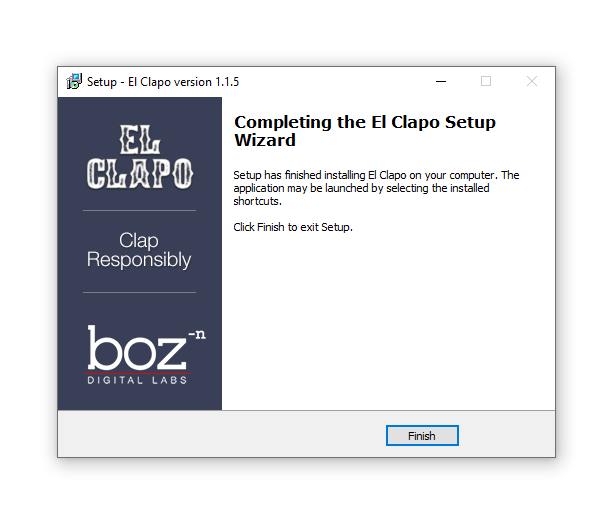
Note: El Clapo is used as an example.
Mac
Redemption
1. Click Download in your Plugin Boutique account or go to https://www.bozdigitallabs.com/plugin-boutique-retrieve/.
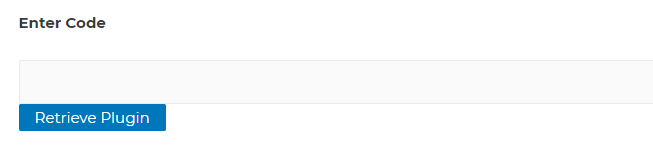
2. Copy and paste the code from your Plugin Boutique account > Click 'Retrieve Plugin'.

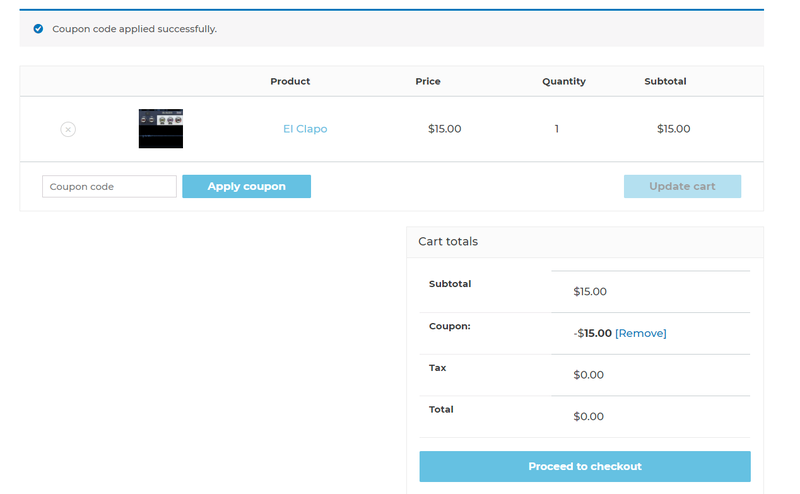
3. Review the order > Click 'Proceed to Checkout'.

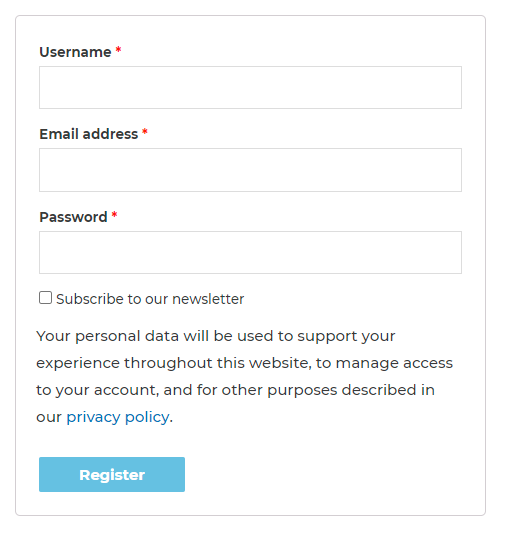
4. Enter your email address, username and password > Click 'Register'.
Note: If you already have Boz Digital Labs account, select 'Click Here to Login' after entering your email address/username and password > Click 'Login'.

5. Check that your email is correct > Click 'Next'.

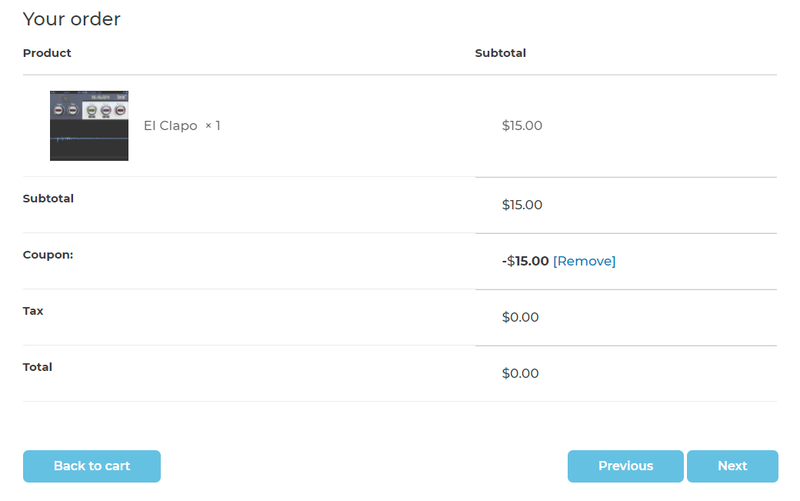
6. Review your order > Click 'Next'.

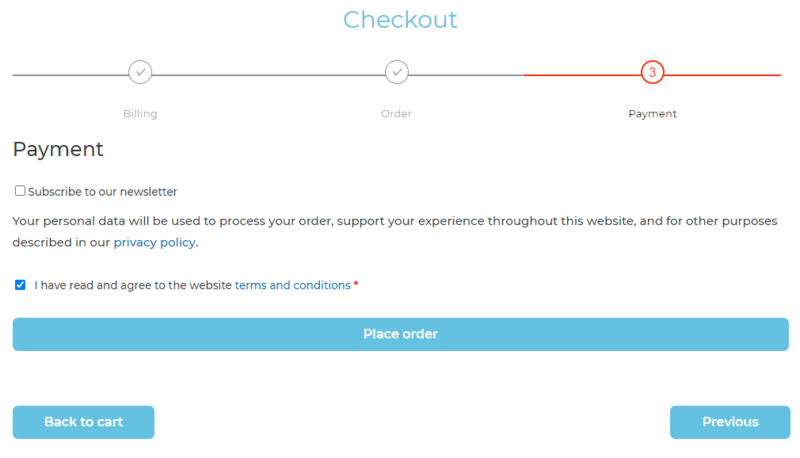
7. Click 'I have read and agree to the website terms and conditions' > Click 'Place order'.

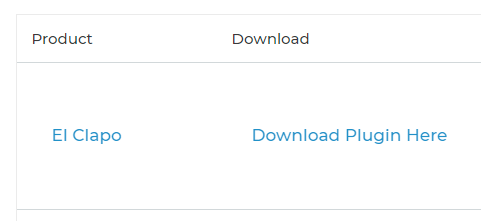
8. Click 'Download Plugin Here'.

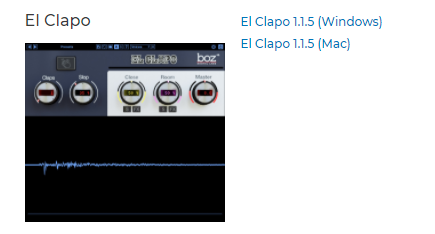
9. Click the Mac link to download the installer.

Installation
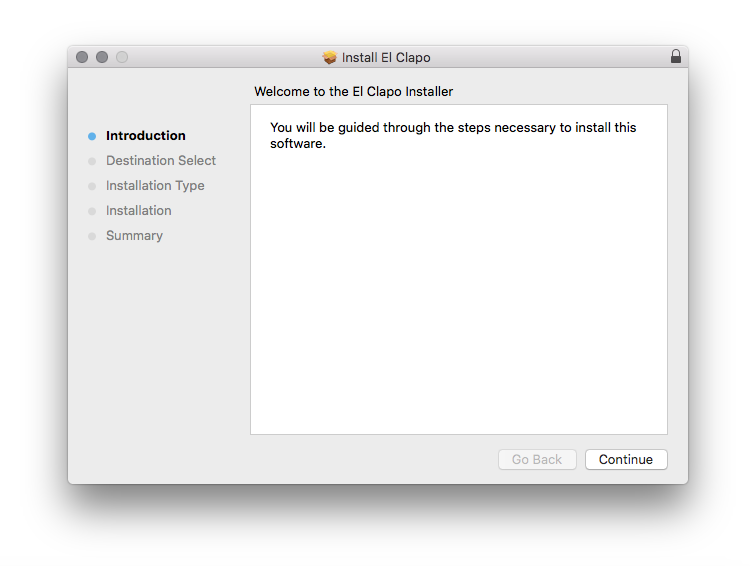
1. Run the .pkg installer > Click 'Continue'.

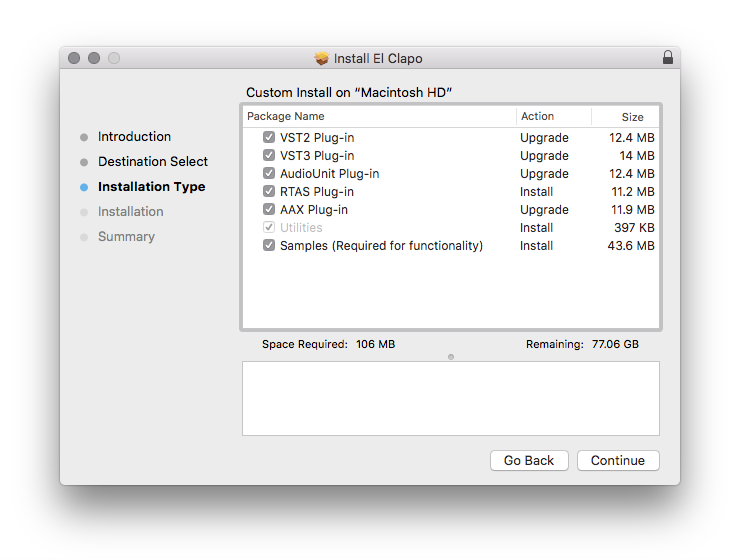
2. Select the formats you wish to install > Click 'Continue'.
Note: If you're unsure about which format to use, leave all options selected and proceed. Check out this article for more information.

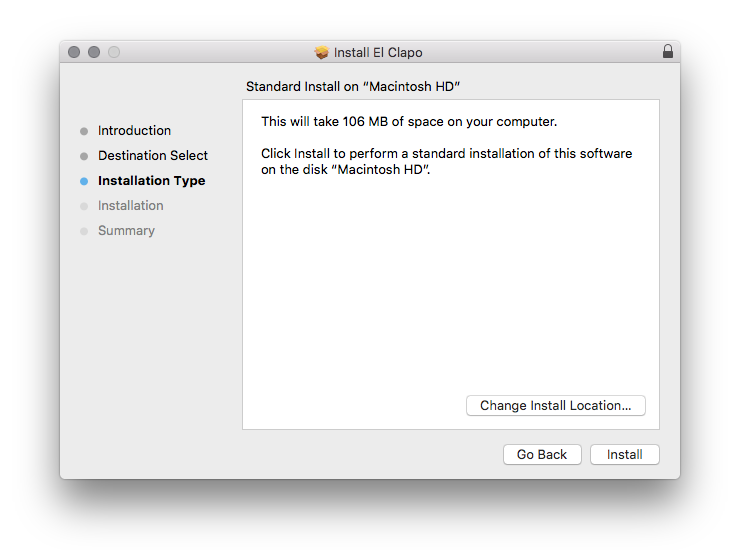
3. Click 'Install'.

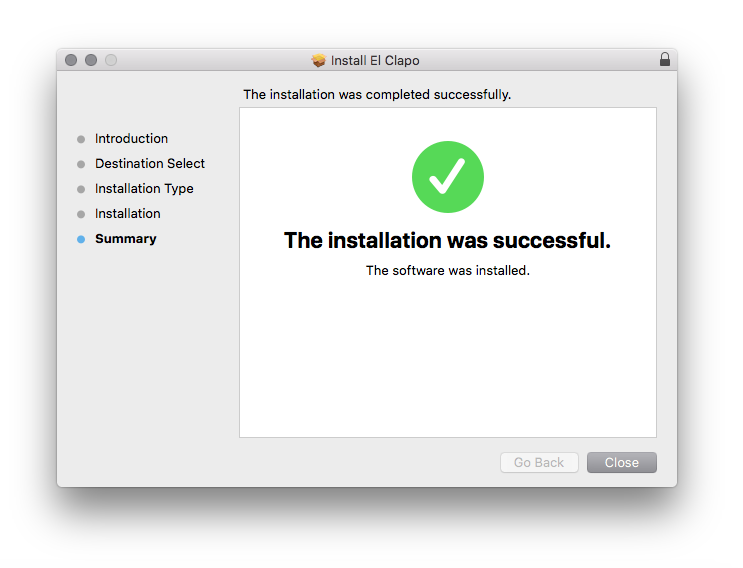
4. Click 'Close'.

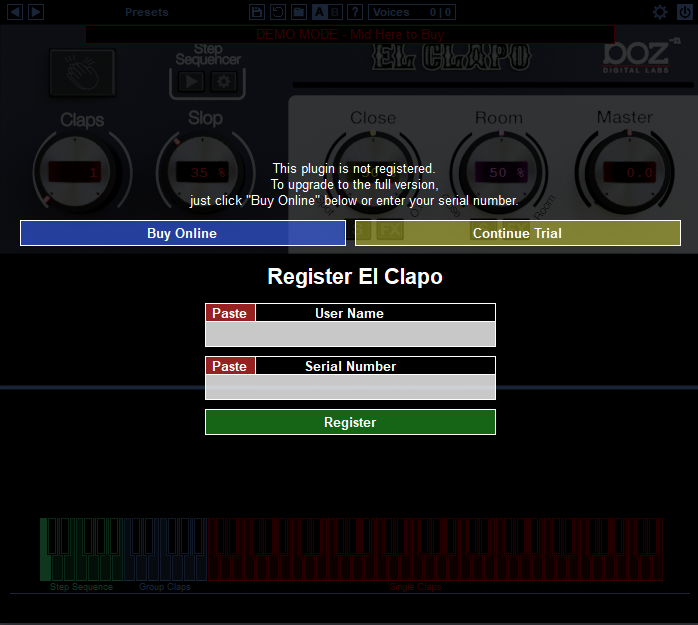
5. Open your DAW and open the plugin > Enter your Boz Digital Labs username and the serial code that you received in your Boz Digital Labs Account > Click 'Register'.

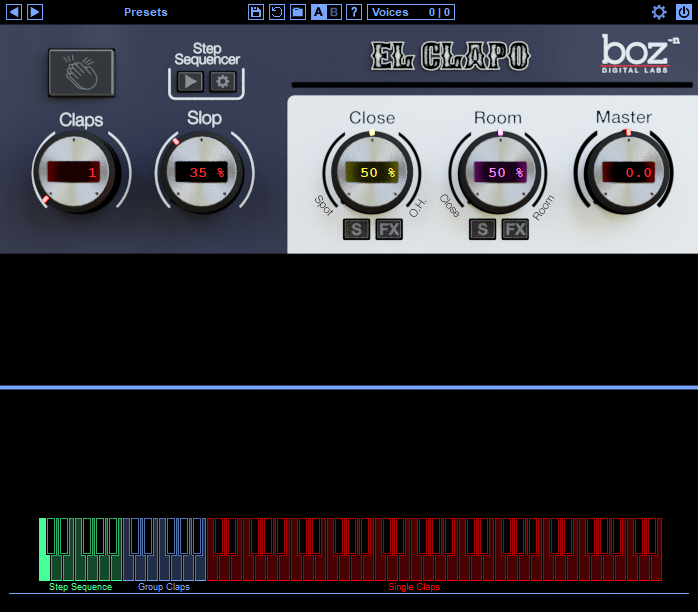
Your software is now authorised and ready for use!

Windows
Redemption
1. Click Download in your Plugin Boutique account or go to https://www.bozdigitallabs.com/plugin-boutique-retrieve/.
2. Copy and paste the code from your Plugin Boutique account > Click 'Retrieve Plugin'.

3. Review the order > Click 'Proceed to Checkout'.

4. Enter your email address, username and password > Click 'Register'.
Note: If you already have Boz Digital Labs account, select 'Click Here to Login' after entering your email address/username and password > Click 'Login'.

5. Check that your email is correct > Click 'Next'.

6. Review your order > Click 'Next'.

7. Click 'I have read and agree to the website terms and conditions' > Click 'Place order'.

8. Click 'Download Plugin Here'.

9. Click the Windows link to download the installer.

Installation
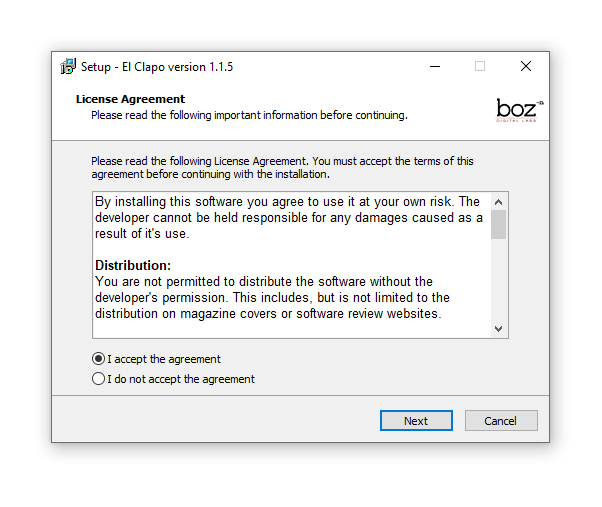
1. Double-click the .exe installer > Click 'I accept the agreement' then click 'Next'.

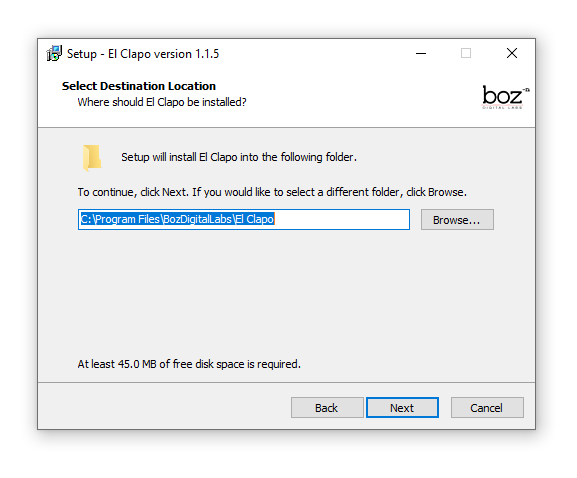
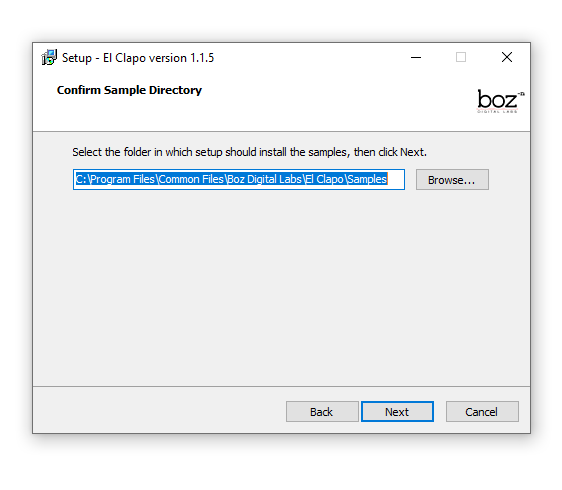
2. Click 'Next'.

3. Click 'Next'.

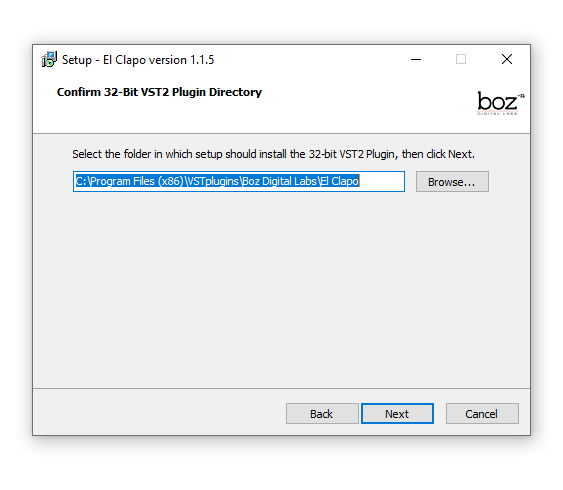
4. Select a VST folder in which to install the 32-bit software format > Click 'Next'.

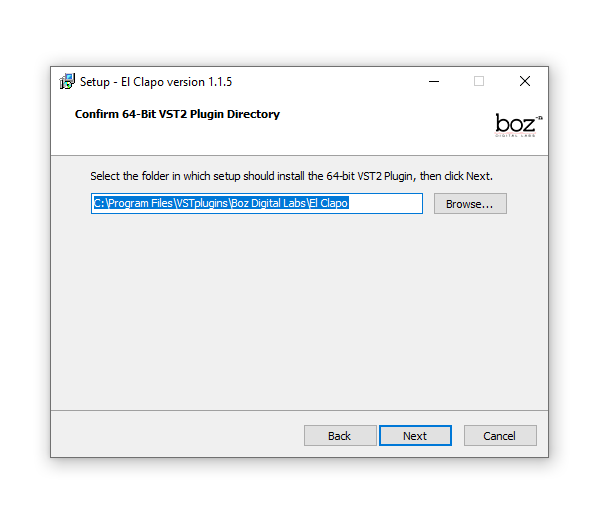
5. Select a VST folder in which to install the 64-bit software format > Click 'Next'.

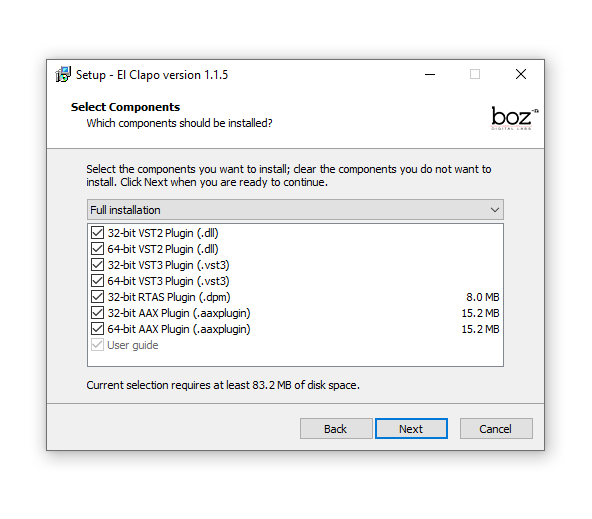
6. Select the components you wish to install > Click 'Next'.

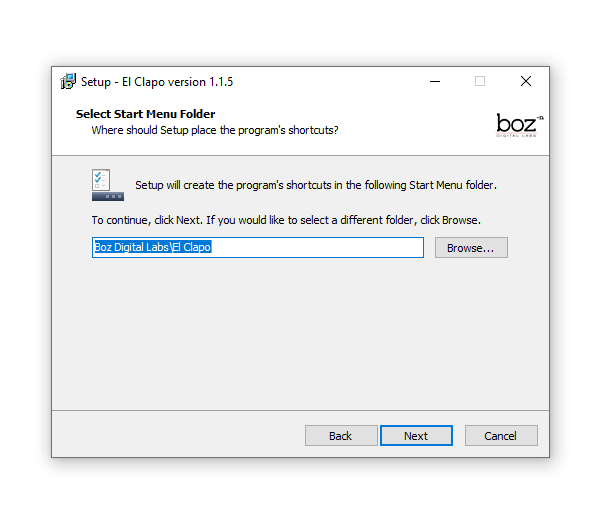
7. Click 'Next'.

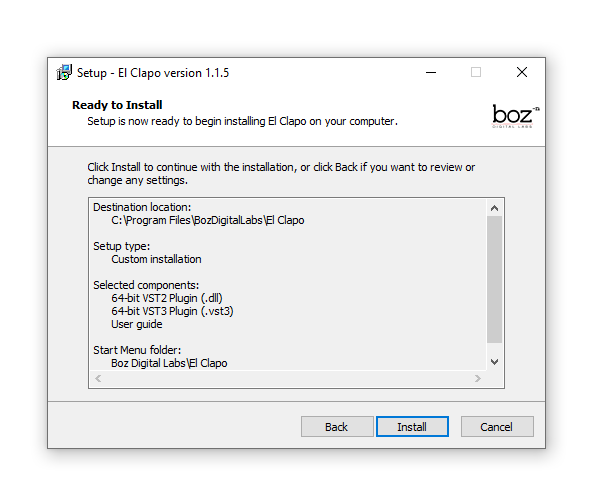
8. Click 'Install'.

9. Click 'Finish'.

10. Open your DAW and open the plugin > Enter your Boz Digital Labs username and the serial code that you received in your Boz Digital Labs Account > Click 'Register'.

Your software is now authorised and ready for use!