Note: miniBit is used as the example.
Mac
1. Download the .dmg software file and Key Licence File from your User Account. Double-click the .dmg file to begin the installation process > click ‘Continue’.
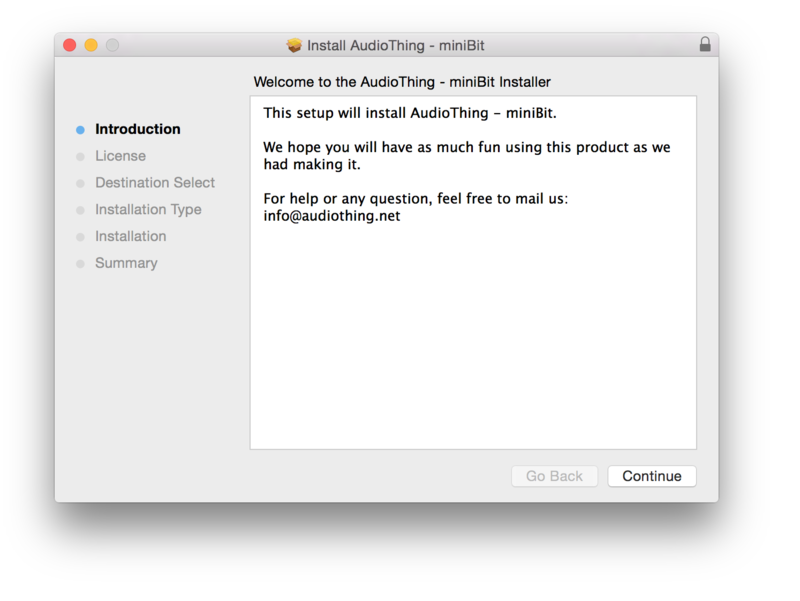
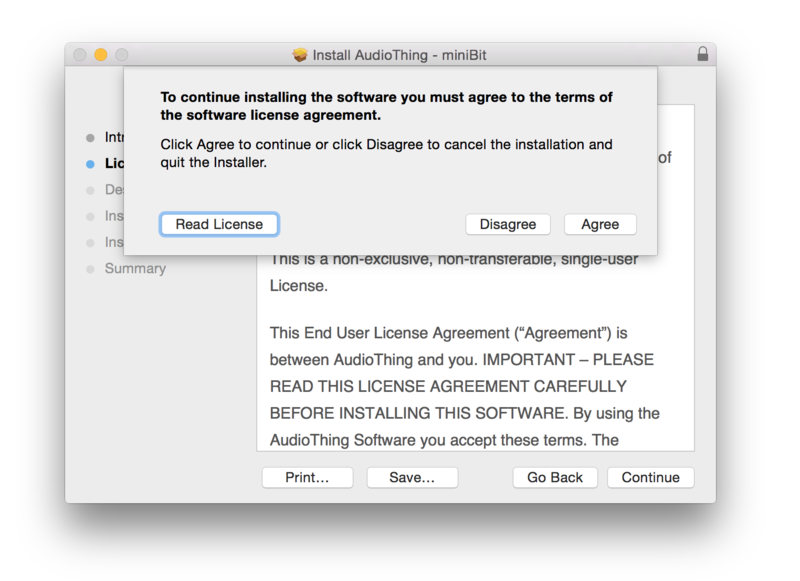
2. Read the Software License Agreement > click ‘Continue’ and then ‘Agree’.
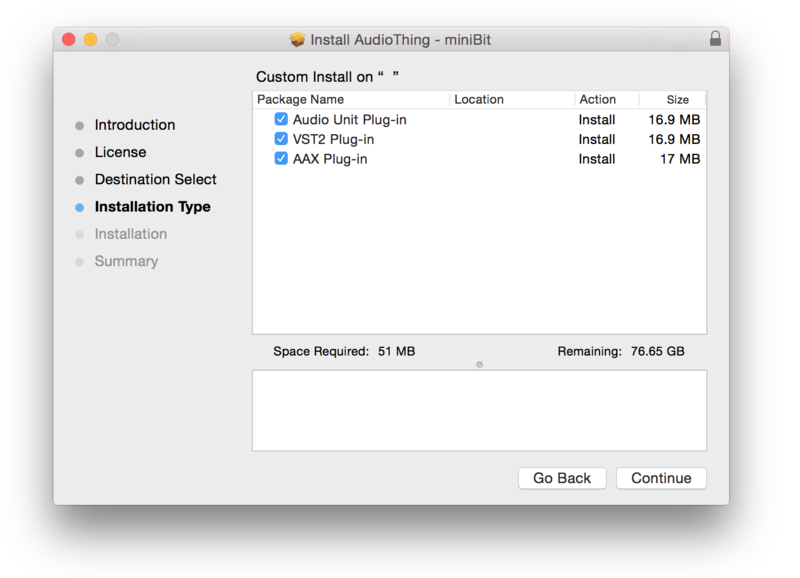
3. Select the component (s) that you wish to install to your computer, and click ‘Continue’.
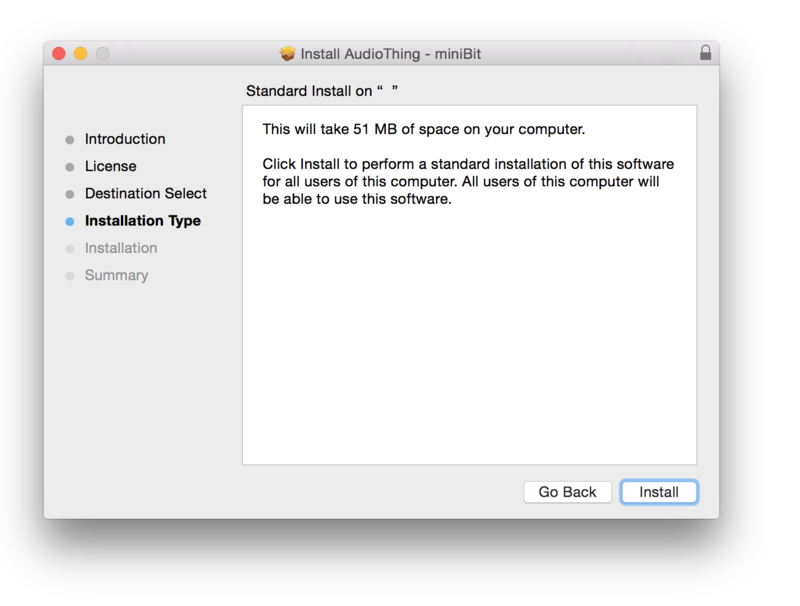
4. Review the installation and click ‘Install’.
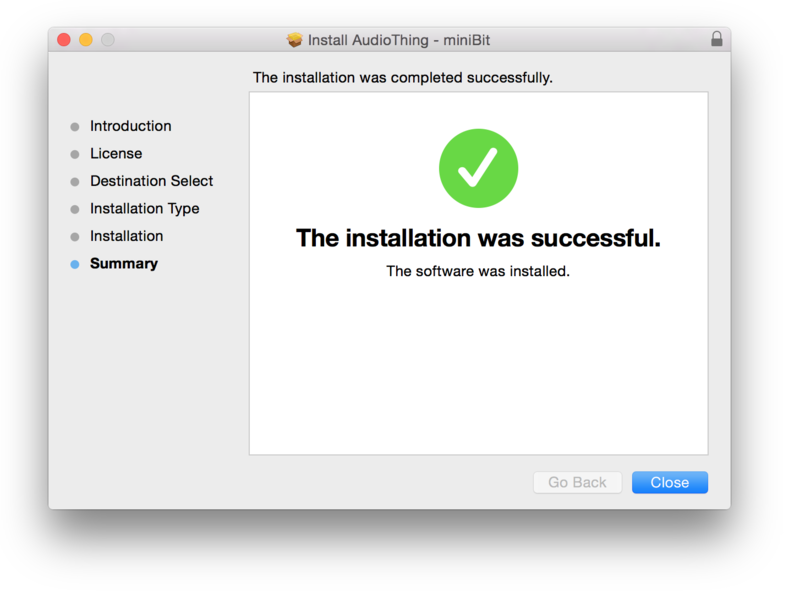
5. The installation of your software has successfully completed > click ‘Close’.
Activation
1. Restart your DAW, and rescan your plugin selection to show the new installation (in the event it fails to appear).
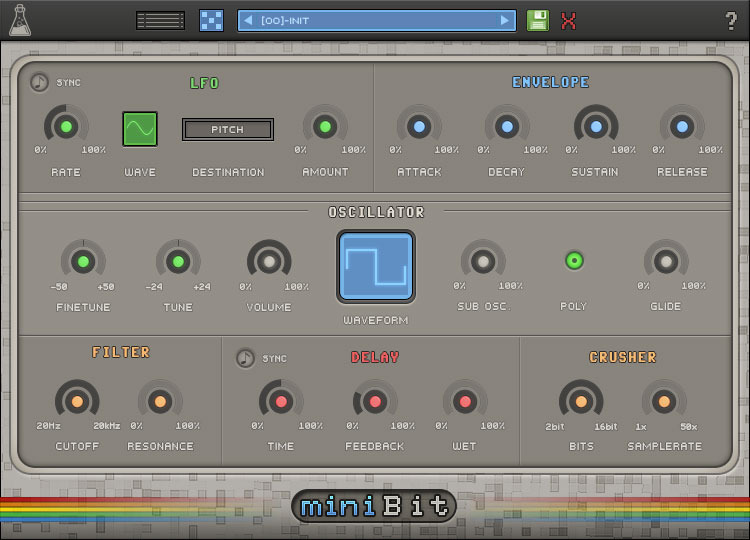
2. Locate and open the plugin on an appropriate track.
The Software is now Activated and Ready for Use Within Your DAW
Windows
1. Download the .dmg software file and Key Licence File from your User Account. Double-click the compressed folder to reveal the installer file.
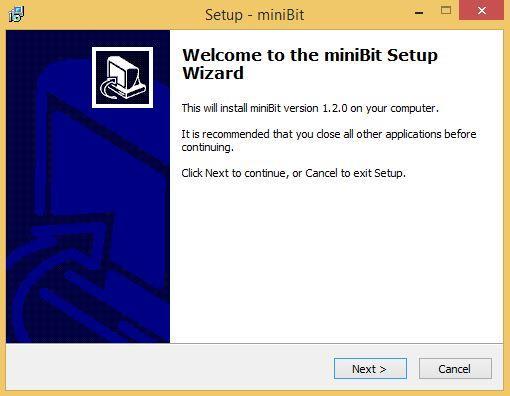
2. Double-click the extracted .exe file to begin the installation process > click ‘Next’.
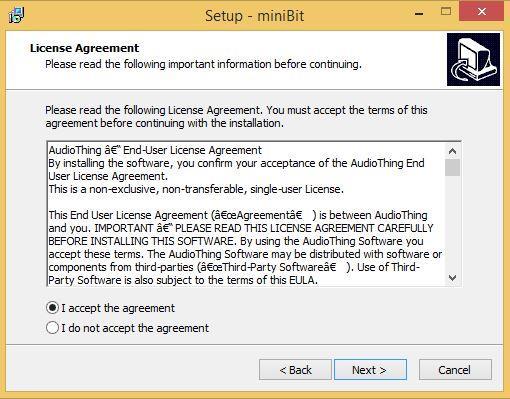
3. Read through the license agreement and click ‘I accept the agreement’ > click ‘Next’.
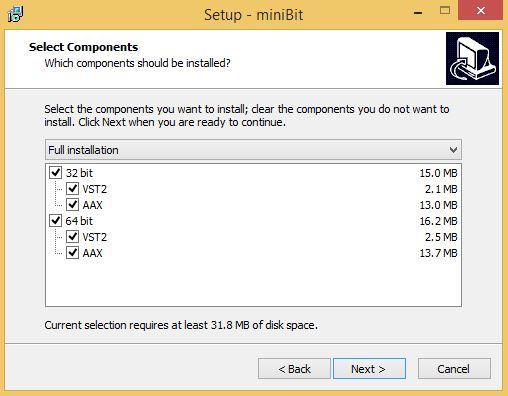
4. Select the component (s) that you wish to install > click ‘Next’.
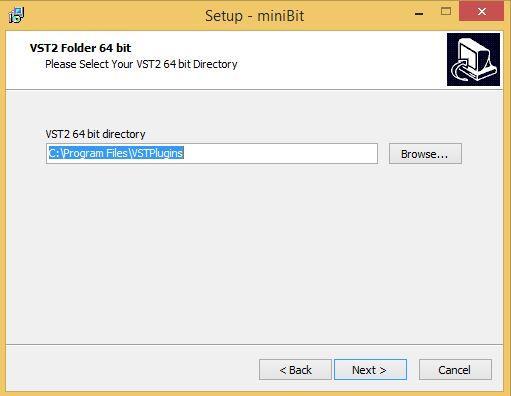
5. Choose and confirm the 64-bit plugin directory (VST2) in which to save your software to > click ‘Next’.
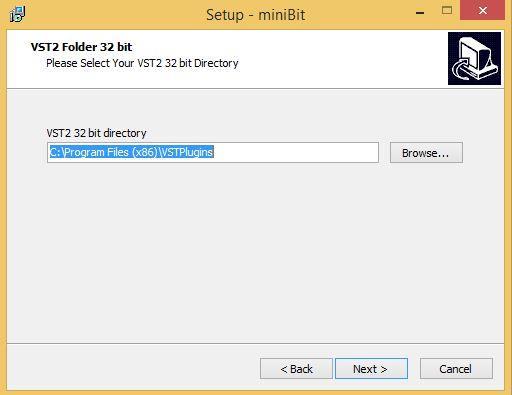
6. Choose and confirm the 32-bit plugin directory (VST2) in which to save your software to > click ‘Next’.
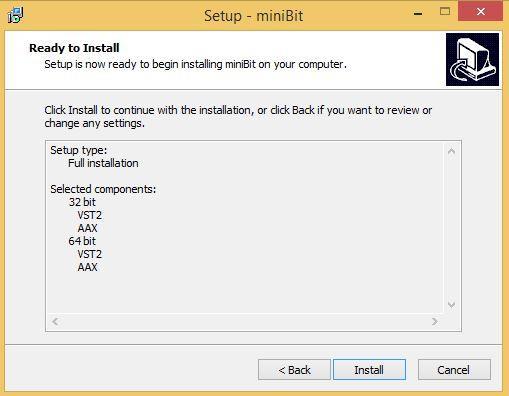
7. Review the installation and click ‘Install’.
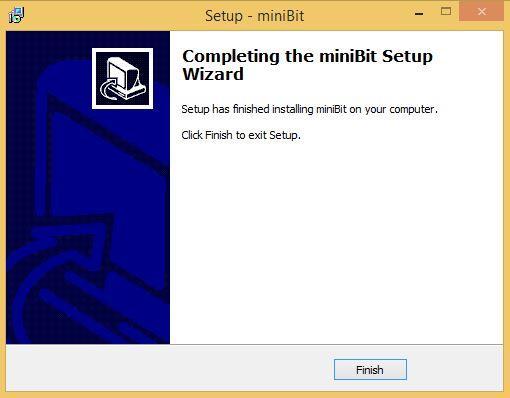
8. The installation of your software has successfully completed > click ‘Finish’.
Activation
1. Restart your DAW, and rescan your plugin selection to show the new installation (in the event it fails to appear).
2. Locate and open the plugin on an appropriate track.
The Software is now Activated and Ready for Use Within Your DAW


 Log In


