Buy RetroMod 106, get a free gift with purchase:
Simple and effective, the 3 classic Juno instruments have carved out a devoted following.
Building on this expressive foundation, for the first time it will be possible to enjoy the sound of a virtual multi-oscillator Juno, allowing you to layer tones.
Explore new depths in the Juno’s bass capabilities and enjoy the unusual chorused pads that defined the originals.
Juno Instruments
The following Juno instruments were sampled with Avalon U5, A-Design Reddi, Focusrite ISA428, Apogee Rosetta 200 and VoVox Cables.
- Roland Juno-60
- Roland Juno-106
- Roland Alpha Juno 2
Features
- 4.5 GB Total File Size
- 291 Presets
- 15,000 Samples
System Requirements
Mac
- macOS 10.9 or Later (32 & 64-bit)
- Intel Core 2 Duo 2GHz Processor
- 2GB RAM (8GB Recommended)
- AU, AAX, VST
PC
- Windows 7, 8, 10 and 11 (32 & 64-bit)
- Intel Core 2 Duo 2GHz Processor
- 2GB RAM (8GB Recommended)
- AAX, VST
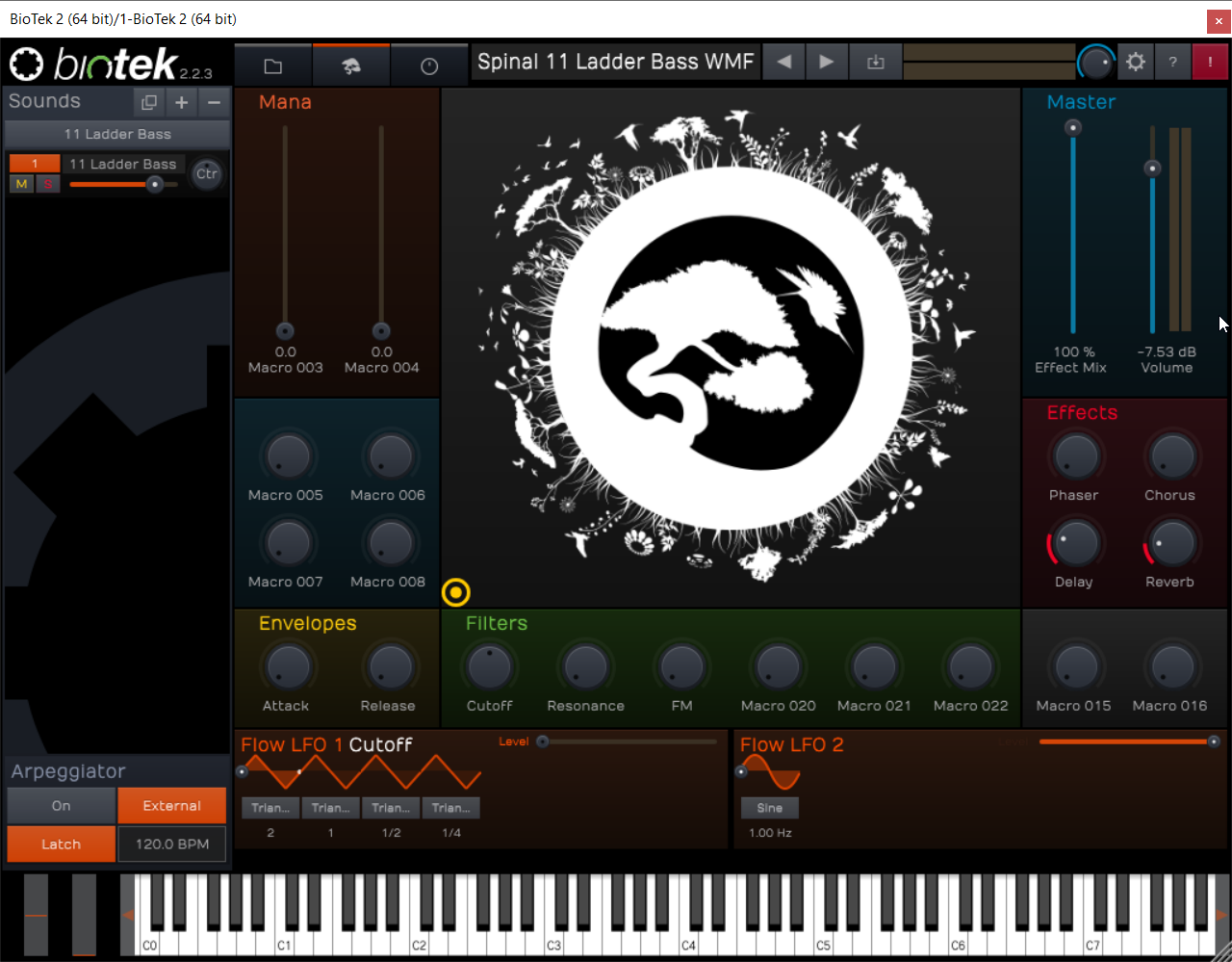
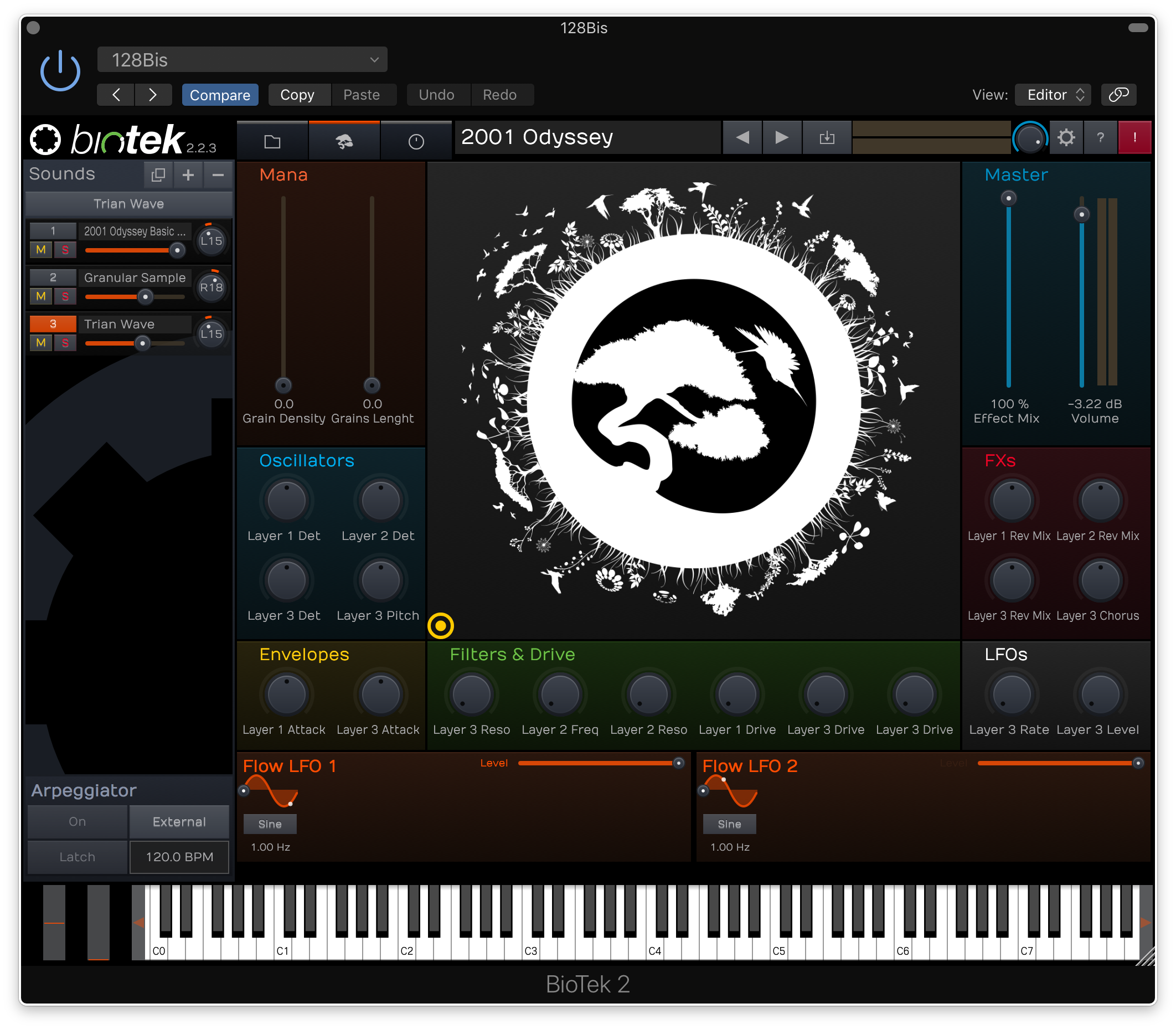
Note: BioTek2 is used as an example.
Windows
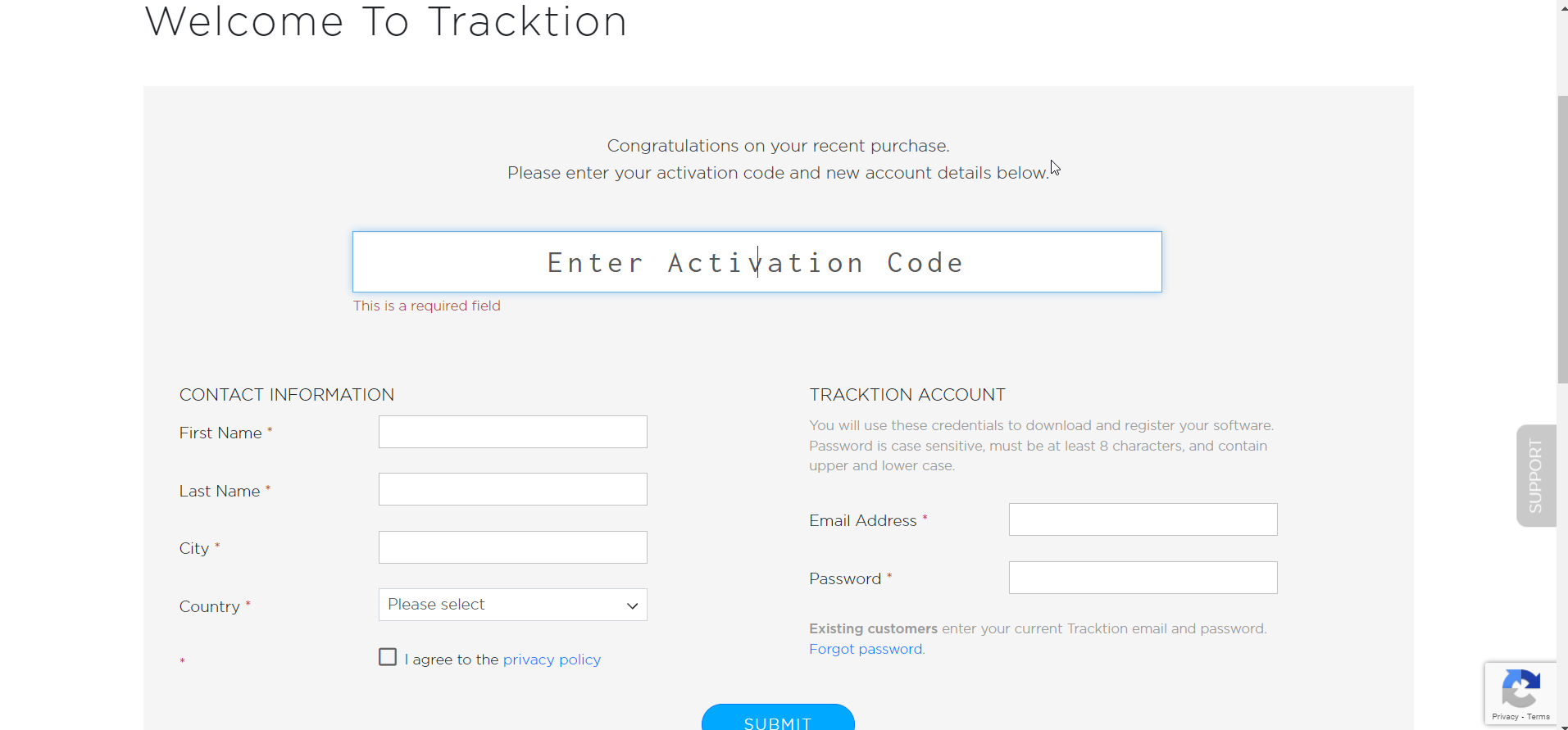
1. Visit https://marketplace.tracktion.com/activate > Enter your Activation Code found in your My Account > Enter your contact information and either register or log in to Tracktion > Click "Submit".

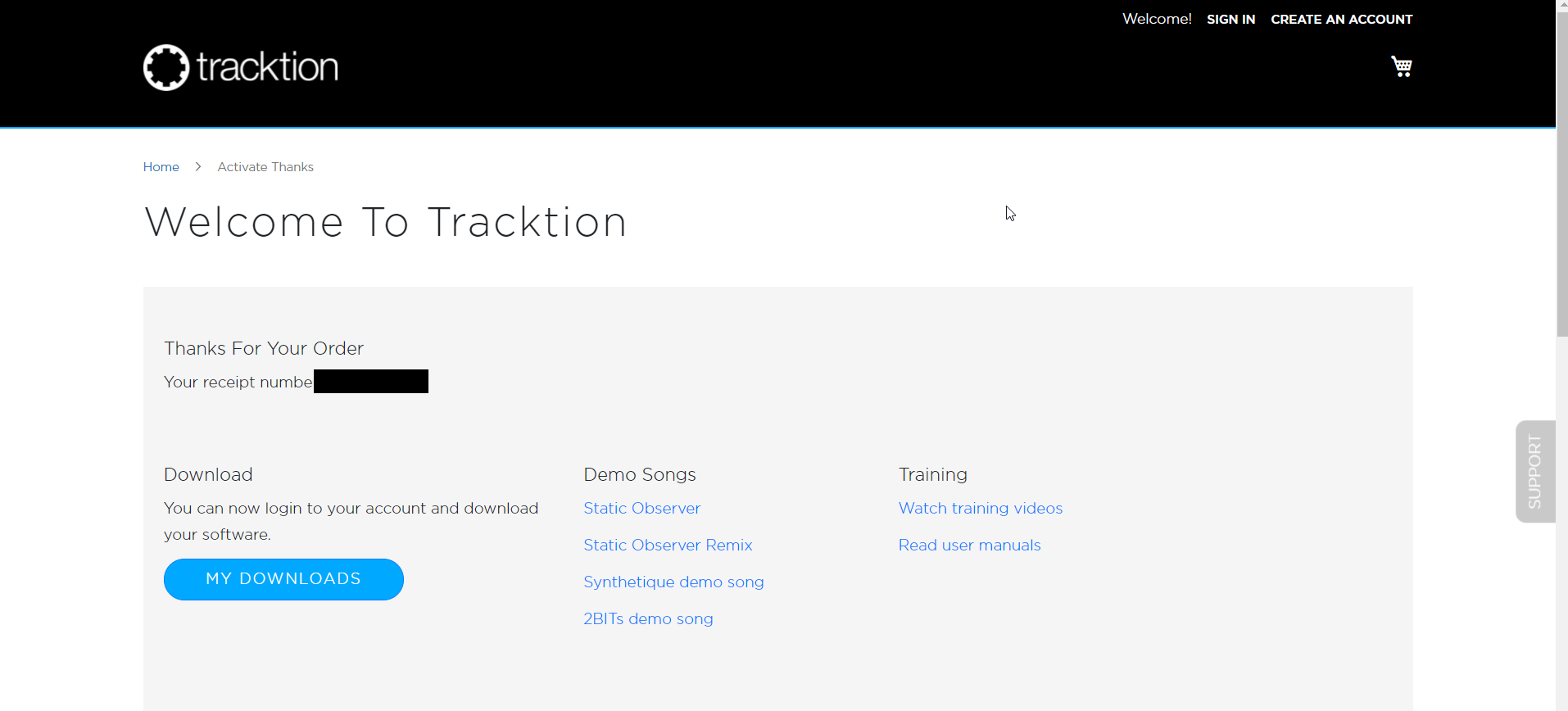
2. Click "My Downloads".

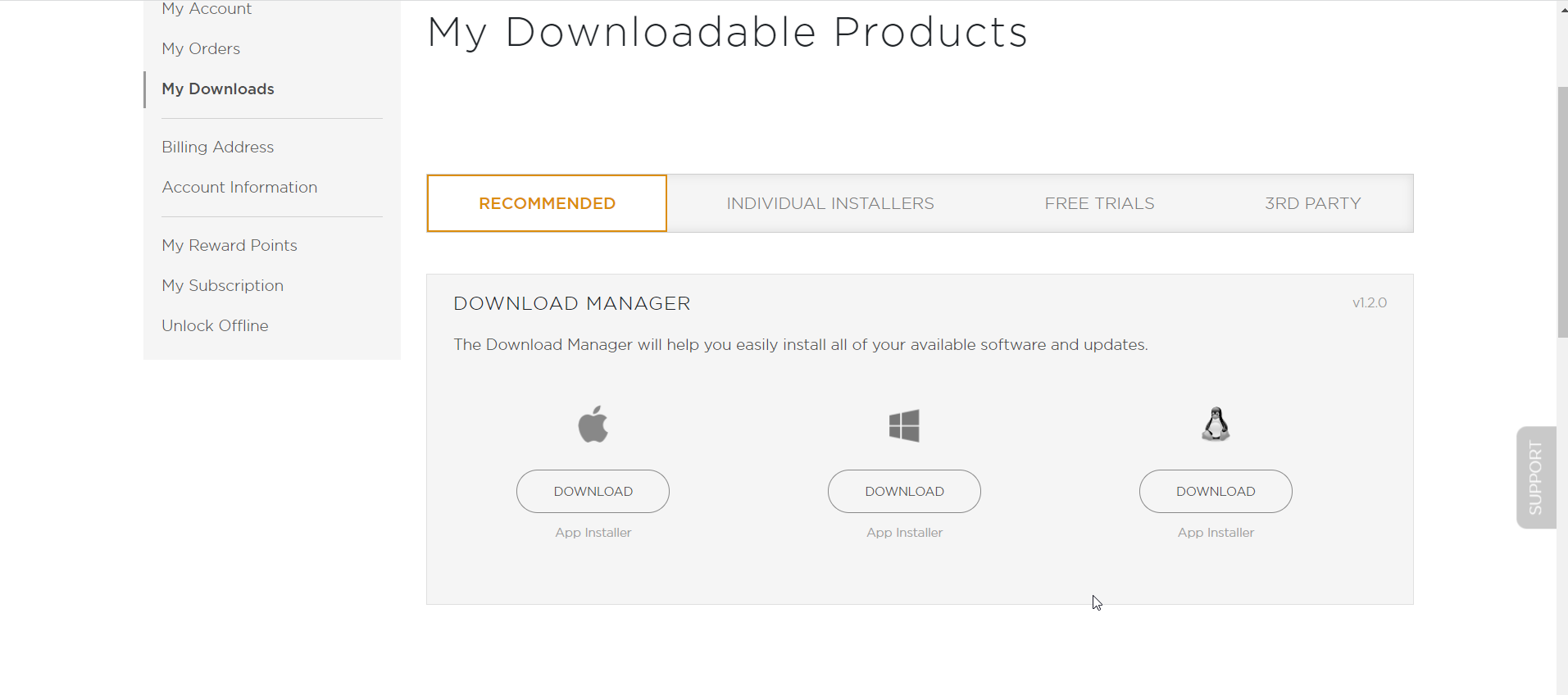
3. Download the Tracktion Download Manager by selecting your operating system and clicking "Download".

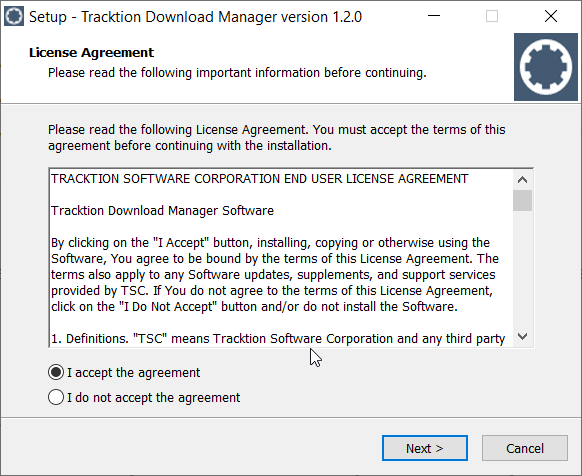
4. Double-click the downloaded .exe installer > Select "I accept the agreement" and click "Next >".

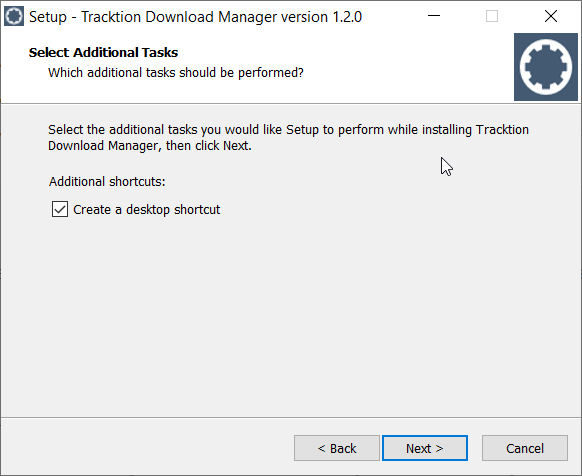
5. Decide whether or not you would like a desktop shortcut > Click "Next >".

6. Select your destination > Click "Next >".

7. Click "Install".

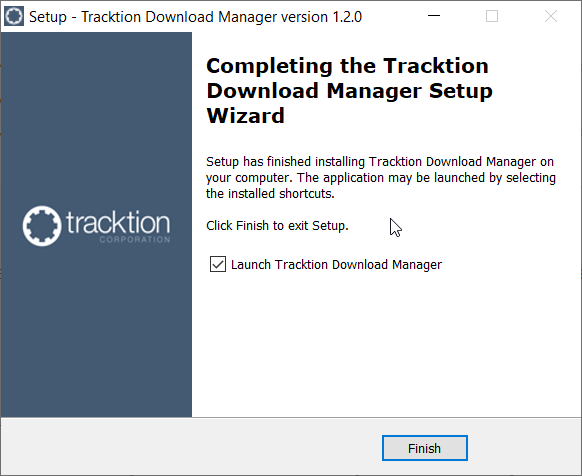
8. Click "Finish".

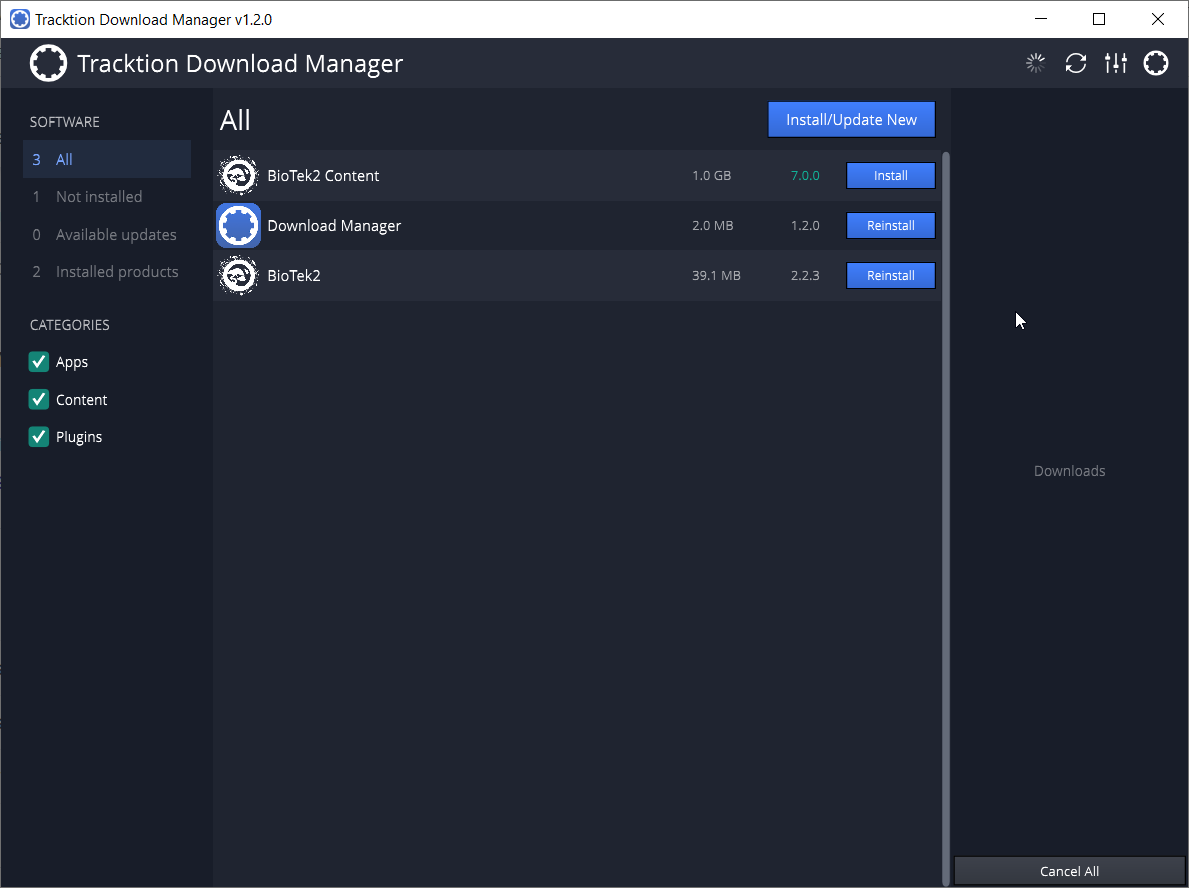
9. Open the Tracktion Download Manager > Click "Install" on both BioTek 2 and BioTek 2 content.

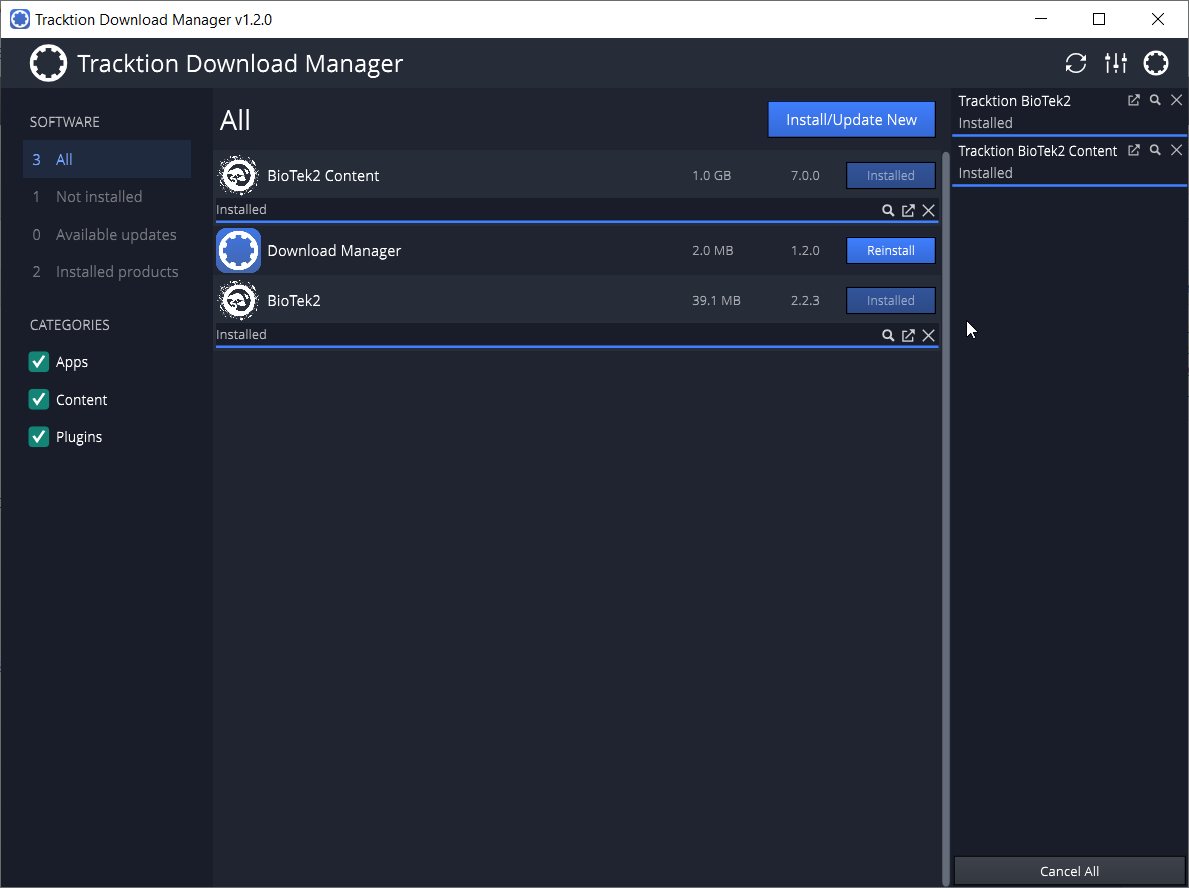
10. Once your files have been downloaded and installed, you can close the download manager. > Then open your DAW.

Your software is now installed and ready for use!

Mac
1. Visit https://marketplace.tracktion.com/activate > Enter your Activation Code found in your My Account > Enter your contact information and either register or log in to Tracktion > Click "Submit".

2. Click "My Downloads".

3. Download the Tracktion Download Manager by selecting your operating system and clicking "Download".

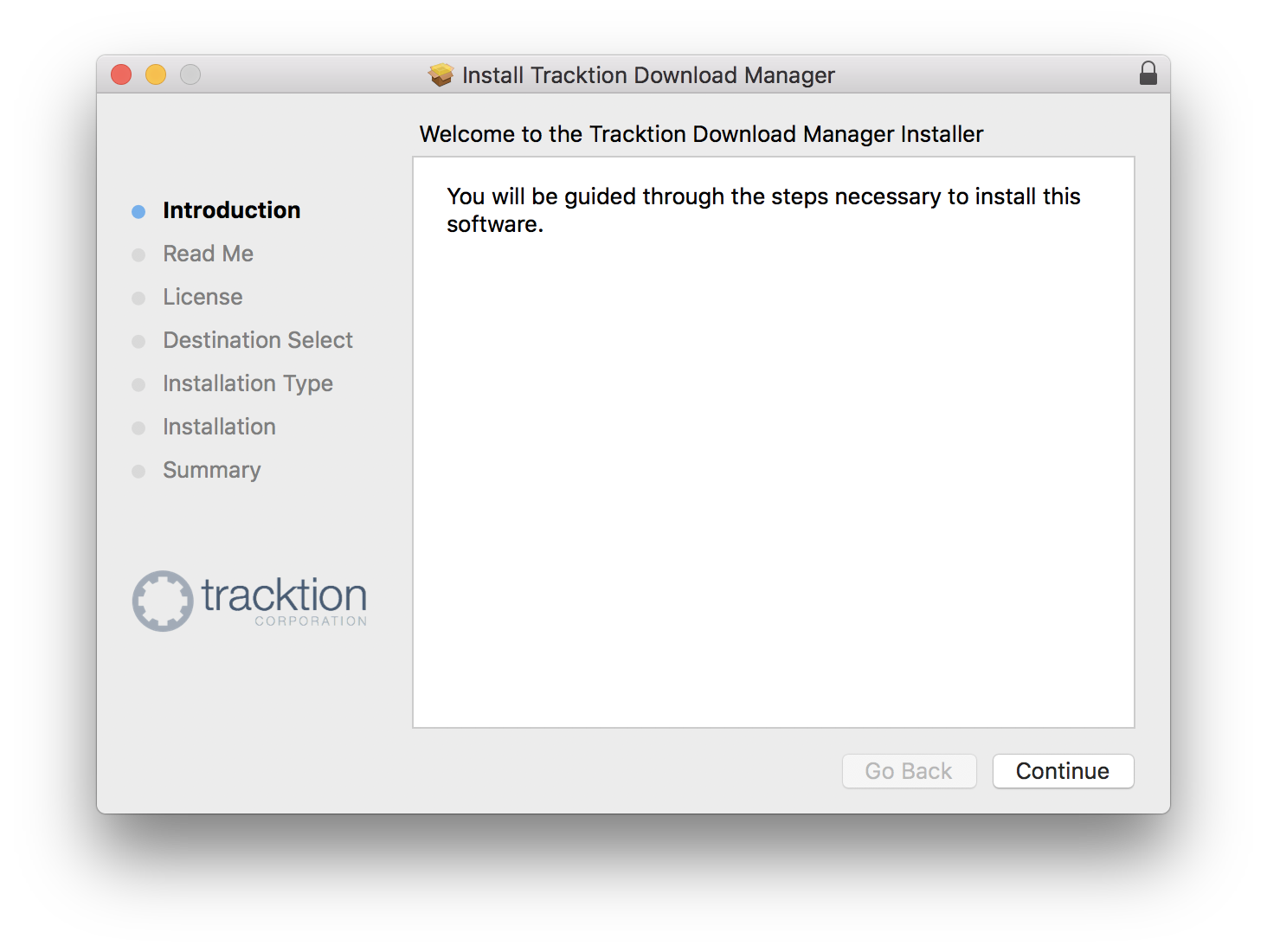
4. Open the.dmg file > Click "Continue".

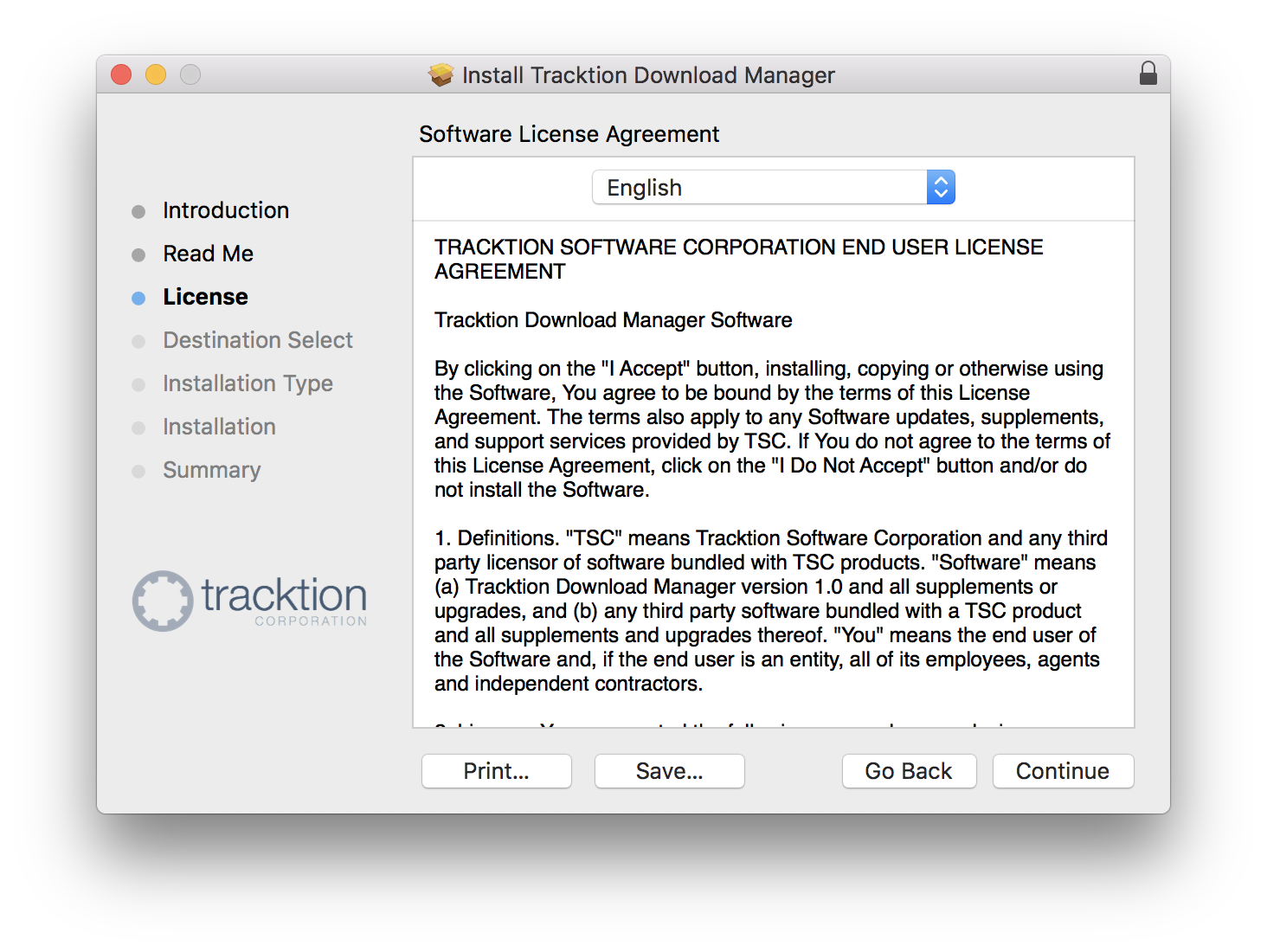
5. Read the Software License Agreement > Click "Continue".

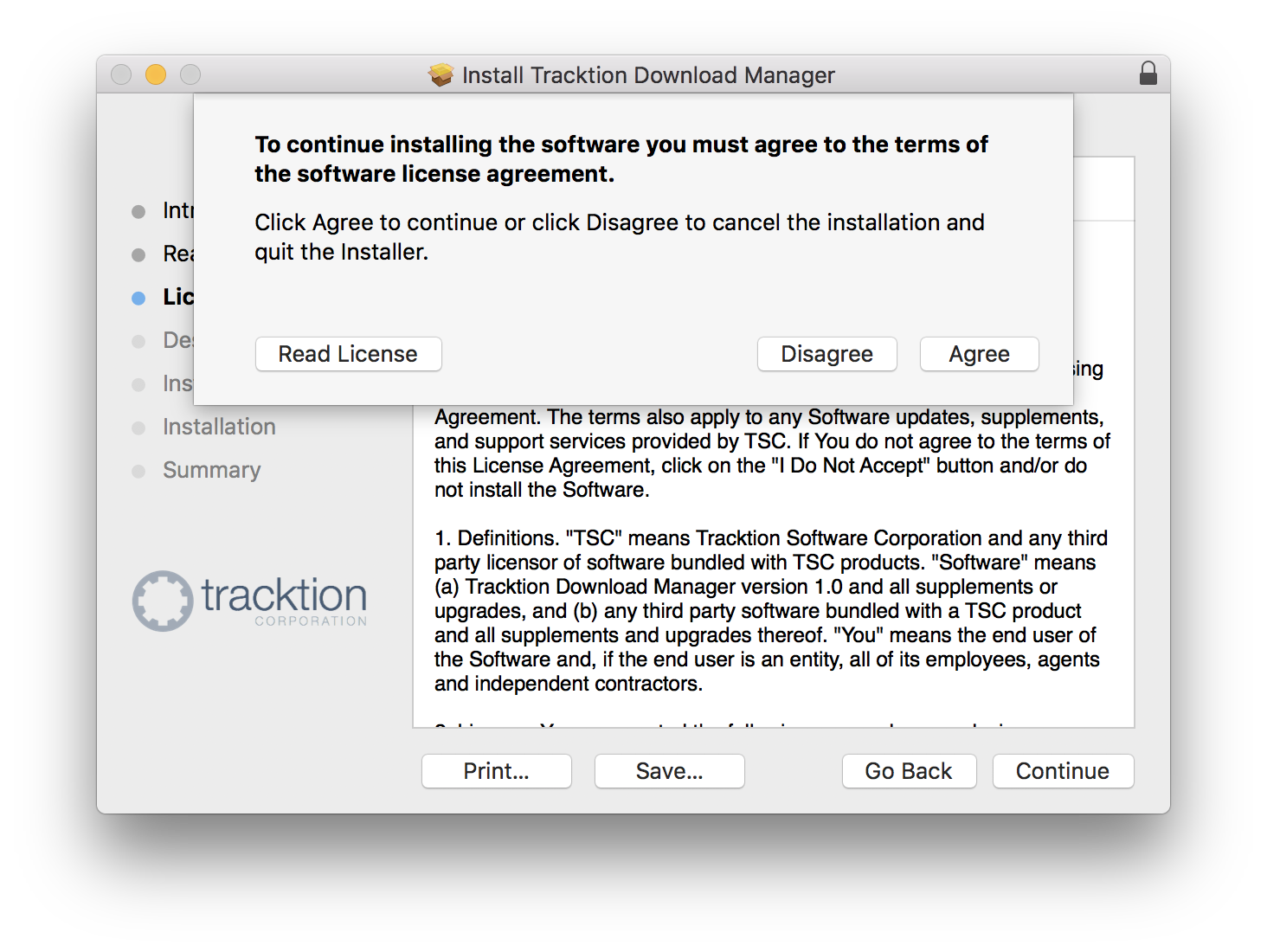
6. Click "Agree".

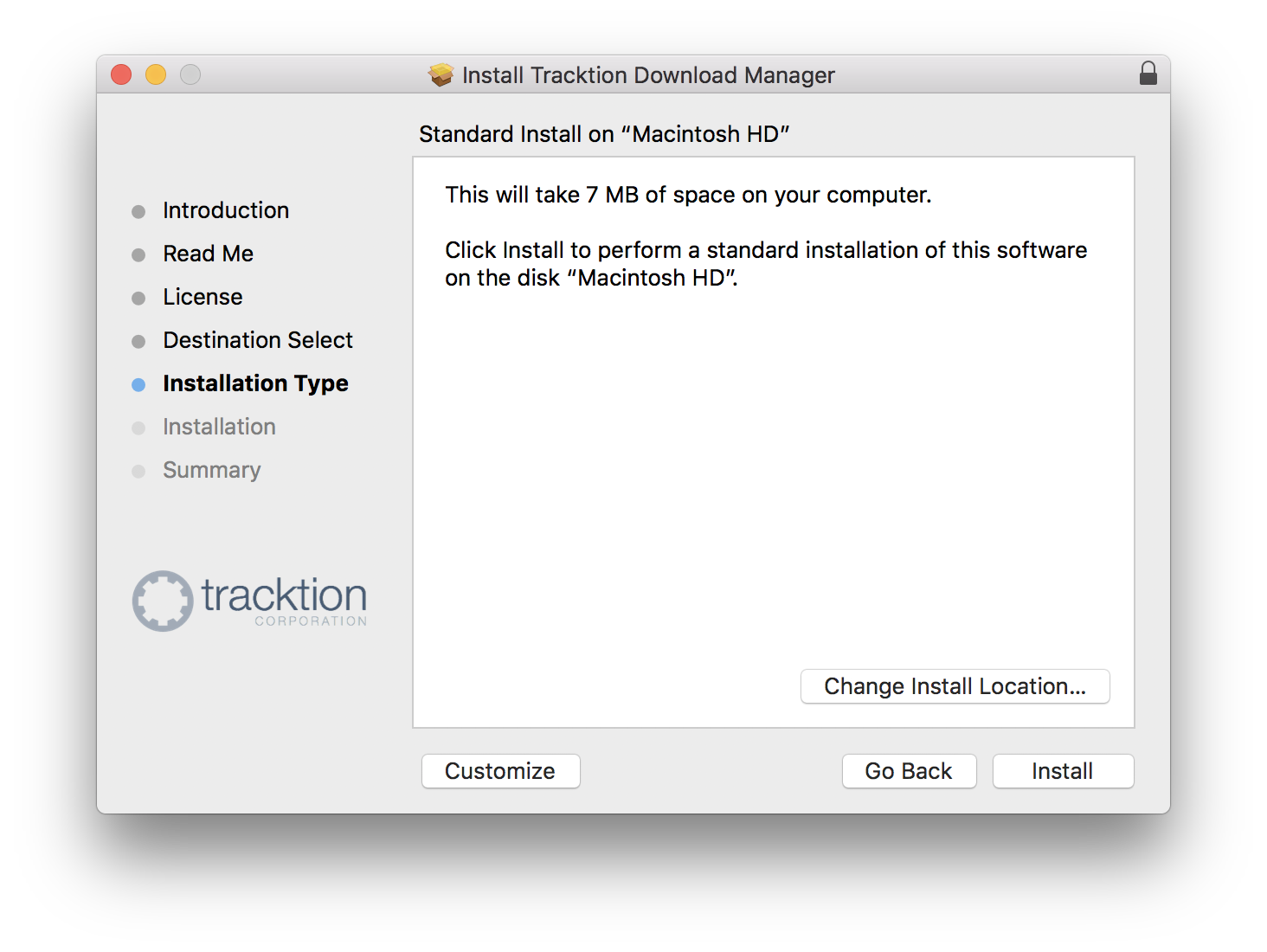
7. Click "Install".

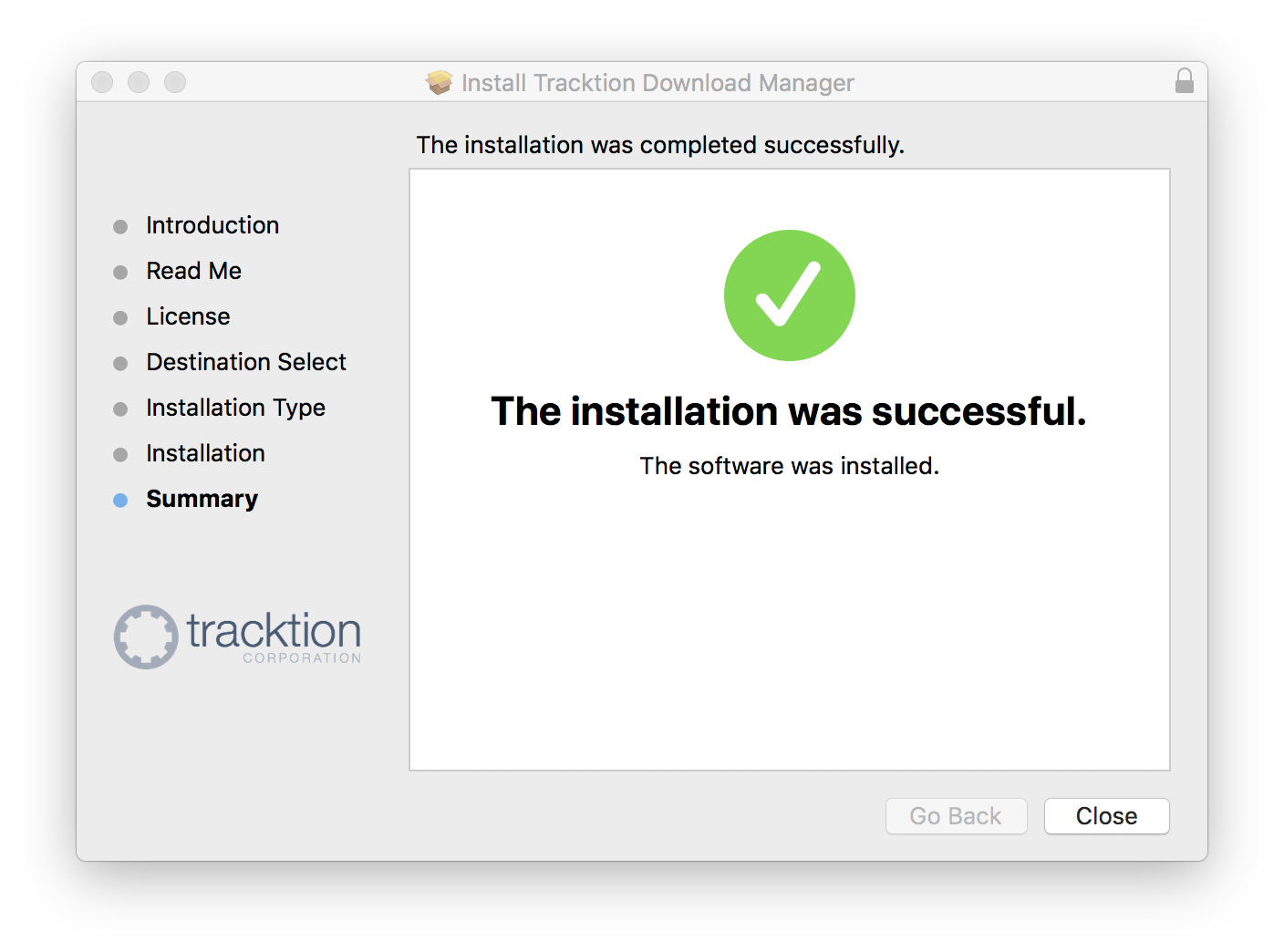
8. Click "Close".

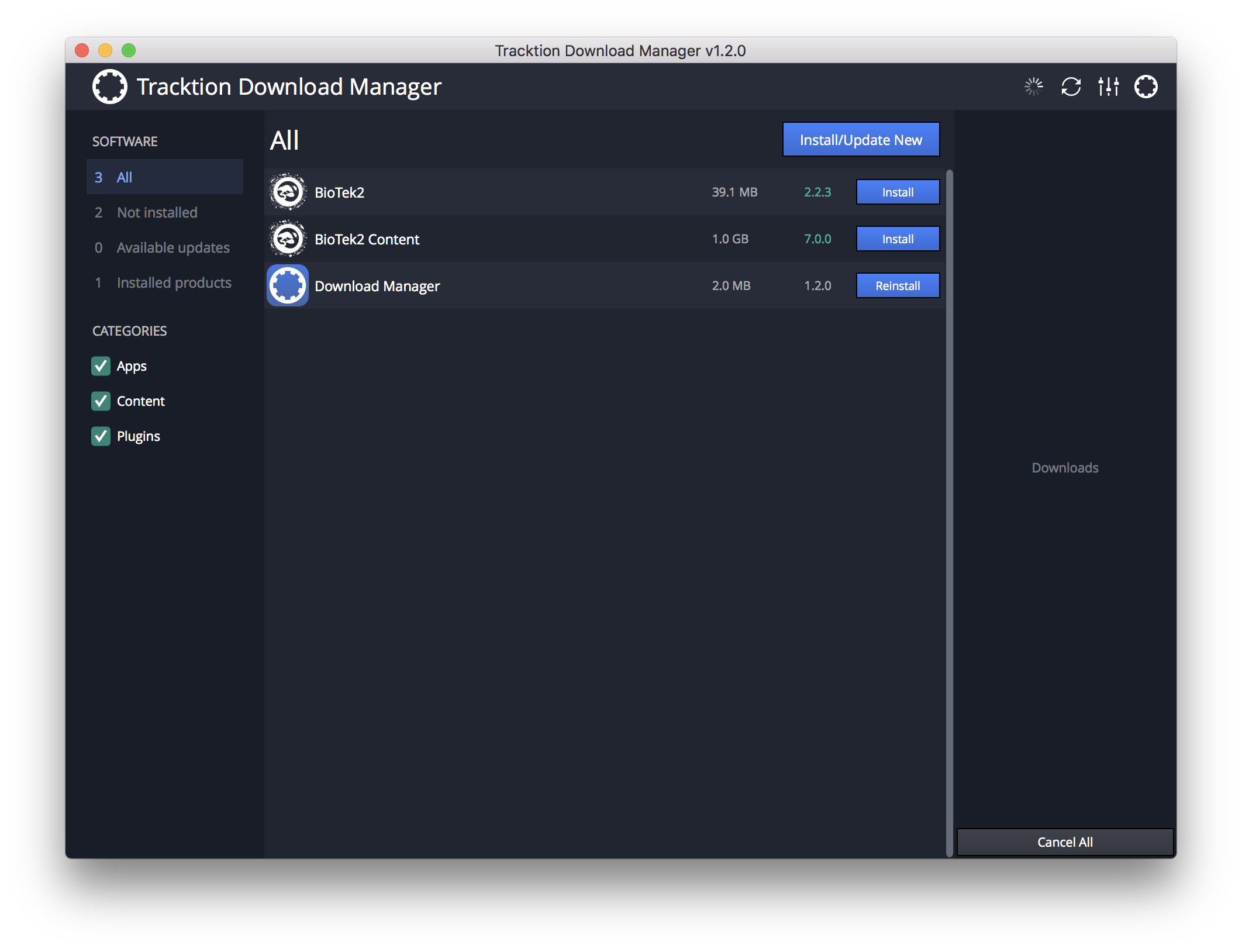
9. Open the Tracktion Download Manager > Click "Install" on both BioTek 2 and BioTek 2 content.

10. Once your files have been downloaded and installed, you can close the download manager. > Then open your DAW.
Your software is now installed and ready for use!