Note: DRMeter MkII is used as the example
Mac Installation
1. Download the .zip folder from your Plugin Boutique User Account and double-click it's contents.
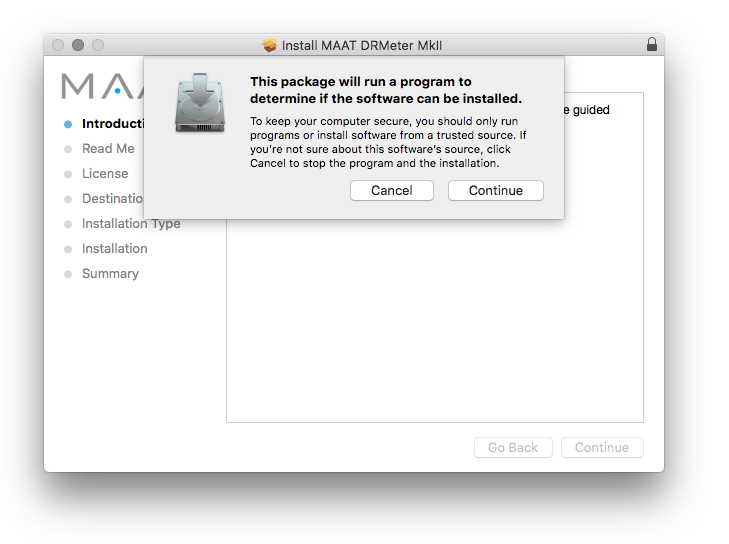
2. Double-click the .dmg installer file to begin the installation process > Click 'Continue'.
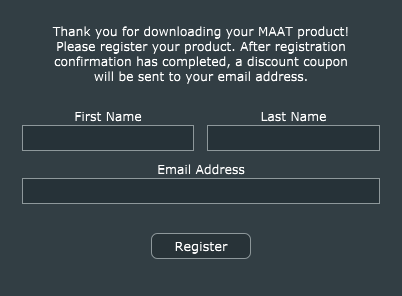
3. Enter your name and Email > Click 'Register'.
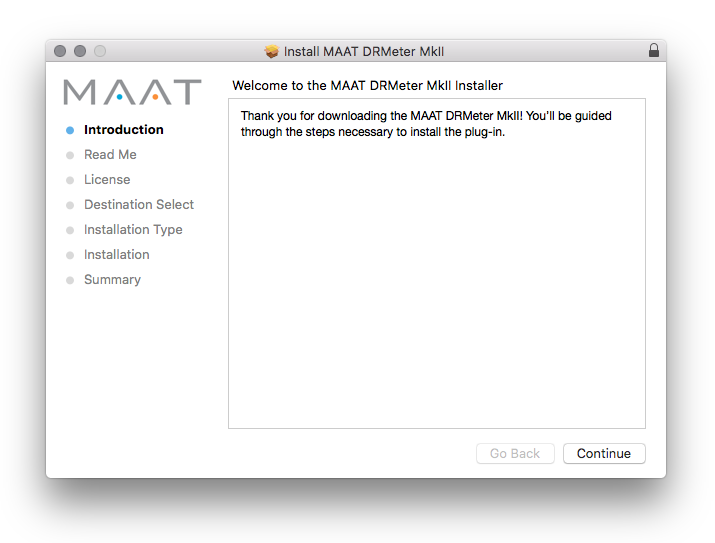
4. Click 'Continue'.
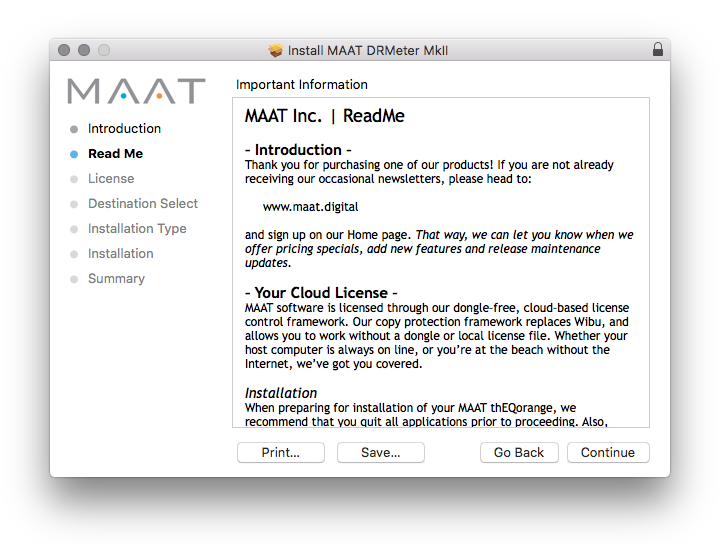
5. Click 'Continue'.
6. Click 'Continue'.
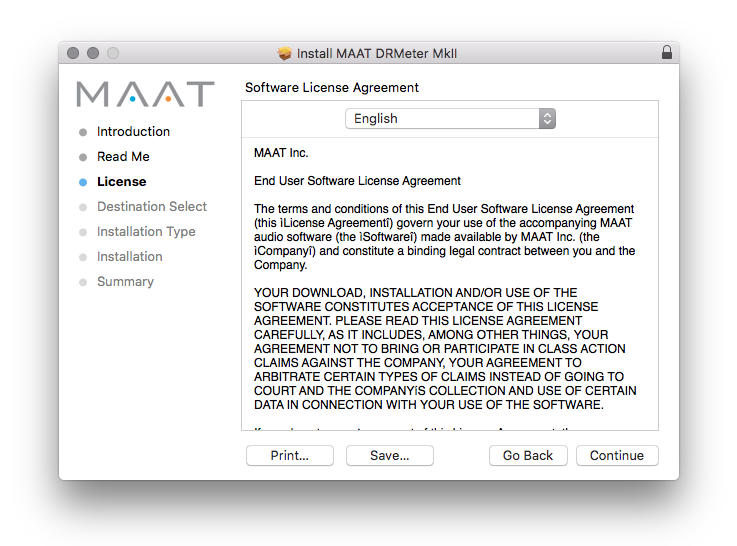
7. Click 'Agree'.
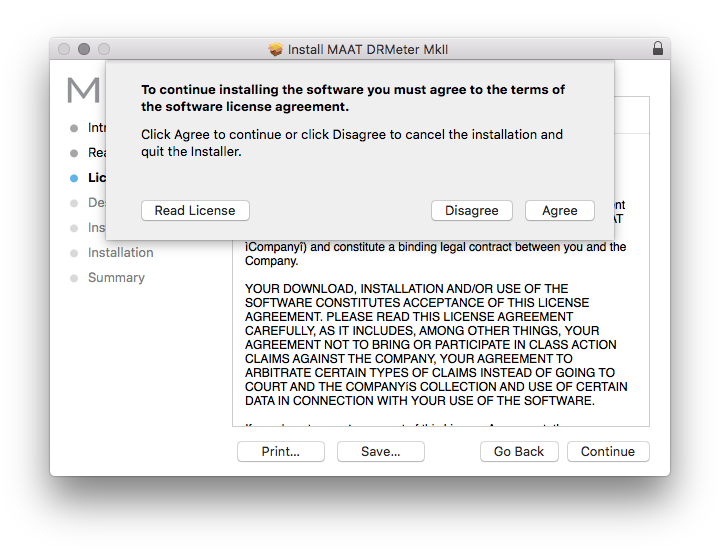
8. Click 'Continue'.
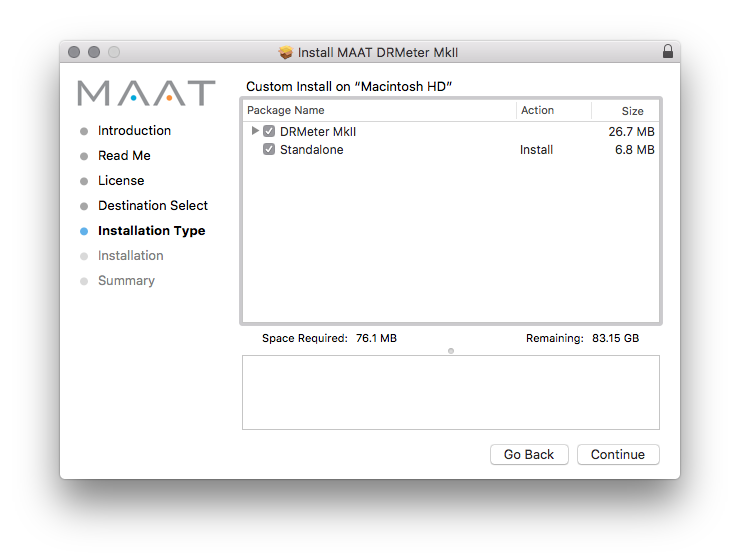
9. Click 'Install'.
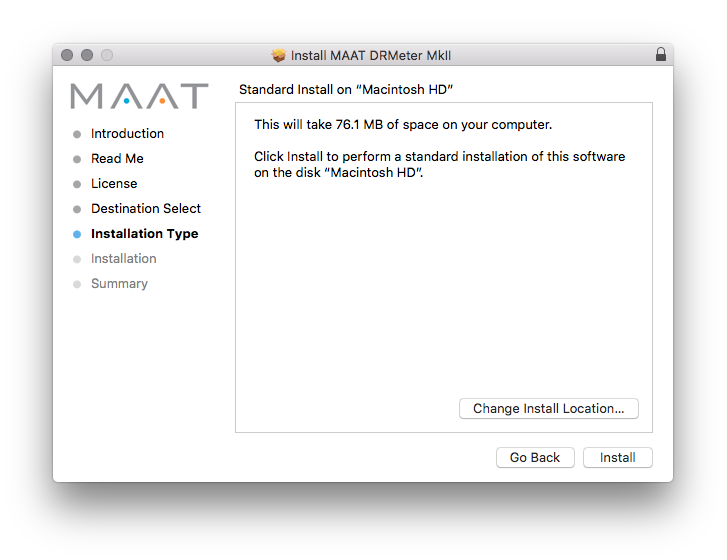
10. Click 'Close'.
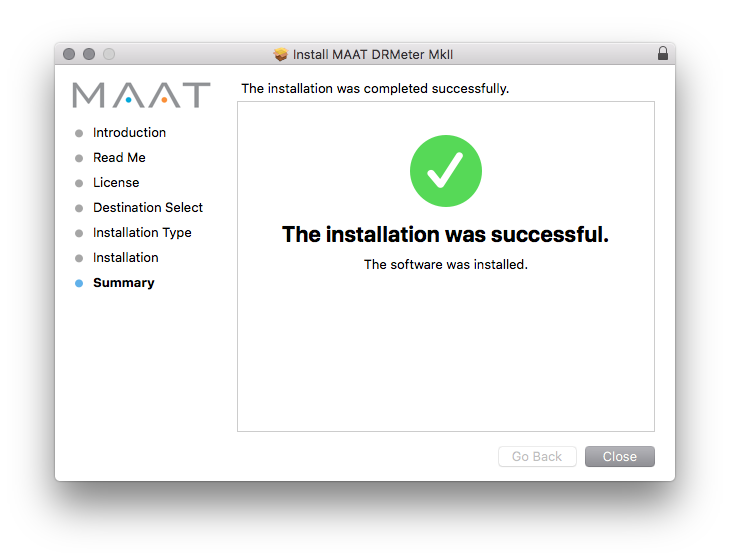
Mac Online Activation
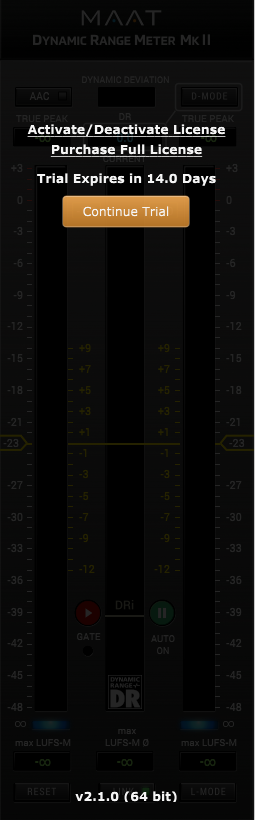
1. Open MAAT DRMeter MKII as a standalone or inside of your DAW. > Click 'Activate/Deactivate License'.
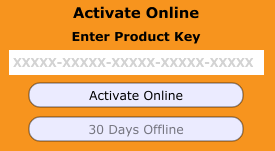
2. Enter the Product Key that can be found in your Plugin Boutique User Account > Click 'Activate Online'.
3. Click 'Ok'.
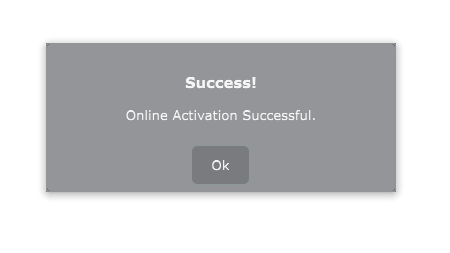
Your software has now been activated and is ready for use!
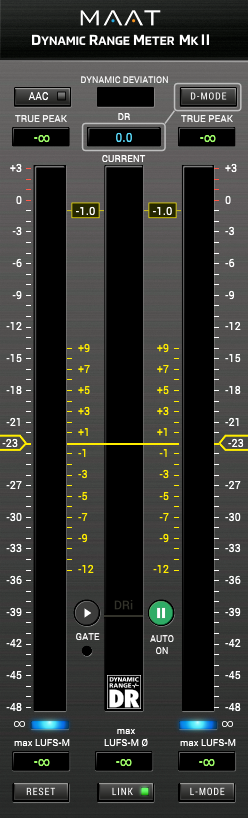
Mac Offline Activation
1. Open MAAT DRMeter MKII as a standalone or inside of your DAW. > Click 'Activate/Deactivate License'.
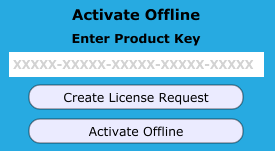
2. Enter the Product Key that can be found in your Plugin Boutique User Account > Click 'Create License Request'.
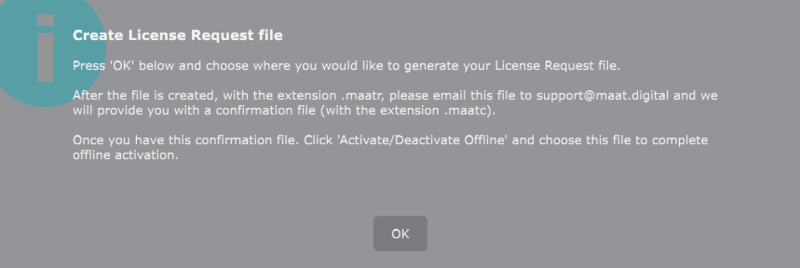
3. Click 'OK'.
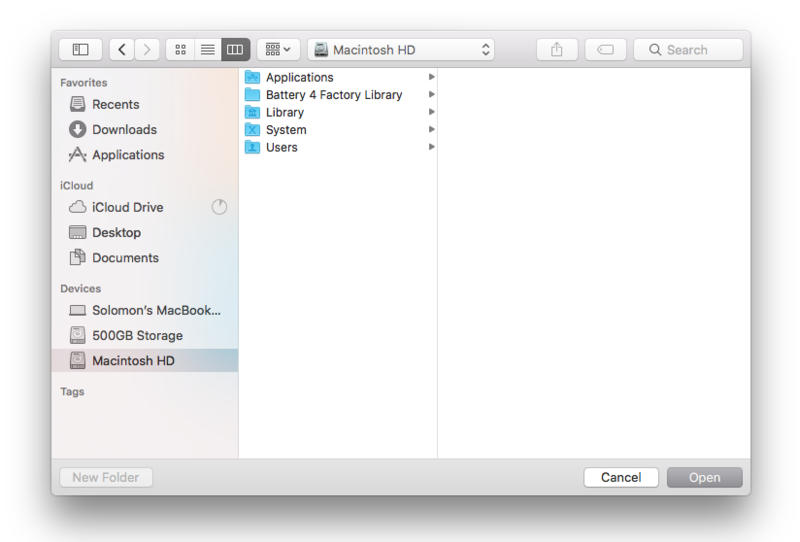
4. Choose a location for the License Request File to be saved > Click 'Open'.
5. Email the License Request File to support@maat.digital
6. Once you have received the .maatc confirmation file from MAAT open MAAT DRMeter MKII > Click 'Activate/Deactivate License'.
2. Click 'Activate Offline'.
3. Click 'OK'.
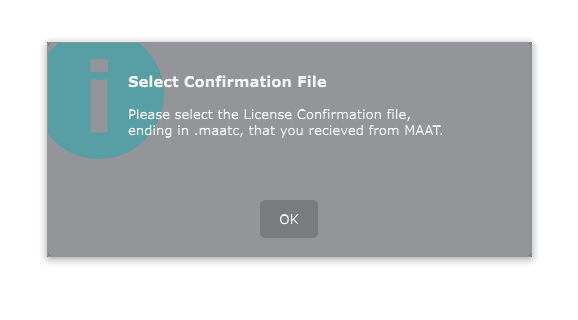
4. Find the .maatc confirmation file sent from MAAT > Click 'Open'.
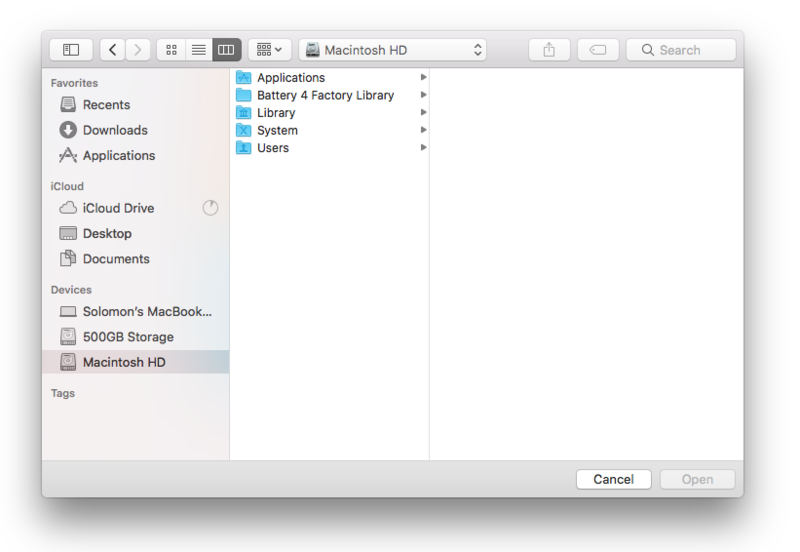
5. Click 'Ok'.
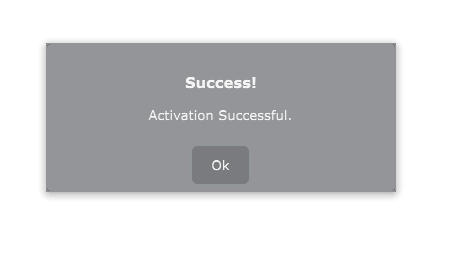
Your software has now been activated and is ready for use!
Windows Installation
1. Download the .zip folder from your Plugin Boutique User Account and double-click it's contents.
2. Double-click the .exe installer file to begin the installation process.
3. Enter your name and Email > Click 'Register'.
4. Select 'I accept the agreement' > Click 'Next'.
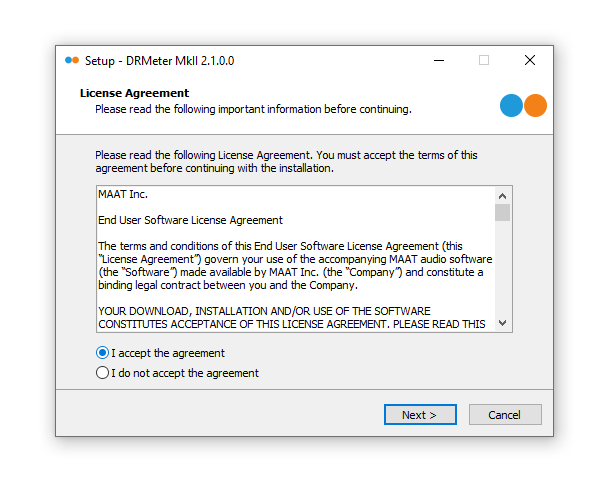
5. Click 'Next'.
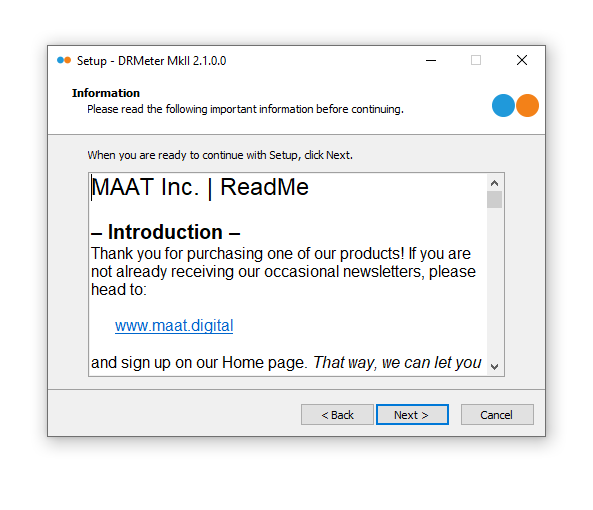
6. Click 'Next'.
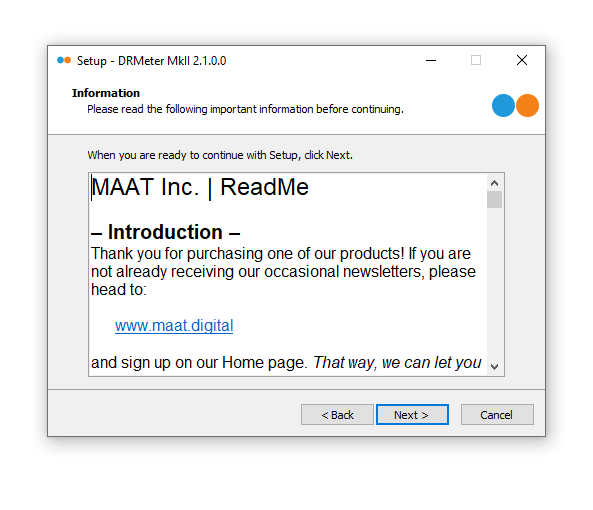
7. Click 'Next'.
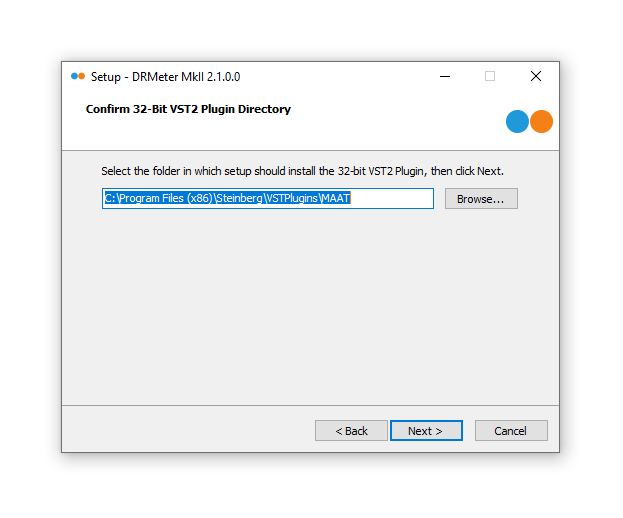
8. Click 'Next'.
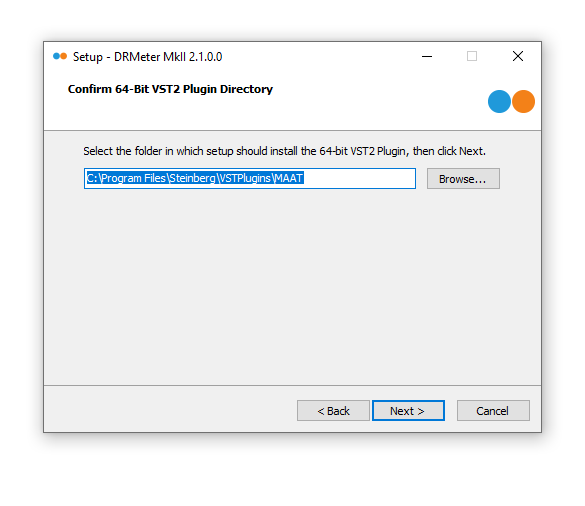
9. Select the components you would like to install > Click 'Next'.
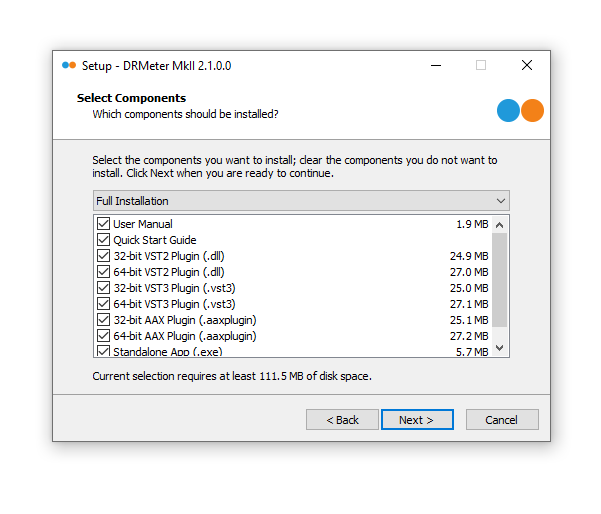
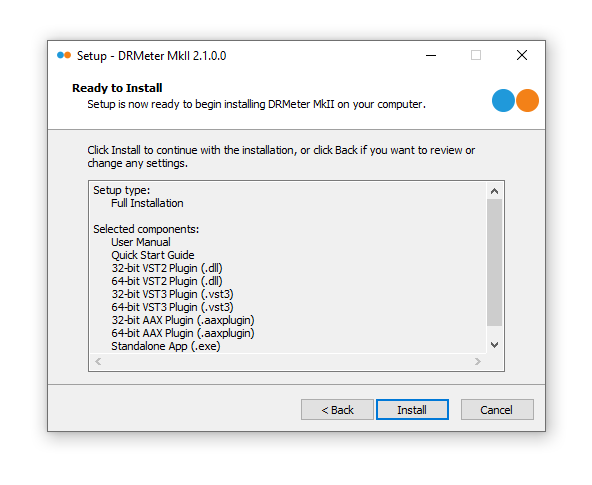
10. Click 'Install'.
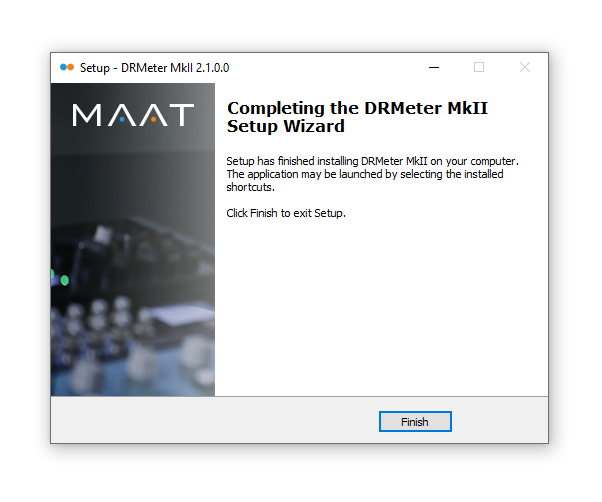
11. Click 'Finish'.
Windows Online Activation
1. Open MAAT DRMeter MKII as a standalone or inside of your DAW. > Click 'Activate/Deactivate License'.
2. Enter the Product Key that can be found in your Plugin Boutique User Account > Click 'Activate Online'.
3. Click 'Ok'.
Your software has now been activated and is ready for use!
Windows Offline Activation
1. Open MAAT DRMeter MKII as a standalone or inside of your DAW. > Click 'Activate/Deactivate License'.
2. Enter the Product Key that can be found in your Plugin Boutique User Account > Click 'Create License Request'.
3. Click 'OK'.
4. Choose a location for the License Request File to be saved > Click 'OK'.
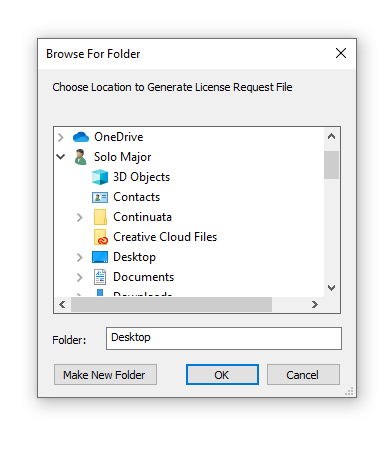
5. Click 'OK' and email the License Request File to support@maat.digital
6. Once you have received the .maatc confirmation file, open MAAT DRMeter MKII > Click 'Activate/Deactivate License'.
2. Click 'Activate Offline'.
3. Click 'OK'.
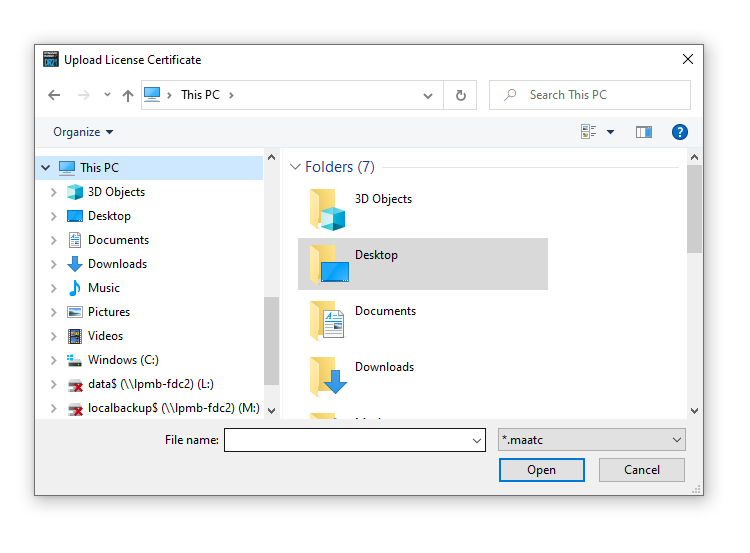
4. Find the .maatc confirmation file sent from MAAT > Click 'Open'.
5. Click 'Ok'.
Your software has now been activated and is ready for use!


 Log In


