Please Note: Pana is used as the example:
Mac
License Redemption
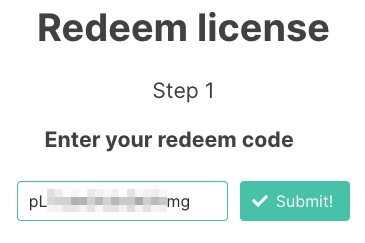
1. Navigate to https://klevgrand.com/redeem > Paste your 16 digit redemption code found in your Plugin Boutique User Account > Click 'Submit!'.
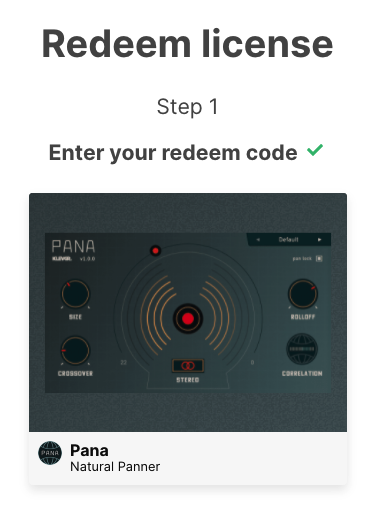
2. Your redemption code has been accepted > Scroll down to Step 2.
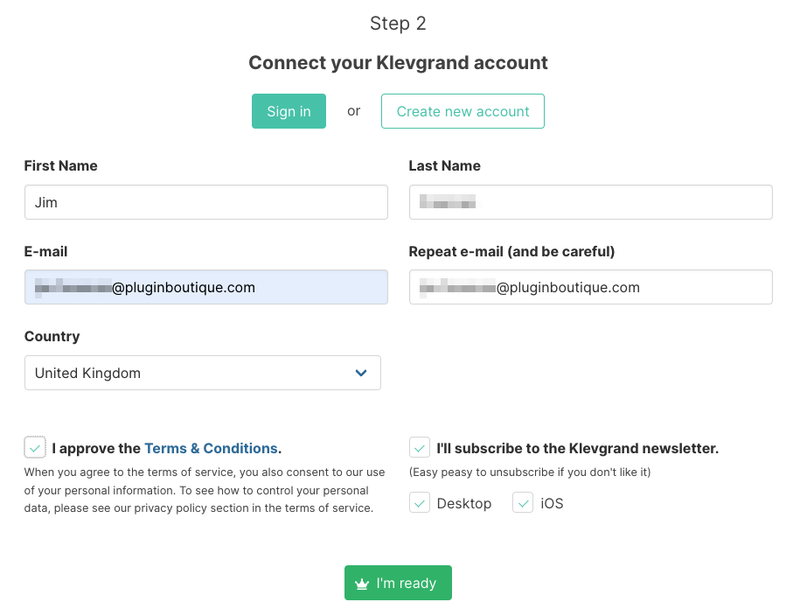
3. Click either 'Sign in' if you already have a Klevgrand account, or 'Create new account' if you do not > Fill in your personal details > Click 'I'm ready'.
4. Your account has now been created.
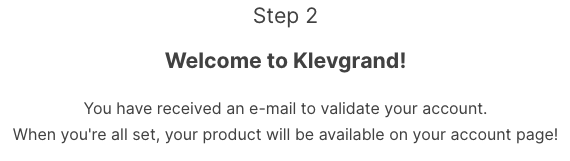
5. Navigate to your email inbox and locate the activation email that you should have received from Klevgrand > Click 'Let me in!' to activate your account.
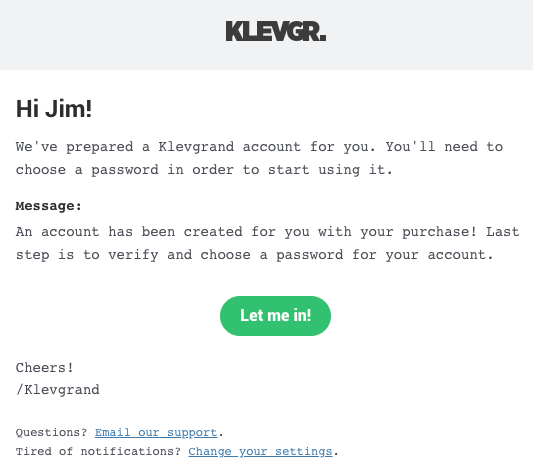
6. Create a password for your account > Click 'Enter Klevgrand'.
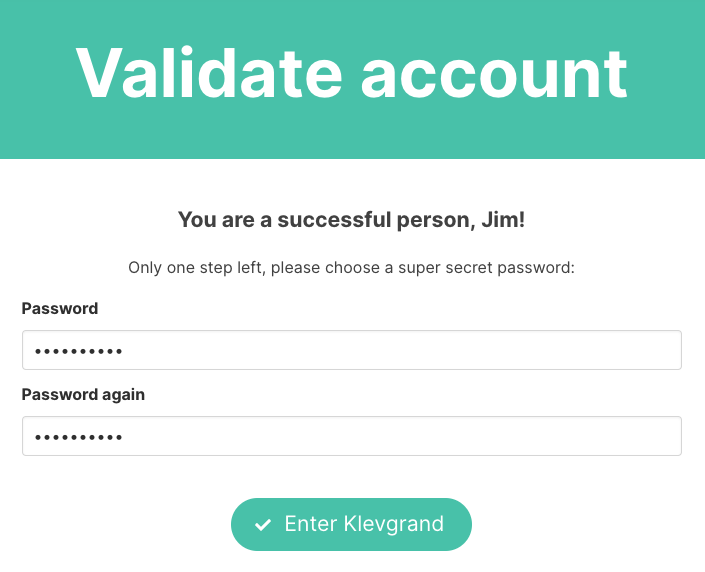
7. Your software and serial number is now available within your Klevgrand account > Click the Apple logo to download the installer file.

Installation
1. Launch the pana_x_x_x_macOS.dmg installer file.

2. Double click the KLEVGR. logo to launch the installer.
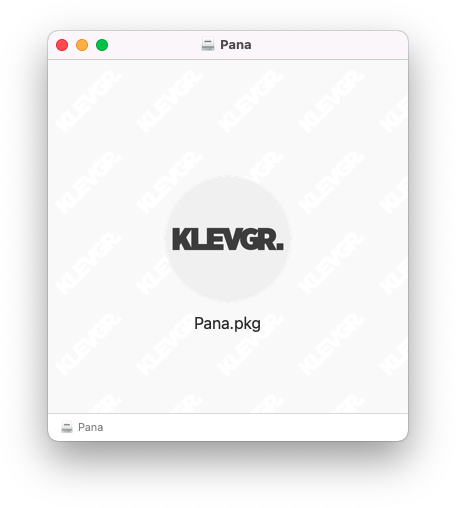
3. Click 'Continue'.
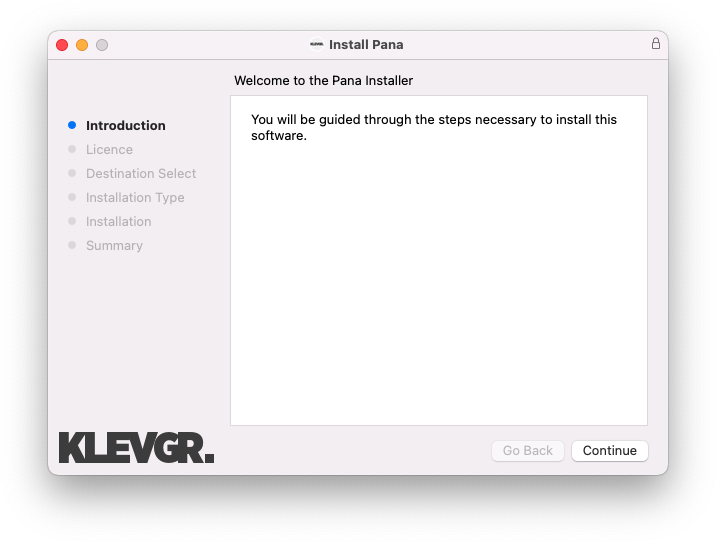
4. Click 'Continue'.
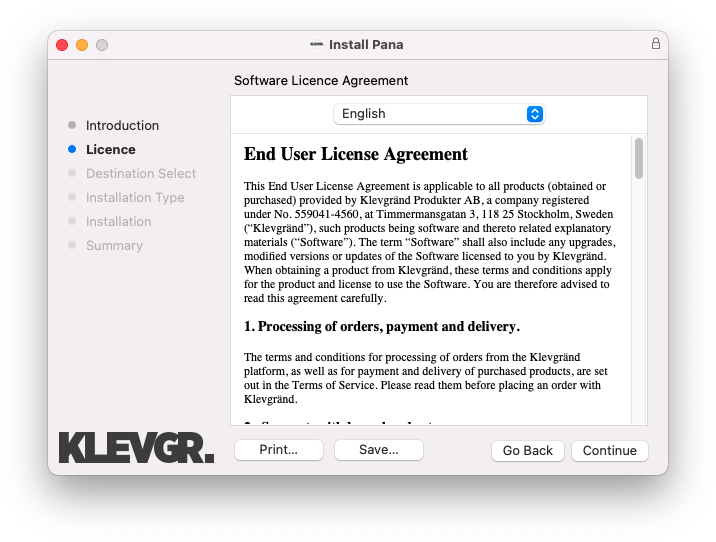
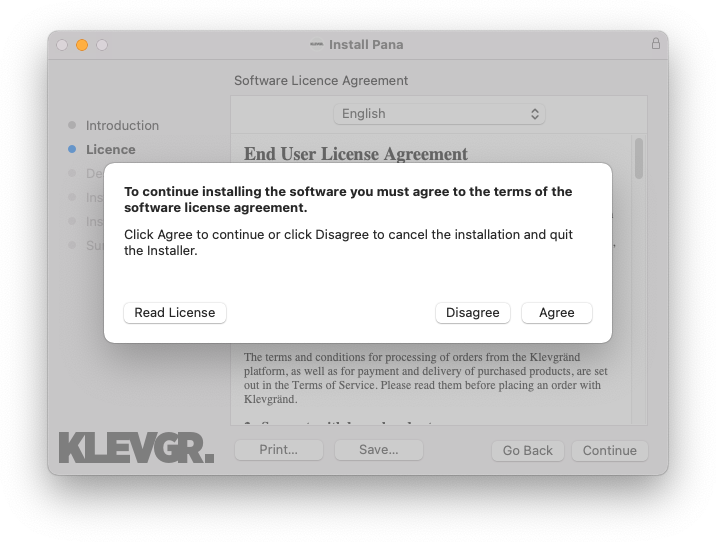
5. Click 'Agree'.
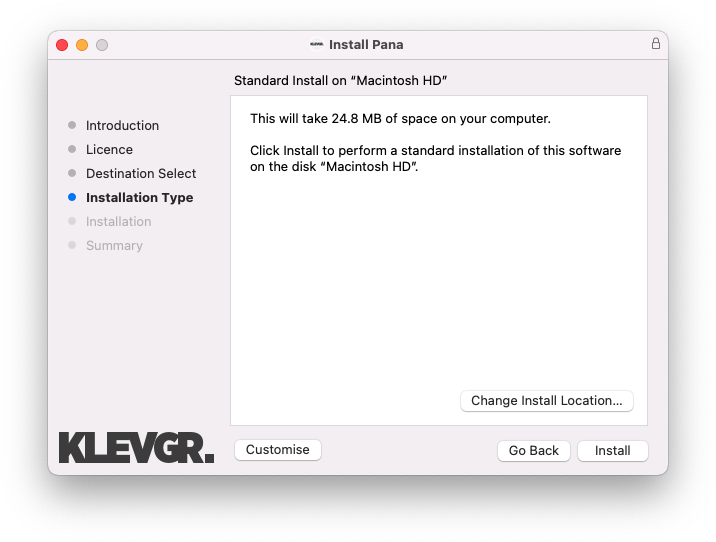
6. Click 'Install'.
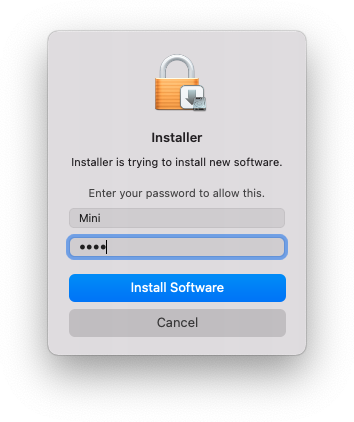
7. Enter your system password > Click 'Install Software'.
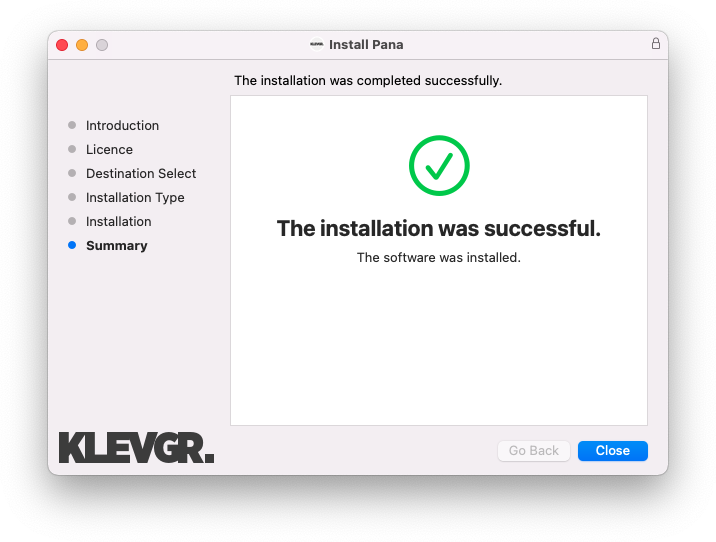
8. Click 'Close'.
9. Navigate back to your Klevgrand My Account page > Click on the serial number to copy it to your clipboard.

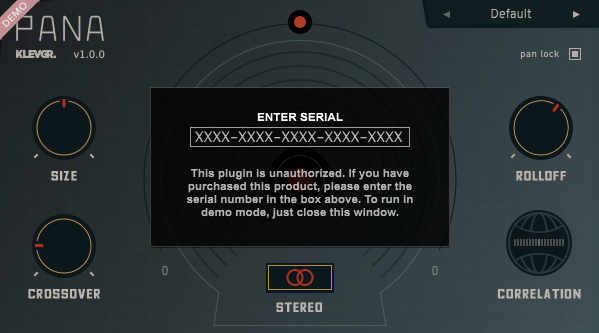
10. Launch your DAW > Create a new audio track > Insert Pana onto the channel > Paste your serial number into the box.
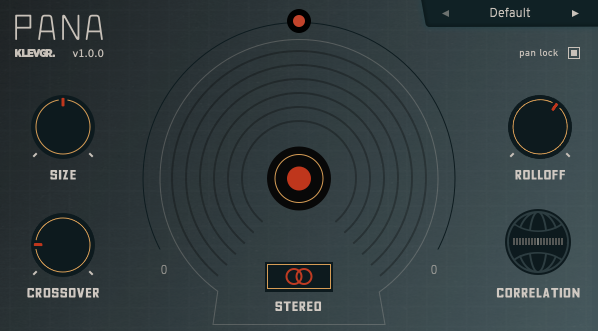
Your software is now activated and ready to use within your DAW
Windows
License Redemption
1. Navigate to https://klevgrand.com/redeem > Paste your 16 digit redemption code found in your Plugin Boutique User Account > Click 'Submit!'.
2. Your redemption code has been accepted > Scroll down to Step 2.
3. Click either 'Sign in' if you already have a Klevgrand account, or 'Create new account' if you do not > Fill in your personal details > Click 'I'm ready'.
4. Your account has now been created.
5. Navigate to your email inbox and locate the activation email that you should have received from Klevgrand > Click 'Let me in!' to activate your account.
6. Create a password for your account > Click 'Enter Klevgrand'.
7. Your software and serial number is now available within your Klevgrand account > Click the Windows logo to download the installer file.
Installation
1. Unpack the pana_x_x_x_win.zip installer file > Launch the pana_x_x_x_win.exe file.

2. Click 'I accept the agreement' > Click 'Next'.
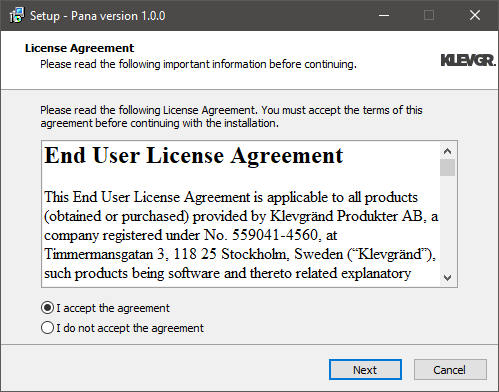
3. Click 'Next'.
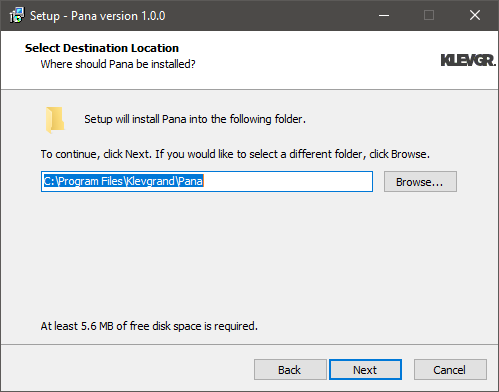
4. Click 'Next'.
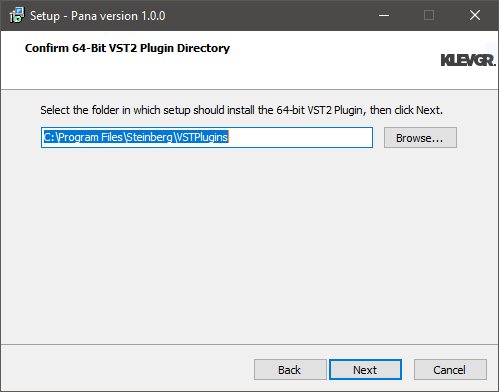
5. Click 'Next'.
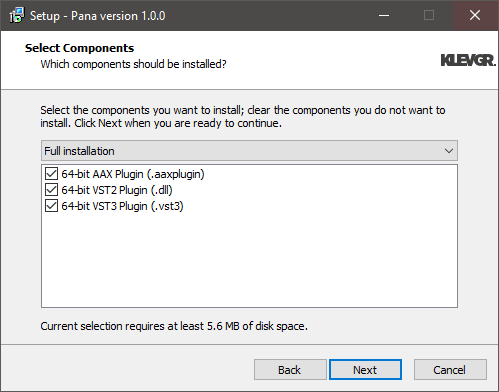
6. Click 'Install'.
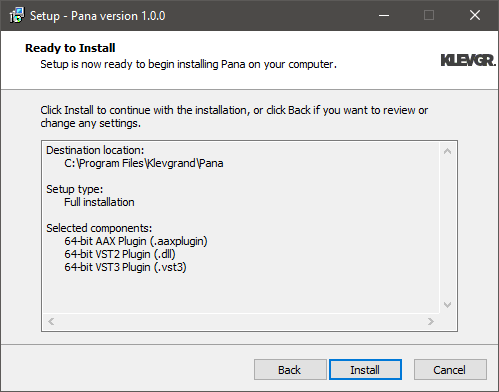
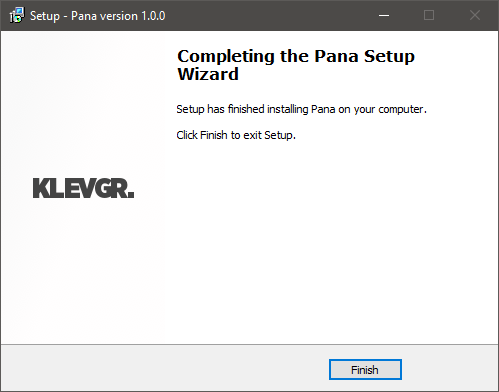
7. Click 'Finish'.
8. Navigate back to your Klevgrand My Account page > Click on the serial number to copy it to your clipboard.
9. Launch your DAW > Create a new audio track > Insert Pana onto the channel > Paste your serial number into the box.
Your software is now activated and ready to use within your DAW


 Log In