Buy Røverb, get a free gift with purchase:
Multi Delay Spaces
Design your own spaces, in this delay/reverb hybrid
This audio effect filter is a hybrid between a simple reverb and a very complex delay.
R0Verb consists of up to 50 separate delay lines and puts you in charge of every single delay with controls for volume, pre-delay, feedback & high shelf. It can be used for everything from simple delays to complex spaces, whatever your mix needs. It also has a nice Randomizer if you’re feeling lucky!
Anatomy
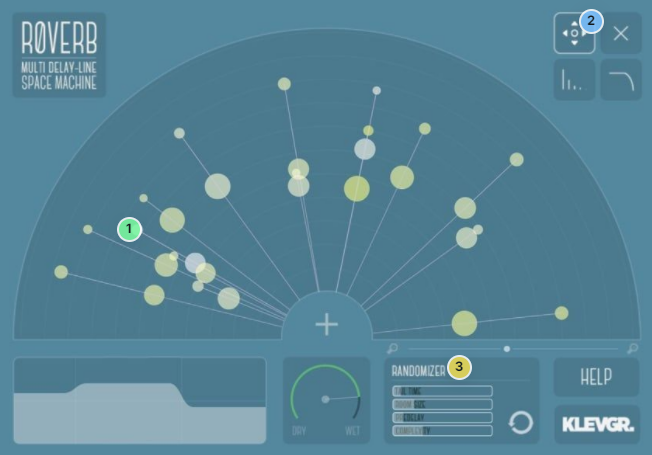
1. Delay lines - Rôverb consists of multiple delay lines, each with separate parameters for pan, pre-delay time, delay time, gain, decay & high-shelf. The direction of each delay line tells how the output will be panned; if it points to the left, the output will be panned to the left and vice versa. The size of the circles denotes gain levels. The first circle (from origin) is the gain value. The outer circle represents decay.
2. Toolbox - Use these to switch between Time change, Delete, Volume, and High shelf gain.
3. Randomizer - This tool makes it possible to create a new reverb with user-defined bounds. Weeha!
Features
- Up to 50 parallel delays
- Every delay has parameters for volume, pre-delay, feedback, delay time & a high shelving filter
- Randomizer – creates a space with user-defined bounds
- Multi-select and edit several delay-lines in one gesture
- Post 3-band EQ
- Comes with a few factory presets for inspiration
System Requirements
- macOS 10.10 or later (optimized for the M1-processor)
- Windows 7 SP1 or later
- AU, VST-2, VST-3, AAX
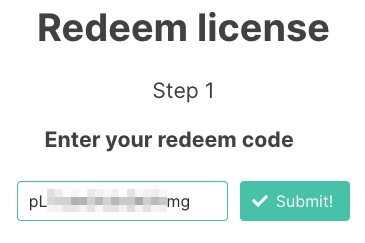
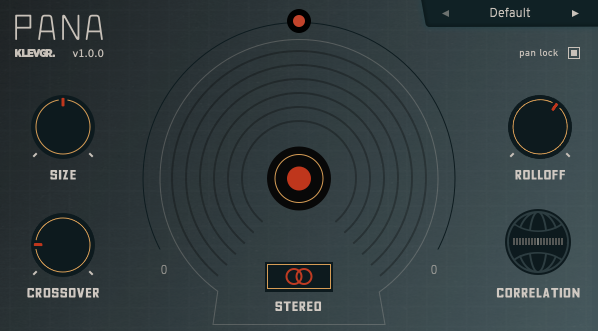
Please Note: Pana is used as the example:
Mac
License Redemption
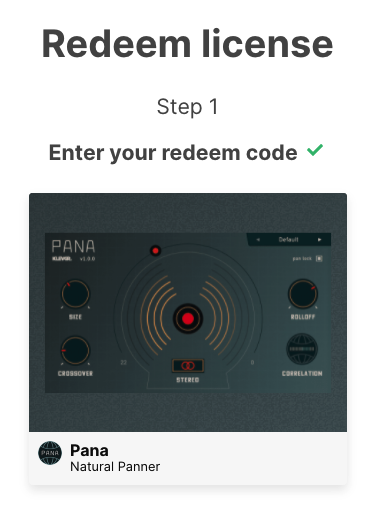
1. Navigate to https://klevgrand.com/redeem > Paste your 16 digit redemption code found in your Plugin Boutique User Account > Click 'Submit!'.
2. Your redemption code has been accepted > Scroll down to Step 2.
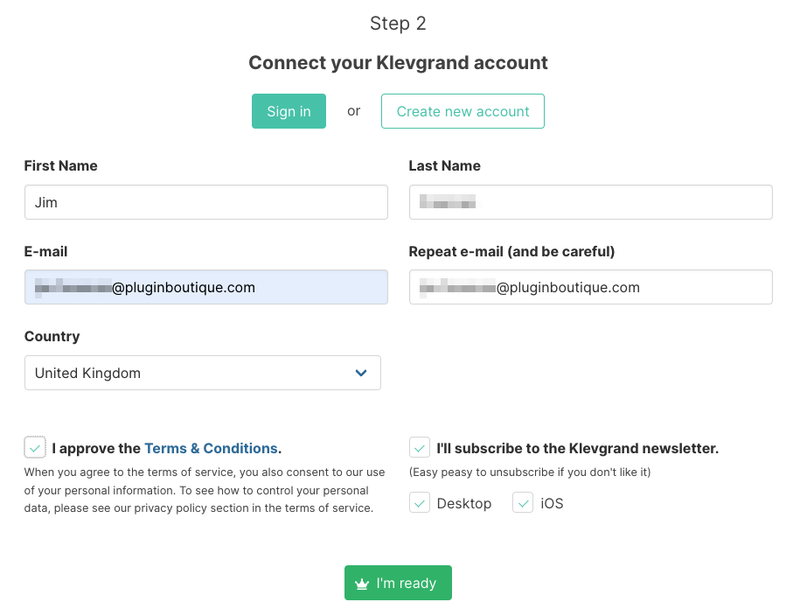
3. Click either 'Sign in' if you already have a Klevgrand account, or 'Create new account' if you do not > Fill in your personal details > Click 'I'm ready'.
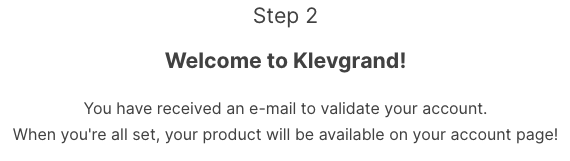
4. Your account has now been created.
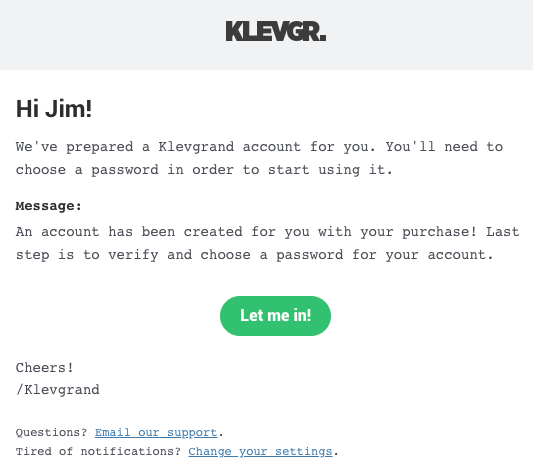
5. Navigate to your email inbox and locate the activation email that you should have received from Klevgrand > Click 'Let me in!' to activate your account.
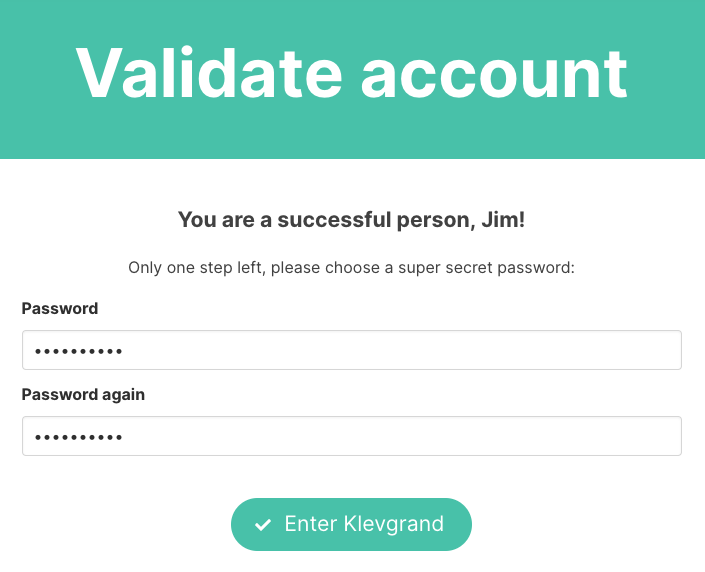
6. Create a password for your account > Click 'Enter Klevgrand'.
7. Your software and serial number is now available within your Klevgrand account > Click the Apple logo to download the installer file.
Installation
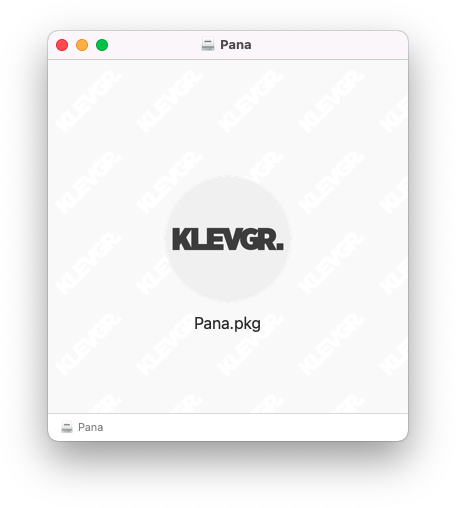
1. Launch the pana_x_x_x_macOS.dmg installer file.
2. Double click the KLEVGR. logo to launch the installer.
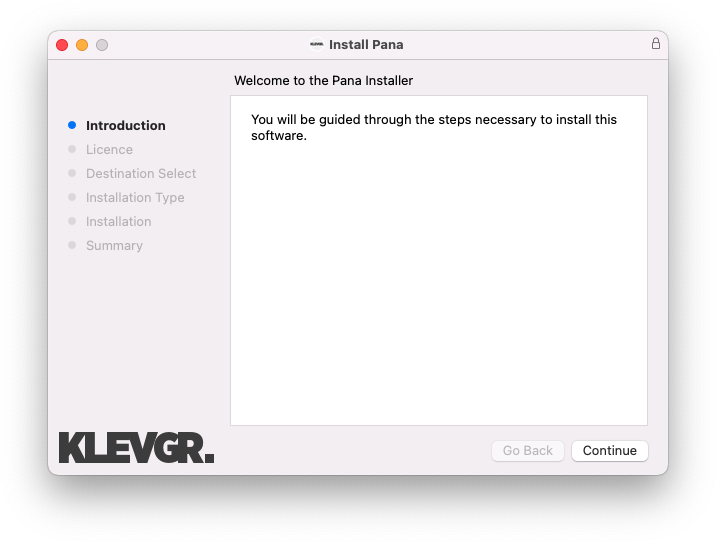
3. Click 'Continue'.
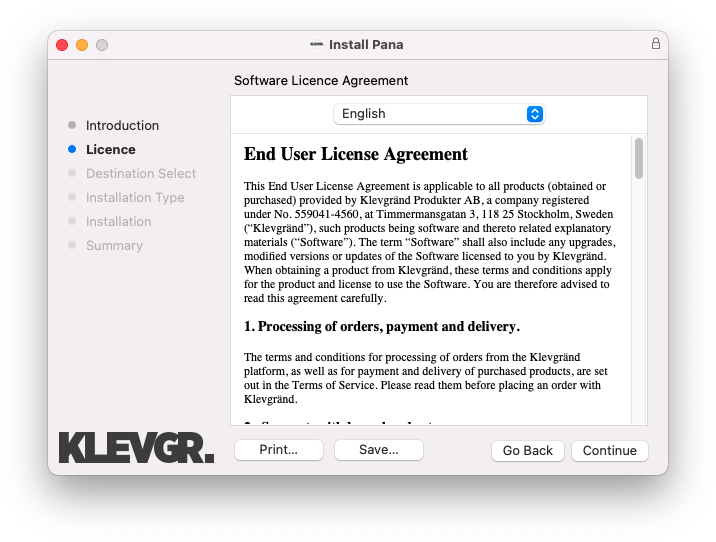
4. Click 'Continue'.
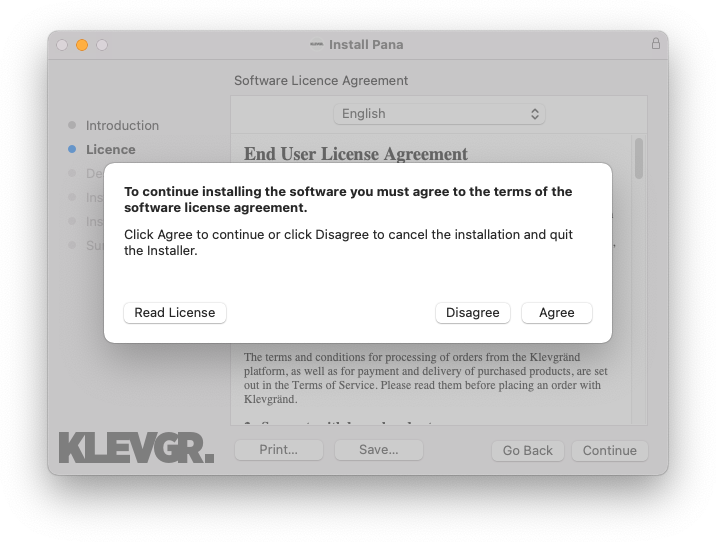
5. Click 'Agree'.
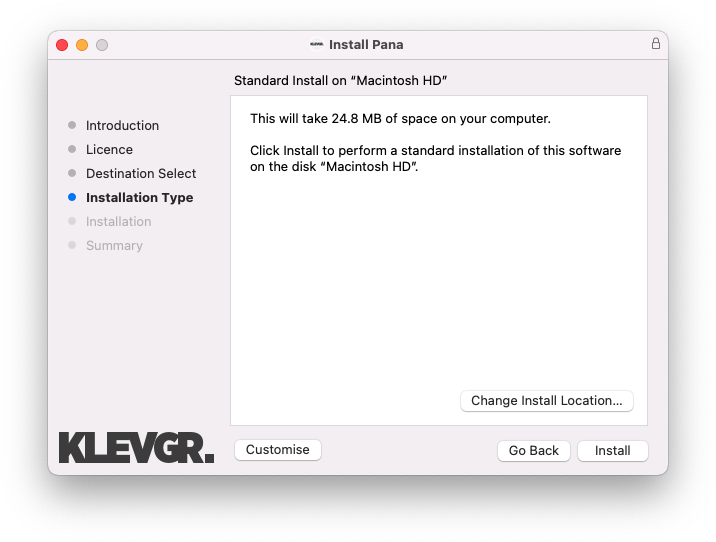
6. Click 'Install'.
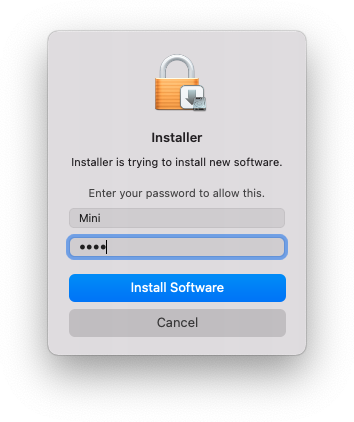
7. Enter your system password > Click 'Install Software'.
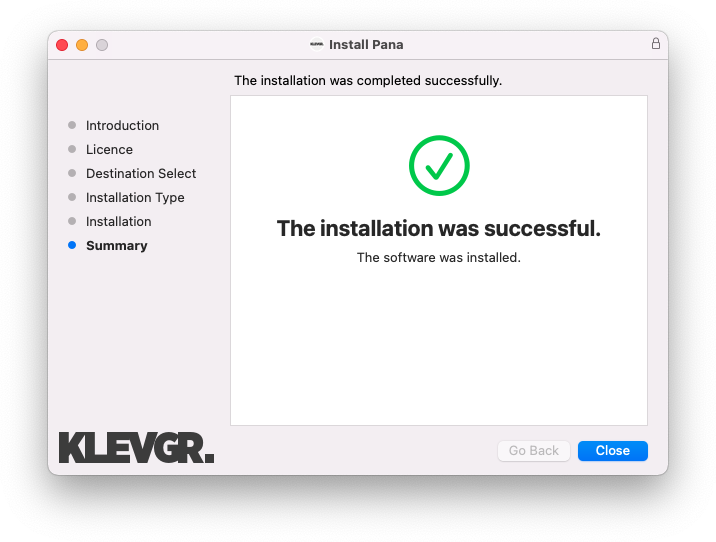
8. Click 'Close'.
9. Navigate back to your Klevgrand My Account page > Click on the serial number to copy it to your clipboard.
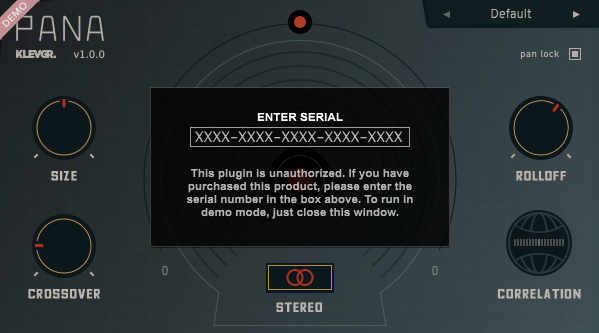
10. Launch your DAW > Create a new audio track > Insert Pana onto the channel > Paste your serial number into the box.
Your software is now activated and ready to use within your DAW
Windows
License Redemption
1. Navigate to https://klevgrand.com/redeem > Paste your 16 digit redemption code found in your Plugin Boutique User Account > Click 'Submit!'.
2. Your redemption code has been accepted > Scroll down to Step 2.
3. Click either 'Sign in' if you already have a Klevgrand account, or 'Create new account' if you do not > Fill in your personal details > Click 'I'm ready'.
4. Your account has now been created.
5. Navigate to your email inbox and locate the activation email that you should have received from Klevgrand > Click 'Let me in!' to activate your account.
6. Create a password for your account > Click 'Enter Klevgrand'.
7. Your software and serial number is now available within your Klevgrand account > Click the Windows logo to download the installer file.
Installation
1. Unpack the pana_x_x_x_win.zip installer file > Launch the pana_x_x_x_win.exe file.
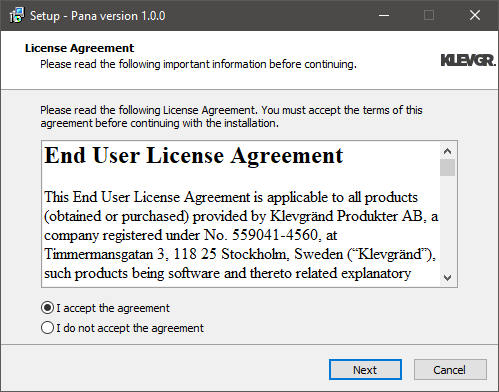
2. Click 'I accept the agreement' > Click 'Next'.
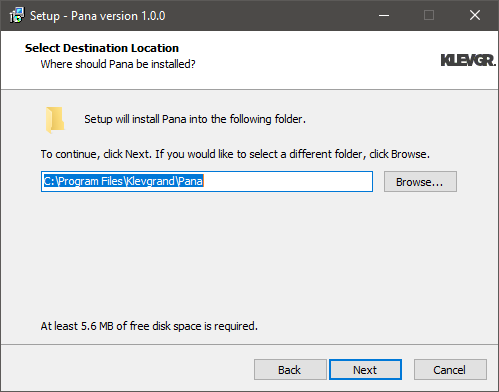
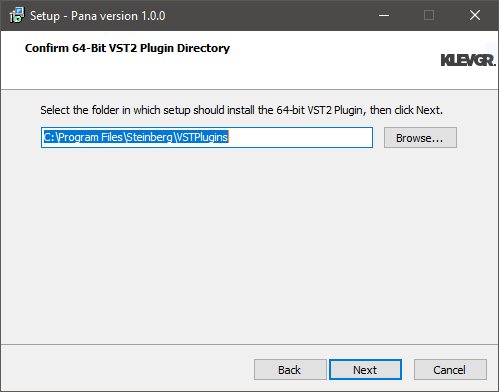
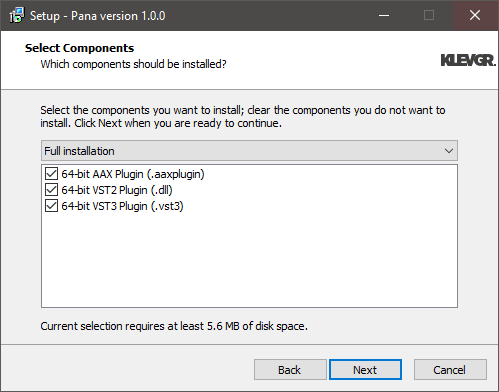
3. Click 'Next'.
4. Click 'Next'.
5. Click 'Next'.
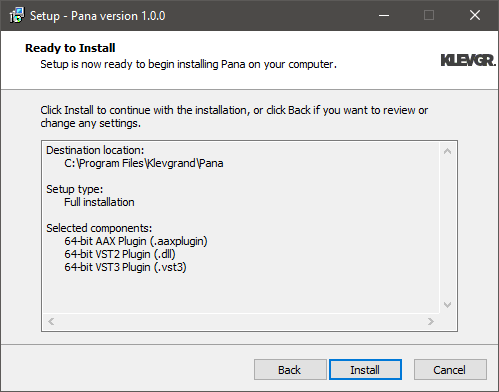
6. Click 'Install'.
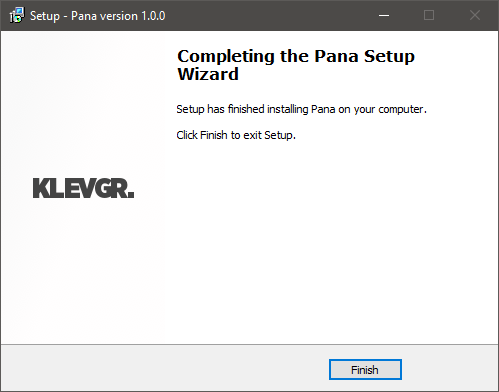
7. Click 'Finish'.
8. Navigate back to your Klevgrand My Account page > Click on the serial number to copy it to your clipboard.
9. Launch your DAW > Create a new audio track > Insert Pana onto the channel > Paste your serial number into the box.
Your software is now activated and ready to use within your DAW