Log In

Free gifts available with your purchase

A Modern Chamber Orchestra
Ensemblia Orchestral is the sound of a modern chamber orchestra - in the spirit of Steve Reich's or Michael Nyman's minimalism.
It sounds warm, intimate and organic - and always different since you can instantly put together your own ensemble from over 50 instruments. You can divide all voices/notes for each individual instrument. Ensemblia is designed to create polyphonic arrangements, patterns and textures based on what notes you play and the voicing engine can be set.
What is Ensemblia Orchestral?
Ensemblia Orchestral is the sound of a modern chamber orchestra. It sounds warm, intimate and organic - and always different since you can instantly put together your own ensemble from over 50 instruments.
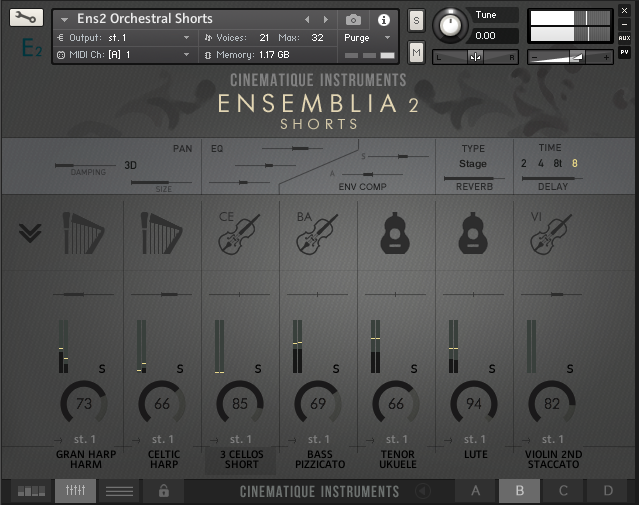
The core of Ensemblia is seven separate instrument tracks that can be freely assigned from a large arsenal of orchestral and non-orchestral instruments. Due to the large number of instruments and their origin, almost all types of ensemble are possible. But an ensemble is only realistic if you can divide the voices/notes for the individual instruments - this is exactly what Ensemblia does with its easy and impressive Voicing Engine. Each of the seven individual tracks can be distributed among your played notes. A supplied intelligent arranger provides the appropriate pattern, all in the spirit of Steve Reich's or Michael Nyman's minimalism. Ensemblia is designed to create polyphonic arrangements, patterns and textures based on what notes you play and the voicing engine can be set individually for each instrument and for each step. Let's be clear: Ensemblia doesn't play prefabricated phrases or MIDI files.
What You Get
Over 50 Instruments
- Besides viola, violin, cello and double bass (as solo and trio instrumentation), there are a tuba, trombones, horn, bass clarinet, flute, several saxophones (alt, tenor and baritone) and also an electric guitar, bowed guitars, bowed psaltery, 3 different church organ register and much more.
Instrument Browser
- The instruments are well organized available by categories and groups which are displayed dynamically. All the instruments are right at the fingertips.
Smart Voicing Engine
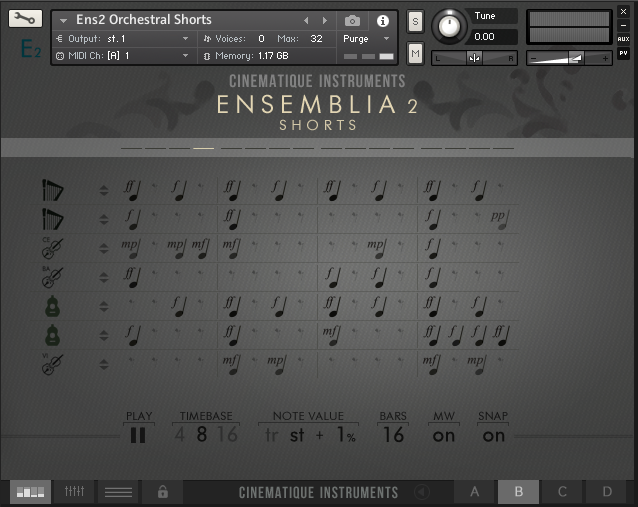
- Each of the individual tracks can be distributed among your played notes. Just easily set up individually for each instrument and for each step which of your played notes should be heard.
The Arranger
- Actually, it is an intelligent track 32 step sequencer that lets Ensemblia play instantly pattern. By using the voicing engine you are able to play complex and unique patterns.
The Mixer
- There are 7 sound slots and one master track - each one equipped with a 3 band EQ, an attack/ decay compressor, length, tuning and reverb and delay amount control. It's amazing how far the sound can be pushed to each individual instrument as well as to the master. An absolutely unique feature is the 3D Panning.
The Preset Browser
- Ens2 Orchestral Shorts comes with 120 pre-assembled patterns which are easily selectable via a file browser.
NKS Compatible
- Ensemblia 2 Orchestral is generally compatible in terms of automation and control to Native Instruments NKS.
Features
- 57 Instruments
- 120 Presets
- Approx. 9,000 Samples
- 4 GB Data
System Requirements
- The FULL Version of Kontakt 5.6.8 or higher is required.
Important Notes:
- The FULL Version of Kontakt 5.6.8+ is required in order to use this instrument.
- You will be stuck in DEMO MODE if trying to use this instrument in the FREE Kontakt Player.

Ramin Djawadi
Score Composer (Iron Man, Game of Thrones)
"Ensemblia 2 Orchestral is a unique combination of sounds, powerful and creative. This instrument provides intriguing options for colourful layers in many styles of music. It offers a great array of sound possibilities!"
Jacob Shea
Composer (Planet Earth II)
"Ensemblia 2 is a fantastic follow-up to the original! It features a much richer palette of sounds. The saxophones are an absolute HIGHLIGHT. They are so warm and present and soft. Really stunningly beautiful."