


 Log In


Introducing FOUNDATIONS | Piano, the first in Heavyocity’s all-new line of free virtual instruments.
FOUNDATIONS | Piano is an inspiring introduction to the modern, hybrid sound. Combining the soft dynamics of a stunning grand piano, an expertly-crafted sound design layer, and a highly-customizable interface — FOUNDATIONS | Piano is an expressive cinematic tool built to tell your story.
As a “powered-by-Kontakt” instrument FOUNDATIONS | Piano offers all playback and sound-shaping functionality through the full version of Kontakt 6 or the free Kontakt 6 Player.
Stunning Piano
Heavyocity have deeply sampled the soft dynamics of a beautiful grand piano, delivering you one of the essentials of the modern composer's toolkit, and a vast range of creative expression.
Creative Textures
The combination of organic instruments with creatively-processed synthetic elements is at the core of the hybrid, cinematic sound—and FOUNDATIONS | Piano follows suit, delivering a dynamic textural layer to accompany this pristine piano.
Shape Your Sound
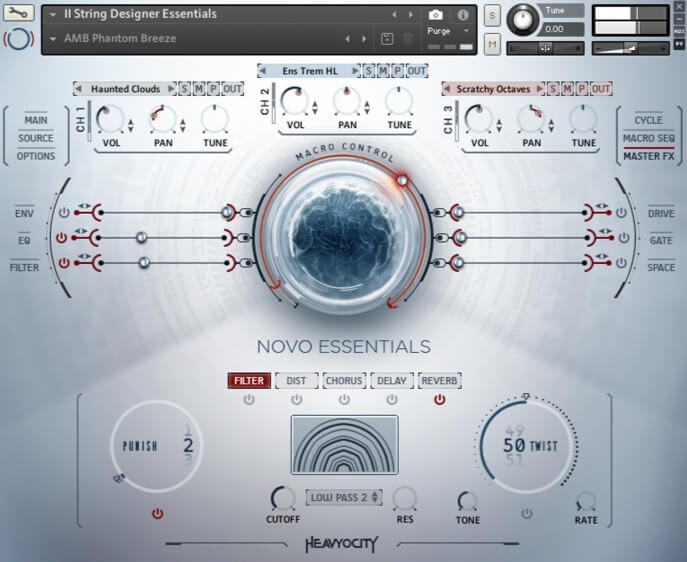
Built to be a sound design canvas for artists, producers, and composers of all experience levels, the FOUNDATIONS engine features an extensive palette of sound-shaping capabilities, including ARP, Gate, Space, and ADSR.
Features
- 528 Samples
- 2 Sound Sources:
- Soft Grand Piano
- Ambient Piano Texture
- 10 Custom Presets
- Gate | Arpeggio control for building complex, rhythmic patterns
- 2 Channel Mixer real-time source blending
- Envelope Control
- Master FX – Punch, Delay, and Reverb
System Requirements
Mac
- macOS 10.14, 10.15, 11 or 12 (latest update)
- 2.7 GB uncompressed disk space (1.21 GB on Disk with NI lossless compression
- Graphics hardware support for OpenGL 2.1 or higher
- Standalone, VST, AU, AAX
PC
- Windows 10 or 11 (latest Service Pack)
- Intel Core i5 or equivalent CPU
- 2 GB RAM
- 2.7 GB uncompressed disk space (1.21 GB on Disk with NI lossless compression
- Graphics hardware support for OpenGL 2.1 or higher
- Standalone, VST, AAX

Please note: this product requires the free Kontakt 6.6.1 (Player) or later








Reviews Summary
While it aims to provide a helpful overview, it may not capture every perspective or detail. We encourage you to read individual reviews to make an informed decision.
Users highly praise this plugin, especially as a free or highly affordable tool, noting its superb sound quality, beautiful soft piano tones, and useful features like the sequencer. While a few find it slightly lacking in features, most agree it is intuitive, inspiring, and an excellent introduction to Heavyocity.


