Log In

Free gifts available with your purchase
Note: This product is the HD version for AAX DSP users. The Native version is also available.
Channel G Compact delivers the same sonic experience as Channel G with a smaller DSP footprint. Channel G Compact features calibration modes for music, post-production, and models of the world’s most popular analogue mixing desks.
Channel G delivers the big board sound with unprecedented flexibility and seamless integration with Avid control surfaces including S6, S3, D-Control, D-Command, and VENUE Live sound systems including S3L and S6L.
Features
- Optimization for Apple Silicon and Latest Intel Processors
- Two activations per license / subscription
- High definition updated user interfaces
- New presets
- Zero Latency Algorithms
- Double Precision Processing
- Real-Time Analyzers
- High pass and low pass filters with selectable slopes of up 12 and 24 dB/Oct
- Full-featured Compressor/Limiter
- Four-band EQ with shelving and parametric sections
- Compressor/Limiter operation pre or post EQ section
- Analog Saturation modelling
- Ultra-Low latency
- Mono and Stereo versions
System Requirements
Mac
- macOS 10.13 or higher (64-bit only) (macOS 12 Monterey compatible)
- McDSP plugins run natively on Intel and M1 Apple Silicon processors
- McDSP HD plugins support AAX DSP plugin format, AAX Native, AU, and VST3 plugin formats
- McDSP plugins support Mac OS 10.13.x (High Sierra), 10.14.x (Mojave), 10.15.x (Catalina), 11.x (Big Sur), 12.x (Monterey), and Windows 10
- Mac OS version 10.12.x (Sierra) may work but is not officially supported. Earlier Mac OS versions are not officially supported
Windows
- Windows 7, 8 & 10 (64-bit only)
HD v7 Software Support
- AAX DSP
- AAX Native
- Audio Units (AU)
- VST3
Compatible DAW's
- McDSP HD and Native plugins are compatible with Pro Tools, Logic Pro, Cubase, Nuendo, Ableton Live, LUNA, Reaper, Sonar, Studio One, and other DAWs that support AAX, AU, and/or VST3 plugin formats
- As of v7.0, VST is no longer supported. VST versions of v6 McDSP plugins will no longer be updated and will be uninstalled
- McDSP HD plugins also support the VENUE S6L systems. McDSP VENUE plugins are packaged in a VENUE specific installer available on the McDSP website.
Activation:
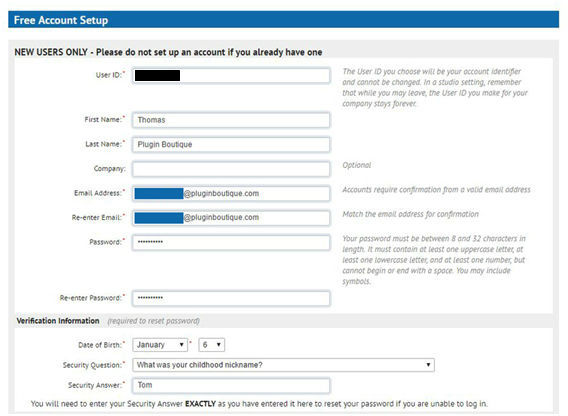
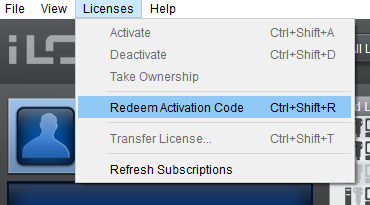
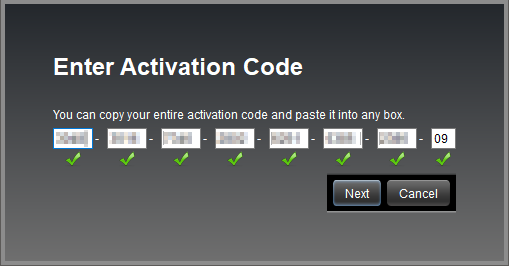
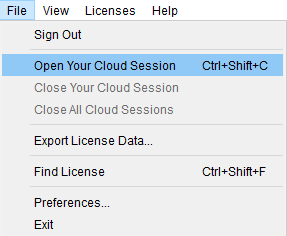
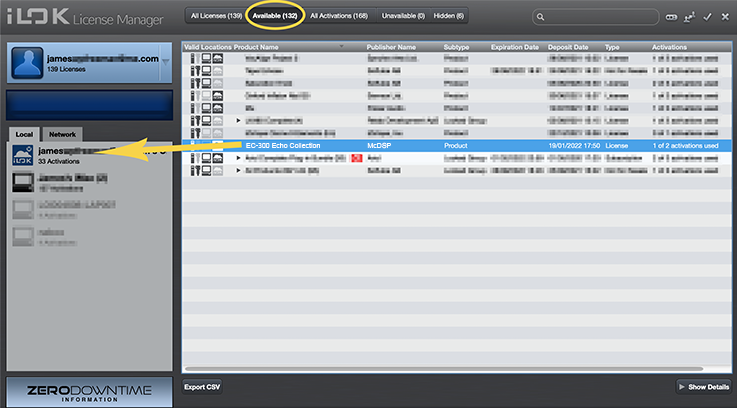
- McDSP plugins require an iLok2 or iLok3 USB Smart Key, or an iLok License Manager account and iLok Cloud for activation.
Important note: McDSP plugins require an iLok2 or iLok3 USB Smart Key, or a FREE iLok License Manager account and iLok Cloud session for authorisation. Each McDSP v7 plugin contains two activations per authorisation.