Log In
.jpg)
Free gifts available with your purchase
Note: This product is the HD version for AAX DSP users. The Native version is also available.
The 6034 Ultimate Multi-band is a flexible multi-band dynamics processor, offering all the award-winning compression, expansion, and gating modules from the highly acclaimed 6050 Ultimate Channel Strip plug-in, in a four band crossover network. Just like the 6050 modules, the 6034 Ultimate Multi-band modules can be swapped on the fly for quick auditioning while retaining relative settings. The crossover filter slopes can be configured as 6, 12, or 24 dB/Oct. Metering includes gain reduction and output levels on all crossover bands, as well as main input and output levels.
Artist Presets included from Mike Dean, ROCAsound, David Bottrill, Richard Chycki, Lovy Longomba, Eric Racy, Brujo Caipo and Zakk Cervini.
Features
- Optimization for Apple Silicon and Latest Intel Processors
- Two activations per license / subscription
- High definition updated user interfaces
- New presets
- Zero Latency Algorithms
- Double Precision Processing
- Includes award-winning compressor modules from the 6050 Ultimate Channel Strip
- Configurable four-band crossover with multiple filter slope options
- On the fly module auditioning
- Input and output control
- Analog Saturation Modeling
- Mono and stereo versions
System Requirements
Mac
- macOS 10.13 or higher (64-bit only) (macOS 12 Monterey compatible)
- McDSP plugins run natively on Intel and M1 Apple Silicon processors
- McDSP HD plugins support AAX DSP plugin format, AAX Native, AU, and VST3 plugin formats
- McDSP plugins support Mac OS 10.13.x (High Sierra), 10.14.x (Mojave), 10.15.x (Catalina), 11.x (Big Sur), 12.x (Monterey), and Windows 10
- Mac OS version 10.12.x (Sierra) may work but is not officially supported. Earlier Mac OS versions are not officially supported
Windows
- Windows 7, 8 & 10 (64-bit only)
HD v7 Software Support
- AAX DSP
- AAX Native
- Audio Units (AU)
- VST3
Compatible DAW's
- McDSP HD and Native plugins are compatible with Pro Tools, Logic Pro, Cubase, Nuendo, Ableton Live, LUNA, Reaper, Sonar, Studio One, and other DAWs that support AAX, AU, and/or VST3 plugin formats
- As of v7.0, VST is no longer supported. VST versions of v6 McDSP plugins will no longer be updated and will be uninstalled
- McDSP HD plugins also support the VENUE S6L systems. McDSP VENUE plugins are packaged in a VENUE specific installer available on the McDSP website.
Activation:
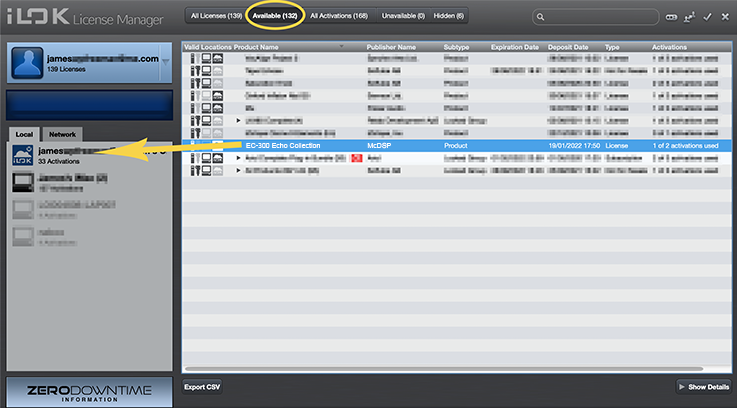
- McDSP plugins require an iLok2 or iLok3 USB Smart Key, or an iLok License Manager account and iLok Cloud for activation.
Important note: McDSP plugins require an iLok2 or iLok3 USB Smart Key, or a FREE iLok License Manager account and iLok Cloud session for authorisation. Each McDSP v7 plugin contains two activations per authorisation.
Pro Tools Expert
Pro Tools Expert offers the largest collection of Pro Tools video tutorials in the world, videos for training, tips, tricks and reviews.
“I think this is one of the best multi-band compressor plug-ins available because it keeps things simple.”
Logic Pro Expert
Logic Pro Expert offers Logic Pro X tutorials, tips and tricks for Apple's Logic Pro 9 and Logic Pro X music production software.
“It is not only an excellent way for beginners to get started with multi-band compression, but also a fantastic tool for experienced users to quickly audition different styles of compression in different areas of the frequency range.”