


 Log In

Free gifts available with your purchase
Please Note: This is an upgrade offer for previous owners of Reference 4 Studio Edition. The standard version of SoundID Reference for Multichannel is also available.
Reliable Reference Sound for Multichannel Setups
SoundID Reference for Multichannel delivers accurate and reliable reference sound for speaker setups from simple stereo up to 9.1.6 atmos systems. It also works for headphones, so you can also calibrate any of the 480+ headphone models from our growing headphone profile database to achieve consistent reference sound between your headphones and speakers.
Create with Ease on any Setup - Accurate speaker measurements and calibration for audio systems from stereo up to 9.1.6 channels.
Mix with Confidence - Perfect translation with accurate frequency response and sharp soundstage.
Calibrate any Multichannel Setups up to 9.1.6 Atmos Rooms - Compatible with most popular hardware setups and all major DAWs. Supported plugin formats include VST2, VST3 AAX, and AU.
Intuitive Speaker Measurement
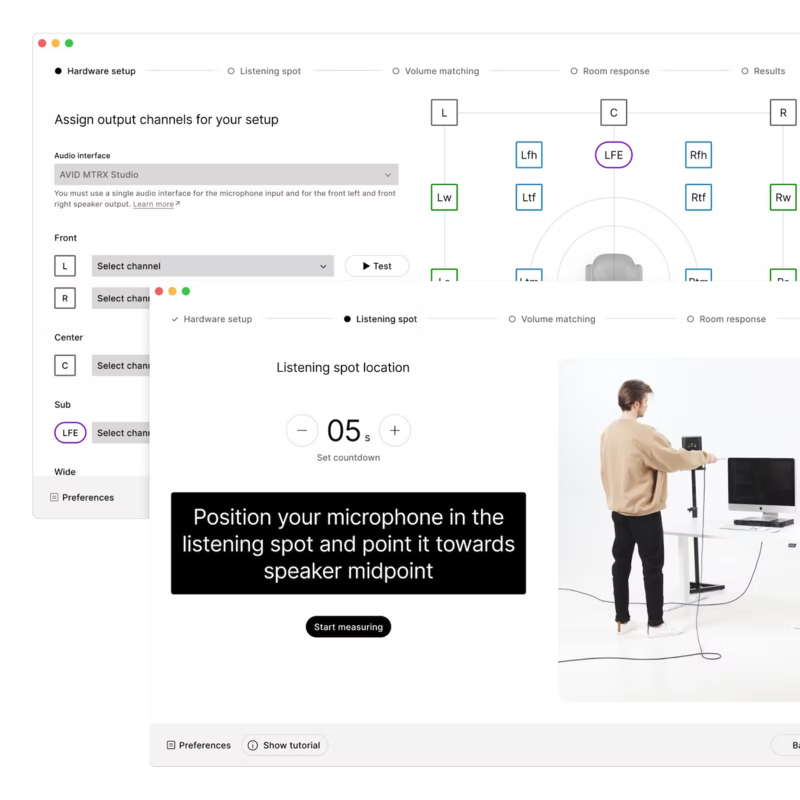
Through a user-friendly measurement process, an intuitive guide helps you to calibrate studio speakers with an individually calibrated measurement microphone with ease.
Perfect Time Alignment
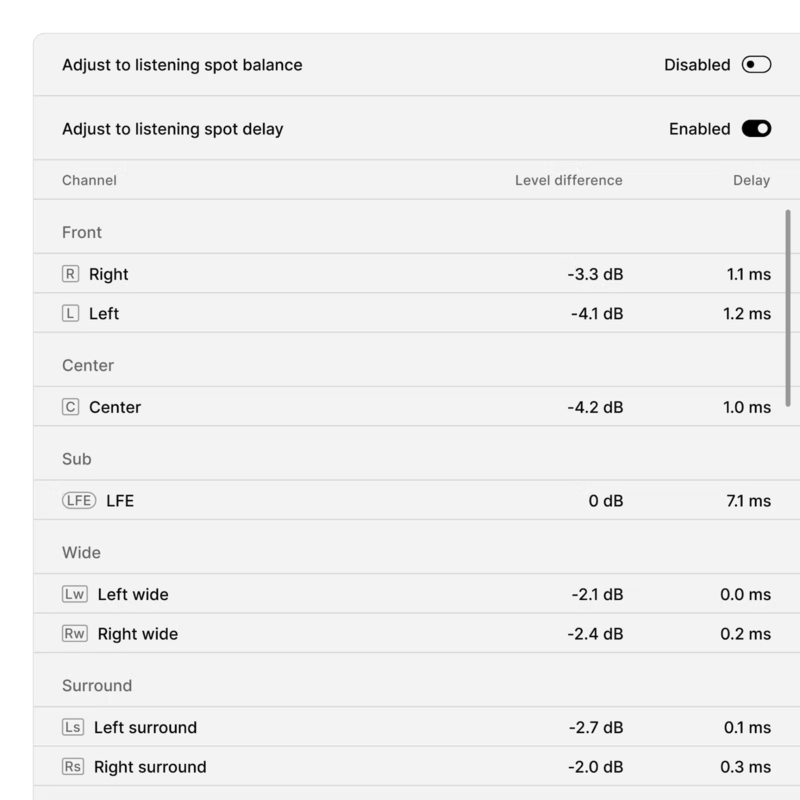
Phase based time alignment of your satellite & LFE channels with sub-millisecond accuracy for perfect sound staging.
Choose Your Target Mode
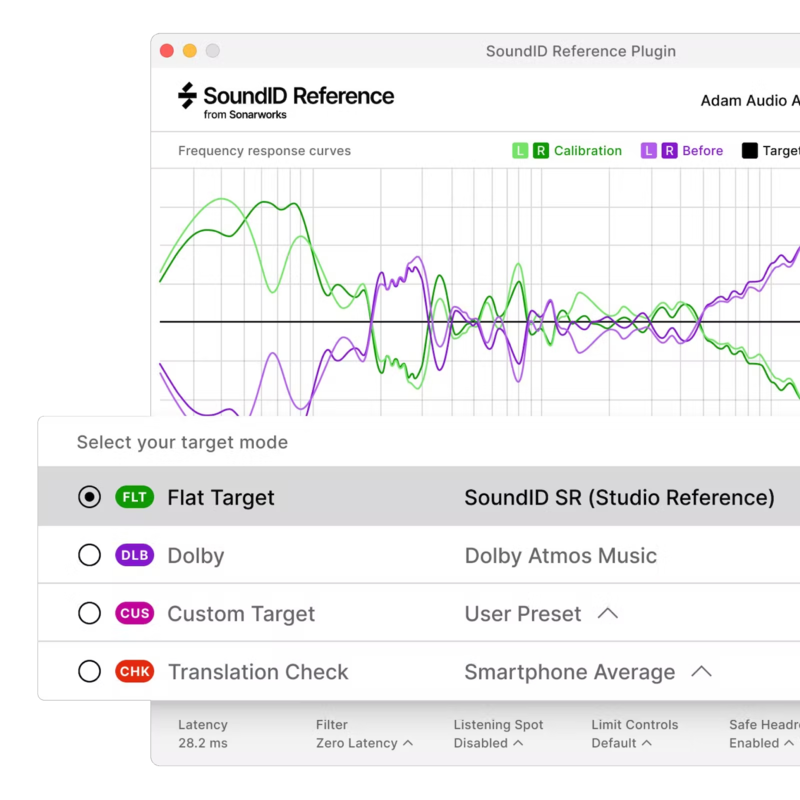
Correct for the Dolby Atmos Music curve, flat frequency response, or create a custom profile.
Versatile Export Possibilities
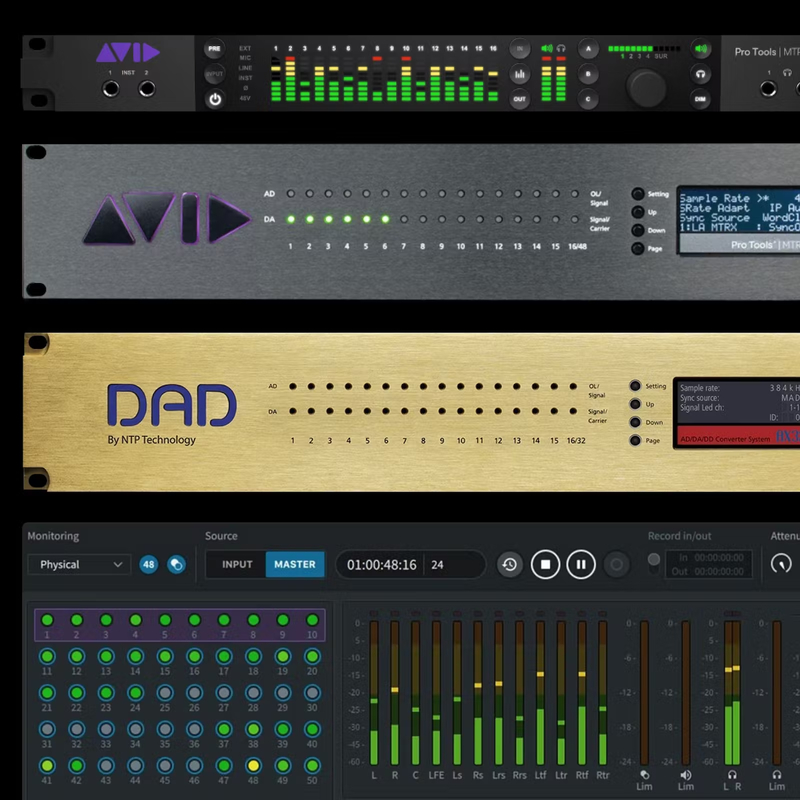
In a few simple steps apply a calibration profile via the plugin or export to supported hardware devices.
How It Works
Starting with SoundID Reference for Multichannel
Step 1 - Measure Speakers
- Using an individually calibrated SoundID Reference measurement mic that offers multi-angle microphone calibration curves for accurate measurements.
Step 2 - Calibrate with Hardware or Plugin
- Run the SoundID Reference plugin in your preferred DAW or export the calibration profile to supported hardware units.
Step 3 - Hear the Difference
- Begin and complete a project from A-Z and compare it to your reference tracks to experience better translation across devices.
Step 4 - Adjust Your Target
- Create a custom target curve and limit the calibration range for your whole setup or separate channel groups.
Key Features
Reliable, Consistent, Easy- to-Use Calibration Software for All of Your Audio Systems:
- Accurate speaker measurements and calibration for audio systems from stereo up to 9.1.6 channels
- High-accuracy SoundID Reference Measurement Microphone with individual multi-angle calibration curves
- Ready-to-use headphone calibration for 480+ models
Control Your Target Sound:
- Flat target curve used by over 100k music creators globally
- Customise your target by limiting the calibration frequency range or adjusting the target curve manually
High Performance and Flexibility:
- Zero latency plugin DSP for Multichannel
- Phase alignment of channels for high accuracy time delay calibration
- Native support for the Apple Silicon platforms / M1 chip
Export your Calibration Profile to Supported Hardware:
- AVID MTRX with SPQ DSP
- AVID MTRX Studio
- DAD AX32 with SPQ DSP
- Dolby Atmos Renderer Mastering suite
- Jones-Scanlon Studio Monitors
What's Included?
- Activation key for the product license: the product can be activated and used on 3 machines
- SoundID Reference DAW plugin for Multichannel (AAX, AU, VST2, VST3)
- SoundID Reference standalone app for Stereo (ASIO, WASAPI, APO, HAL)
System Requirements
Operating Systems:
- macOS 10.14 Mojave - macOS 12 Monterey
- Windows 10 - Windows 11
Sample Rates:
- 44.1 kHz, 48 kHz, 88 kHz, 96 kHz, 192 kHz
Drivers:
- Multichannel Measurements - ASIO
- Stereo Measurement - ASIO, WASAPI
Plugin Types:
- VST 2.4v, VST3, AU, AAX
Export:
- Avid MTRX with SPQ DSP
- Avid MTRX Studio
- DAD AX32 with SPQ DSP
- Dolby Atmos Mastering Suite
- Wayne Jones AUDIO Studio Monitors
Supported Audio Setups:
- 2.0 (Stereo speakers), 2.1, 2.1.2, 3.0, 3.1, 3.1.2, 4.0, 4.1, 4.1.2, 4.1.4, 5.0, 5.1, 5.1.2, 5.1.4, 7.1, 7.1.2, 7.1.4, 7.1.6, 9.1.2, 9.1.4, 9.1.6
- Supported Headphones or Individually Calibrated Headphones
Audio Interface Requirements (During the Speaker Measurement Process):
- +48v Phantom Power Support
- The same audio interface must be used for input-output
- The audio hardware setup must consist of a single external hardware device only (additional preamp units are supported)
Richard Furch
Grammy-winning Mixer
“Sonarworks software provided the missing puzzle piece I was searching for... The combination of measurements and target curves provided focus and clarity and really tied the room together. The translation is excellent. Bravo.”
Aaron Mattes
Grammy-nominated & RIAA Platinum Certified Mixing Engineer
"SoundID Reference for Multichannel is a game-changer! It gives me added confidence in knowing that what I'm hearing out of my monitors is correct, which allows me to spend more time on the creative process and finishing my mixes faster."


