


 Log In

Buy miniBit, get a free gift with purchase:
8bit Synthesizer
Chiptune Synth
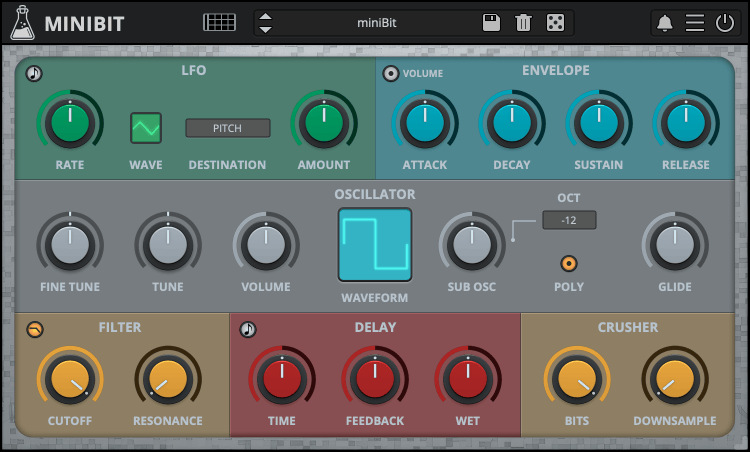
miniBit is an 8-bit/chiptune style synthesizer plugin that emulates the sound of 80s game consoles and retro computers.
It features a main oscillator with 18 waveforms paired with a sub oscillator (a square wave pitched one octave below).
The waveforms are not bandlimited and will produce aliasing. Furthermore, using the built-in bitcrusher, you can create even more noisy and retro sounds.
miniBit also features a synced 8 Steps Stepper/Sequencer with multiple destinations.
From noisy, snare-like steps to ambient subs, miniBit has many uses beyond what one expects from a chiptune synth.
Classic Consoles
miniBit takes inspiration from the iconic sound of classic game consoles and retro computers of the 80s and 90s that AudioThing collected over the years. It delivers the unmistakable charm of vintage 8-bit sounds, ideal for creating authentic chiptune music or adding a touch of nostalgic character to any production.
To take your 8-bit creations even further, explore miniVerb, the companion effect plugin designed to enhance and transform your sounds with authentic chiptune-style effects.

Custom Waveforms
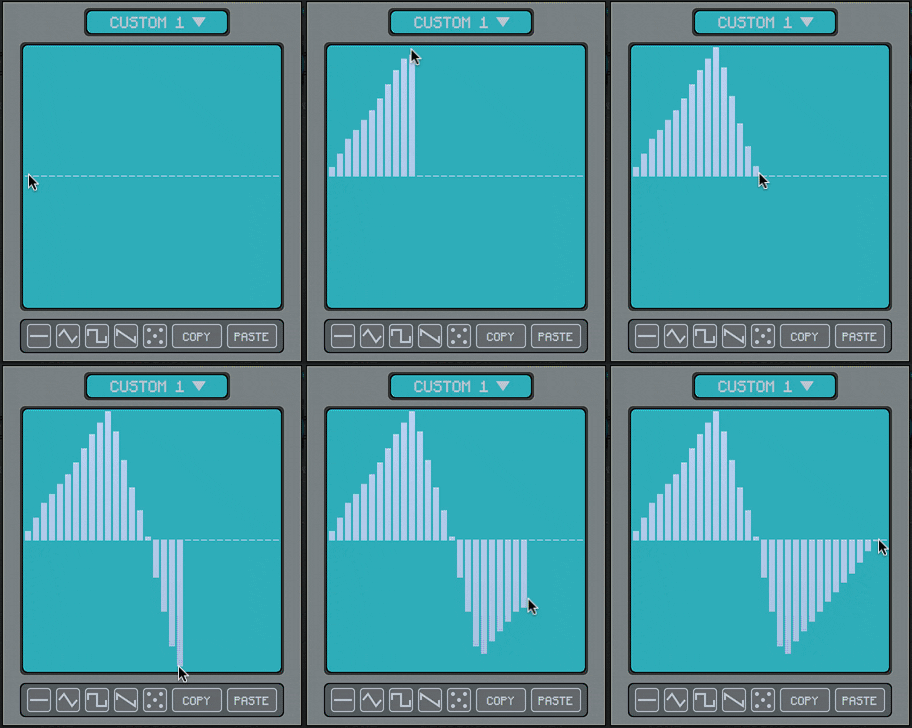
The Custom Waveform Editor features 32 steps and 8 waveform slots per preset.
You can draw your waveforms by clicking and dragging on the editor. You can also use the built-in examples as a starting point.
Each preset has its own set of custom waveforms, if you want to use a custom wave with another preset you can use the Copy/Paste buttons, or you can disable the Update Custom Waves in the global settings.
To open the Custom Waveform Editor select one of the Custom Waveforms from the Waveform monitor and click on the Editor button.
Step Sequencer
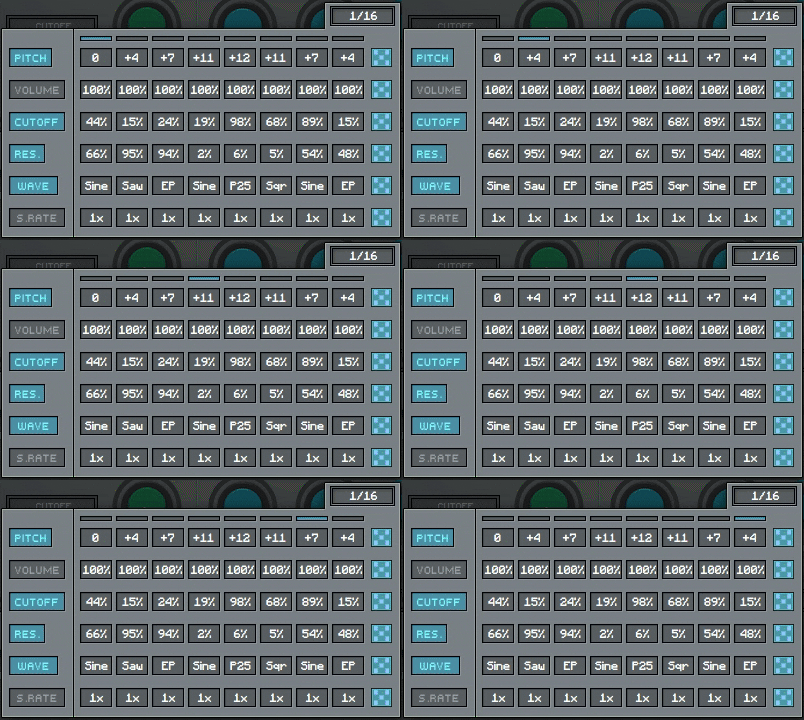
miniBit features an 8 steps sequencer that can be used to automate several parameters: pitch, volume, cutoff, resonance, waveform, and downsampling.
Sequencing the waveforms will generate sounds reminiscent of early trackers and wavetable synthesizers.
Each track can also be randomized using the dice buttons on the right.
Features
- 18 Waveforms + Custom Waves + Sub Oscillator
- Poly and Mono mode with Glide
- 2-poles LowPass/HighPass Filter
- Pitch and Volume Envelopes
- Delay and BitCrusher effects
- LFO with multiple destinations
- Volume and Pitch Envelopes
- 8 Steps Stepper with multiple destinations
- 128 Presets + Preset randomizer
Audio Demos
Windows
- Requires Windows 7 or higher
- VST2, VST3, AAX, CLAP, Standalone
- (64bit only)
Mac
- Requires macOS 10.13 or higher
- AU, VST2, VST3, AAX, CLAP, Standalone
- (64bit only)
Linux
- Requires Ubuntu 20.04 or newer
- VST2, VST3, CLAP, Standalone
- (64bit only)
Note: Wave Box is used as the example.
Windows
1. Visit the AudioThing Account Signup Page and enter your personal details to set up an account. Click the Verification and "I've read and agree to the Privacy Policy" > Click Sign Up.
Note: If you already have an existing AudioThing account, Login here and skip to step 3 of the installation process.
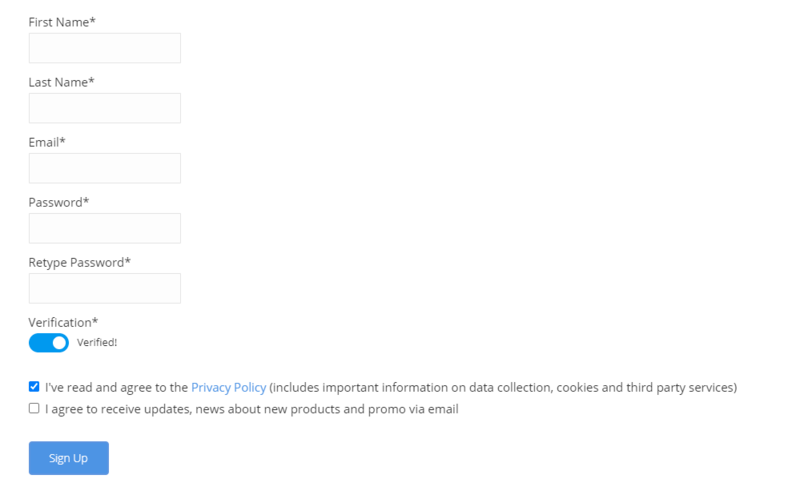
2. A confirmation email will now be sent to your registered email > click the link within the email to activate your account and Login here.
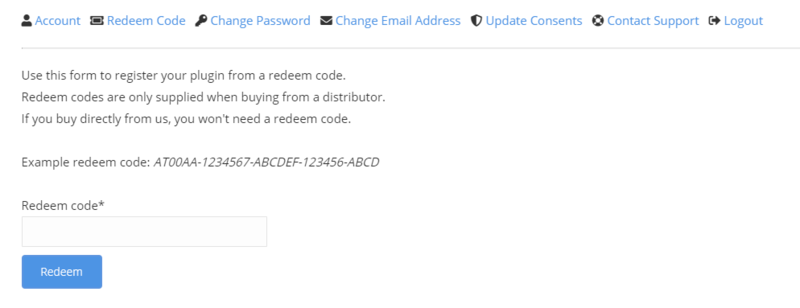
3. Once logged into your account, visit the Redeem Page and enter Redeem Code from your Plugin Boutique User Account into the box > Click 'Redeem'.
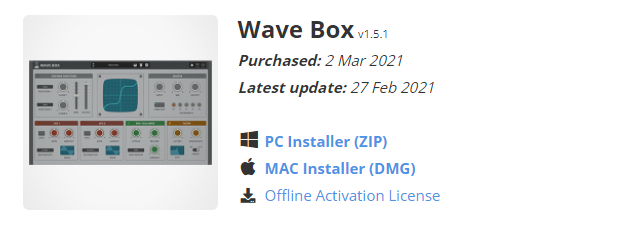
4. Download the PC installer and the Offline Activation License.
Note: Save the Offline Activation License to a memorable location on your computer for activating the software.
5. Double-click the downloaded .zip folder to extract its contents.
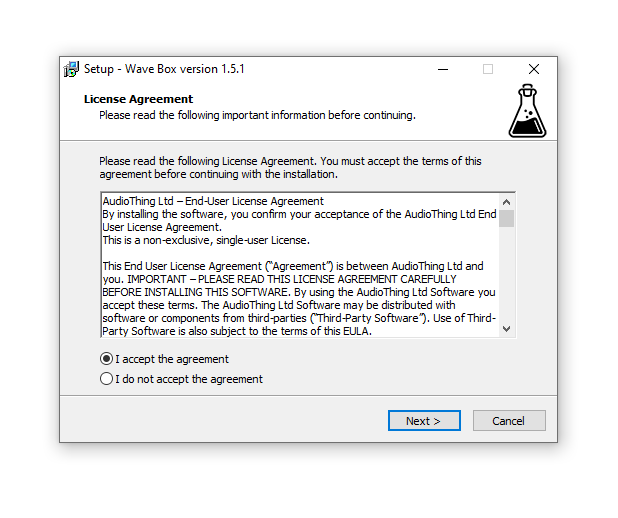
6. Double-click the extracted .exe file > click 'I accept the agreement and click 'Next'.
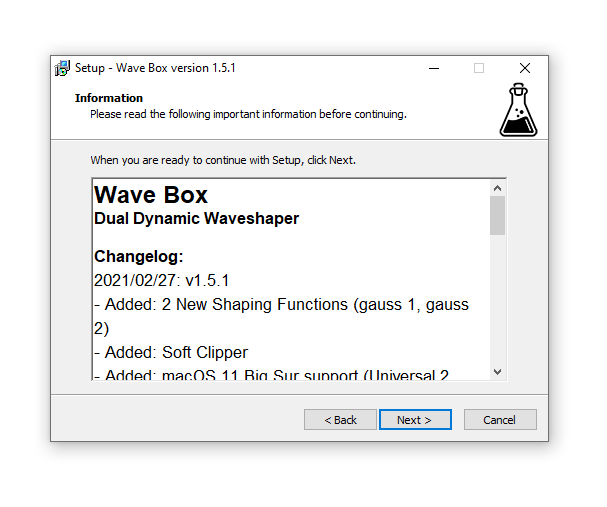
7. Click 'Next'.
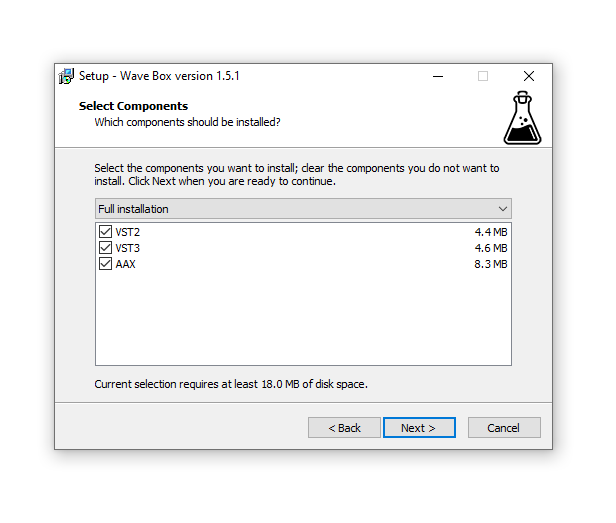
8. Select the components that you wish to install > Click ‘Next’.
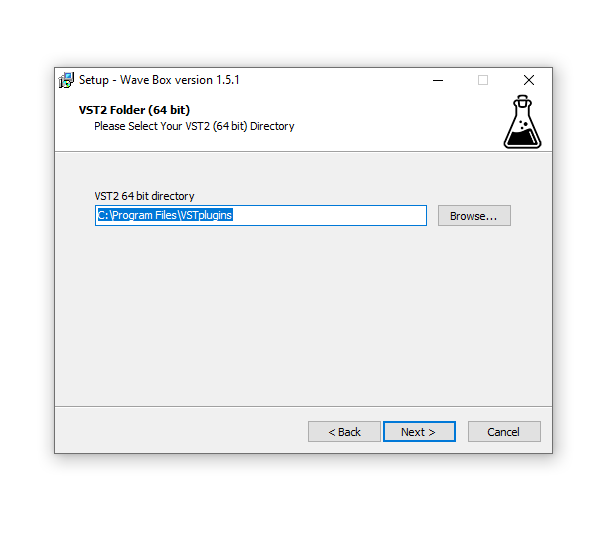
9. Click ‘Next’.
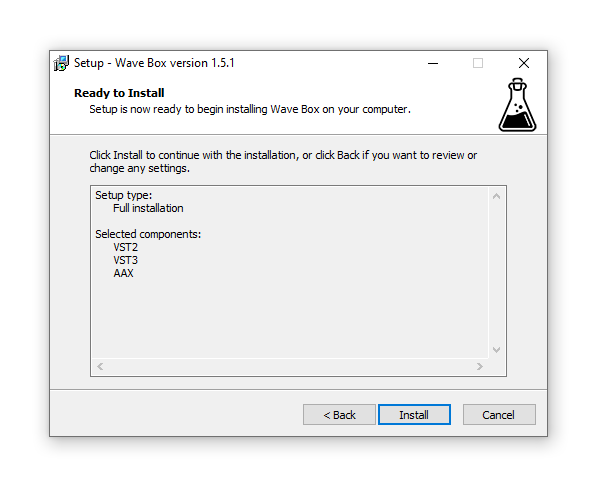
10. Click 'Install'.
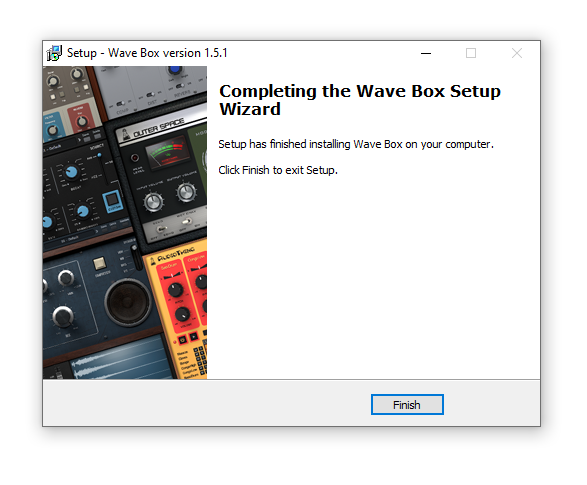
11. Click ‘Finish’.
Offline Activation
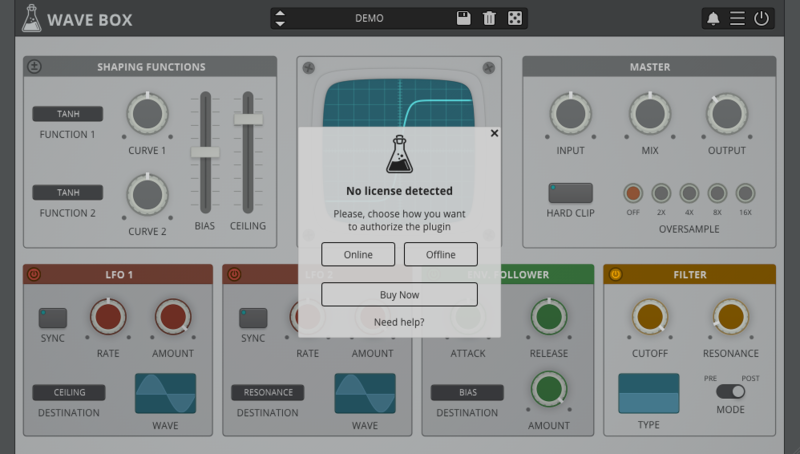
1. Open Wave Box inside of your DAW > Click 'Offline'.
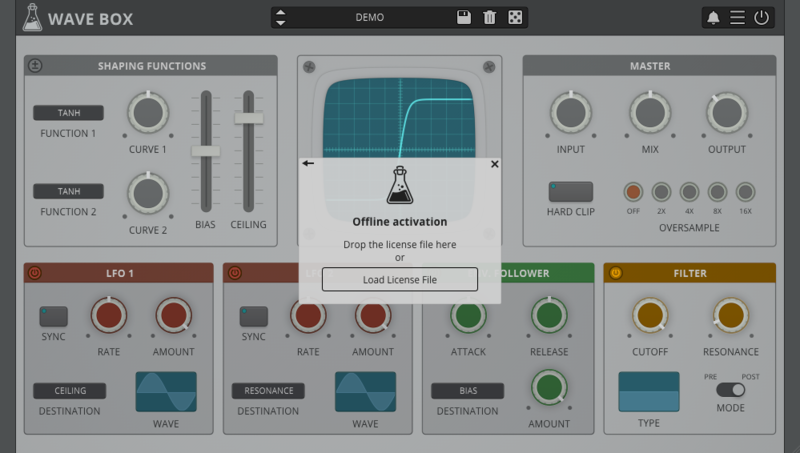
2. Click 'Load Licence File' and navigate to your Offline Activation License.
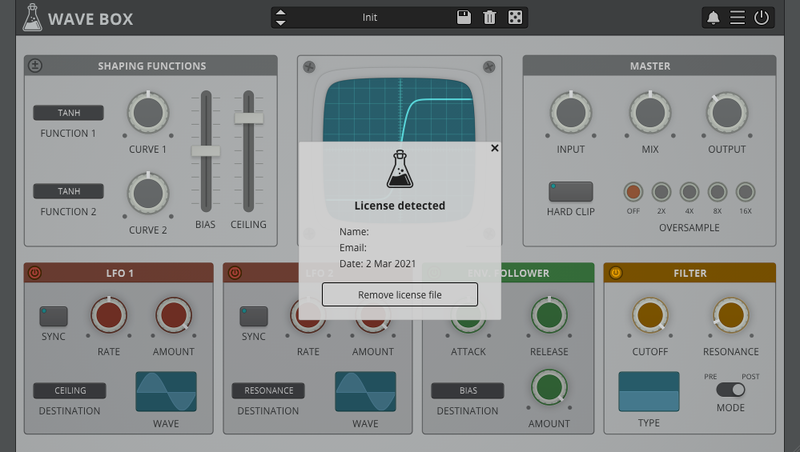
3. Click the X to close the box.
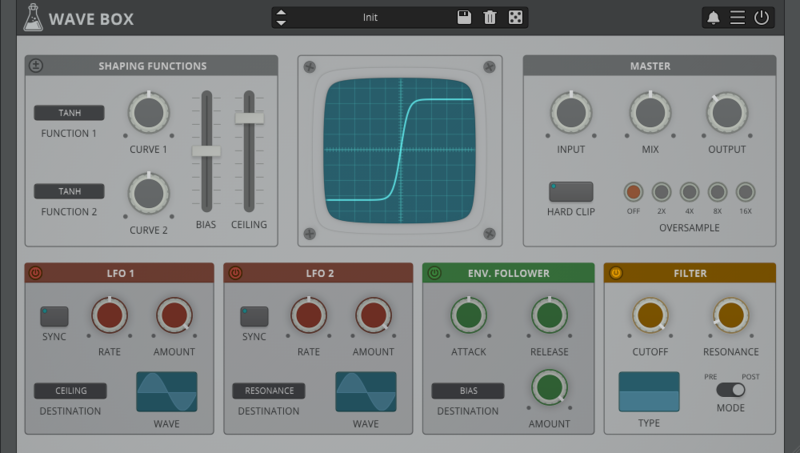
The software is now activated and ready to use inside your DAW!
Online Activation
1. Open Wave Box inside of your DAW > Click 'Online'.
2. Enter your AudioThing email and password > Click 'Log In'.
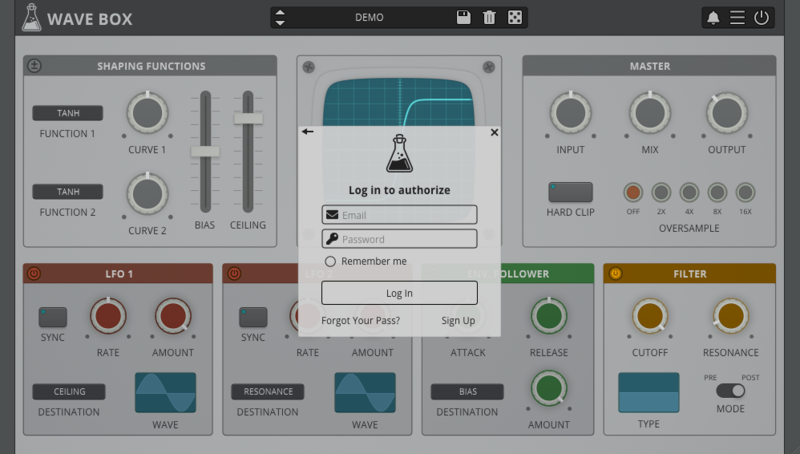
3. Click the X to close the box.
The software is now activated and ready to use inside your DAW!
Mac
1. Visit the AudioThing Account Signup Page and enter your personal details to set up an account. Click the Verification and "I've read and agree to the Privacy Policy" > Click Sign Up.
Note: If you already have an existing AudioThing account, Login here and skip to step 3 of the installation process.
2. A confirmation email will now be sent to your registered email > click the link within the email to activate your account and Login here.
3. Once logged into your account, visit the Redeem Page and enter Redeem Code from your Plugin Boutique User Account into the box > Click 'Redeem'.
4. Download the MAC installer and the Offline Activation License.
Note: Save the Offline Activation License to a memorable location on your computer for activating the software.
5. Double-click the downloaded .dmg folder to extract its contents > Double-click the .pkg file to run the installer
6. Click 'Continue'.
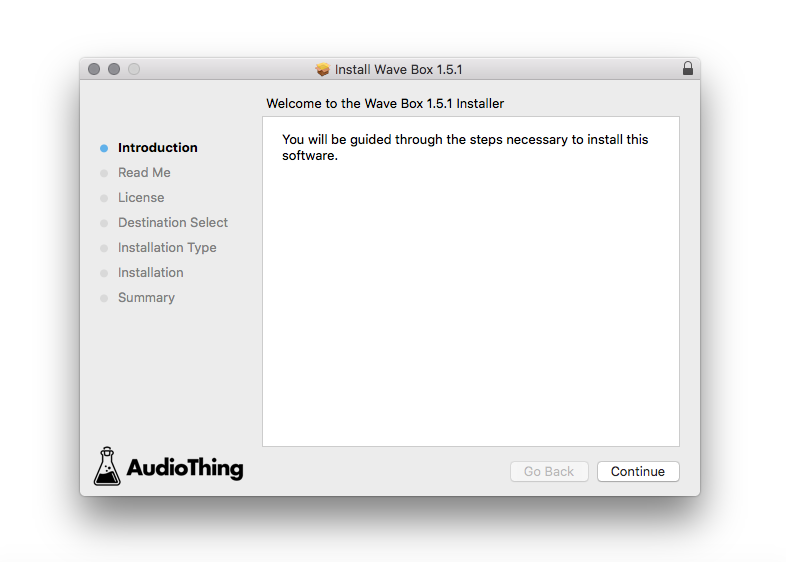
7. Click ‘Continue’.
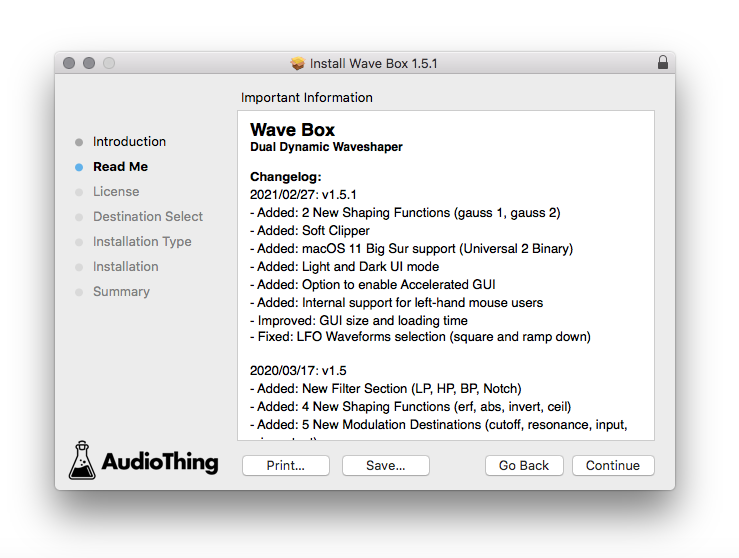
8. Click 'Continue'.
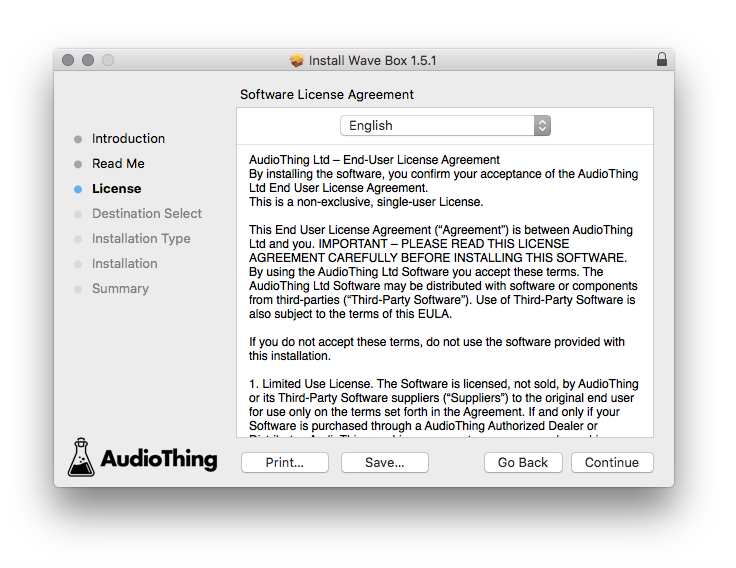
9. Click ‘Agree’.
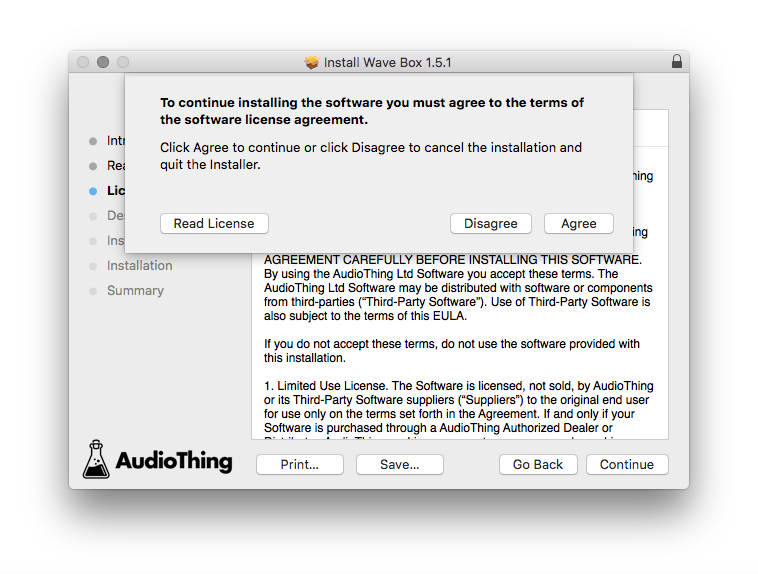
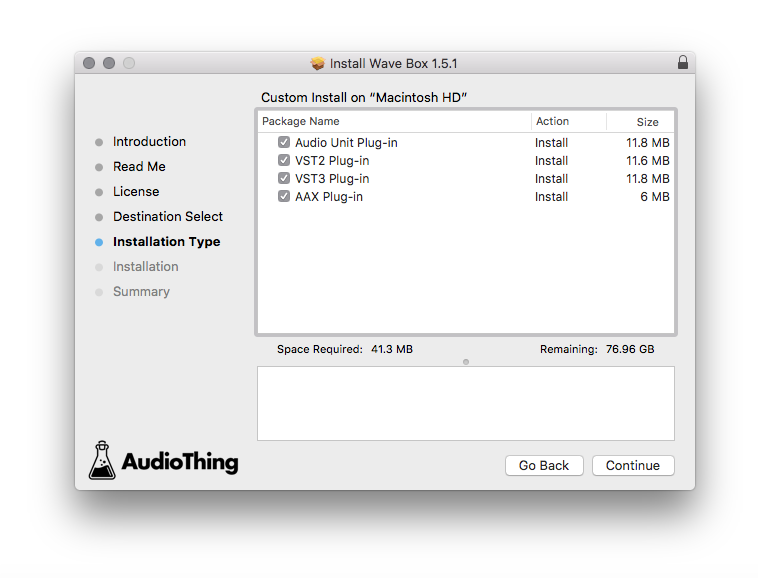
10. Select the components you would like to install > Click 'Continue'.
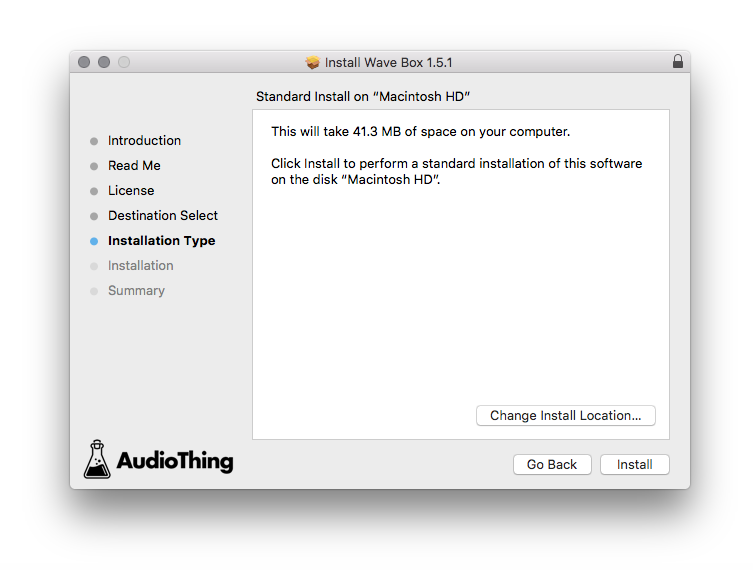
11. Click ‘Install’.
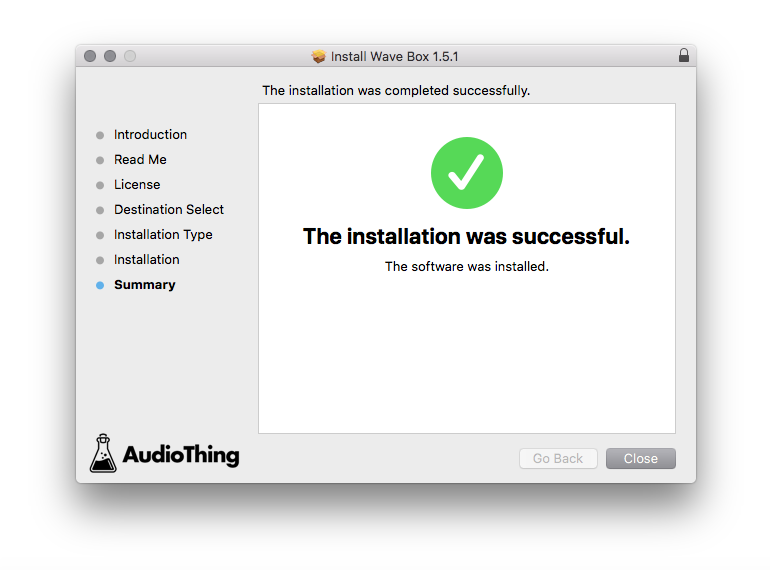
12. Click 'Close'.
Offline Activation
1. Open Wave Box inside of your DAW > Click 'Offline'.
2. Click 'Load Licence File' and navigate to your Offline Activation License.
3. Click the X to close the box.
The software is now activated and ready to use inside your DAW!
Online Activation
1. Open Wave Box inside of your DAW > Click 'Online'.
2. Enter your AudioThing email and password > Click 'Log In'.
3. Click the X to close the box.
The software is now activated and ready to use inside your DAW!


