Buy Syndt, get a free gift with purchase:
Polyphonic Synthesizer
A versatile, morphable polyphonic synthesizer
Syndt is a high-quality polyphonic synthesizer with a lot of possibilities. The oscillator waveform can be morphed between pure sine to pure square and supports altering of pulse width. Both the shape and pulse width can be modulated by two independent LFOs.
With fine-tuned low pass and high pass filters combined with a separate filter attack setting, (optionally based on velocity) this synth can create some raw and interesting sounds.
The additional LFO can be shaped exactly as the oscillator, and optionally controls filters, gain, and pitch (using a modulation wheel or just automatically). This LFO can be synchronized to an AUv3 host.
Globally there’s a nice stereo chorus, ping pong stereo delay (that also can sync to an AUv3 host's BPM), and EQ.
Anatomy
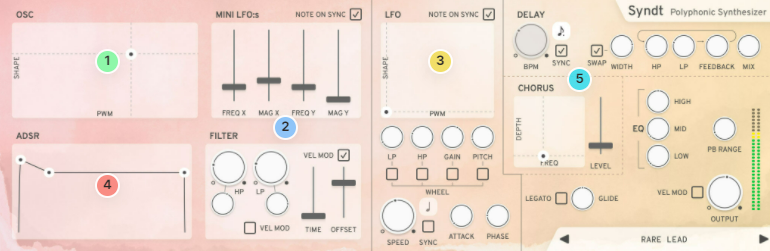
1. Oscillator - This XY Pad sets the wave shape. X-axis: pulse width (pure sine to the left, short pulse width to the right). Y-axis: morphs between pure sine and square.
2. Mini LFO:s & Filters - These sliders affect the oscillator's values. These LFOs only output pure sinewaves. If the NOTE ON SYNC is ticked, the LFO will be reset on a new note. If not, it will keep ongoing. HP & LP Filters with separate resonance control.
3. LFO - A powerful LFO that can affect filters, gain & pitch.
4. ADSR - Controls the Attack time, Decay time, Sustain Level and Release time of the voice.
5. Special effect - A very competent delay section, a chorus, EQ & more.
Features
- 70+ professionally made presets
- XY pad based oscillator and LFO (PWM on the X-axis and morphs between sine and square on the Y-axis)
- Independent mini-LFO (sine only) for each axis of the oscillator XY-pad.
- LP / HP filter with resonance
- LP Filter can be velocity-sensitive
- LP Filter has an optional attack time
- LFO can affect LP filter, HP filter, gain level, and pitch
- LFO has an optional attack time
- LFO can be synchronized with an AUv3 host (AUv3 mode only!)
- Ping pong delay
- Stereo Chorus
- Three-band EQ
- Legato mode with glide speed parameter
- Pitch bend range
System Requirements
- macOS 10.10 or later (optimized for the M1-processor)
- Windows 7 SP1 or later
- AU, VST-2, VST-3, AAX
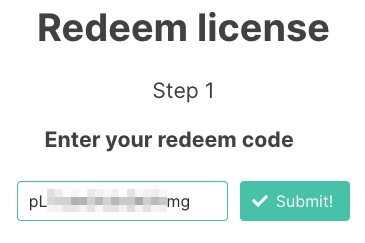
Please Note: Pana is used as the example:
Mac
License Redemption
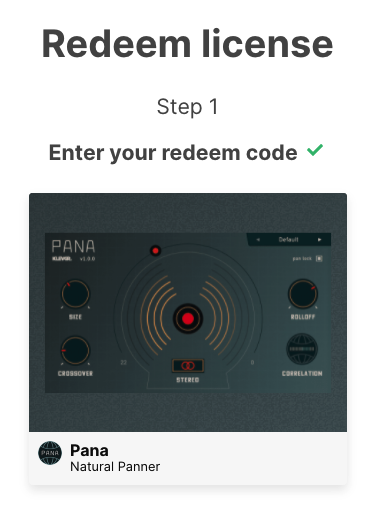
1. Navigate to https://klevgrand.com/redeem > Paste your 16 digit redemption code found in your Plugin Boutique User Account > Click 'Submit!'.
2. Your redemption code has been accepted > Scroll down to Step 2.
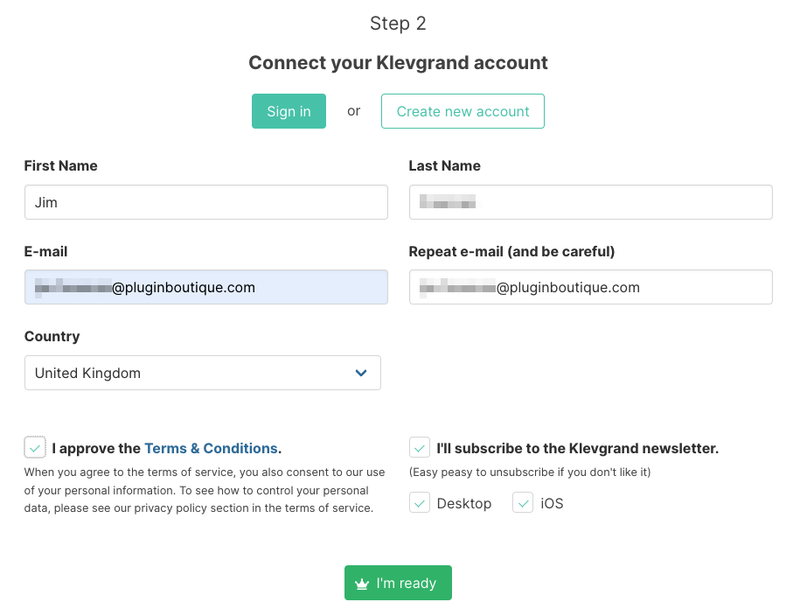
3. Click either 'Sign in' if you already have a Klevgrand account, or 'Create new account' if you do not > Fill in your personal details > Click 'I'm ready'.
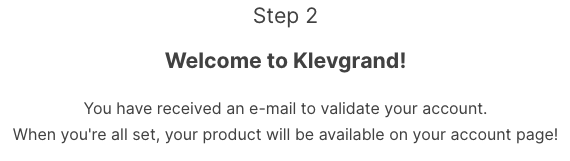
4. Your account has now been created.
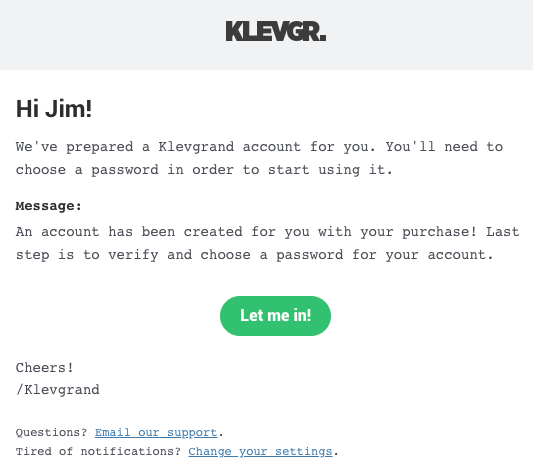
5. Navigate to your email inbox and locate the activation email that you should have received from Klevgrand > Click 'Let me in!' to activate your account.
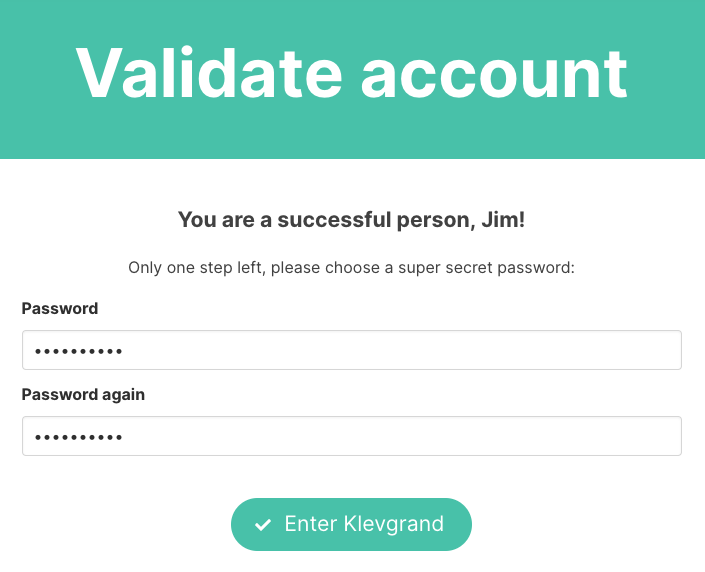
6. Create a password for your account > Click 'Enter Klevgrand'.
7. Your software and serial number is now available within your Klevgrand account > Click the Apple logo to download the installer file.
Installation
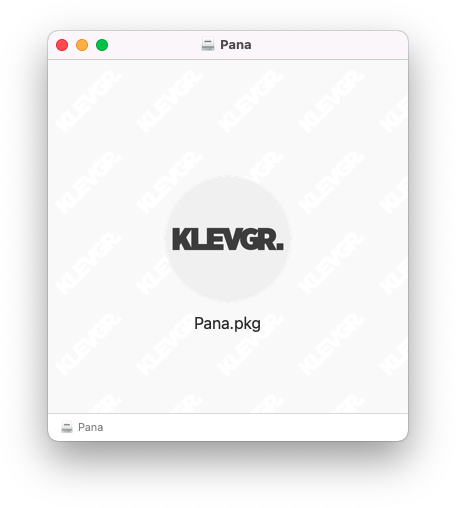
1. Launch the pana_x_x_x_macOS.dmg installer file.
2. Double click the KLEVGR. logo to launch the installer.
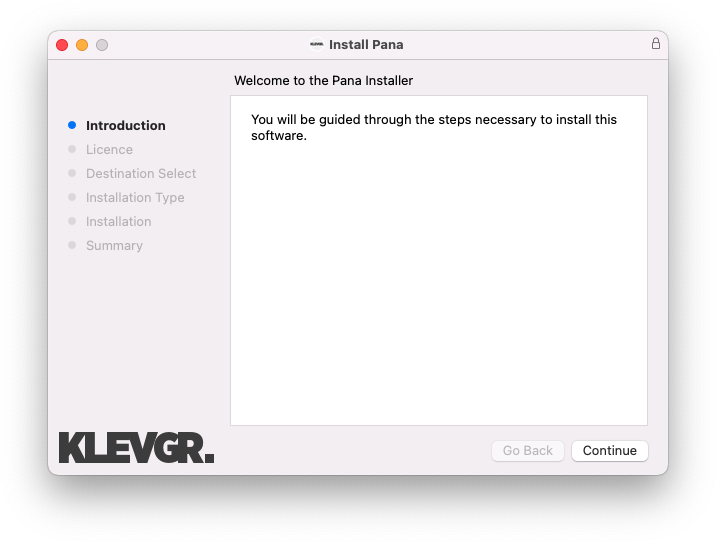
3. Click 'Continue'.
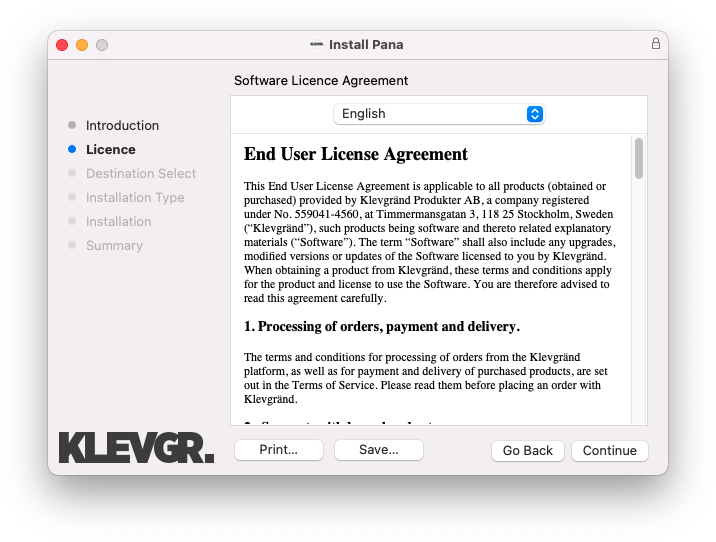
4. Click 'Continue'.
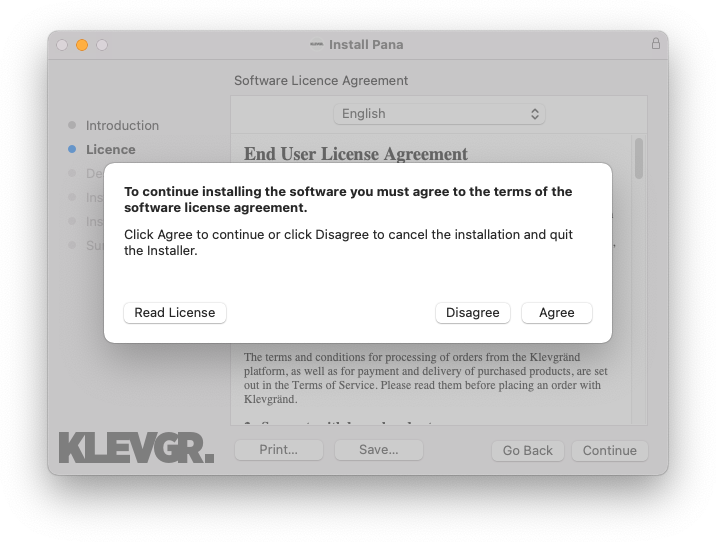
5. Click 'Agree'.
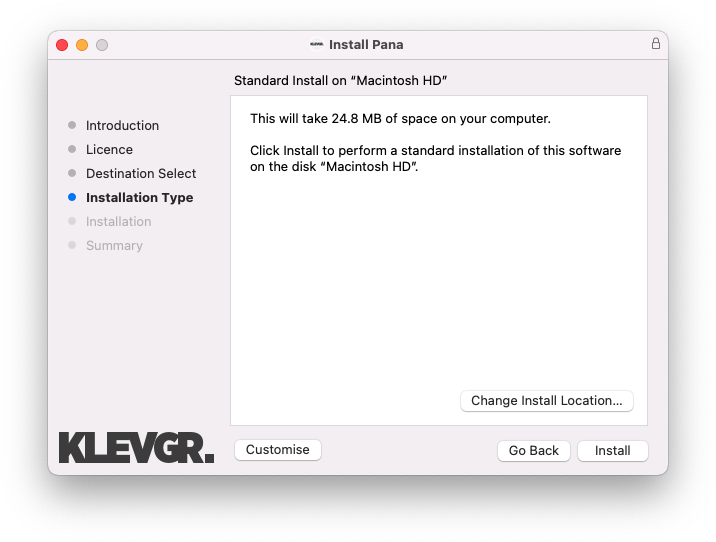
6. Click 'Install'.
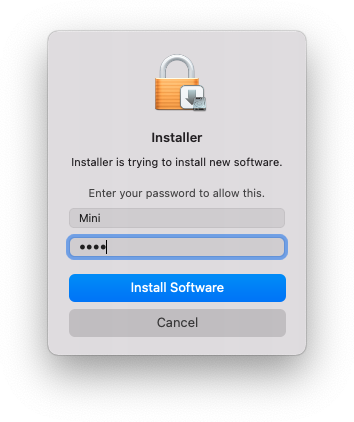
7. Enter your system password > Click 'Install Software'.
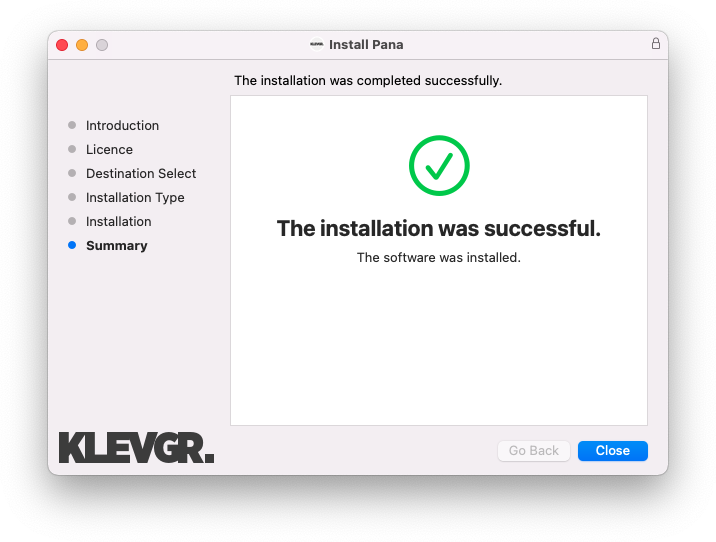
8. Click 'Close'.
9. Navigate back to your Klevgrand My Account page > Click on the serial number to copy it to your clipboard.
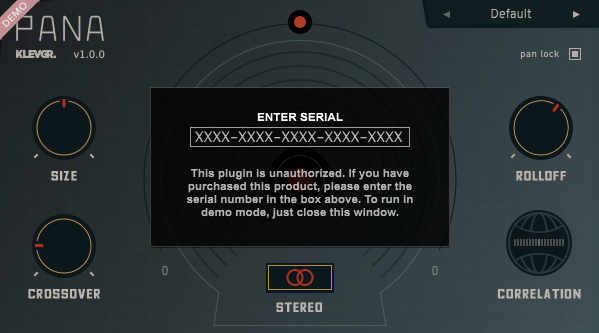
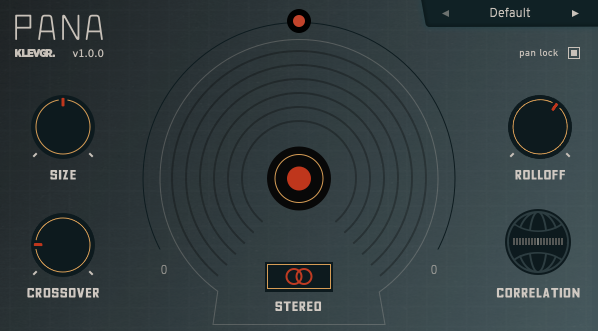
10. Launch your DAW > Create a new audio track > Insert Pana onto the channel > Paste your serial number into the box.
Your software is now activated and ready to use within your DAW
Windows
License Redemption
1. Navigate to https://klevgrand.com/redeem > Paste your 16 digit redemption code found in your Plugin Boutique User Account > Click 'Submit!'.
2. Your redemption code has been accepted > Scroll down to Step 2.
3. Click either 'Sign in' if you already have a Klevgrand account, or 'Create new account' if you do not > Fill in your personal details > Click 'I'm ready'.
4. Your account has now been created.
5. Navigate to your email inbox and locate the activation email that you should have received from Klevgrand > Click 'Let me in!' to activate your account.
6. Create a password for your account > Click 'Enter Klevgrand'.
7. Your software and serial number is now available within your Klevgrand account > Click the Windows logo to download the installer file.
Installation
1. Unpack the pana_x_x_x_win.zip installer file > Launch the pana_x_x_x_win.exe file.
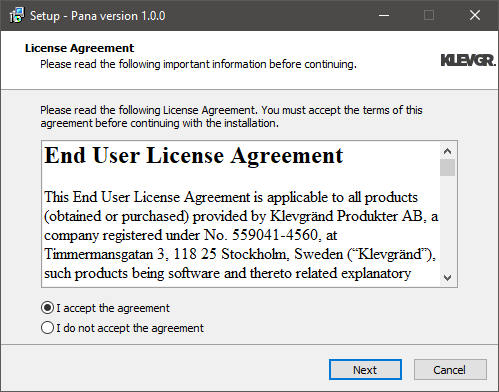
2. Click 'I accept the agreement' > Click 'Next'.
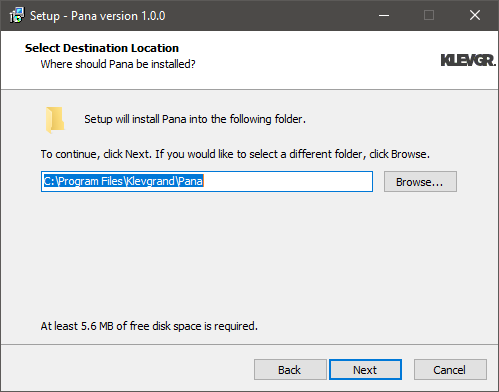
3. Click 'Next'.
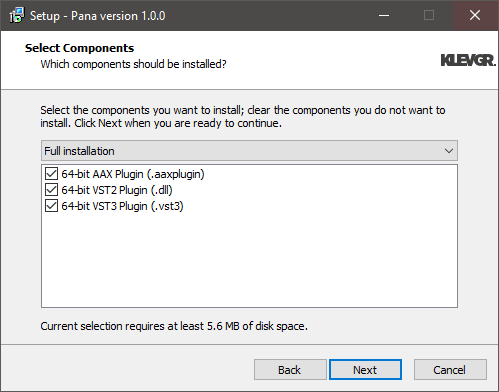
4. Click 'Next'.
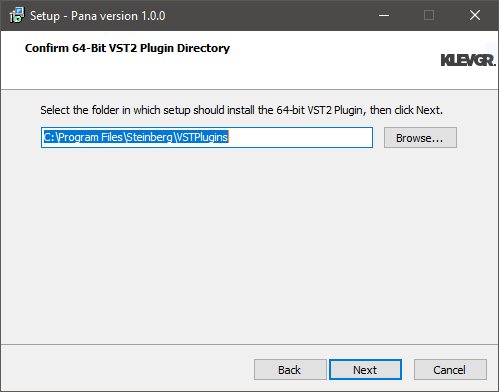
5. Click 'Next'.
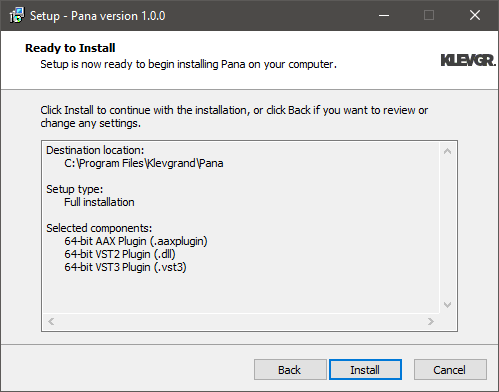
6. Click 'Install'.
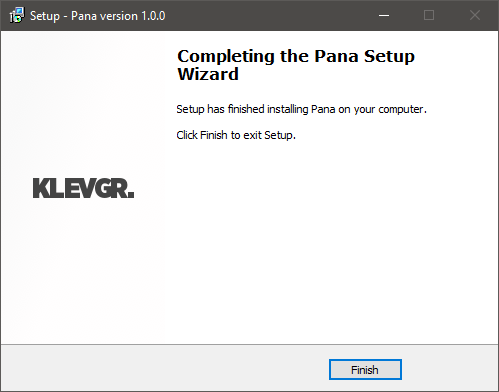
7. Click 'Finish'.
8. Navigate back to your Klevgrand My Account page > Click on the serial number to copy it to your clipboard.
9. Launch your DAW > Create a new audio track > Insert Pana onto the channel > Paste your serial number into the box.
Your software is now activated and ready to use within your DAW