


 Log In
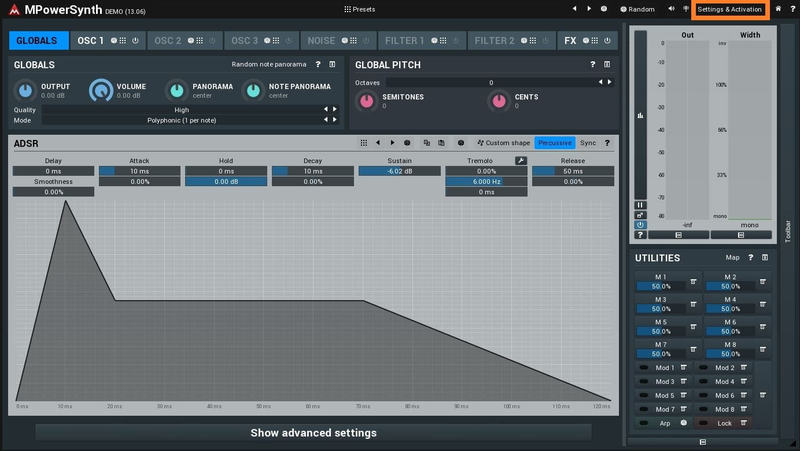
MSoundFactoryPlayer is completely for FREE! It gets you just a few sounds, but you may get some 3rd party sounds for it as well! You can get it simply by letting MSoundFactory trial expire.
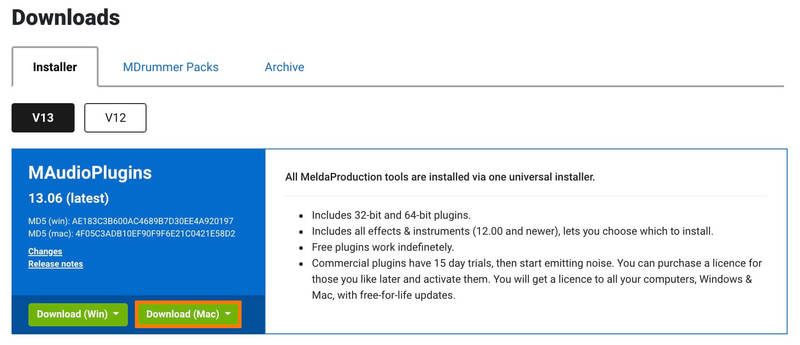
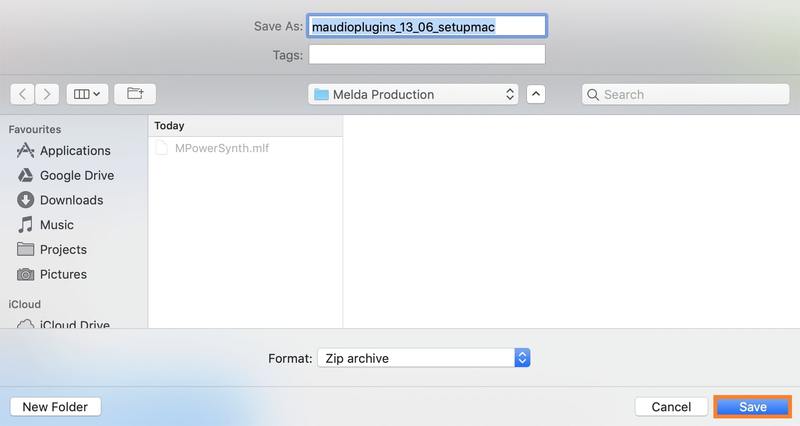
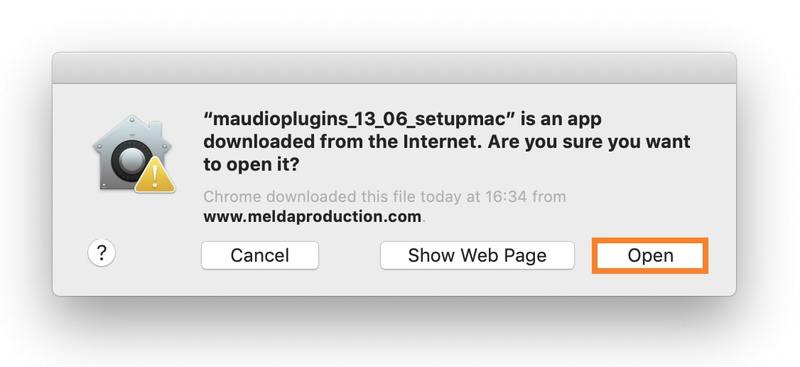
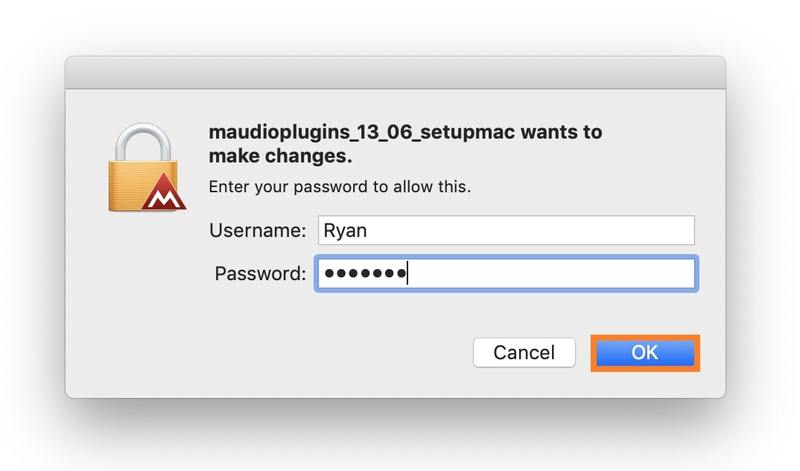
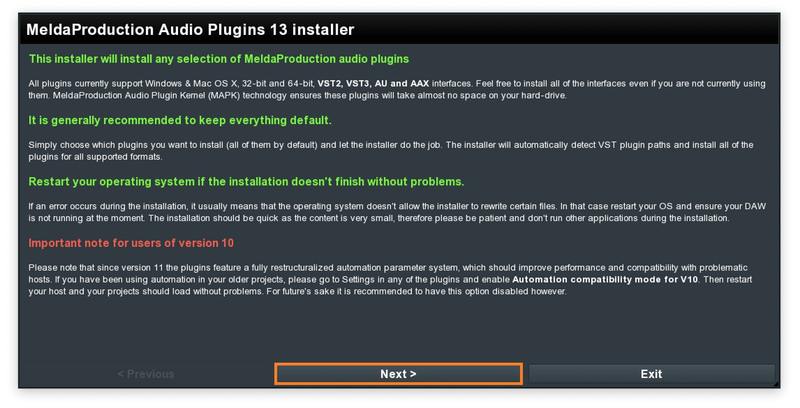
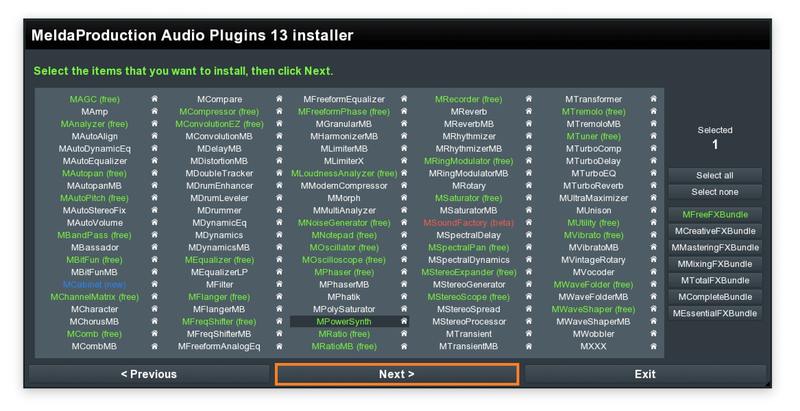
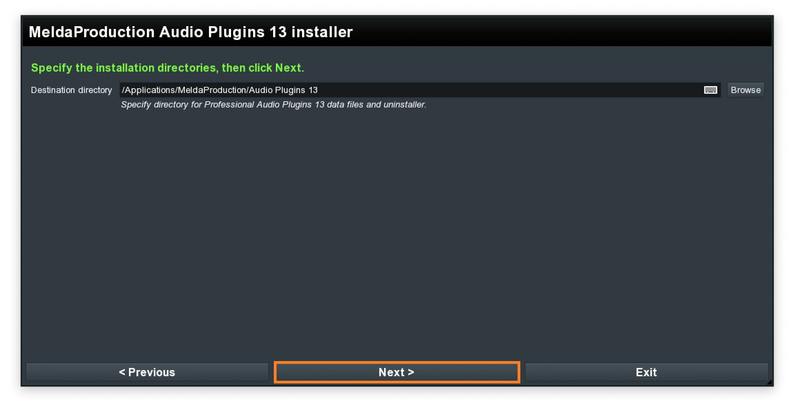
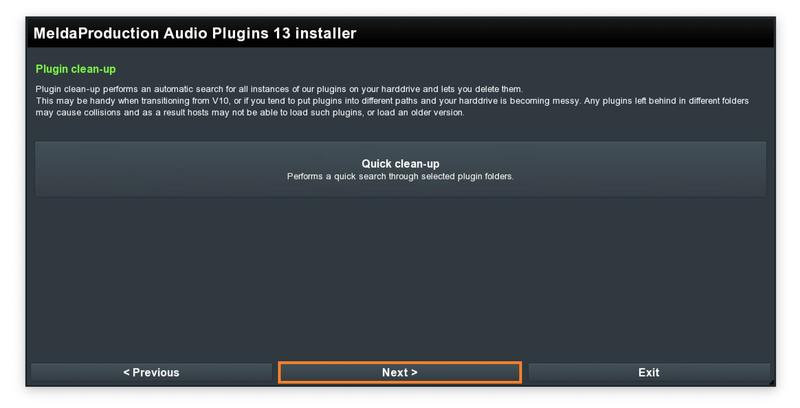
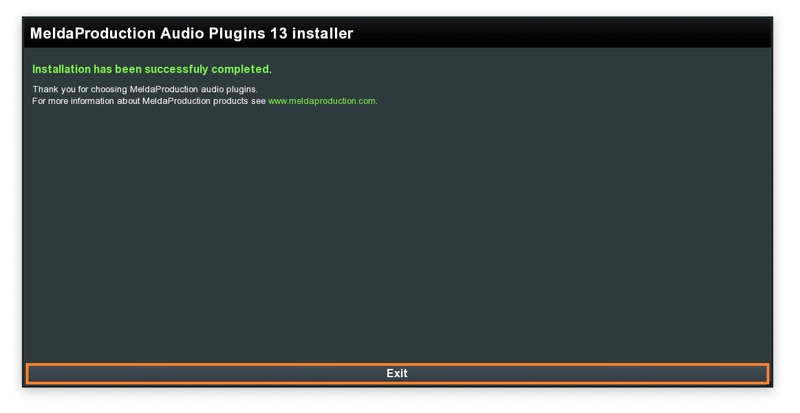
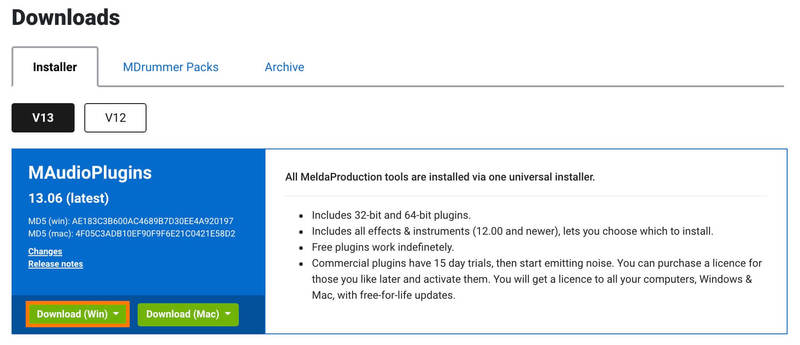
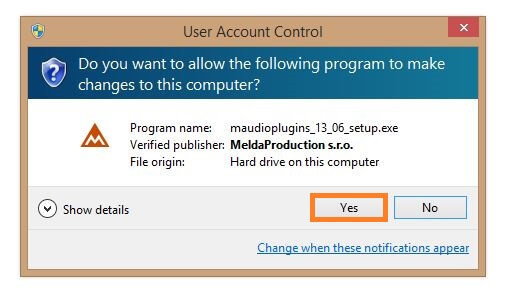
Important Note: When installing MSoundFactoryPlayer, simply install the MSoundFactory product. Your free trial will run for 15 days, before automatically becoming the MSoundFactoryPlayer. No further installation is required.
Which Version of MSoundFactory is right for you?
|
Features |
MSoundFactory | MSoundFactoryLE |
MSoundFactory Player |
| All Sounds and Instruments Included | Yes | Yes | No |
| Third Party Full Support | Yes | Yes | Yes |
| Customizations | Yes | Limited | No |
System Requirements
Windows
- Windows 8 / 10 / 11 (64-bit)
- VST / VST3 / AAX compatible host (64-bit)
- Intel/AMD processor with SSE2 support
macOS
- macOS 10.14 and newer (64-bit)
- VST / VST3 / AU / AAX compatible host
- Intel/AMD/M1 processor with SSE2 support
- Native Apple Silicon ARM CPU support
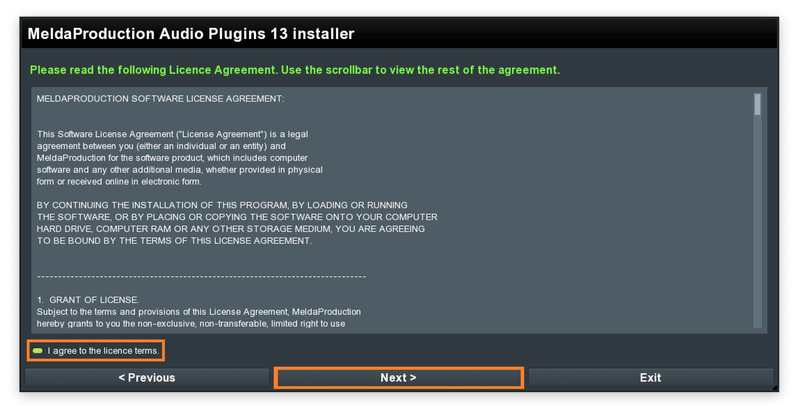
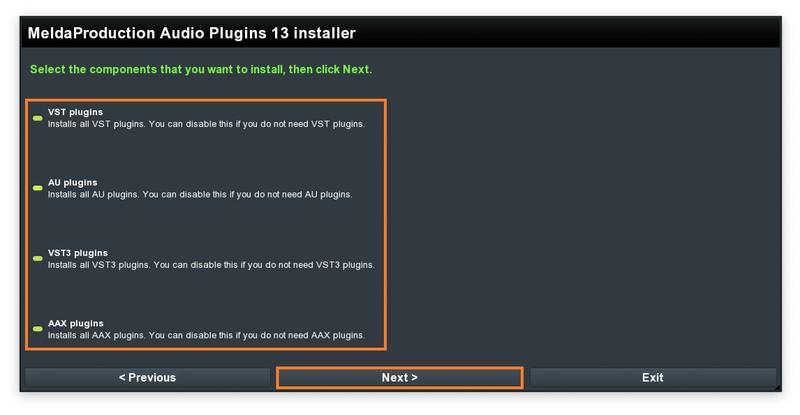
Note: Please check your product PDF documentation for more information and installation instructions.
Reviews Summary
While it aims to provide a helpful overview, it may not capture every perspective or detail. We encourage you to read individual reviews to make an informed decision.
Overall, customers praise the product for its excellent sound quality, high-quality presets, and easy navigation once familiar with the user interface. While widely considered a great and essential item, a few users noted minor drawbacks regarding aesthetics or mentioned that it was not a personal favorite despite having no major flaws.


