Log In

Free gifts available with your purchase
PSP NobleQ combines the features of passive program equalizers with a wide range of frequency settings and extended functionality. To make this plug-in a versatile tool we added several modern features such as an adjustable high pass filter, and the ability to switch high peak and shelf filters to Boost or Attenuation operation.
The PSP NobleQ stands out for its warm sound, its boost and attenuation low-shelf filters and its combined peak and shelf high frequency processing. The warm and musical sound in PSP NobleQ is made possible thanks to its finest processing utilizing FAT double sampling for a natural analog-like response. PSP have also added an output valve-like rounding algorithm with adjustable processing depth.
The low shelf filter actually combines two shelving sections: the first one allows you to boost low frequencies while the other one attenuates them but is tuned slightly higher. Together they help to get a rich bottom end without low-midrange muddiness.
The high frequency range consist of two filters - a peaking filter with adjustable band width (usually set to Boost) and a shelf filter (usually set to Attenuate). Both filters interact in such a way that the more attenuation to high frequency is applied the more selective peaking filter becomes while keeping its center frequency similarly boosted.
System Requirements
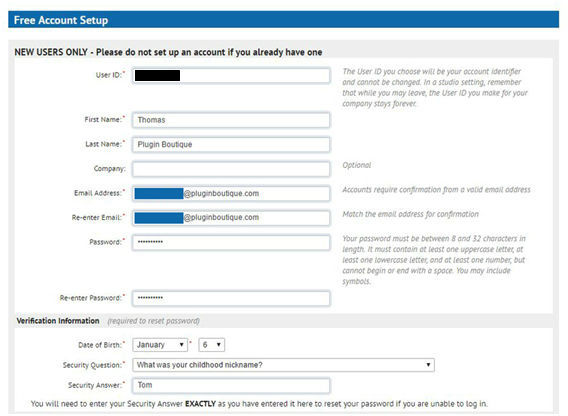
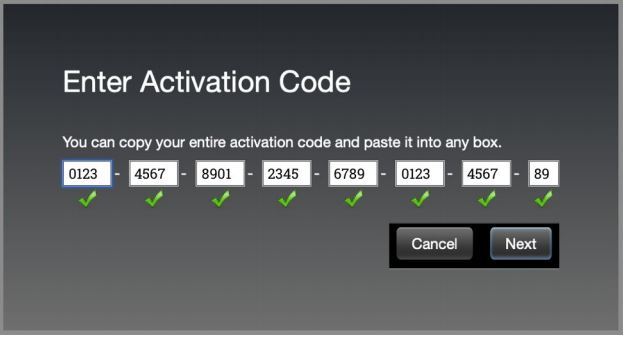
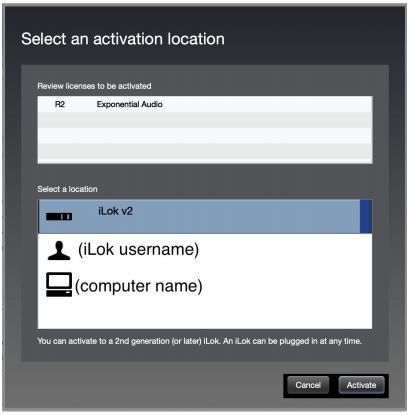
In order to run PSP L'otary2 in 30-day trial mode or activate it, you need an iLok user ID which you can create for free at www.ilok.com, and you need to install the free iLok License Manager application but you don't need any hardware dongle.
You can activate the license in 3 separate locations, each of which can be either a computer or an iLok dongle (2nd generation or above). You can move these licenses at any time using PACE's iLok License Manager software.
PC
VST3:
- Windows 7 – Windows 11
- 64-bit VST3 compatible application
VST:
- Windows 7 – Windows 11
- 64-bit VST compatible application
AAX:
-
Windows 7 – Windows 11
-
Pro Tools
All DAWs:
- The latest iLok License Manager application installed
Mac OS X:
Audio Unit:
- macOS 10.14 – macOS 14 Sonoma
- 64-bit AudioUnit compatible host application
VST:
- macOS 10.14 – macOS 14 Sonoma
- 64-bit VST compatible host application
VST3:
- macOS 10.14 – macOS 14 Sonoma
- 64-bit VST3 compatible host application
AAX:
- macOS 10.14 – macOS 14 Sonoma
- Pro Tools
All DAWs:
- The latest iLok License Manager application installed
Count
"Unlike those extremely annoying modeled plug ins which have the same shortcomings and flaws the original hardware has, NobleQ combines the best of both worlds."