Note: TDR Limiter 6 GE is used as the example.
Mac
Registration
1. Go to your Plugin Boutique User Account > Copy and paste your serial number into your web browser search bar and press 'enter' on your keyboard.
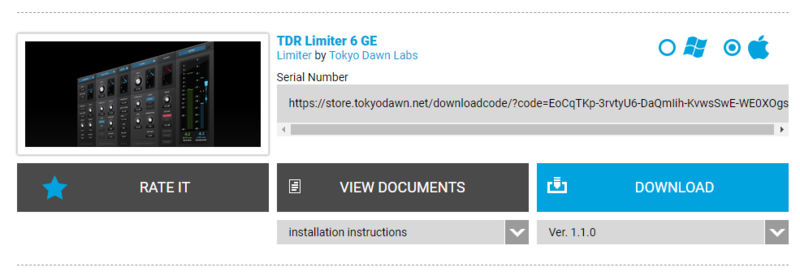
2. Check the box that states 'I'm not a robot' > Click 'Unlock Code'.
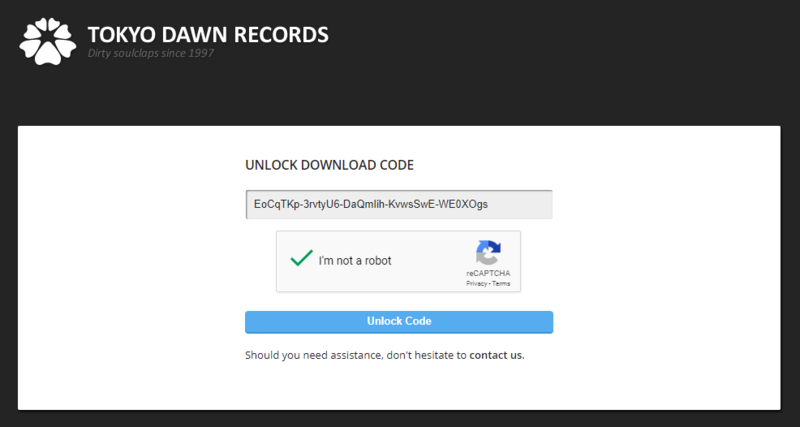
3. Enter your Name & email address and select your country from the drop-down menu > Click 'Create Account'.
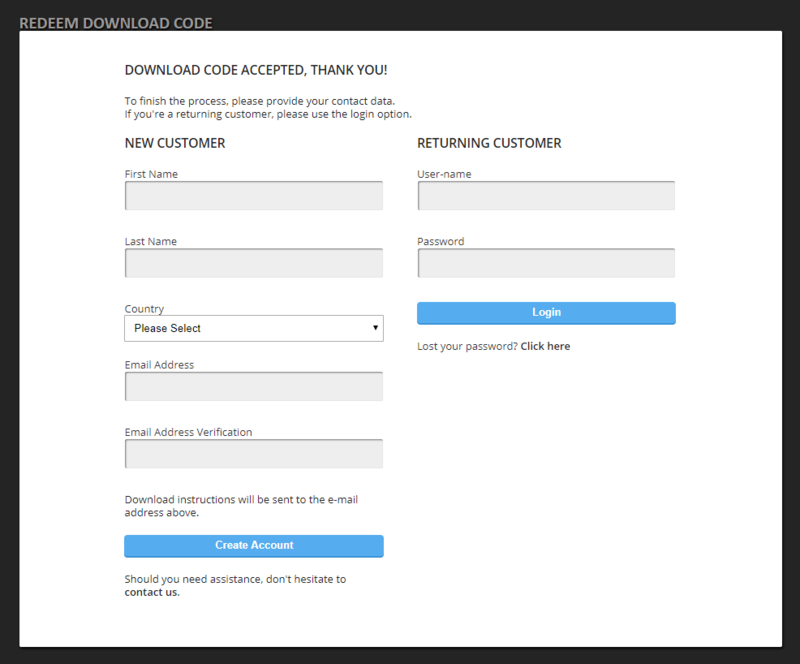
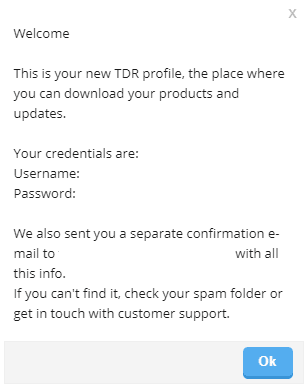
4. Click 'Ok'.
Installation
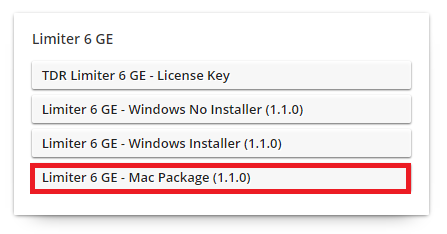
1. Click the Mac installer link to download the correct installer for your operating system.
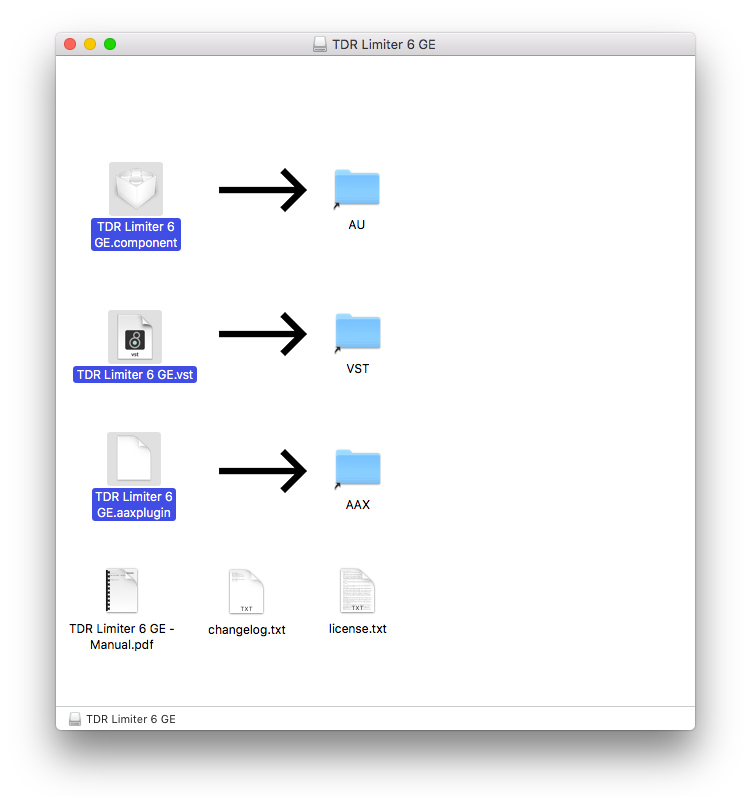
2. Open the .dmg file > Click and drag the Component, VST and AAX Plugin files into their respective folders.
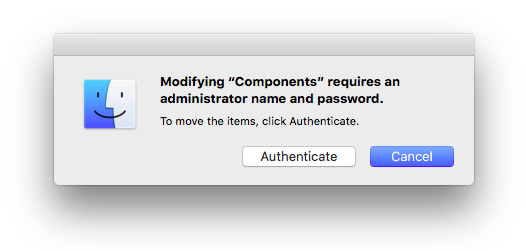
3. Click 'Authenticate'.
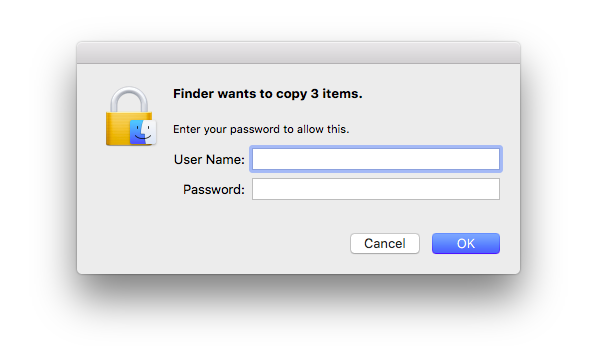
4. Enter your computer Username and Password > Click 'Ok'.
Online Activation
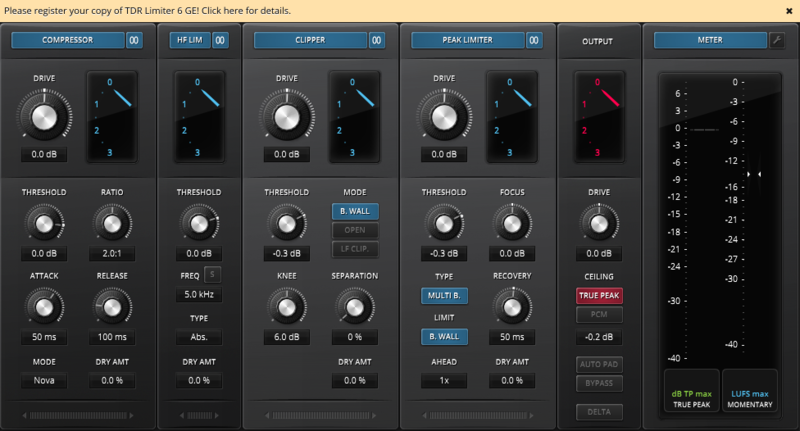
1. Open the installed software in your DAW > Click the dialogue box at the top of the plugin to open the activation menu.
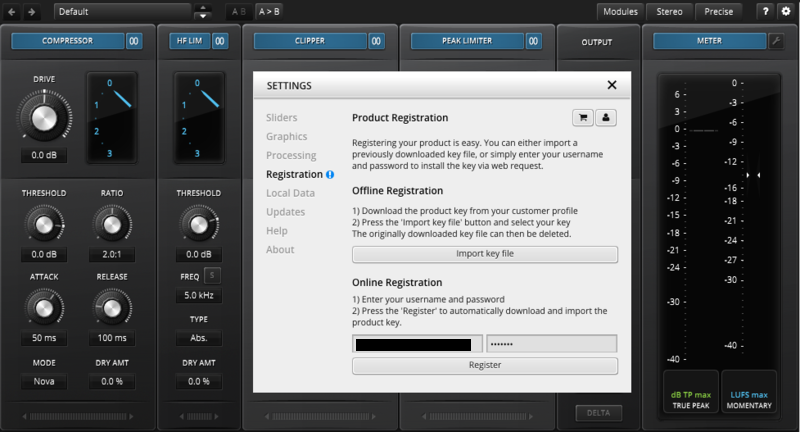
2. Enter your Tokyo Dawn Labs registered email address and password > Click 'Register'.
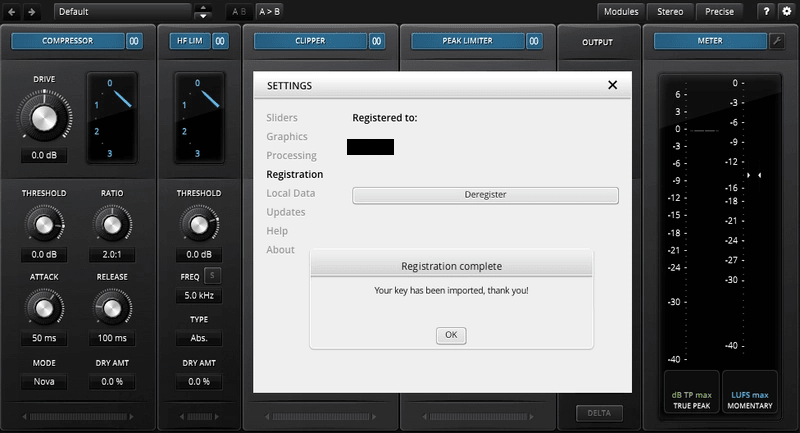
3. Click 'Ok'.
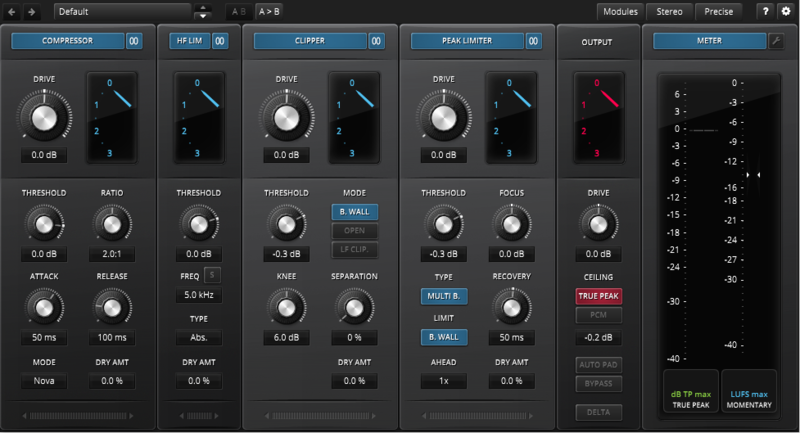
Your software is now activated and ready to use within your DAW.
Offline Activation
1. Go to your Tokyo Dawn Labs User Account > Download the License Key File for your software.
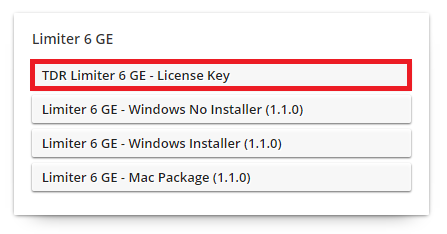
2. Open the installed software in your DAW > Click the dialogue box at the top of the plugin to open the activation menu.
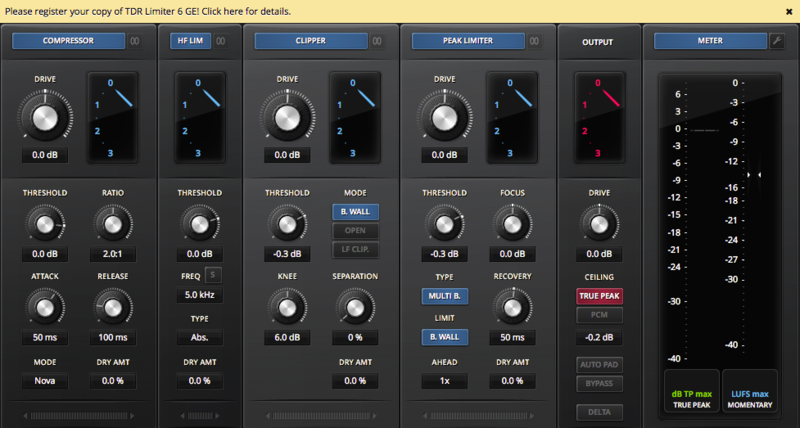
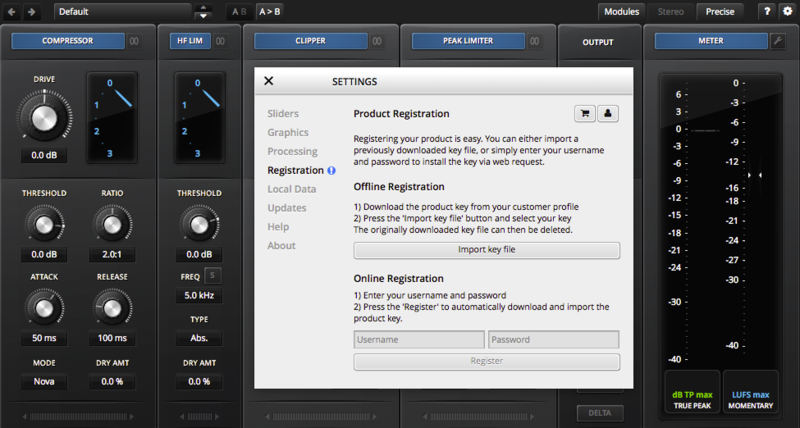
3. Click 'Import Key File'.
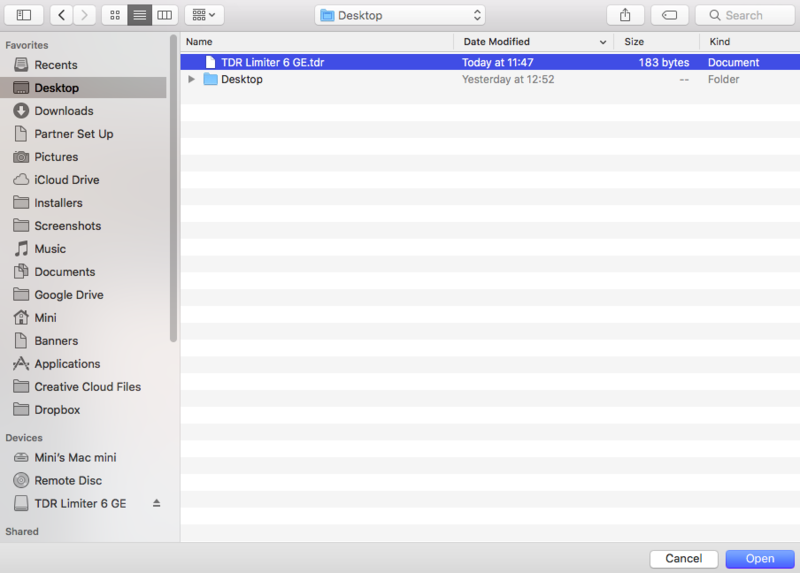
4. Select the License Key File > Click 'Open'.
5. Click 'Ok'.
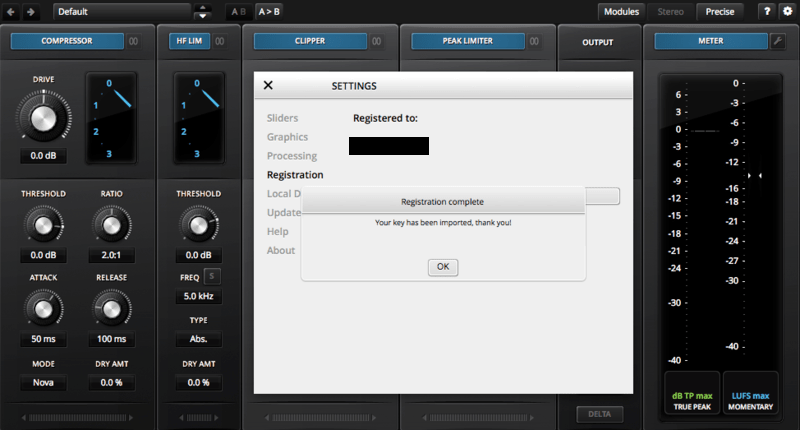
Your software is now activated and ready to use within your DAW.
Windows
Registration
1. Go to your Plugin Boutique User Account > Copy and paste your serial number into your web browser search bar and press 'enter' on your keyboard.
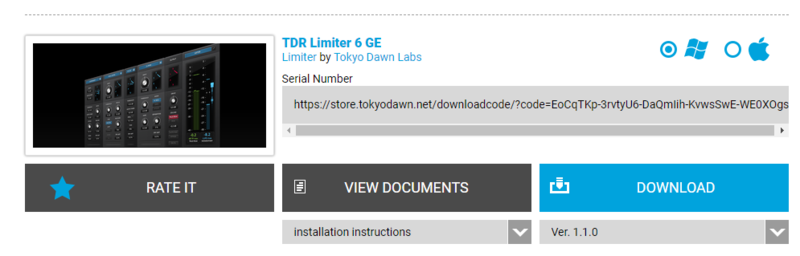
2. Check the box that states 'I'm not a robot' > Click 'Unlock Code'.
3. Enter your Name & email address and select your country from the drop-down menu > Click 'Create Account'.
4. Click 'Ok'.
Installation
1. Click the Windows installer link to download the correct installer for your operating system.
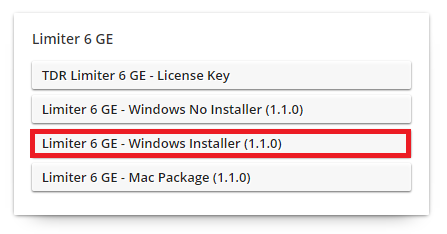
2. Double-click the .zip file to extract the contents and open the .exe file to begin the installation > Click 'Next'.
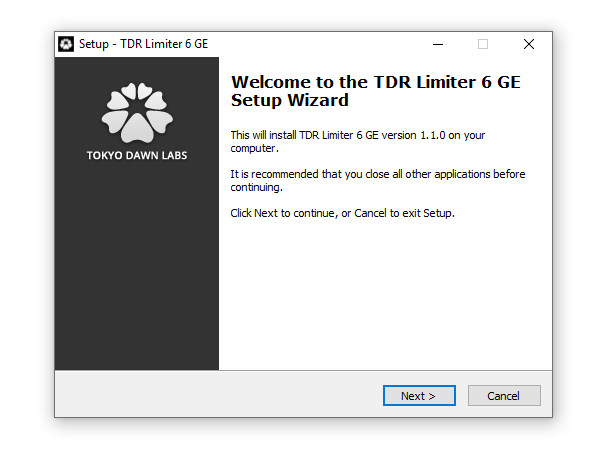
3. Select 'I accept the agreement' > Click 'Next'.
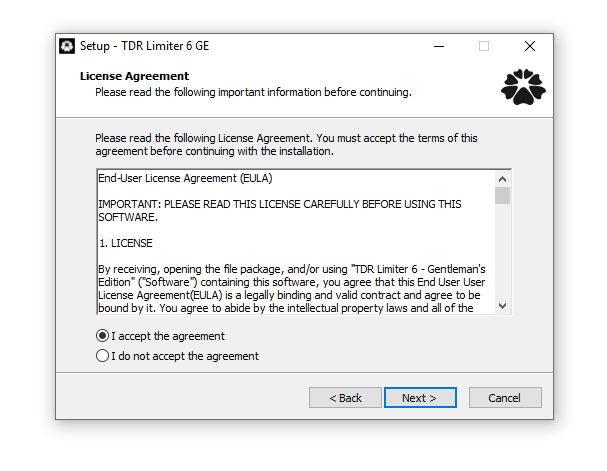
4. Click 'Next'.
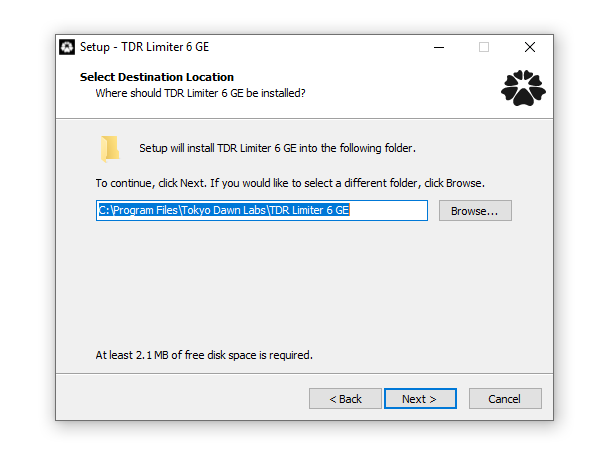
5. Click 'Next'.
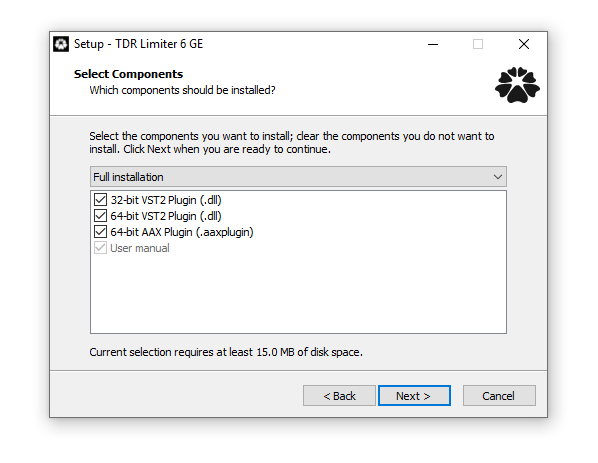
6. Click 'Next'.
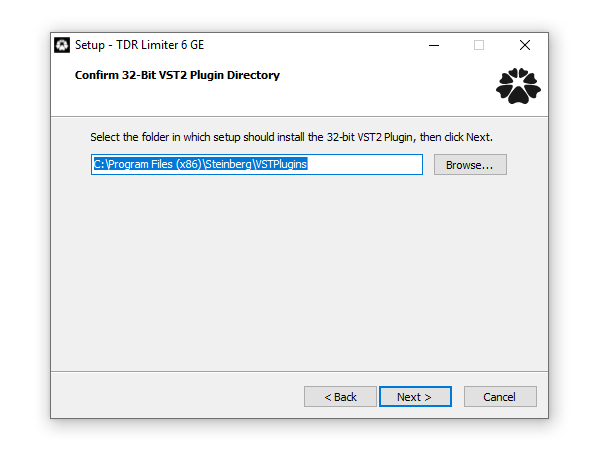
7. Click 'Next'.
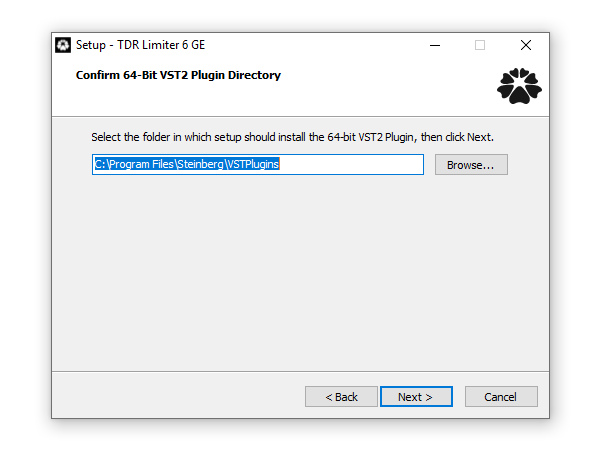
8. Click 'Next'.
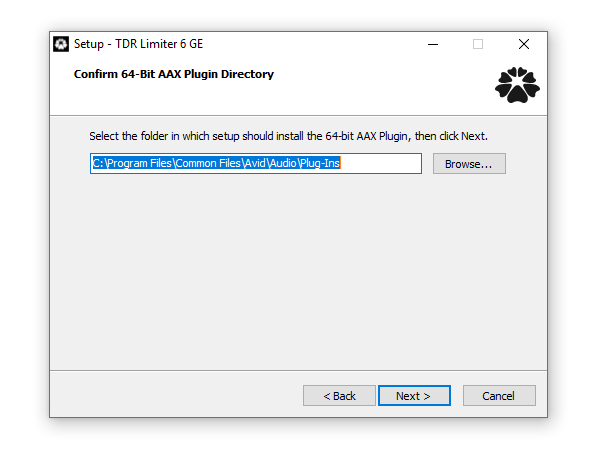
9. Click 'Next'.
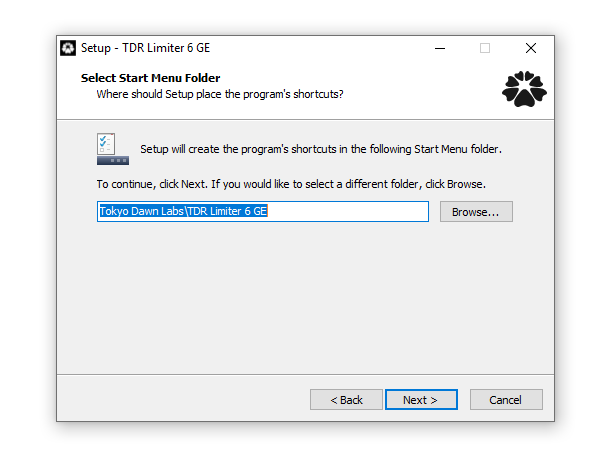
10. Click 'Install'.
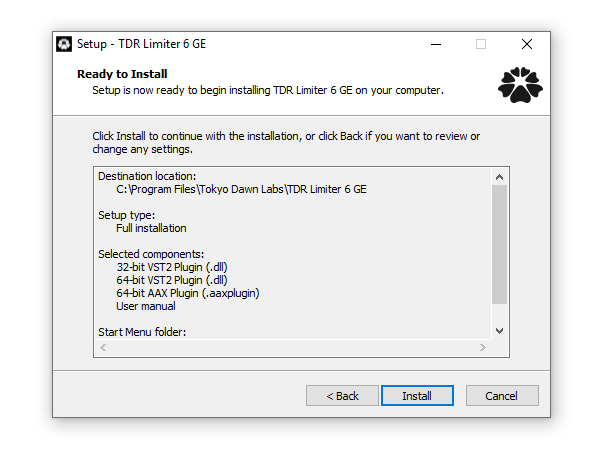
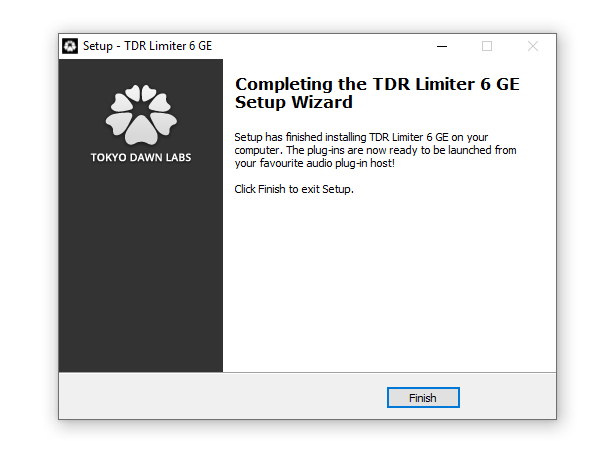
11. Click 'Finish'.
Online Activation
1. Open the installed software in your DAW > Click the dialogue box at the top of the plugin to open the activation menu.
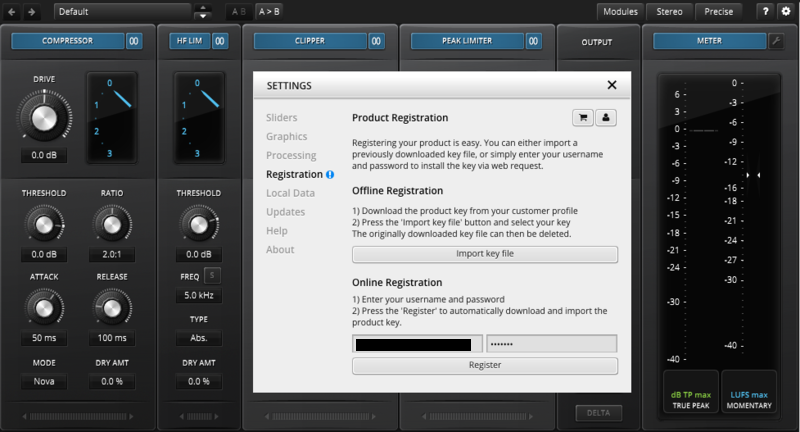
2. Enter your Tokyo Dawn Labs registered email address and password > Click 'Register'.
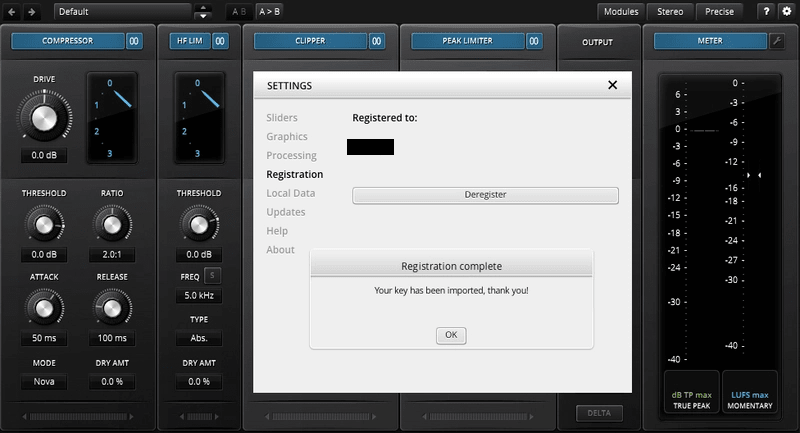
3. Click 'Ok'.
Your software is now activated and ready to use within your DAW.
Offline Activation
1. Go to your Tokyo Dawn Labs User Account > Download the License Key File for your software.
2. Open the installed software in your DAW > Click the dialogue box at the top of the plugin to open the activation menu.
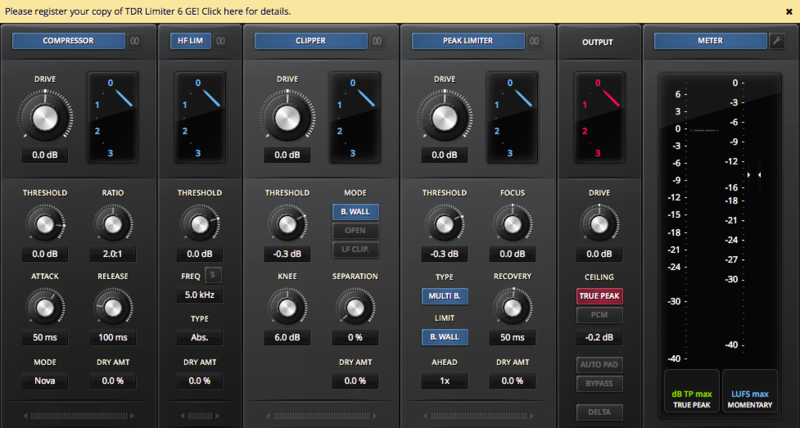
3. Click 'Import Key File'.
4. Select the License Key File > Click 'Open'.
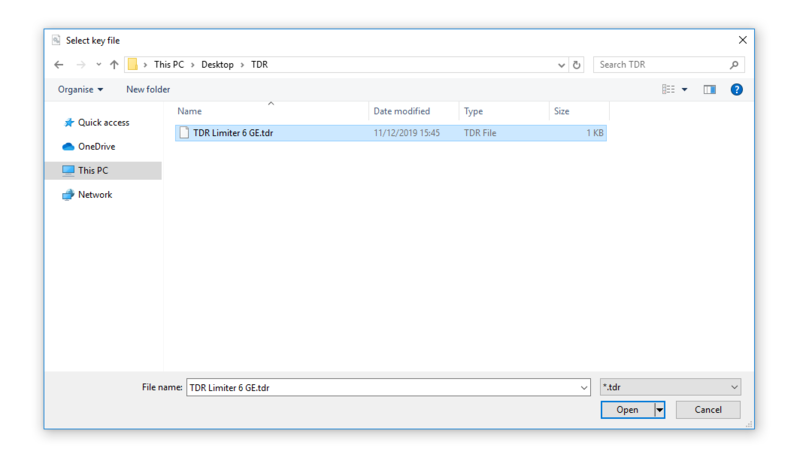
5. Click 'Ok'.
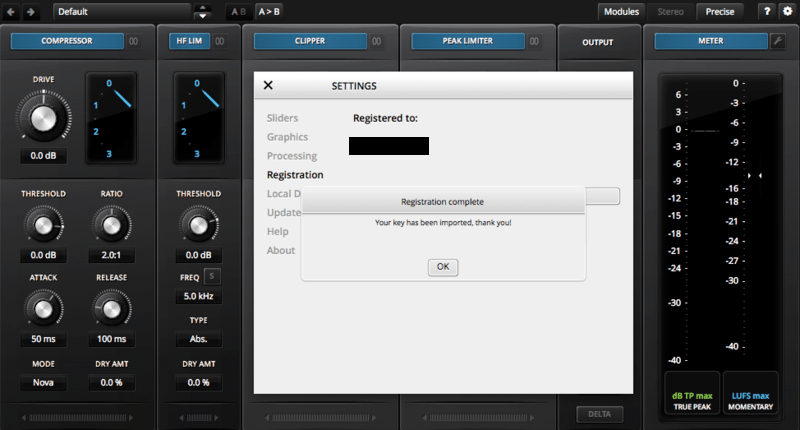
Your software is now activated and ready to use within your DAW.


 Log In
.jpg)


