


 Log In
.jpg)
Buy AutoTune Hybrid, get a free gift with purchase:
Important Note: This version of AutoTune is for Pro Tools and Avid DSP hardware. The standard version of AutoTune Pro is also available.
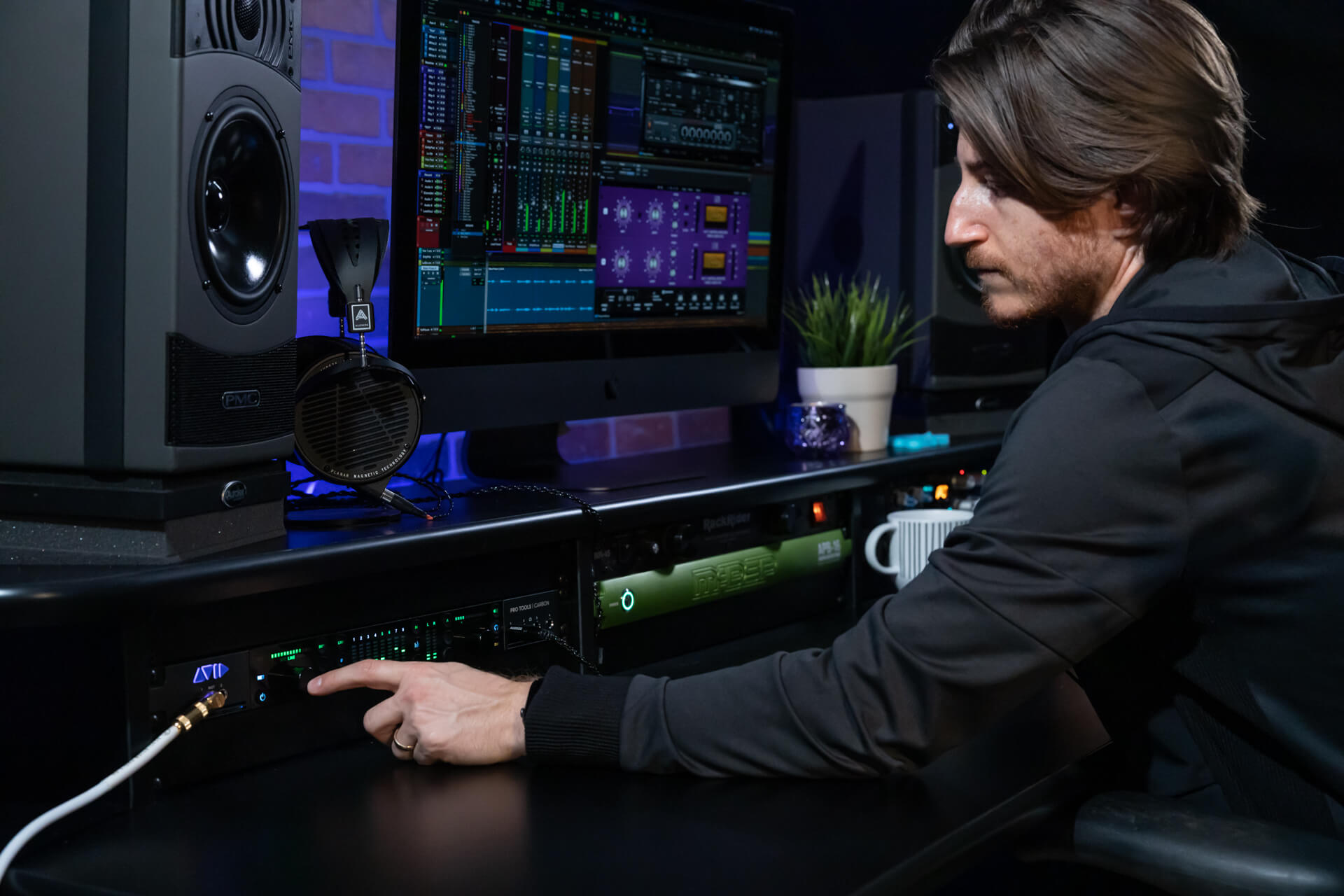
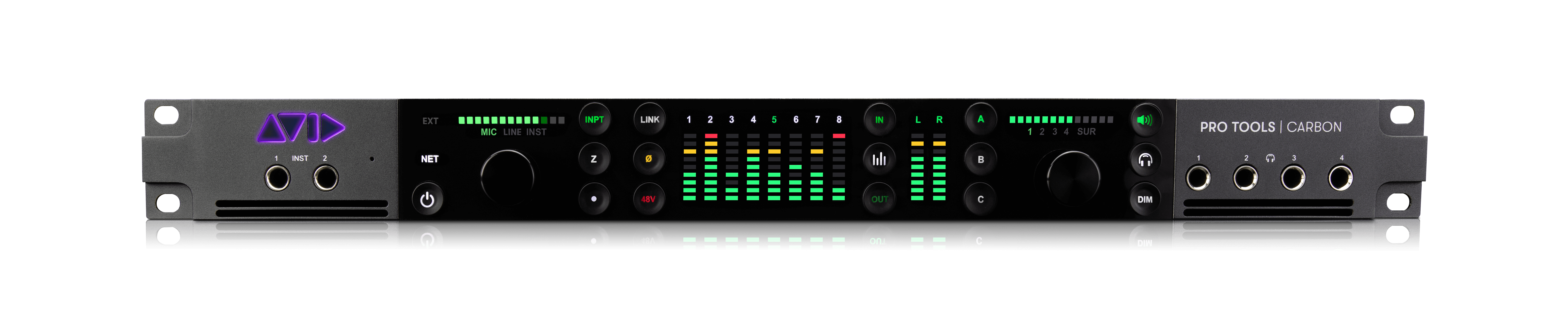
AutoTune Hybrid is the ultimate real-time tuning solution for Pro Tools and Avid DSP hardware, including Carbon interfaces, HDX systems, and VENUE | S6L live sound systems. It delivers the professional quality of Auto-Tune pitch correction and vocal effects, optimized for lightning fast, DSP powered performance, and also works on native Pro Tools systems.
AutoTune Hybrid is specially designed for Avid’s Hybrid Engine technology, so you can move seamlessly between DSP and native processing in Pro Tools when recording, editing, and mixing. Record with DSP power for near zero latency monitoring, then switch over to native processing and take your sessions on the road.
AutoTune Hybrid also includes Classic Mode, delivering the iconic “Auto-Tune 5 sound” that’s essential for modern hip hop production, plus real-time MIDI Control, and advanced Vibrato Controls. Flex-Tune offers more transparent and natural-sounding tuning, and Humanize preserves subtle pitch variations on sustained notes.
Basic and Advanced views help you find the tools you need when you need them. Stick with Basic View for streamlined access to the most commonly used controls, or pop over to Advanced View to unlock powerful MIDI, vibrato, and custom scale features.
Compatibility with the Auto-Key plug-in (sold separately) means never having to worry about finding the key of your music before tuning. Auto-Key detects the key and scale and sends that information to AutoTune Hybrid with a single click, streamlining your workflow and saving valuable time in the studio.
Whether performing on stage or tracking real-time in the studio, AutoTune Hybrid gives you professional quality tuning and effects, delivered with lightning-fast performance, all without taxing your computer’s CPU.
System Requirements
Mac
- Pro Tools 2018.1 or later ONLY
- AAX DSP and AAX Native
- macOS 11.x as required by your Pro Tools version
Windows
- AAX DSP and AAX Native
- Pro Tools 2018.1 or later ONLY
- Windows 10 or later
Important Note
- No iLok dongle is required to run this software - only a FREE iLok account/Manager is required for authorisation.
Note: Before starting the installation, you are required to create a FREE iLok user ID and install the iLok License Manager.
Please take a look at this Help Centre Guide for more information.
Note: Auto-Tune Slice is used as an example.
Mac
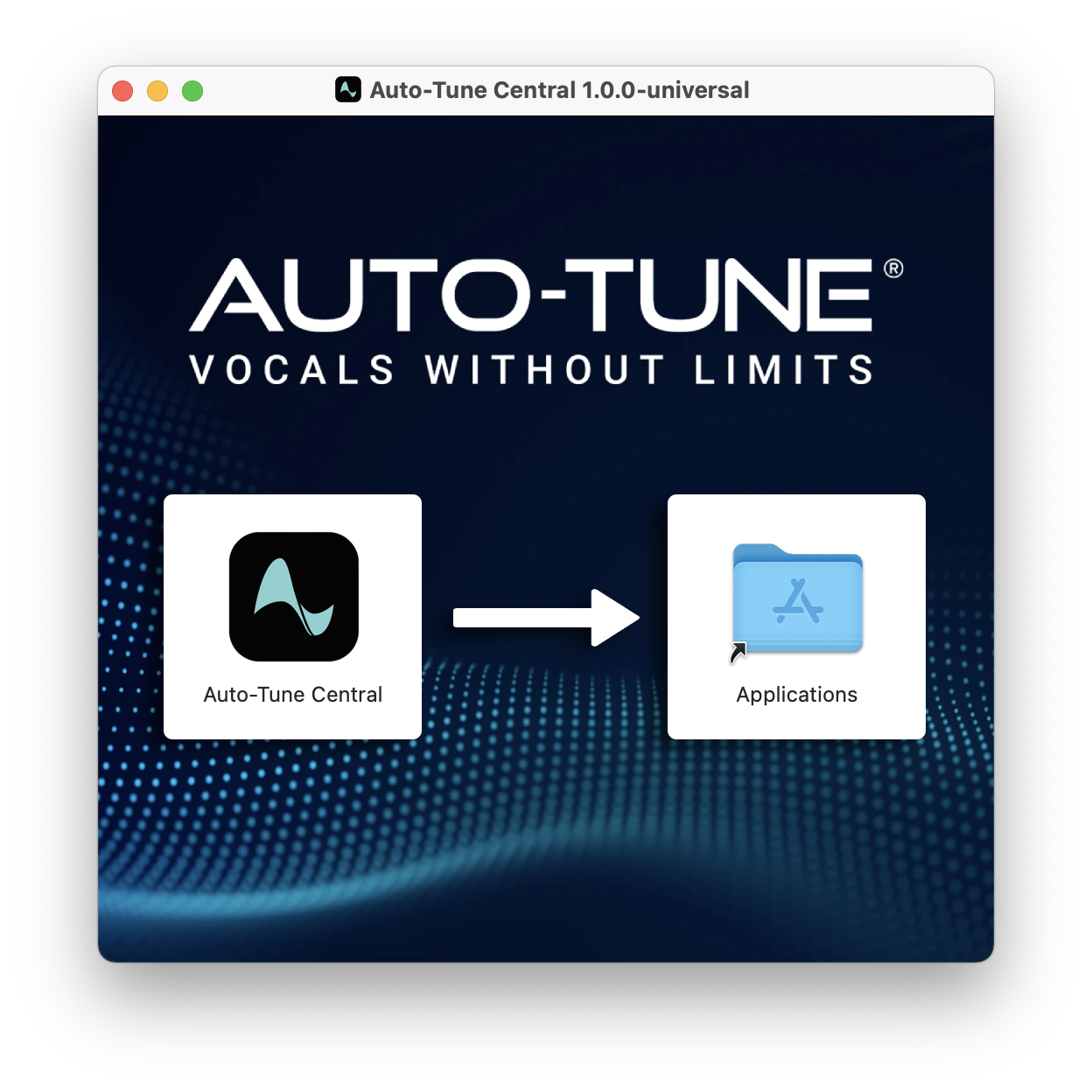
1. Download the .zip file from within your Plugin Boutique account and double-click it to extract the contents > Double-click the .dmg file to launch the installer > Drag Auto-Tune Central into your Applications folder > Auto-Tune Central will now automatically install.
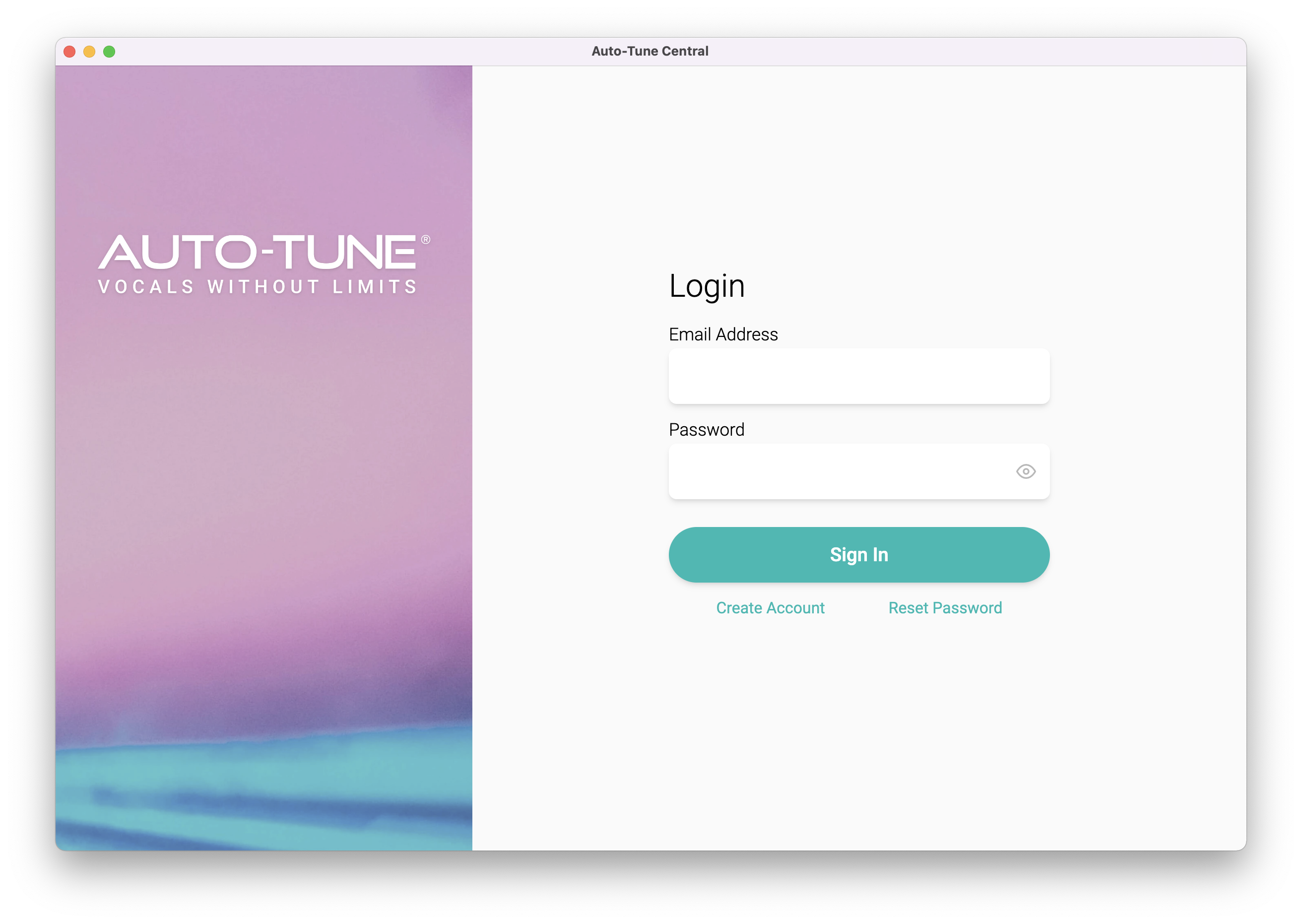
2. Launch Auto-Tune Central > Either create a new account by clicking 'Create Account' or if you already have an account, enter your Antares registered Email Address and Password > Click 'Sign In'.
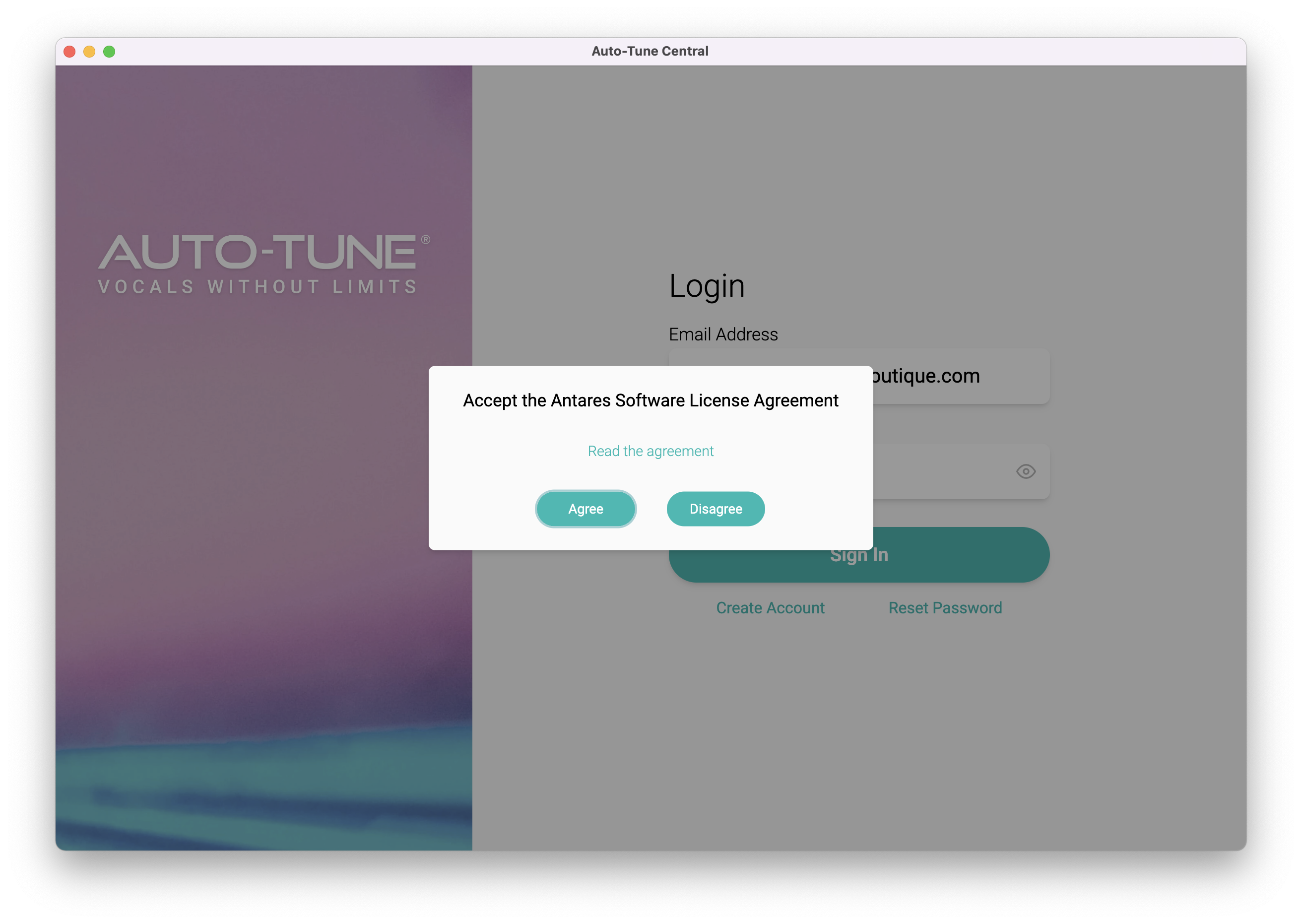
3. Click 'Agree'.
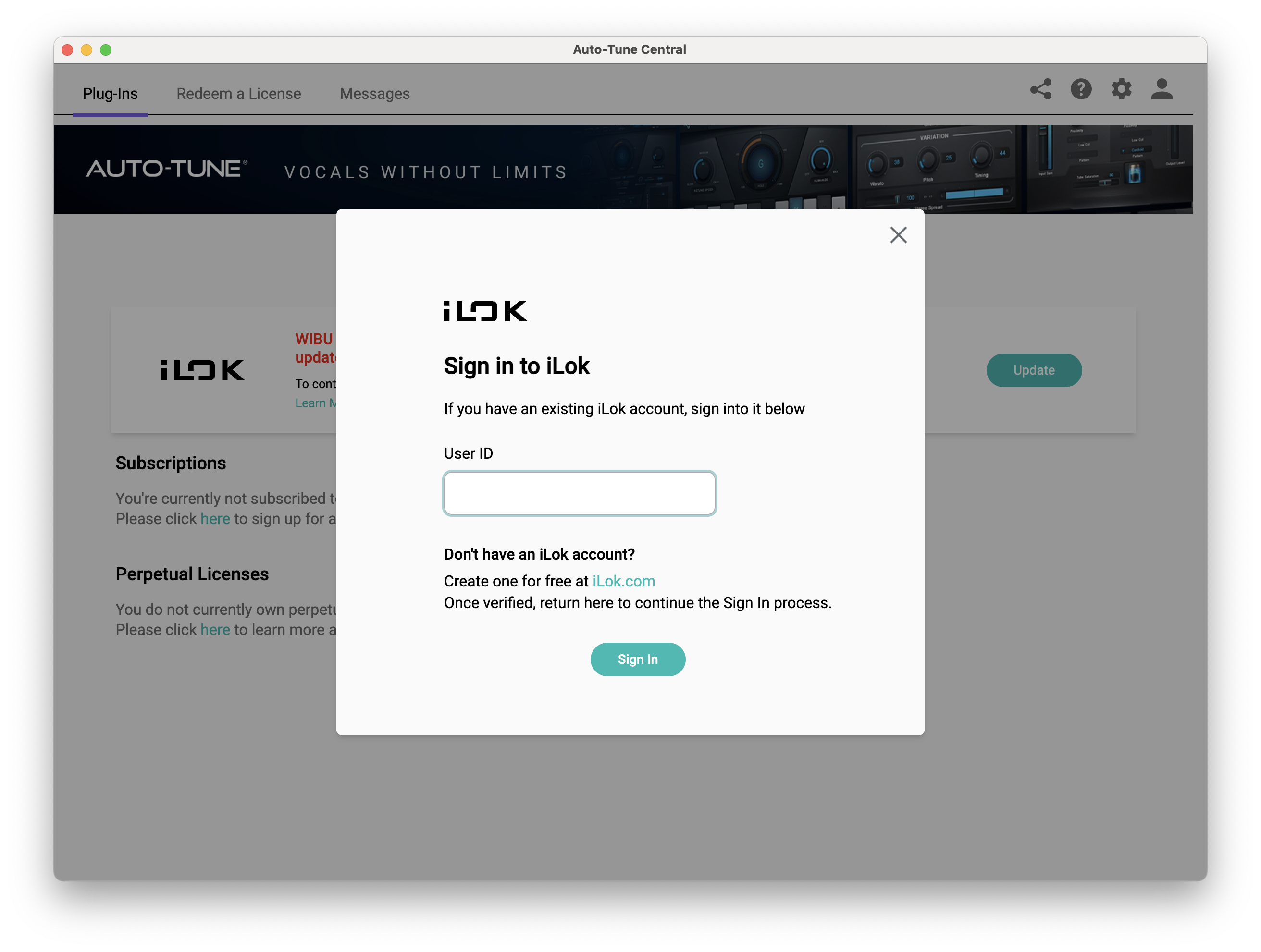
4. Enter your iLok User ID and click 'Sign In'.
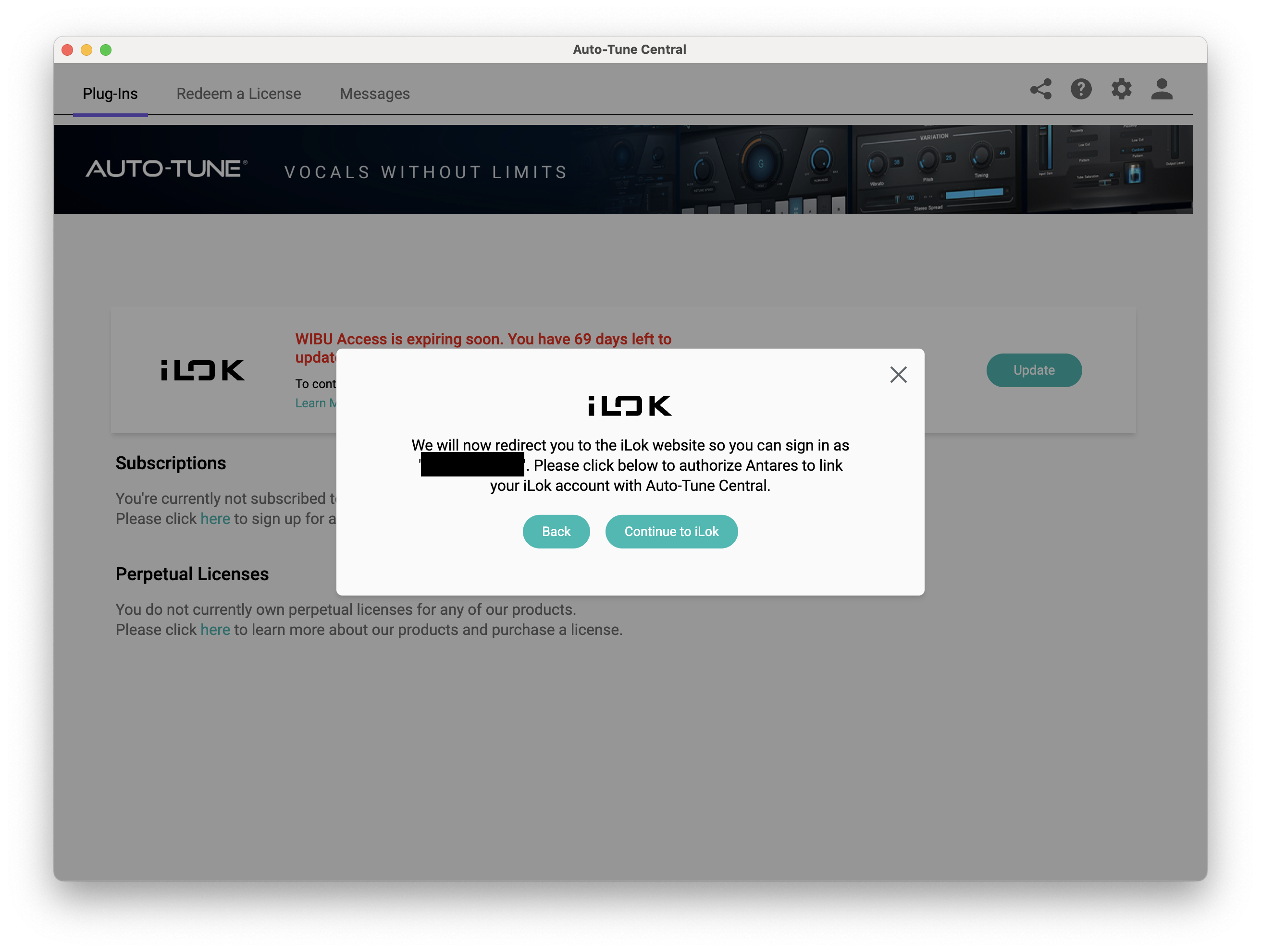
5. Click 'Continue to iLok'.
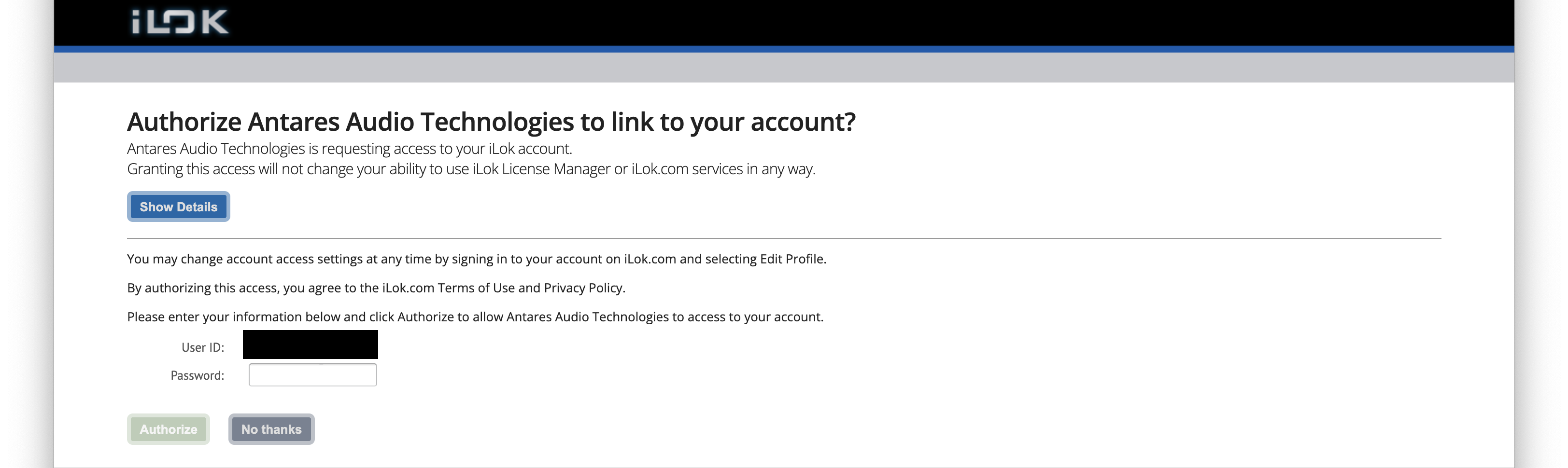
6. Enter your iLok User ID and Password then click 'Authorize'.
7. Your iLok account is now linked > Click 'Close'.
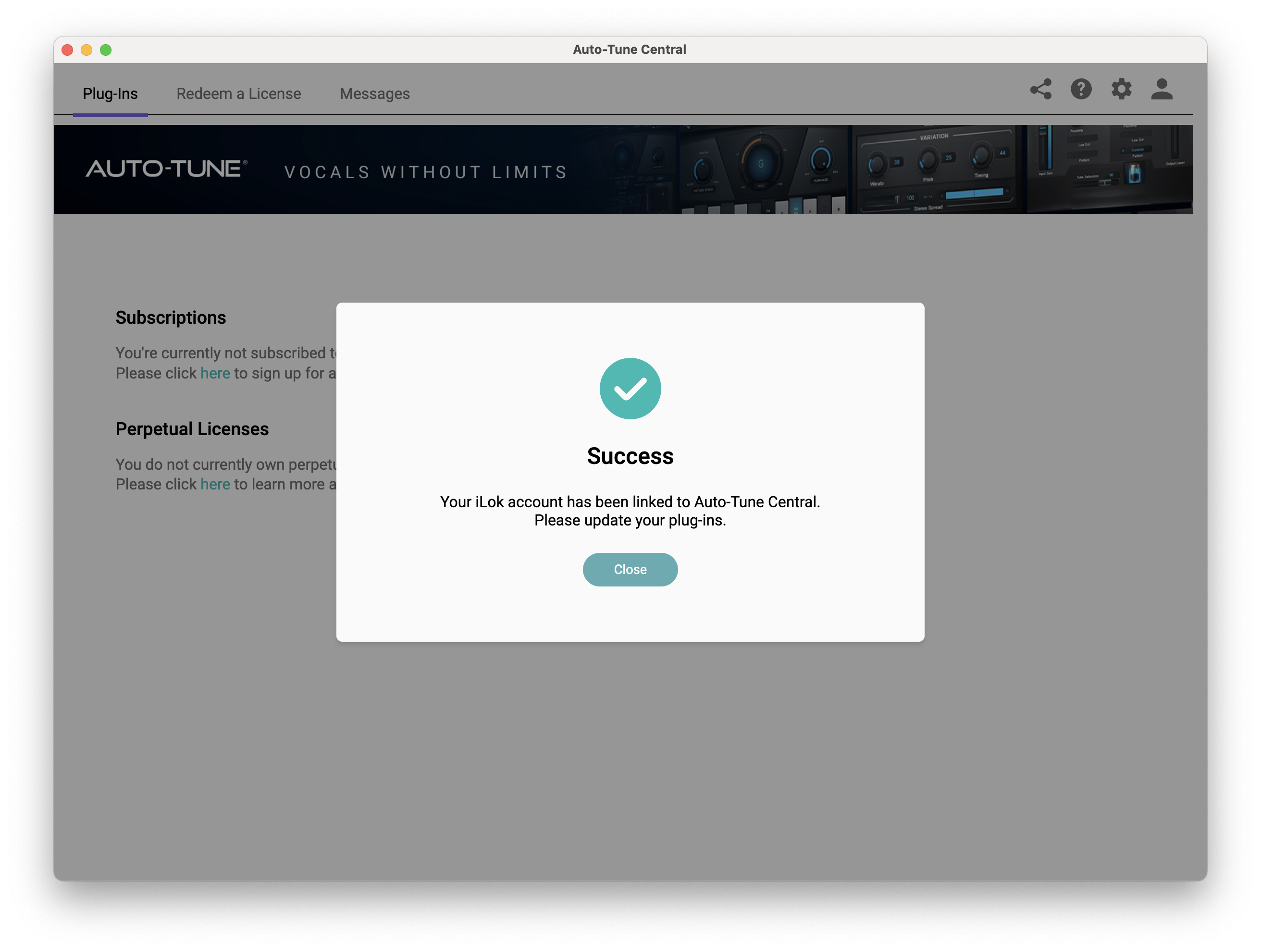
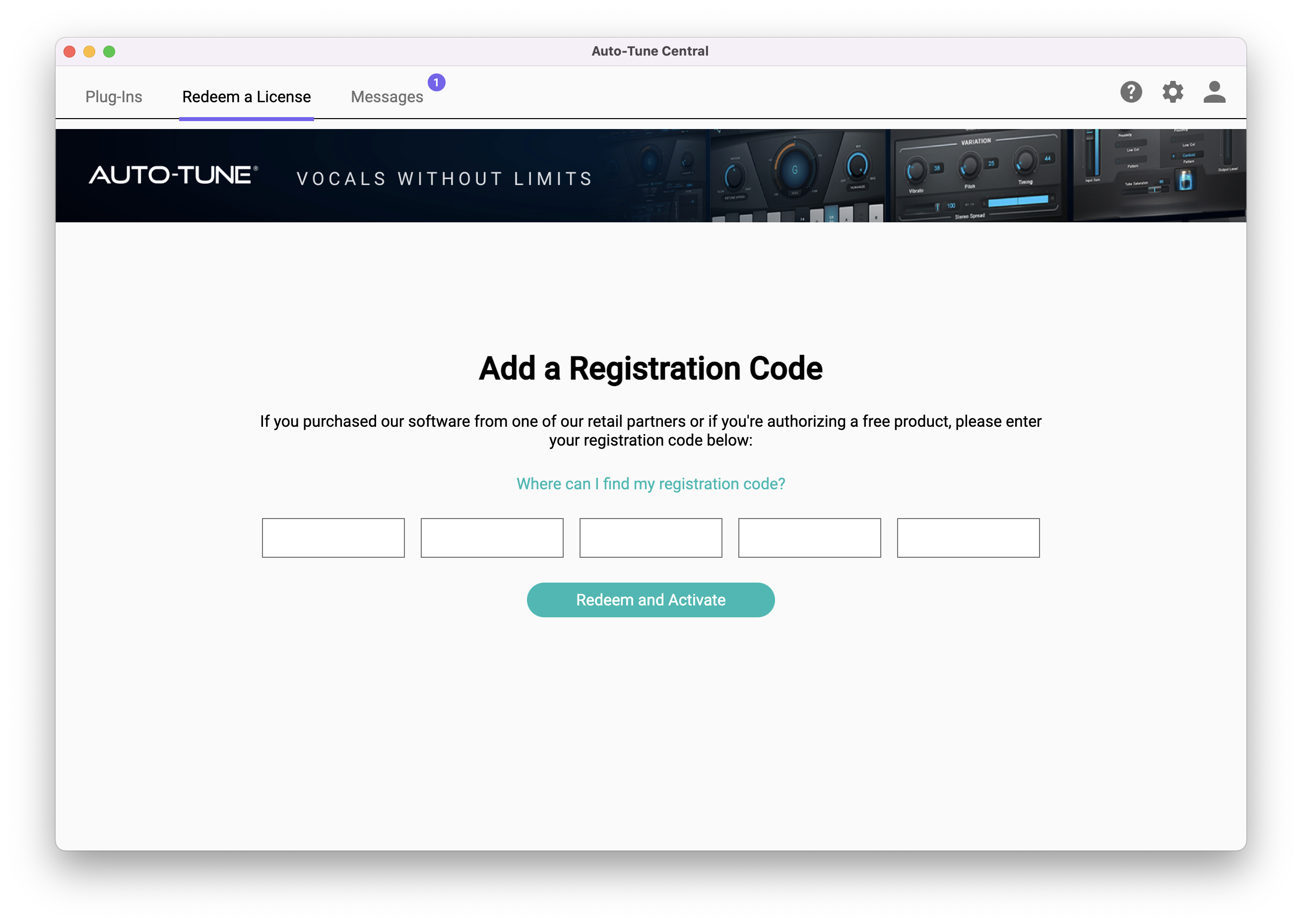
8. Click on the 'Redeem a License' tab > Enter the 25-digit Registration Code, found in the serial number section of your Plugin Boutique account > Click 'Redeem and Activate'.
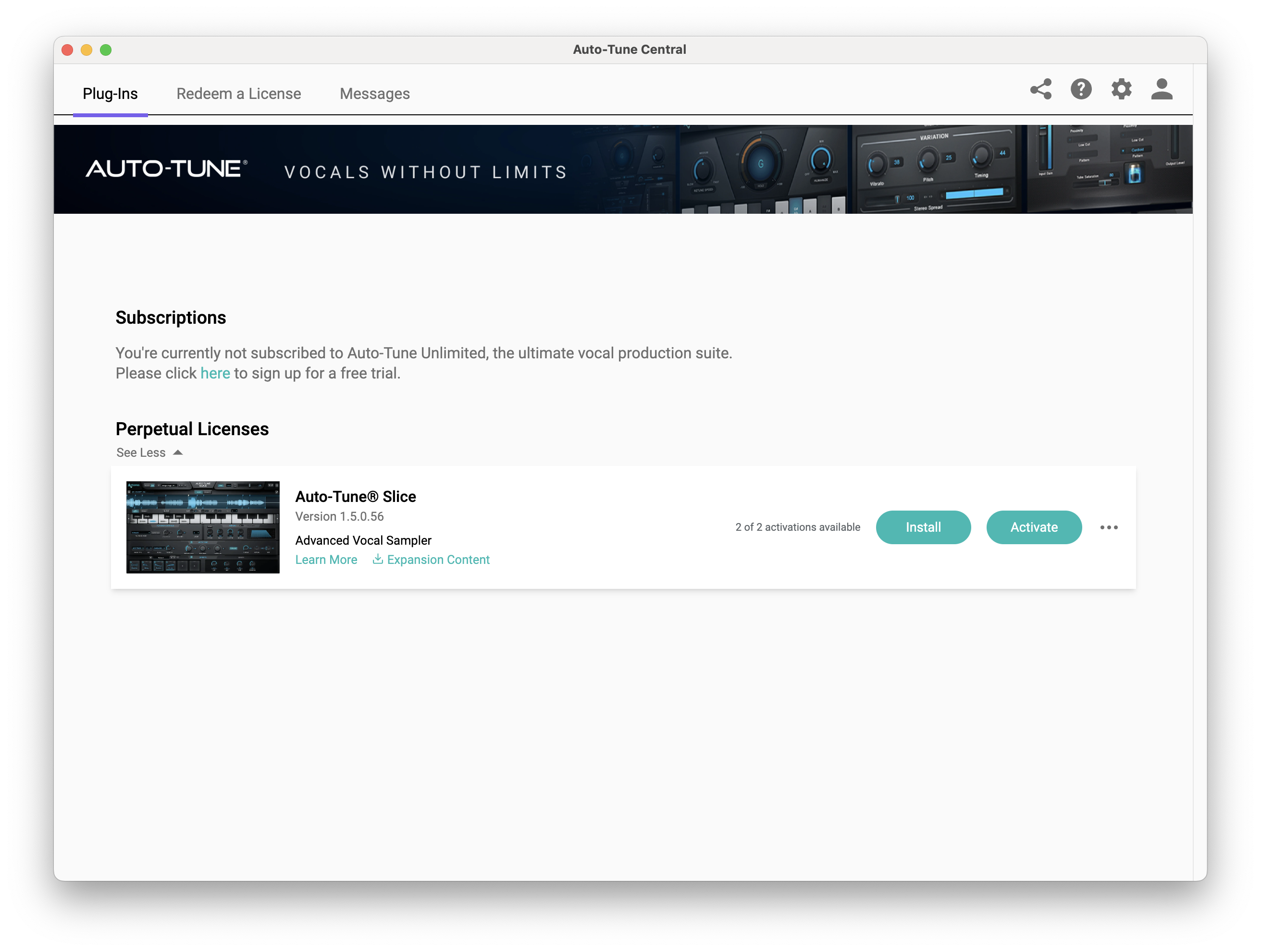
9. Navigate back to the 'Plug-Ins' tab > Click 'Install' to install your plugin.
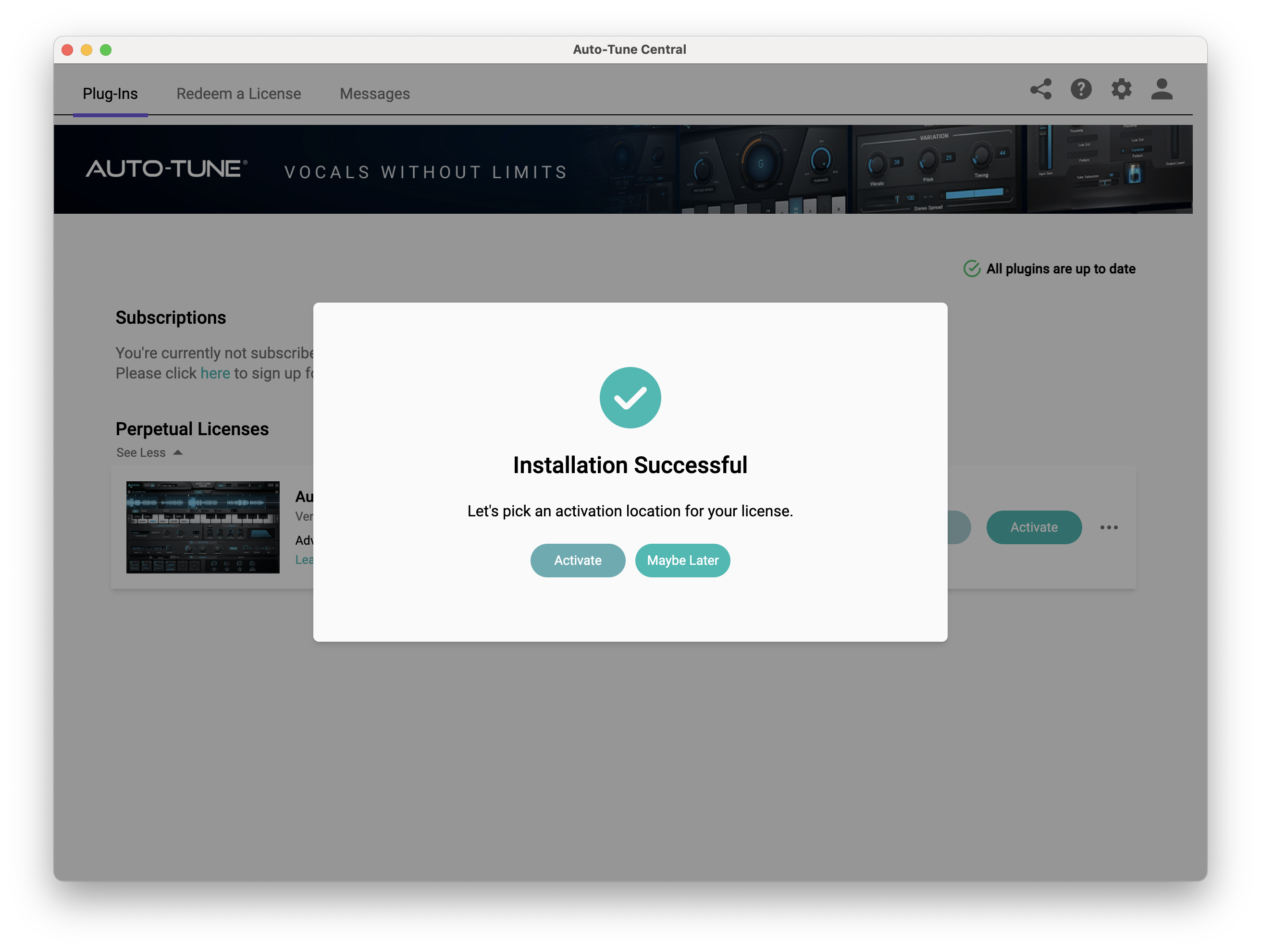
10. Click 'Activate'.
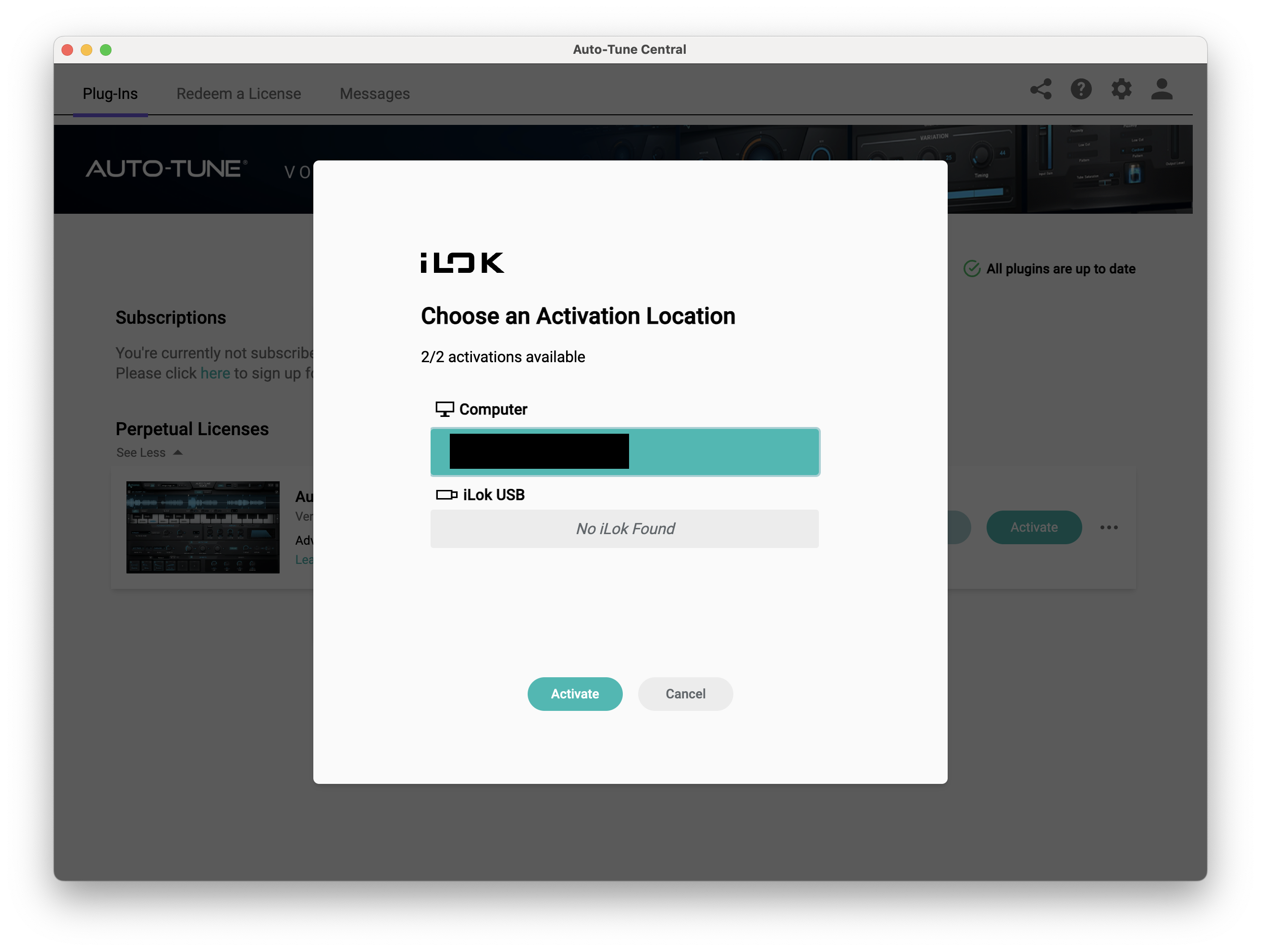
11. Select whether you want to activate the license to your Computer or iLok USB > Click 'Activate'.
12. Click 'Close'.
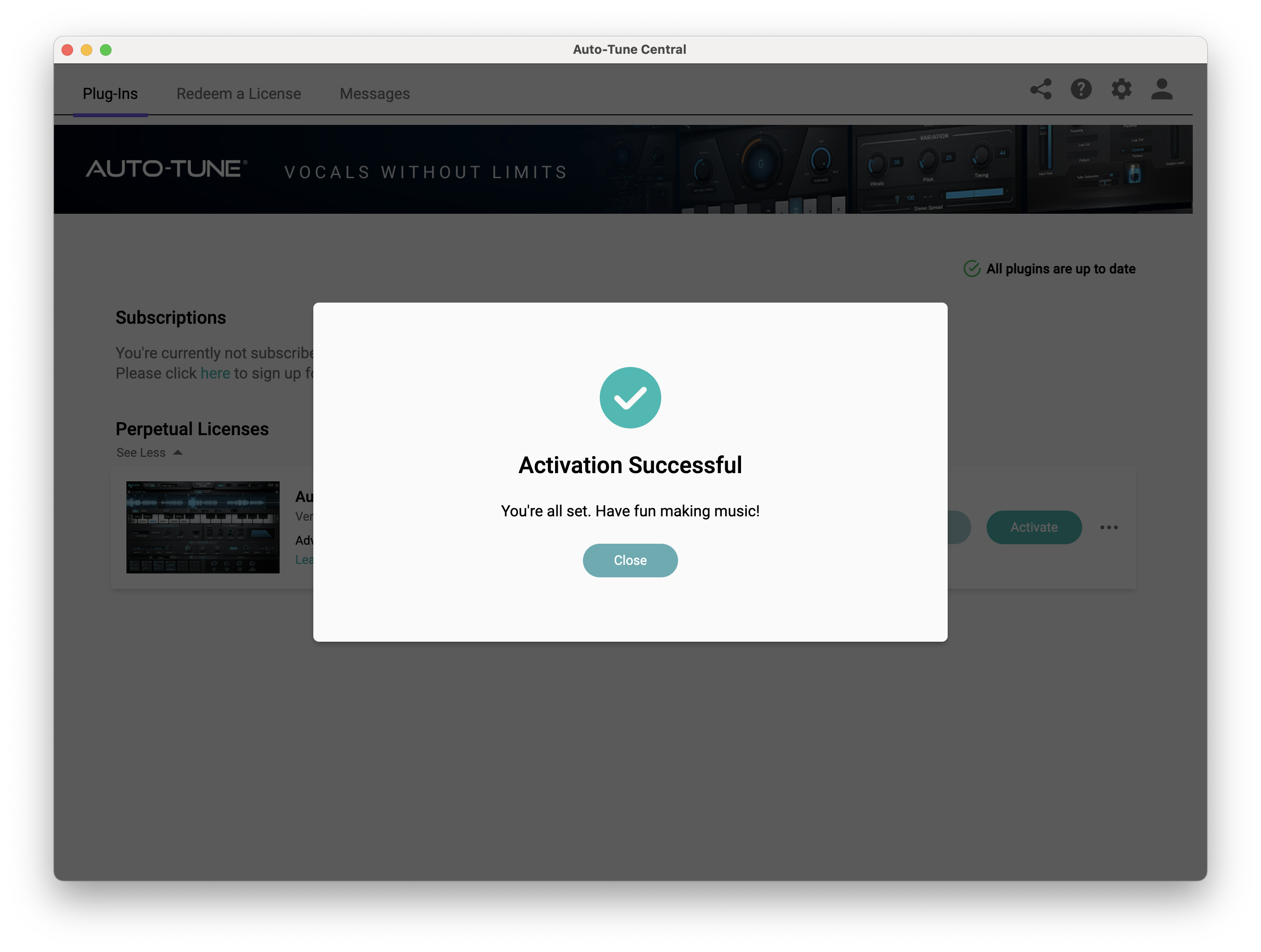
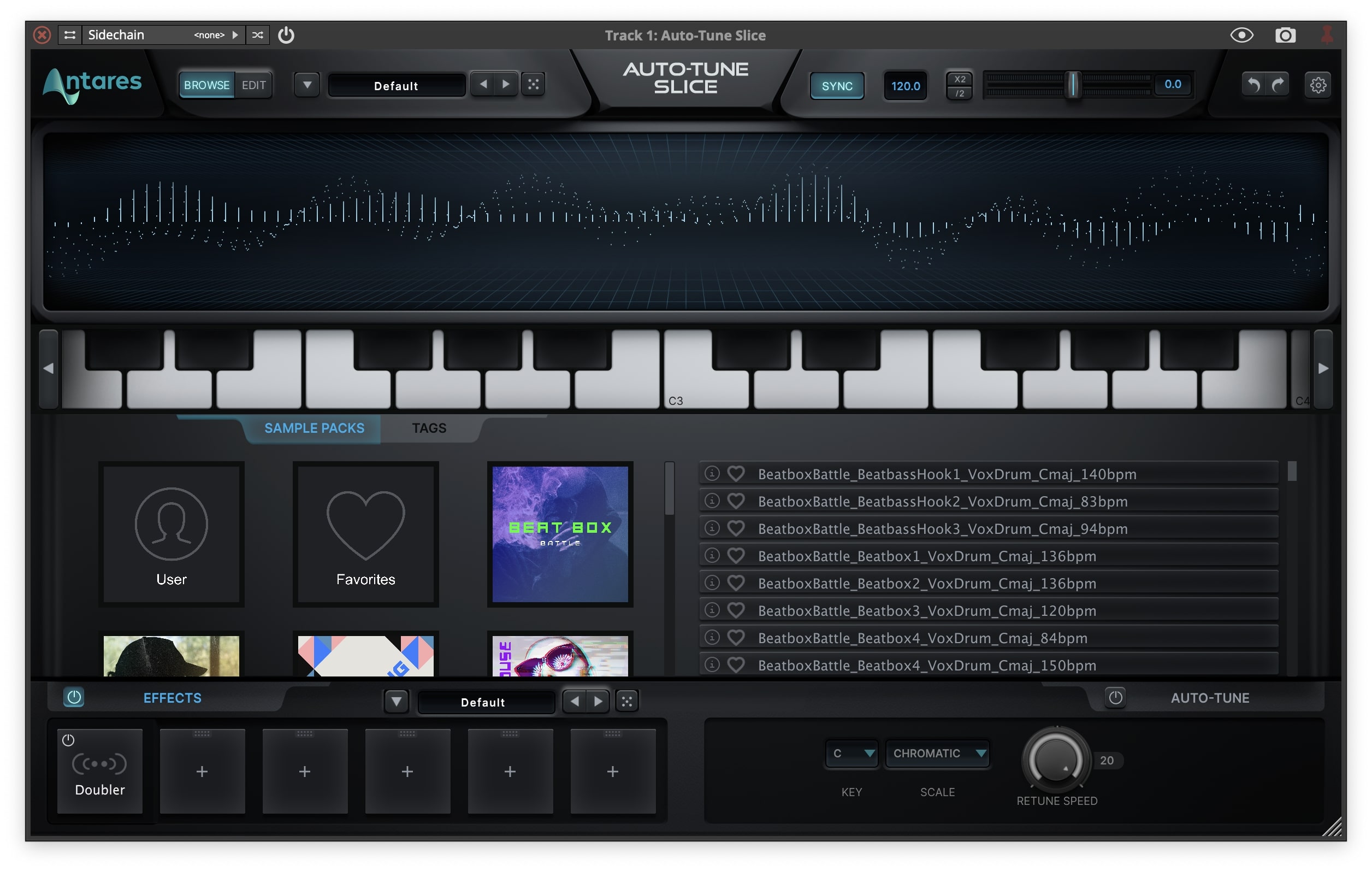
Your software is now activated and ready to use within your DAW.
PC
Windows
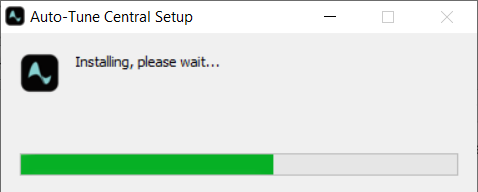
1. Download the .zip file from within your Plugin Boutique account and double-click it to extract the contents > Open the .exe file > Auto-Tune Central will now automatically install.
2. Launch Auto-Tune Central > Either create a new account by clicking 'Create Account' or if you already have an account, enter your Antares registered Email Address and Password > Click 'Sign In'.
3. Click 'Agree'.
4. Enter your iLok User ID and click 'Sign In'.
5. Click 'Continue to iLok'.
6. Enter your iLok User ID and Password then click 'Authorize'.
7. Your iLok account is now linked > Click 'Close'.
8. Click on the 'Redeem a License' tab > Enter the 25-digit Registration Code, found in the serial number section of your Plugin Boutique account > Click 'Redeem and Activate'.
9. Navigate back to the 'Plug-Ins' tab > Click 'Install' to install your plugin.
10. Click 'Activate'.
11. Select whether you want to activate the license to your Computer or iLok USB > Click 'Activate'.
12. Click 'Close'.
Your software is now activated and ready to use within your DAW.


