


Buy Sonnox Singer Songwriter Bundle, get a free gift with purchase:
The Sonnox Singer Songwriter plugin bundle delivers streamlined, professional vocal production and mix clarity with Voca’s all-in-one vocal processing and intuitive compression, and Claro’s versatile, musical EQ featuring multi-view analysis and precise stereo/mid-side control across the mix.
Claro
Whether you're a bedroom producer or a Grammy-winning pro, you want to take control to develop your own musical voice. Claro will empower you to make informed musical decisions in a unique and intuitive way.
Claro is a comprehensive EQ plugin that serves the production process from composition to final mix, with three distinct views, progressively adding deeper insight and precision to prevent mud, clutter, or harshness, helping you blend your tracks into a clear and balanced mix.
Features
- A clean, musical-sounding EQ that resembles the well-loved Neve types, their modern derivatives and the SSL G Series, as well as many high-end outboard equalisers.
- Left, Right, Mid, Side, Mono, or Stereo channel processing giving you the capability to correct, widen, narrow, or make space within each track.
- A wide 20hz - 40kHz range. The extended high-frequency range offers a smooth, airy quality - excellent for vocals and mix busses.
- Variable Q, including resonance and overshoot on the cut and shelving filters, respectively, giving you the ability to mimic classic synth filters and hardware EQ curves.
- Variable slopes on all band shapes, up to super-steep (120dB per octave) for surgical work and treating precise audio bands
- Claro's automation is smooth and artefact-free, unlike most premium EQs.
- Auto Gain uniquely keeps your track at the same loudness, no matter the signal content or how you choose to EQ it.
Learn more about Claro
Voca
Every engineer, mixer, or producer knows that vocals are the star of any top-tier mix. Perfecting vocal production is indeed an art, and with Sonnox Voca, it’s an art that’s about to get a whole lot easier.
Struggling to juggle multiple plugins, decipher complex controls, and work within the confines of contextless presets can overwhelm and impede your creative process, leading to subpar vocal productions that lack the 'wow' factor. But don't worry; Sonnox have a solution to that.
Meet Sonnox Voca, the definitive solution for professional-sounding vocals, fast.
Features
- All-in-One Vocal Tool: Replaces multiple compressor plugins, simplifying your workflow.
- Intuitive Interface: No complex controls like thresholds or ratios—just fast, creative results.
- Next-Gen Compression: Inspired by classics with a modern digital edge and flexibility.
- Advanced Saturation: Adds richness, depth, and clarity while helping vocals sit perfectly in the mix.
- Soften Control: Smooths harshness and sibilance without sacrificing vocal energy or clarity.
- Auto-Input Volume: Automatically levels vocal input, eliminating the need for manual clip gain or automation.
- Preset-Free Creativity: Avoids contextless presets, empowering unique and personalized vocal processing.
- Professional Results, Fast: Achieve polished, upfront vocals quickly with minimal technical effort.
Learn more about Voca
macOS
- macOS 10.12 or later (Intel / M1 Apple Silicon supported) (64-bit only)
- Plugin Formats - AAX Native, AU, VST3
- Supported Hosts - Pro Tools 11 or above or any desktop application that supports Audio Unit (AU) or VST3 plugins.
Windows
- Windows 10 or later
- Plugin Formats - AAX Native, VST3
- Supported Hosts - Pro Tools 11 or above or any desktop application that supports VST3 plugins.
Activation
The Toolbox range offers 2 activations for each product licence you buy.
Providing you have an iLok account, each activation will allow you to authorise your plugin on one of these devices:
- Machine
- iLok device, iLok2 / iLok3 required with latest drivers OR
- iLok Cloud (Active internet connection required)
Note: VoxDoubler has been used as an example.
Mac
2. Visit Sonnox to register your product.
3. Read the Sonnox Software Licence Agreement > Click 'I Agree' at the bottom of the page.
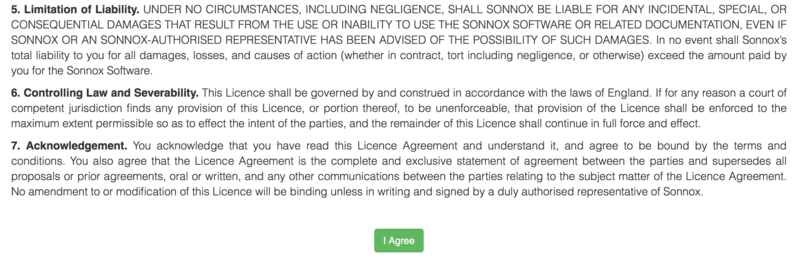
4. Copy and paste/manually type in the 14 character Activation Key (serial number) from your User Account, into the 'Activation Key' box and click 'Submit.'
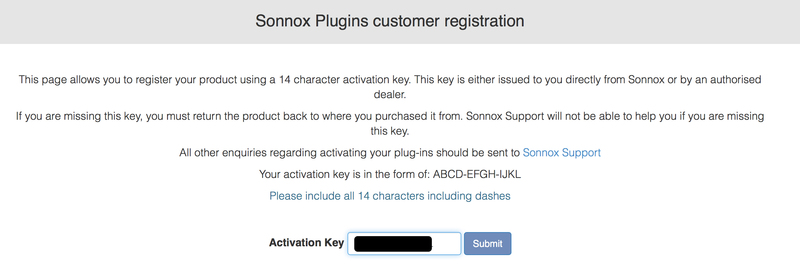
5. Enter your personal details and complete the customer registration page and once inputted, click 'Submit.'
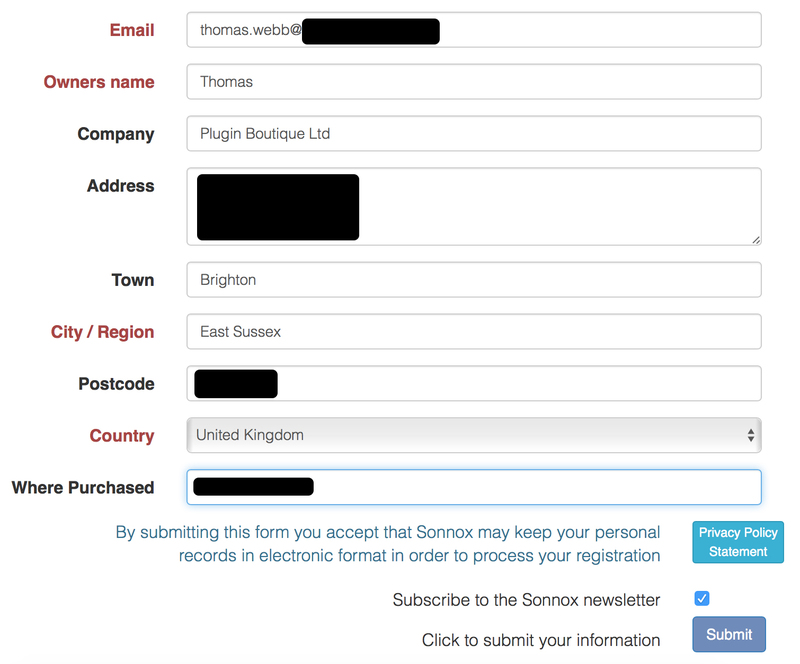
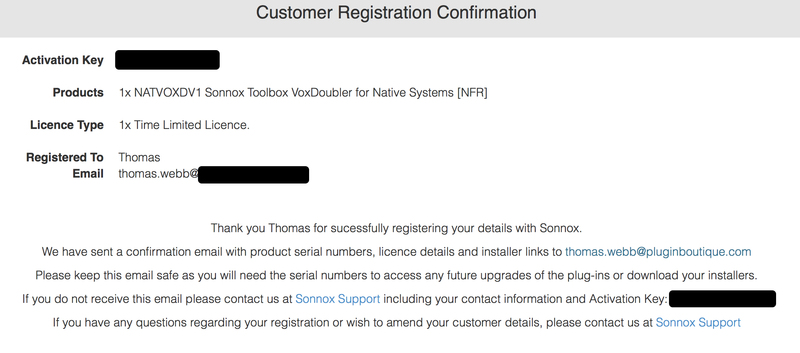
6. Your software product has now been successfully registered.
Please note:
- You will have been sent a confirmation email containing your product serial numbers, licence details and installer links to your registered Sonnox email address.
- Please keep this email safe as you will need the serial numbers to access any future upgrades of the plug-ins or download your installers
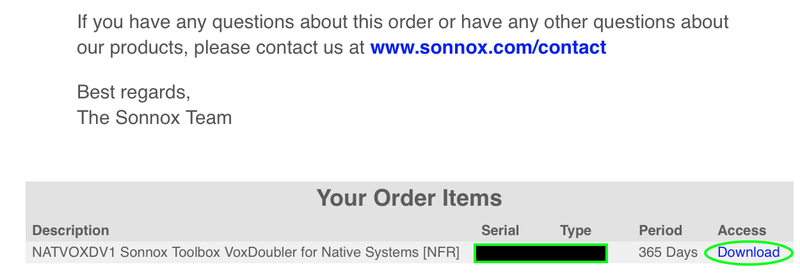
7. Log into your email address inbox and click the 'Download' option.
NB: This email may be located in the spam/junk folder of your inbox.
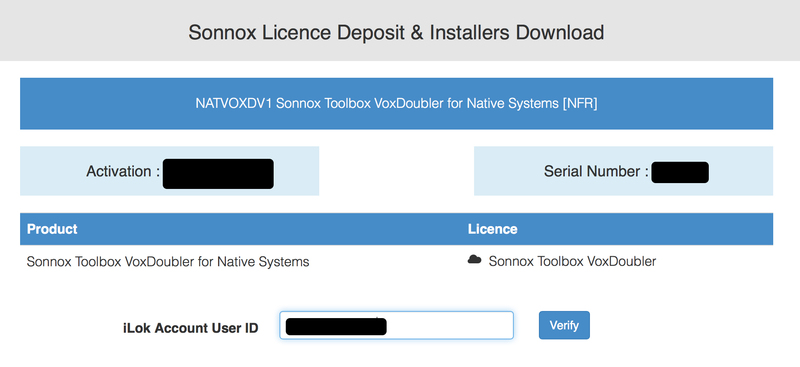
8. Enter your iLok Account User ID and then click 'Verify.'
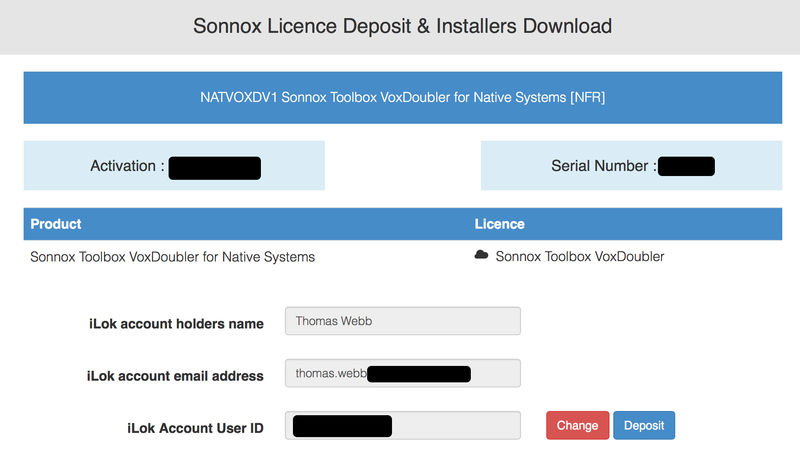
9. Check and verify your details by selecting 'Deposit.'
10. Launch your iLok licence manager application and log into your account > locate the Sonnox VoxDoubler product name and drag and drop this onto the computer/iLok USB location that you wish to activate the software to.
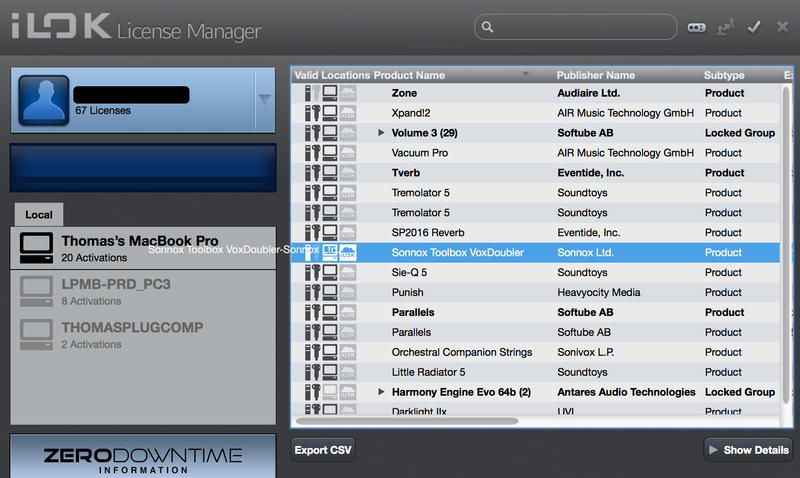
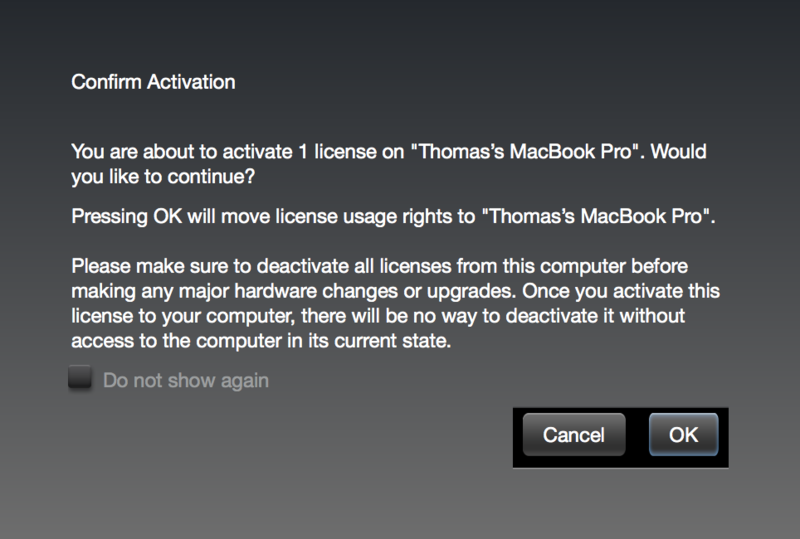
11. Select 'OK' to confirm the activation.
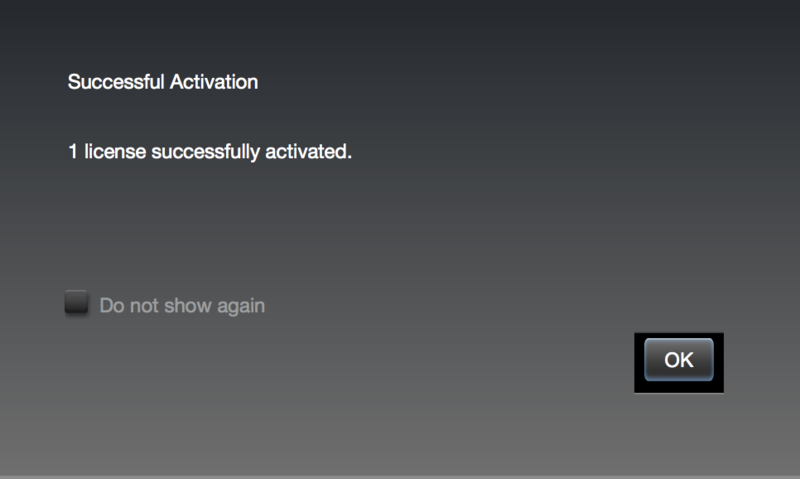
12. The software is now successfully activated to your location of choice > you can now close the iLok licence manager application.
13. Click 'Mac Installers' to navigate to the product download section.
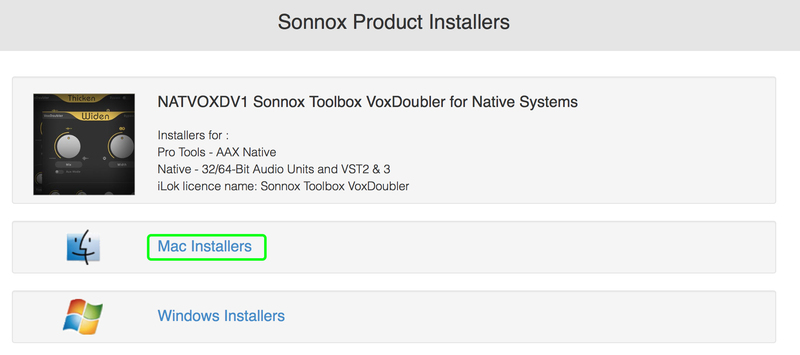
14. Select the 'Sonnox Toolbox VoxDoubler' link to initiate the downloading of the software.

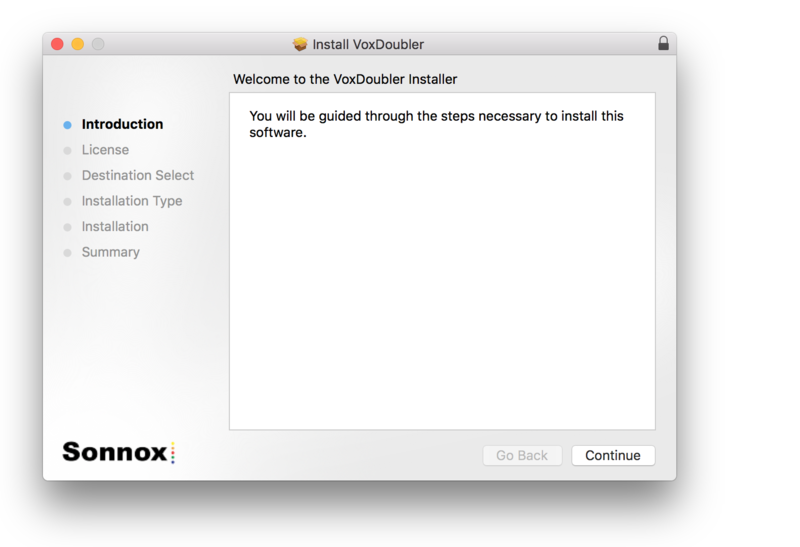
15. Once the .pkg file has successfully downloaded, double-click it to begin the installation process > click 'Continue.'
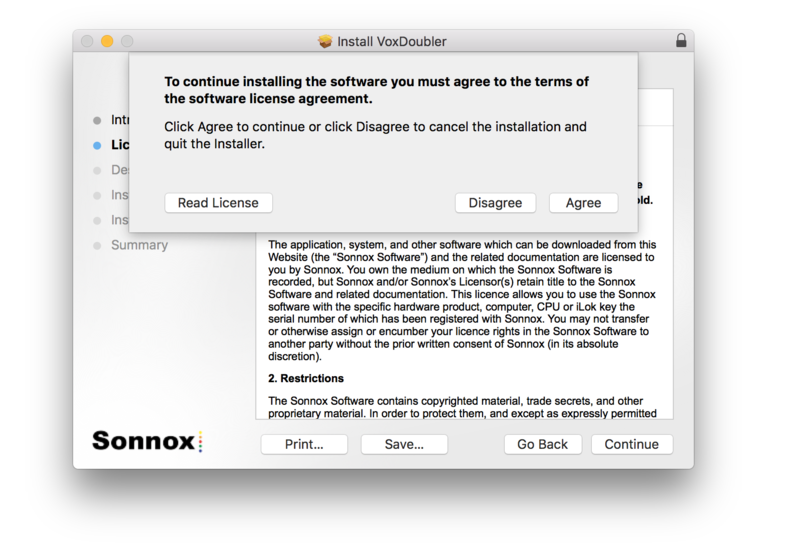
16. Read through the Licence Agreement > click 'Continue' then 'Agree.'
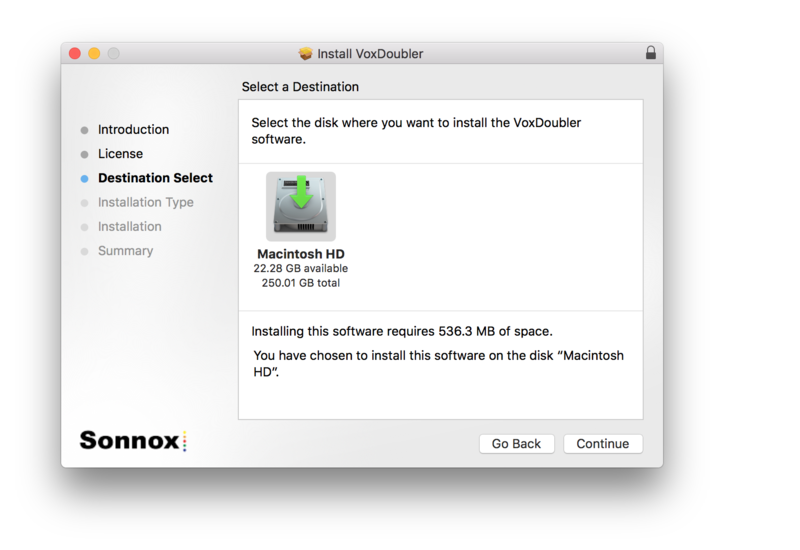
17. Select a computer destination in which to install the software to > click 'Continue.'
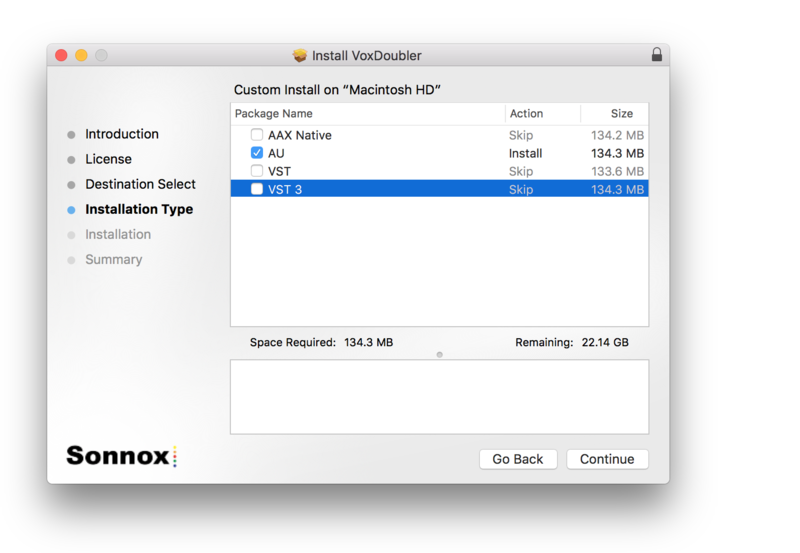
18. Select which software components you wish to install > click 'Continue.'
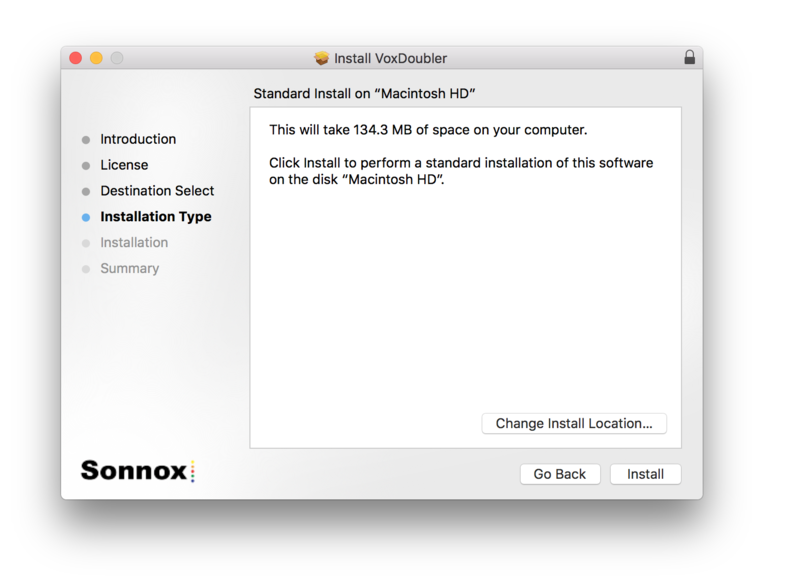
19. Review the installation and click 'Install.'
20. The installation of the software has successfully completed > click 'Close.'
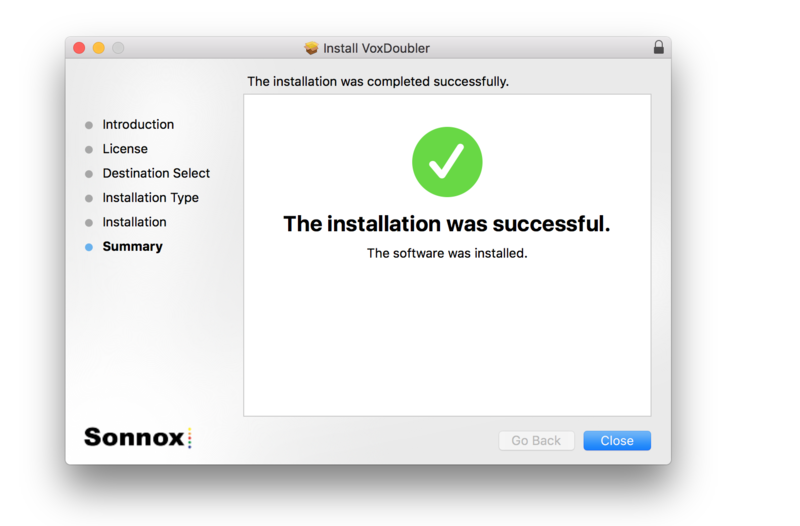
21. Restart/open your DAW, then locate and select Vox Doubler from your Audio FX drop-down selection.
Note: if the software fails to show, restart your DAW and/or rescan your plugin selection to refresh the installation.
The Software is now Ready for Use!
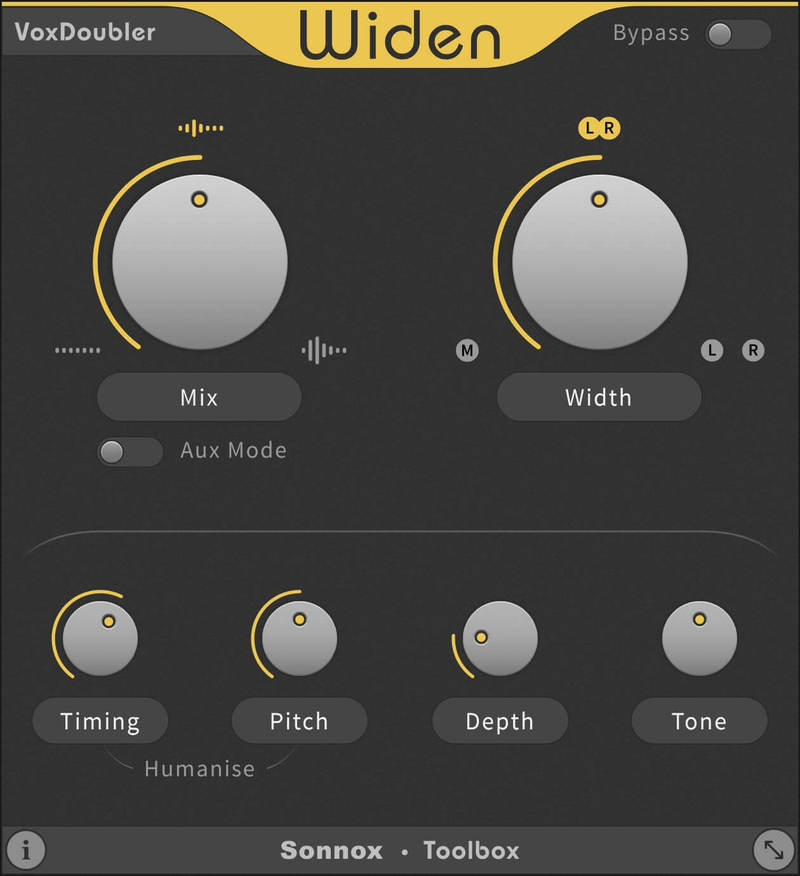
Windows
Note: Either an iLok USB Key and/or FREE soft iLok licence manager account (and application) are required to activate your Sonnox Software. If you do not have an iLok Key, you can purchase one from HERE and your FREE iLok account can be created HERE.
2. Visit Sonnox to register your product.
3. Read the Sonnox Software Licence Agreement > Click 'I Agree' at the bottom of the page.
4. Copy and paste/manually type in the 14 character Activation Key (serial number) from your User Account, into the 'Activation Key' box and click 'Submit.'
5. Enter your personal details and complete the customer registration page and once inputted, click 'Submit.'
6. Your software product has now been successfully registered.
Please note:
- You will have been sent a confirmation email containing your product serial numbers, licence details and installer links to your registered Sonnox email address.
- Please keep this email safe as you will need the serial numbers to access any future upgrades of the plug-ins or download your installers
7. Log into your email address inbox and click the 'Download' option.
NB: This email may be located in the spam/junk folder of your inbox.
8. Enter your iLok Account User ID and then click 'Verify.'
9. Check and verify your details by selecting 'Deposit.'
10. Launch your iLok licence manager application and log into your account > locate the Sonnox VoxDoubler product name and drag and drop this onto the computer/iLok USB location that you wish to activate the software to.
11. Select 'OK' to confirm the activation.
12. The software is now successfully activated to your location of choice > you can now close the iLok licence manager application.
13. Click 'Mac Installers' to navigate to the product download section.
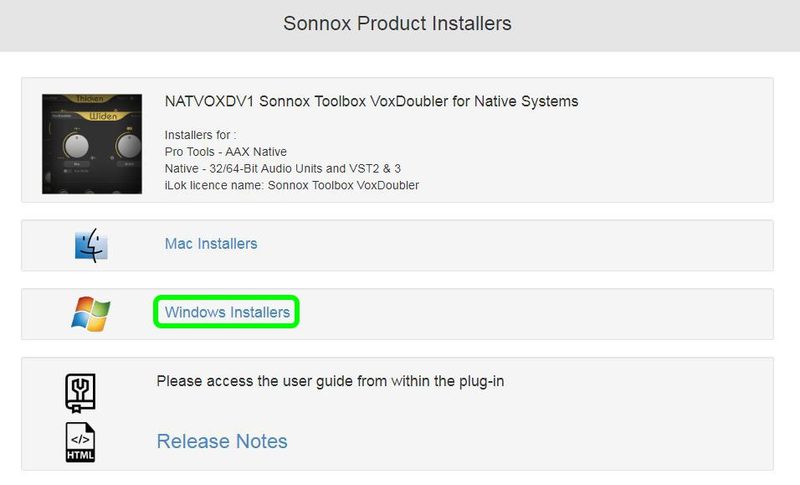
14. Select the 'Sonnox Toolbox VoxDoubler' link to initiate the downloading of the software.

15. Once the .exe file has successfully downloaded, double-click it to begin the installation process > click 'Run.'
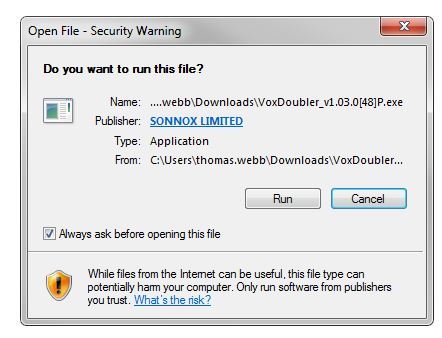
16. click 'Next.'
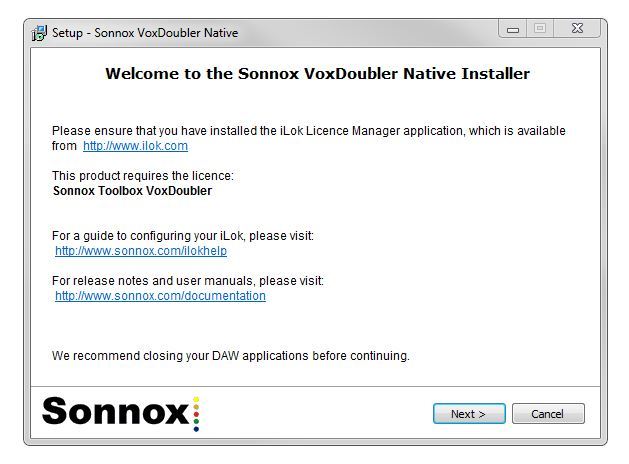
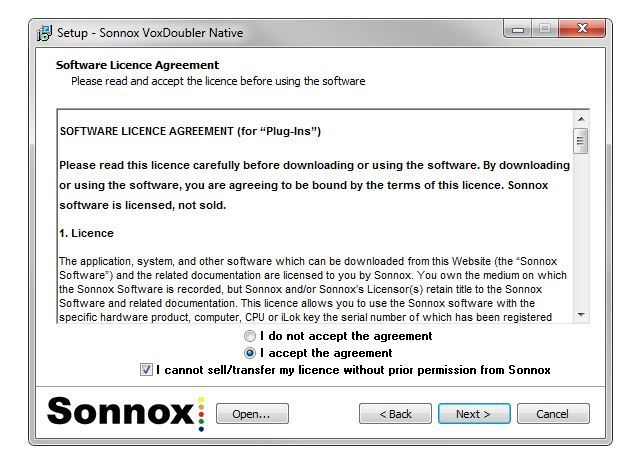
17. Read through the information and select the 'I accept the agreement' as well as 'I cannot sell/transfer my licence without prior permission from Sonivox' boxes > then click 'Next.'
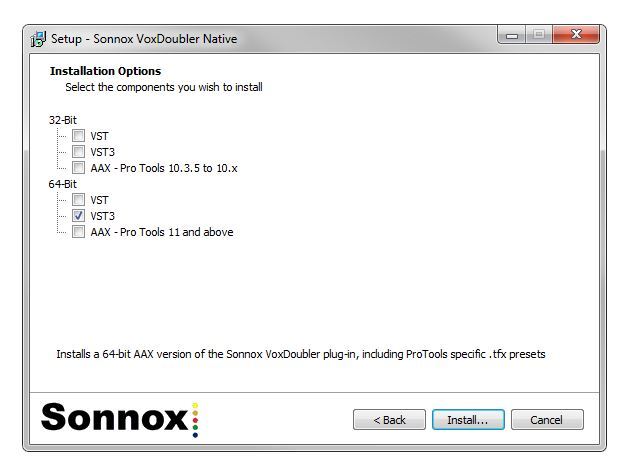
18. Select which software components you wish to install > click 'Install.'
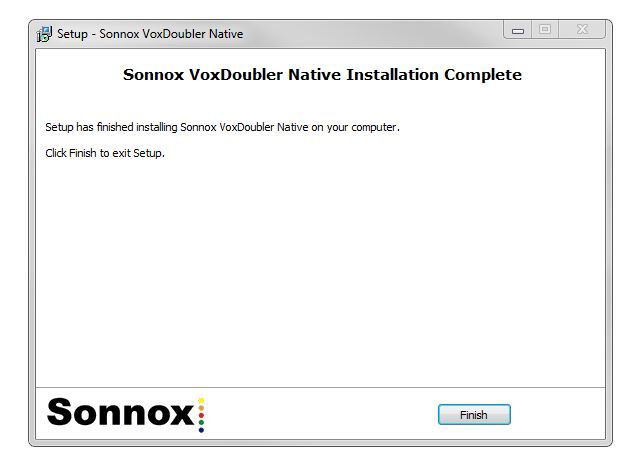
19. The installation of the software has successfully completed > click 'Finish.'
20. Restart/open your DAW, then locate and select Vox Doubler from your Audio FX drop-down selection.
Note: if the software fails to show, restart your DAW and/or rescan your plugin selection to refresh the installation.
The Software is now Ready for Use!


