


 Log In
Save $103.00 compared to buying products individually
Buy Softube Clipper & Widener Bundle, get a free gift with purchase:
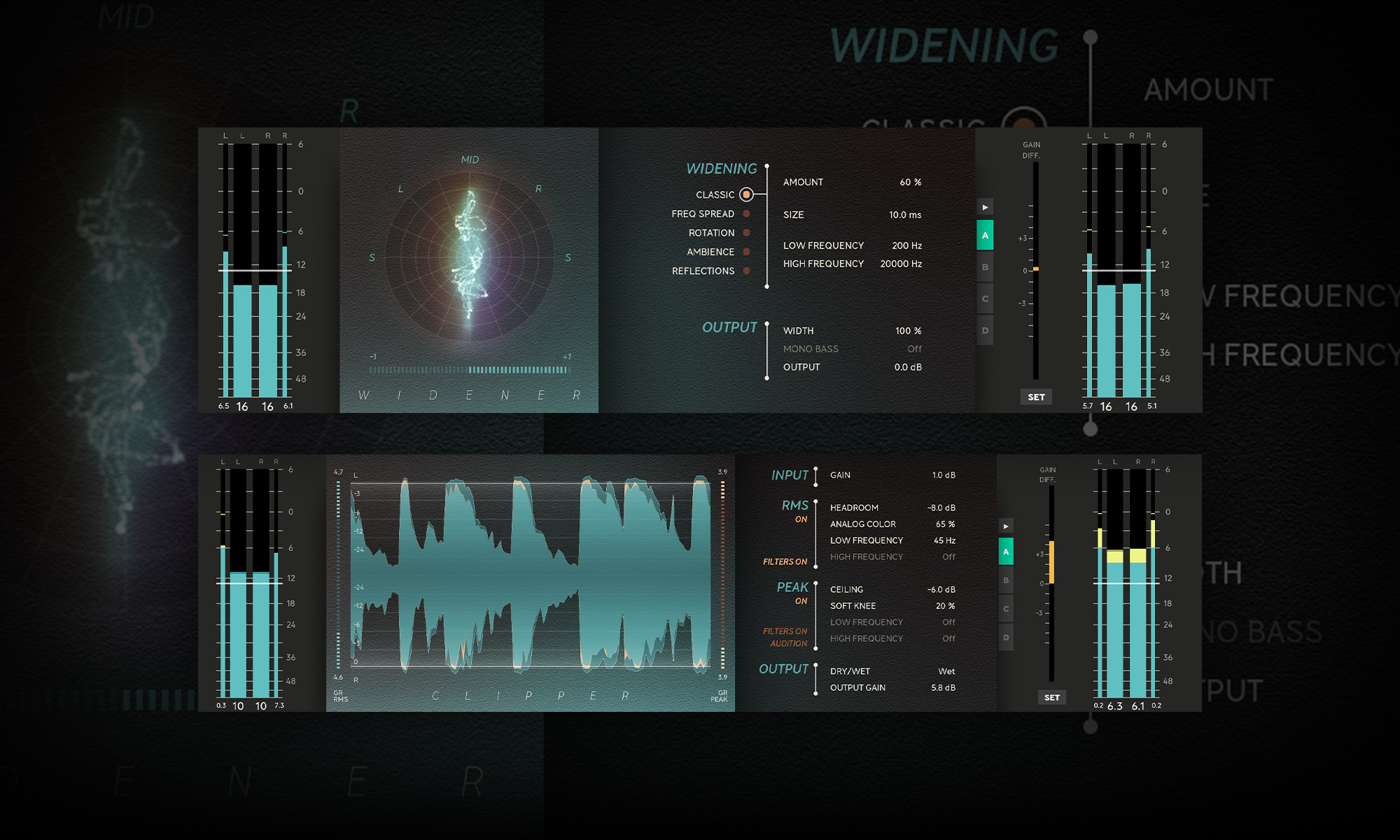
Two brand new top-end dynamic processing plugins from the music technology giants at Softube, bundled together for a limited time only? Sign us up!
Clipper
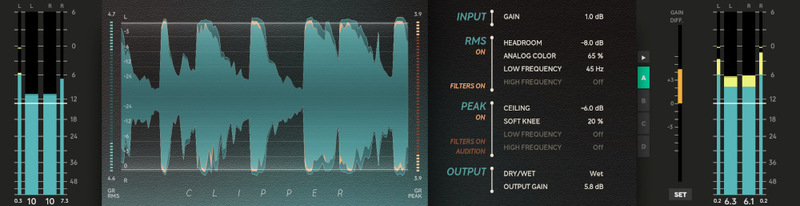
Analytical & vibey peak limiting
- Dual clip sections for shaping the tonality of the clipping
- Added sonic options that go beyond analytical clipping
- Compatible with all generations of Console 1 Mixing System
Clipper is a music producer’s ace in the hole for giving finished tracks the final push needed to match loudness expectations in the mixing as well as the mastering process. Softube designed Clipper with this in mind, but true to form, they also added some extra features to this dual-stage clipper to empower you to go beyond that and make creative decisions about the sound and vibe of the clipping. With the dual clipping stages RMS and Peak, an analog color option, and an optimized soft knee function, Clipper is at once analytical and vibey.
Clip
The function of a clipper is to immediately limit peaks without the effects that come from a limiter or a compressor, like pumping or decreasing level over time. It's useful when you have transients that would otherwise make your limiter act to decrease the overall loudness of your track. Clipper lets you manage those peaks while giving you the option to raise the level of your song. You may also find the sound of Clipper helpful to excite single tracks, such as synths.
Create
Clipping the peaks of a signal produces an audible sound. If it's overdone, it can sound unpleasant. That's because peak clipping is an analytical function rather than a musical one. To combat that, Softube matched the peak limiting stage in Clipper with an RMS stage you can use to gently shape the material before it goes into the peak clipping stage. Great for increasing the apparent loudness when mastering, the RMS stage is transparent in lesser amounts and, when pushed hard, breaks into a thick distortion. It gives you the power to go beyond the mathematical and make creative choices about the tonality of your clipping. Clipper accomplishes this by using anti-aliasing techniques to minimize artifacts, such as multiple stages of 4x oversampling. The Peak stage shaves the transients off the remaining audio. You can think of it like a limiter with infinitely fast attack and release. When used gently in the mastering process, the Peak stage gives a more cohesive sound.
Color
Want to change the tonality of an 808 or a drum bus? You're gonna wanna grab the Analog Color controls for that (plus, tweak the Headroom and set the Low and High Frequencies to home in on a specific frequency area you want to distort). That's because the Analog Color controls let you increase the amount of even-order harmonics (the sweet ones that sound good) generated by the RMS stage.
A note on naming: Softube had many discussions regarding the name of this control because "analog color" sounds a bit, well ... cheesy. At first, it was called "asymmetry," but that didn't imply anything about its sound, and it felt too technical a term. They tried a lot of different names but came back to "analog color" because that's how you experience the sound. No, it's not based on analog circuits or anything like that. But it does share the same spice: a pinch of even-order harmonics.
The Art of Rock & Roll Science
When it comes to creating equipment that enhances workflow and offers supreme sound quality, Softube's reputation is rock solid and illustriously long. Their partnerships with premium brands like Tube-Tech, Solid State Logic, Chandler Limited, Weiss Engineering, and Trident have spanned decades.
Clipper was built on this legacy of creativity, passion, and obsession with the details. Because to create tools that innovate and elevate, you have to have heart, soul, and Rock & Roll Science.
Features
- Easy to use peak clipping
- Analytical and vibey approach to clipping
- Dual stages that let you shape the tonality of your clipping
- Carefully designed to avoid the introduction of unwanted artifacts
- Console 1-ready
Widener
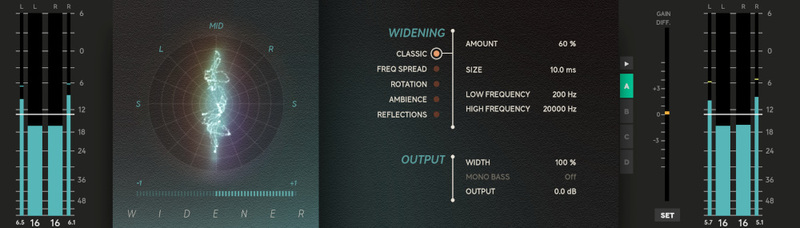
Five ways to widen
- Make mono tracks stereo & stereo tracks wider or narrower
- Five different algorithms for widening that suits your needs
- Compatible with all generations of Console 1 Mixing System
Widener lets you create a stereo signal from a mono track or widen an existing stereo track with five unique widening algorithms. But why use a spatial widener anyway?
Opinions may vary on the risks of using spatial wideners, but the dirty little secret is this: many producers, and even mastering engineers, use them as an easy, effective way to make their track stand out. Caution must be used, of course, to avoid ruining your sound with unwanted artifacts. If you do, you have an amazingly effective tool to produce an immersive listening experience. Nothing ventured, nothing gained. Wade into the wider world with Widener.
It's wide, it's narrow, it's stereo
Widener is effective on both mono and stereo sources. Turn mono into stereo to make your sound cut through the mix. Or use it to expand your mix as an alternative to other effects that might clutter the sound, like reverb or delay. Do this with the certainty that your sound will stay mono-compatible when using the Frequency Spread or Classic algorithm. In stereo, you can carefully widen the sound to enhance the three-dimensional space of your mix and create a sense of depth or you can make it narrower to bring focus to the mix. Widener does not only widen a mix, its crossfeed algorithms can also be used to create a more natural and cohesive sound image during the mastering phase.
Five wide options & two visual aids
Each mix is distinctive and comes with diverse challenges and necessities. Using stereo width to enhance your mix might produce artifacts you'll want to consider. That's why Softube included no less than five different algorithms: Classic, Frequency Spread, Rotation, Ambience, and Reflections. Each algorithm has a unique strength, which allows you to find the sweet spot for your stereo image and minimize those unwanted artifacts.
In short, the different algorithms use phase shifting, Mid/Side processing, or reverberation techniques to accomplish their sound. The goniometer and correlation meter provide real- time information about the stereo width and allow you to avoid pitfalls by confirming what you hear. Which empowers you to make the right choices for your mix.
Tip! Want to learn to identify the artifacts from, for example, the Classic algorithm? Listen to solely the left or right channel and slowly move the Size parameter. By listening to only one channel, your ears aren't so easily fooled by the stereo-izing trickery. Moving the Size parameter shifts the comb filters around, letting your ears home in on them.
The Art of Rock & Roll Science
When it comes to creating equipment that enhances workflow and offers supreme sound quality, Softube's reputation is rock solid and illustriously long. Their partnerships with premium brands like Tube-Tech, Solid State Logic, Chandler Limited, Weiss Engineering, and Trident have spanned decades.
Widener was built on this legacy of creativity, passion, and obsession with the details. That’s because, to create tools that innovate and elevate, you have to have heart, soul, and Rock & Roll Science.
Features
- Easy to use widening
- Use on mono or stereo sources
- Five different algorithms with different strengths
- Goniometer and correlation meter as visual aids
- Console 1-ready
System Requirements
- macOS Big Sur 11, Monterey 12, Ventura 13
- Windows 10 (64-bit), Windows 11
- Softube account
- iLok account
- Computer with AU, VST, VST3 and/or AAX compatible DAW host software
- Internet access (for downloading installers and managing licenses)
Important Note: Spring Reverb is used as the example
Installation Video
Note: Before starting the installation, you are required to create a FREE iLok user ID and install the iLok License Manager.
Please take a look at this Help Centre Guide for more information.
Registration
1. Click 'DOWNLOAD' in your Plugin Boutique Account. This will direct you to the Softube login page.
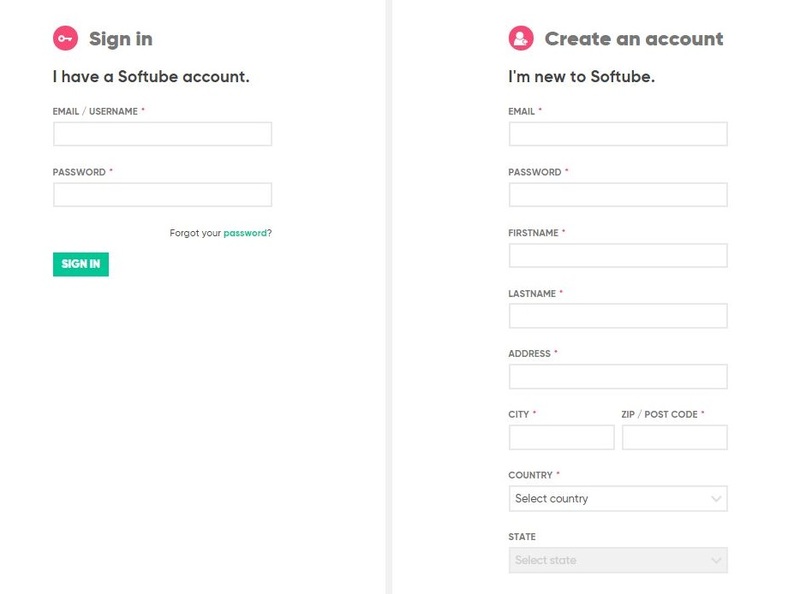
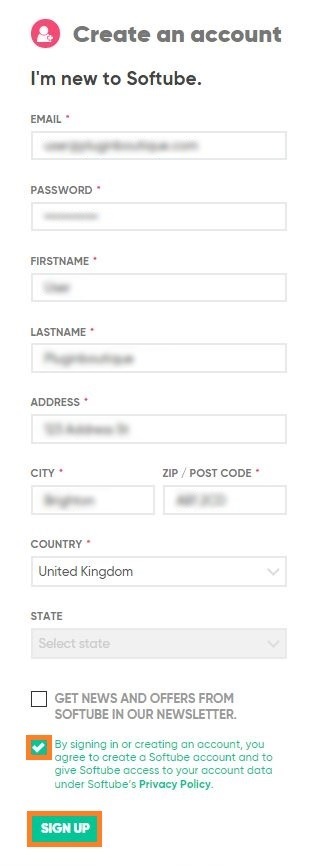
2. Enter your details > tick the Privacy Policy box > click 'Sign up' to create an account. (If you already have a Softube account, please log in and skip to step 5).
3. Go to your email account > find the Softube registration email > click 'ACTIVATE MY ACCOUNT'. (Your account has now been successfully created)

4. Go back to www.softube.com (you should now be logged in) > click 'MY ACCOUNT'.

5. Click 'REGISTER LICENSE'.

6. Enter the License Code (referred to as serial number on our site) found in your Plugin Boutique User Account > click 'REGISTER LICENSE'.

7. Click 'GO FOR IT!'.

Your product is now registered.
Mac
1. On the My Products page, click 'MAC' > you will be directed to the Mac Installation page.

2. Click 'HERE (highlighted in orange) to start downloading Softube Central.

3. Once it has downloaded, open the Softube Central PKG file > click 'Continue'.

4. Read through the Software License Agreement > click 'Continue'.

5. Click 'Agree'.

6. Click 'Install'.

7. Enter your password > click 'Install Software'.

8. Click 'Close'.

9. Open Softube Central > click 'INSTALL' to install all the necessary iLok licensing components. (This may take a few minutes)
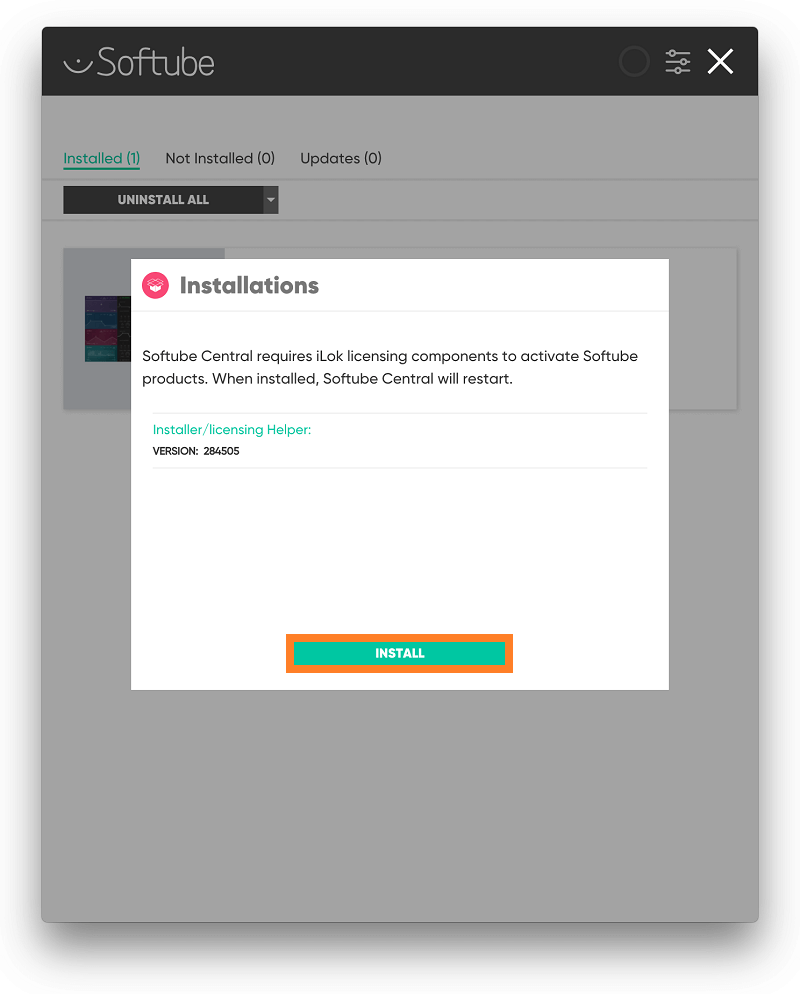
10. Sign in to your Softube account.

11. Your product will now be displayed in Softube Central.
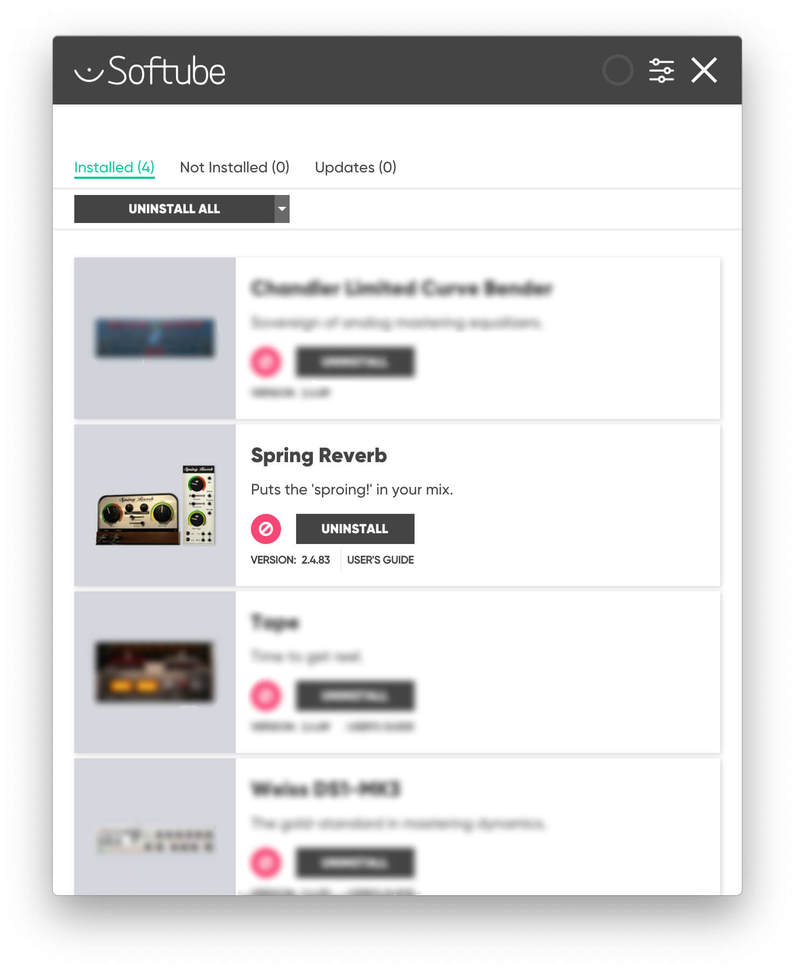
Please note: if it says 'DISCONNECTED' at the top of the window, please go to the settings and click 'RESTART', close Softube Central and then open it again.
Your software is now activated and ready for use within your DAW.

Windows
1. On the My Products page, click 'WINDOWS' > you will be directed to the Windows Installation page.

2. Click 'here' (highlighted in orange) to start downloading Softube Central.

3. Once it has downloaded, open the Softube Central download > click 'Yes'.

4. Read through the Software License Agreement > click 'I Agree'.

5. Softube Central will now open > click 'Install' to download the necessary iLok licensing components.

6. Please wait for the iLok licensing components to download. (This may take up to 5 minutes).

7. Click 'Yes' > the Softube Installer Helper Setup will now run.

8. Click 'Next >'.

9. Read through the License Agreement > click 'I Agree'.

10. Click 'Next >'.

11. Choose the VST file path (we recommend the default location) > click 'Install'.

12. Click 'Finish'.

13. Softube Central has now been successfully installed > click 'START'.

14. Sign in to your Softube account.

15. Click 'INSTALL'.

Your software is now activated and ready for use within your DAW.


