


 Log In

Free gifts available with your purchase
TransReckon is a transient processor that will help you to add punch to your drum lines or put some instruments forward (or backward) in an extremely efficient way and with unexpected ease.
These options help to go further with the transient shaping process.
While it is possible to process transients with classic dynamics effects, these rely on a defined threshold which is set manually depending on the incoming signal.
If the input level is modified later or if your drummer does not hit his drums at a constant velocity (which is usually a good idea, musically speaking), the transients processing can be more complex to achieve.
In short...
- Add punch to your drums and percussive instruments.
- Add life to your mixes.
- Isolate the prominent elements of an existing loop.
- Give more presence to an acoustic guitar or tame the peaks produced by an enthusiastic rhythm guitarist.
- Add a gate effect to a natural reverb and/or simulate a pre-delay effect on it.
- Tweak the envelope of an electronic drum sound.
- ... Be creative!
Features
- Flexible but yet very easy-to-use transient processor.
- Listen’ mode
- 'Sens’ and ‘Length’ parameters give a comprehensible control over the detection circuit(s).
- Integrated brickwall limiter (0dB).
System Requirements
Mac
- Supported OS: macOS 10.9 (min) up to macOS 14
- CPU: Intel / Apple Silicon
- Available formats (64-bit only): AAX, AU, VST2, VST3
Windows
- Supported OS: Windows 10 / Windows 11
- CPU: Intel / AMD
- Available formats (32/64-bit): AAX, VST2, VST3
Awards


Please Note: EAReverb 2 is used as an example.
Mac
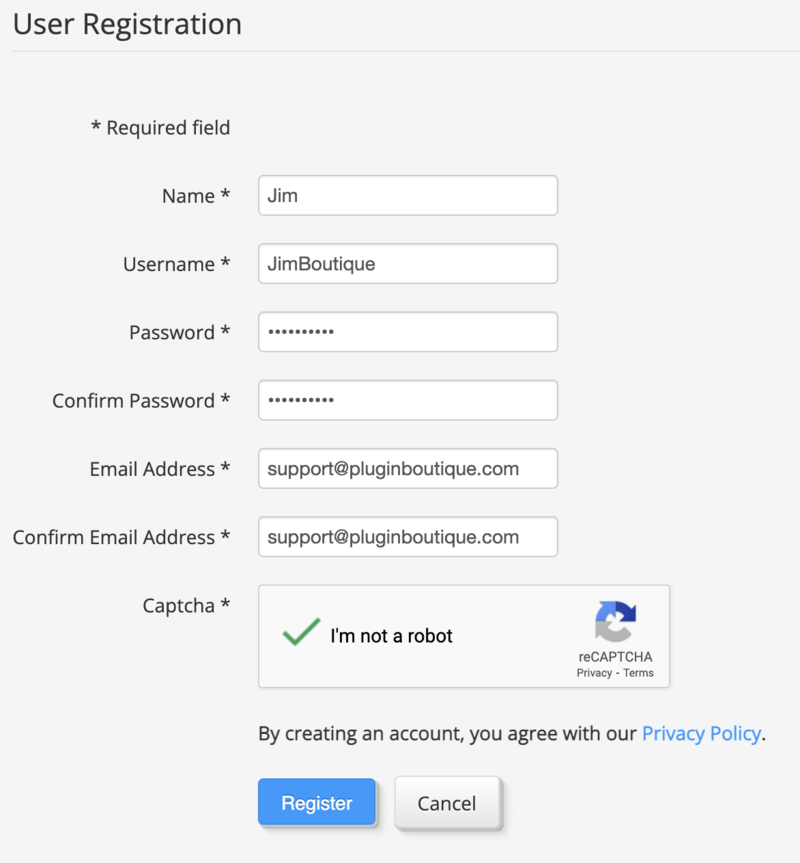
1. If you do not have an eaReckon account, navigate to https://www.eareckon.com/en/login.html?view=registration and sign up > If you do have an eaReckon account, navigate to https://www.eareckon.com/en/login.html and log in and proceed to step 3.
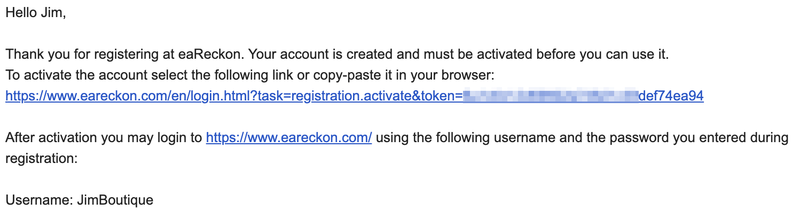
2. Navigate to your email inbox > Click the activation link to activate your eaReckon account > Log in.
3. Enter your serial number found within your Plugin Boutique User Account > Click 'Register'.

4. Download the correct installer(s) for your system.
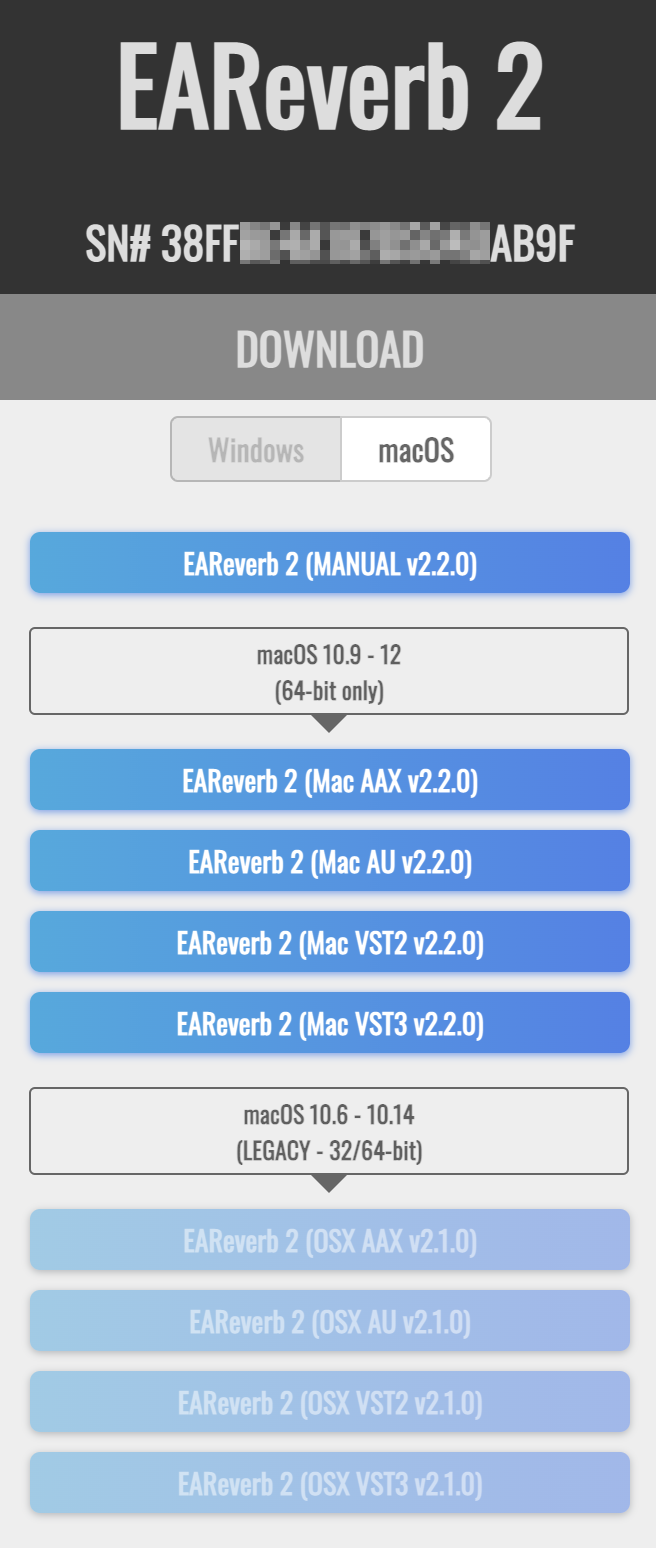
5. Unzip the downloaded installer > Launch the .pkg installer file.

6. Click 'Continue'.
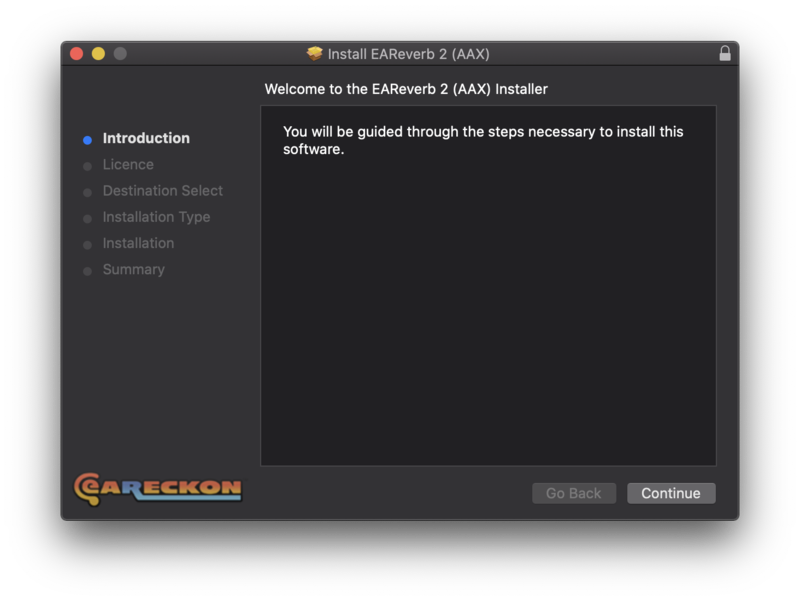
7. Click 'Continue'.
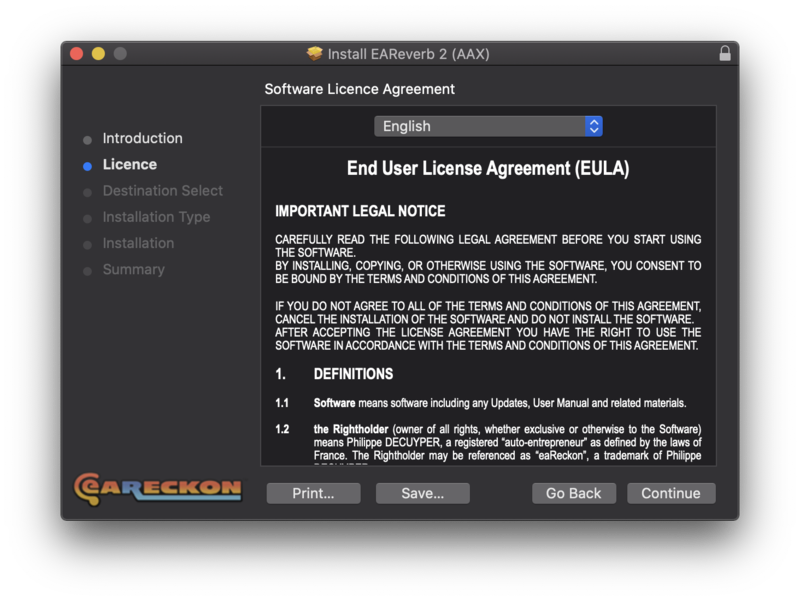
8. Click 'Agree'.
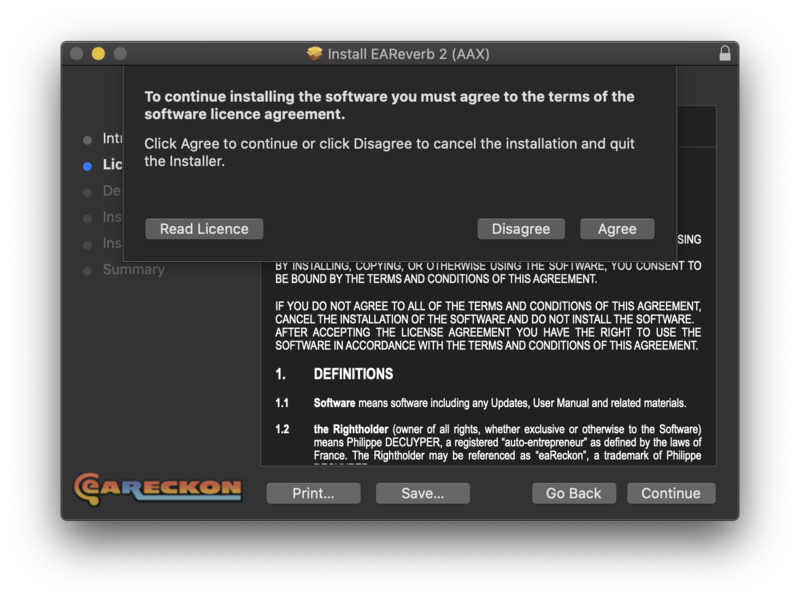
9. Click 'Continue'.
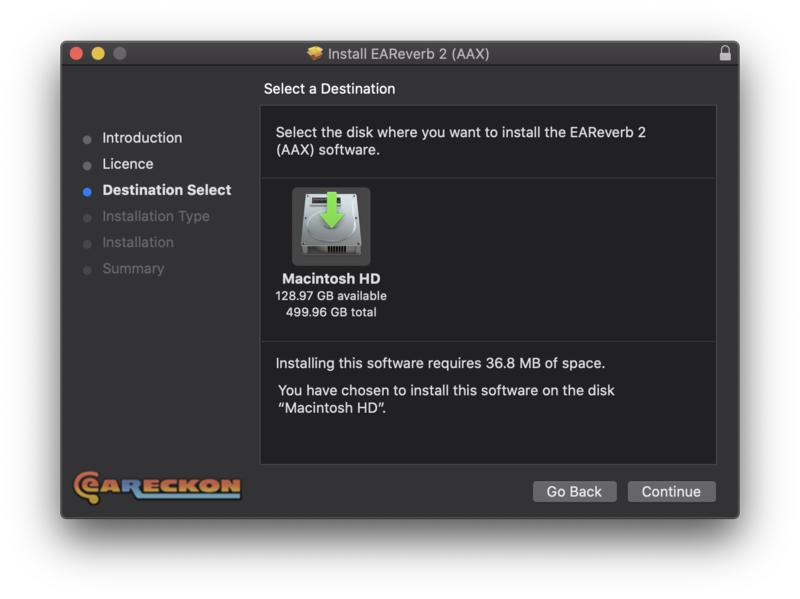
10. Click 'Install'.
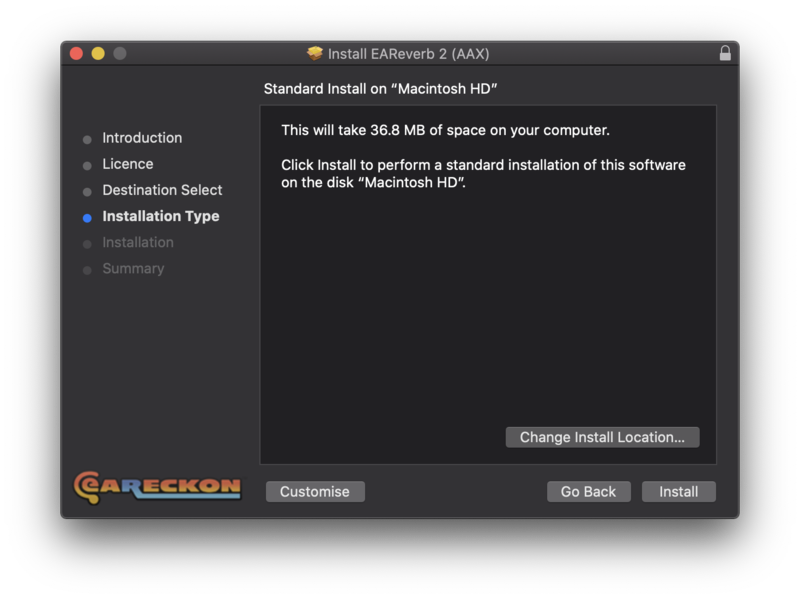
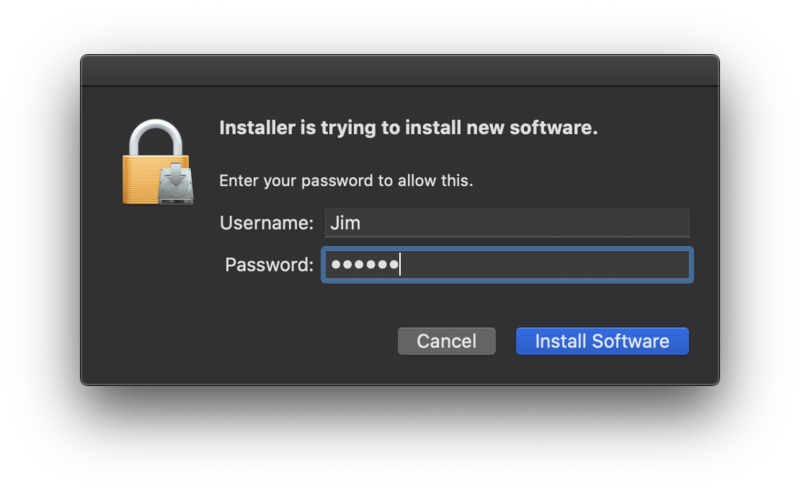
11. Enter your system password > Click 'Install Software'.
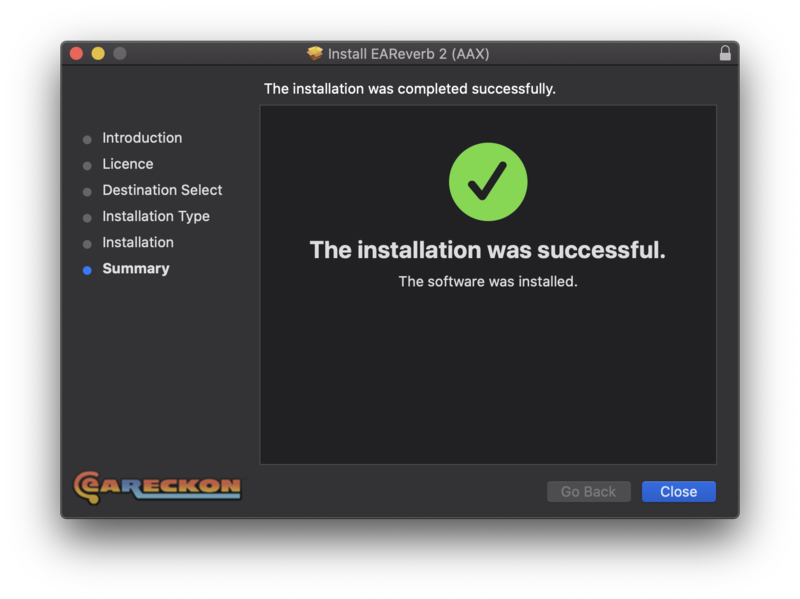
12. Click 'Close'.
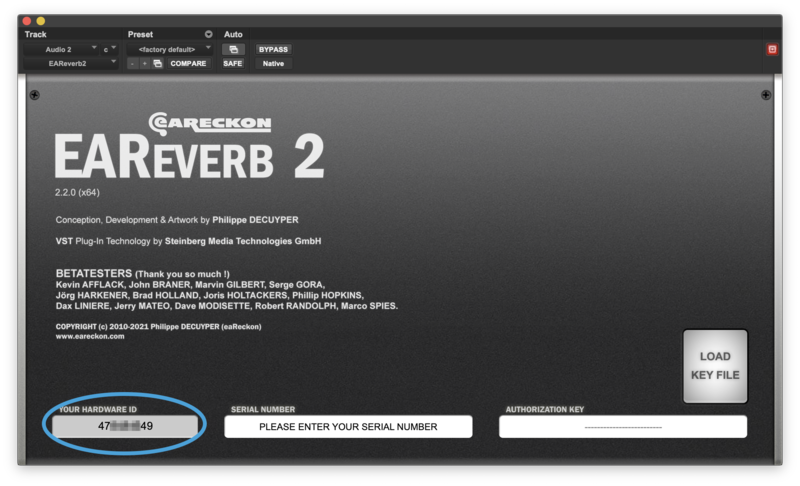
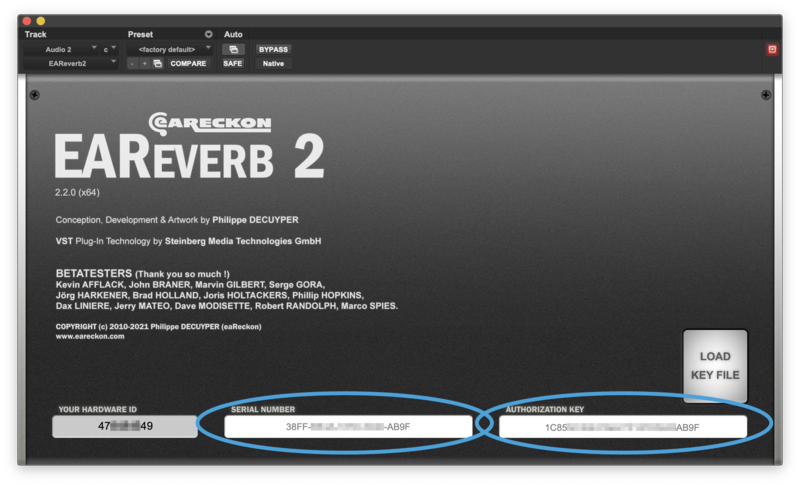
13. Launch your DAW > Insert EAReverb 2 on a new track > Locate your Hardware ID.
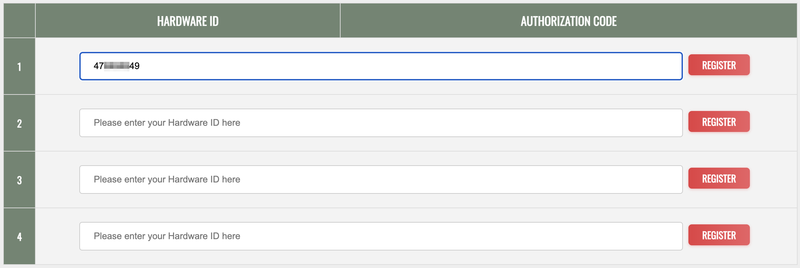
14. Navigate back to the eaReckon website and your account page > Enter your Hardware ID > Click 'Register'.
15. Navigate back to your DAW and the plugin > Enter the serial number found within your Plugin Boutique User Account into the 'Serial Number' box > Enter the Authorization Key that was generated in step 14 on the eaReckon website into the 'Authorization Key' box.
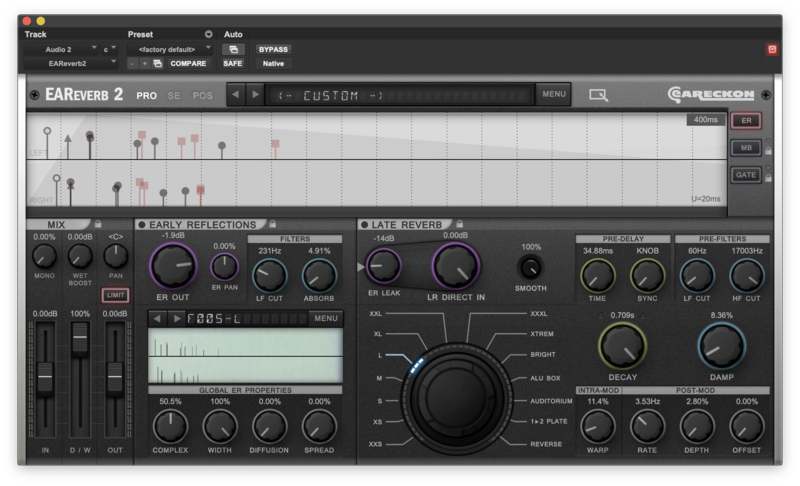
EAReverb 2 is installed, activated and ready to use.
Windows
1. If you do not have an eaReckon account, navigate to https://www.eareckon.com/en/login.html?view=registration and sign up > If you do have an eaReckon account, navigate to https://www.eareckon.com/en/login.html and log in and proceed to step 3.
2. Navigate to your email inbox > Click the activation link to activate your eaReckon account > Log in.
3. Enter your serial number found within your Plugin Boutique User Account > Click 'Register'.
4. Download the correct installer(s) for your system.
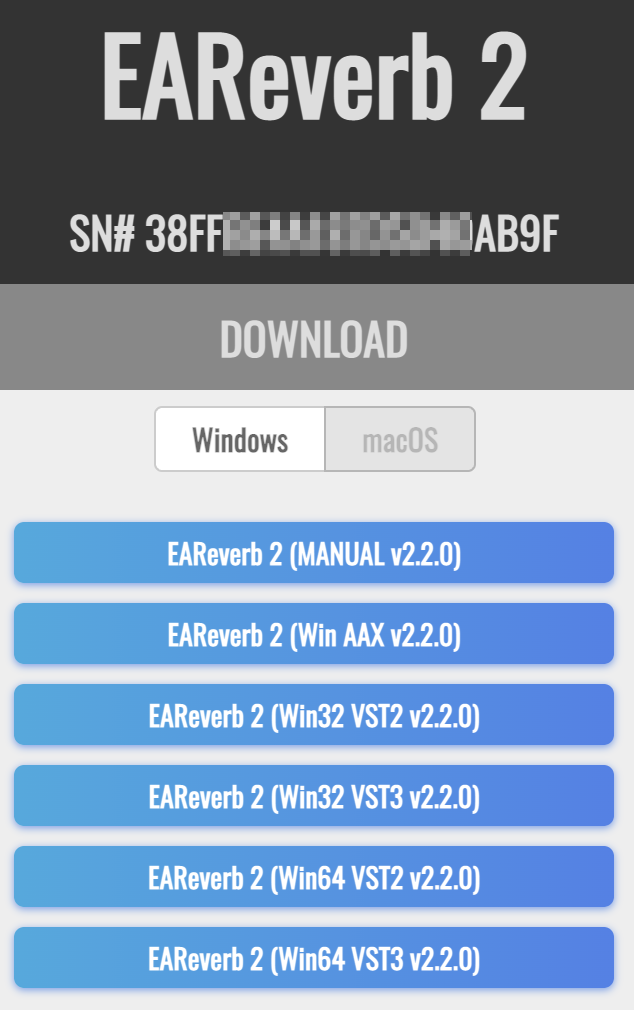
5. Unzip the downloaded installer > Launch the .exe installer file.

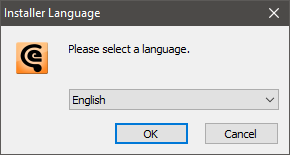
6. Select language > Click 'OK'.
7. Click 'Next'.
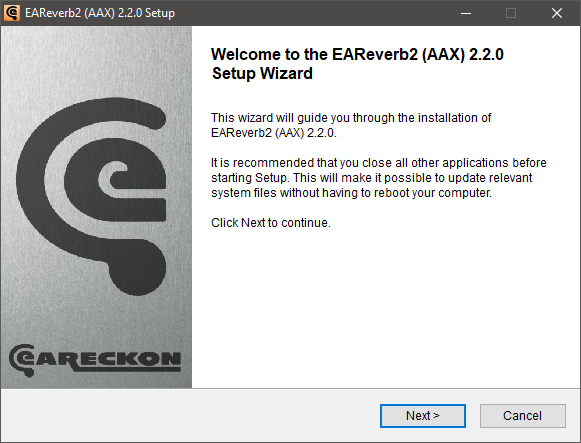
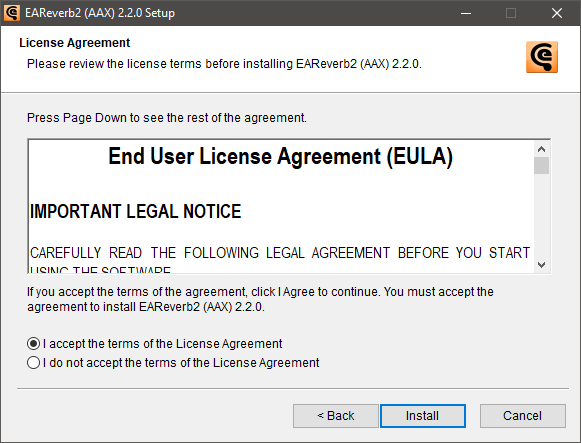
8. Accept the EULA > Click 'Install'.
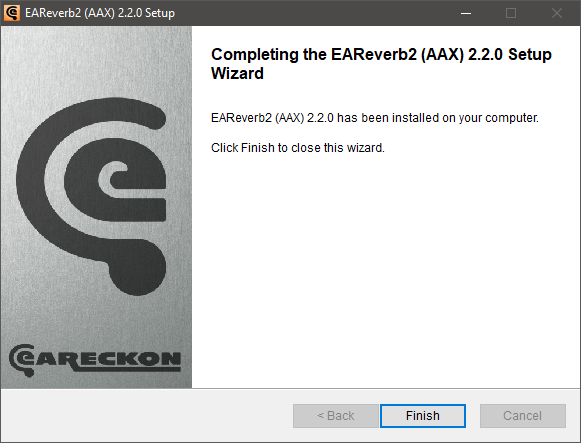
9. Click 'Finish'.
10. Launch your DAW > Insert EAReverb 2 on a new track > Locate your Hardware ID.
11. Navigate back to the eaReckon website and your account page > Enter your Hardware ID > Click 'Register'.
12. Navigate back to your DAW and the plugin > Enter the serial number found within your Plugin Boutique User Account into the 'Serial Number' box > Enter the Authorization Key that was generated in step 11 on the eaReckon website into the 'Authorization Key' box.
EAReverb 2 is installed, activated and ready to use.


