Buy Electric Keys - Jade, get a free gift with purchase:
Capture the punchy, dynamic sound of a classic solid-state reed piano with Electric Keys – Jade. Known for its sharp attack and bold character, Jade shines in funky rhythms, cutting leads, and rich chords. With detailed tone controls and creative effects, it brings an edge to any track – from soulful grooves to high-energy pop.
Features
- Authentic emulation of a solid-state reed piano
- Punchy, articulate tone with sharp attack and dynamic expression
- Perfect for funky rhythms, cutting leads, and bold chords
- Tone shaping with tonal shift, effects, and sample-based double-tracking
- 110 presets capturing the instrument’s full character
- Seamless integration with Kontrol keyboards for expressive control
- Produced in collaboration with Galaxy Instruments
Developed with Galaxy Instruments, led by Uli Baronowsky – creators of Piano Colors, Noire, Una Corda, Thrill, Mysteria, and more.
- FREE Kontakt 8.2 Player or Kontakt 8.2 or higher is required to use this instrument
- Download size: 2.15 GB
Mac
- macOS 13, 14 or 15 (latest update)
- Intel Core i5/equivalent CPU or Apple Silicon
- 4 GB RAM (6 GB recommended)
- Supports Core Audio
- Graphics hardware support for Direct 3D 11.1 (Feature Level 11_0) or higher
Windows
- Windows 10 or 11 (64-bit, latest Service Pack) or Windows 11 (latest Service Pack)
- Intel Core i5 or equivalent CPU
- 4 GB RAM (6 GB recommended)
- Supports ASIO and WASAPI
- Graphics hardware support for Direct 3D 11.1 (Feature Level 11_0) or higher

Note: Massive is used as an example.
Windows
1. Download the .zip installer file from your Plugin Boutique User Account.
2. Double-click the extracted .exe file to begin the installation process > click ‘Run’.
3. Read the welcome message > click 'Next'.

4. Click 'Next' to begin the installation.

5. Native Access has now been installed > Click 'Finish'.

6. Open Native Access > Create a new Native ID if you do not have one already. If you do, skip ahead to step 8.

7. You will then receive an email with a confirmation link > Open the email and click 'CONFIRM EMAIL'.

8. Log in to Native Access with your Native ID.

9. Click 'Add a serial'.

10. Enter your Serial Number found in your Plugin Boutique User Account > Click 'ADD SERIAL'.

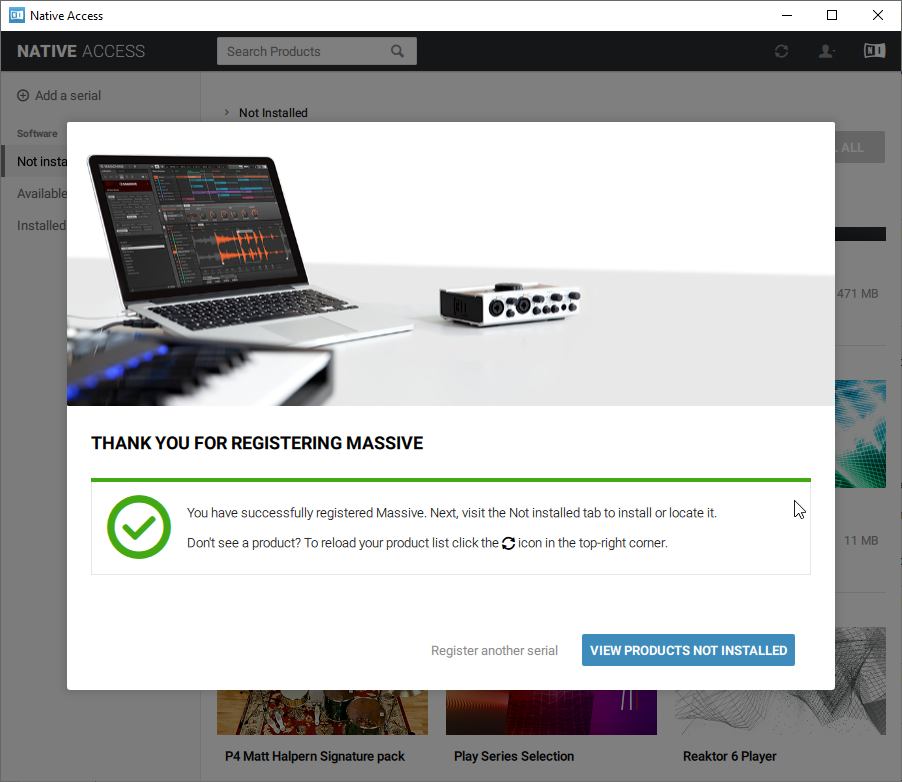
11. Once your serial has been registered, click 'VIEW PRODUCTS NOT INSTALLED'.
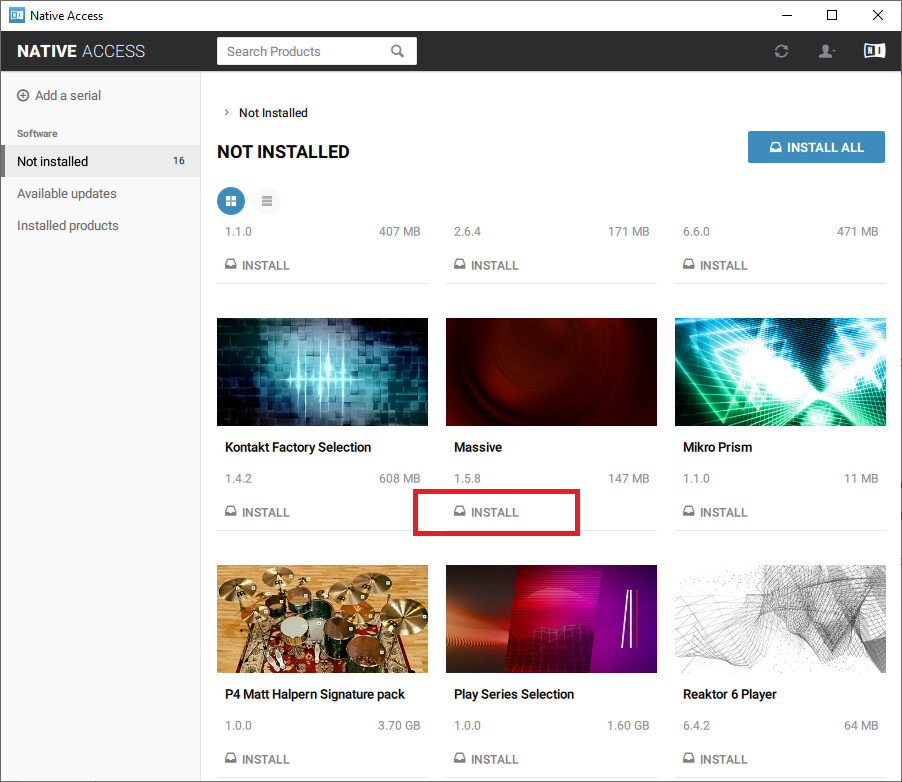
12. Click the 'Not installed' tab > Locate Massive > Click 'INSTALL'.
For Super 8 installation, please download and install the free Reaktor 6 Player available from this link - https://www.native-instruments.com/en/products/komplete/synths/reaktor-6-player/free-download/ - once installed, open Reaktor within your DAW and locate Super 8.
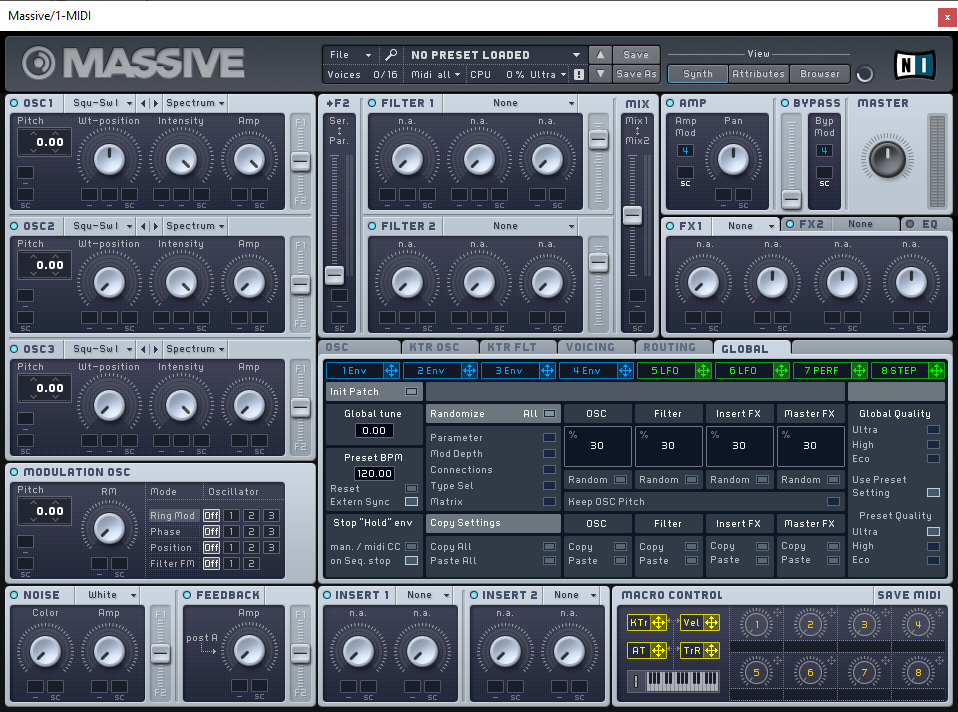
Your software is now activated and ready for use within your DAW.
Mac
1. Download the .dmg installer file from your Plugin Boutique User Account.
2. Double-click the .dmg file to install Native Access.
3. Open Native Acces > Create a new Native ID if you do not have one already. If you do, skip ahead to step 5.

4. You will then receive an email with a confirmation link > Open the email and click 'CONFIRM EMAIL'.
5. Log in to Native Access with your Native ID.

6. Click 'Add a serial'

7. Enter your Serial Number found in your Plugin Boutique User Account > Click 'ADD SERIAL'.

8. Click the 'Not installed' tab > Locate Massive > Click 'INSTALL'.
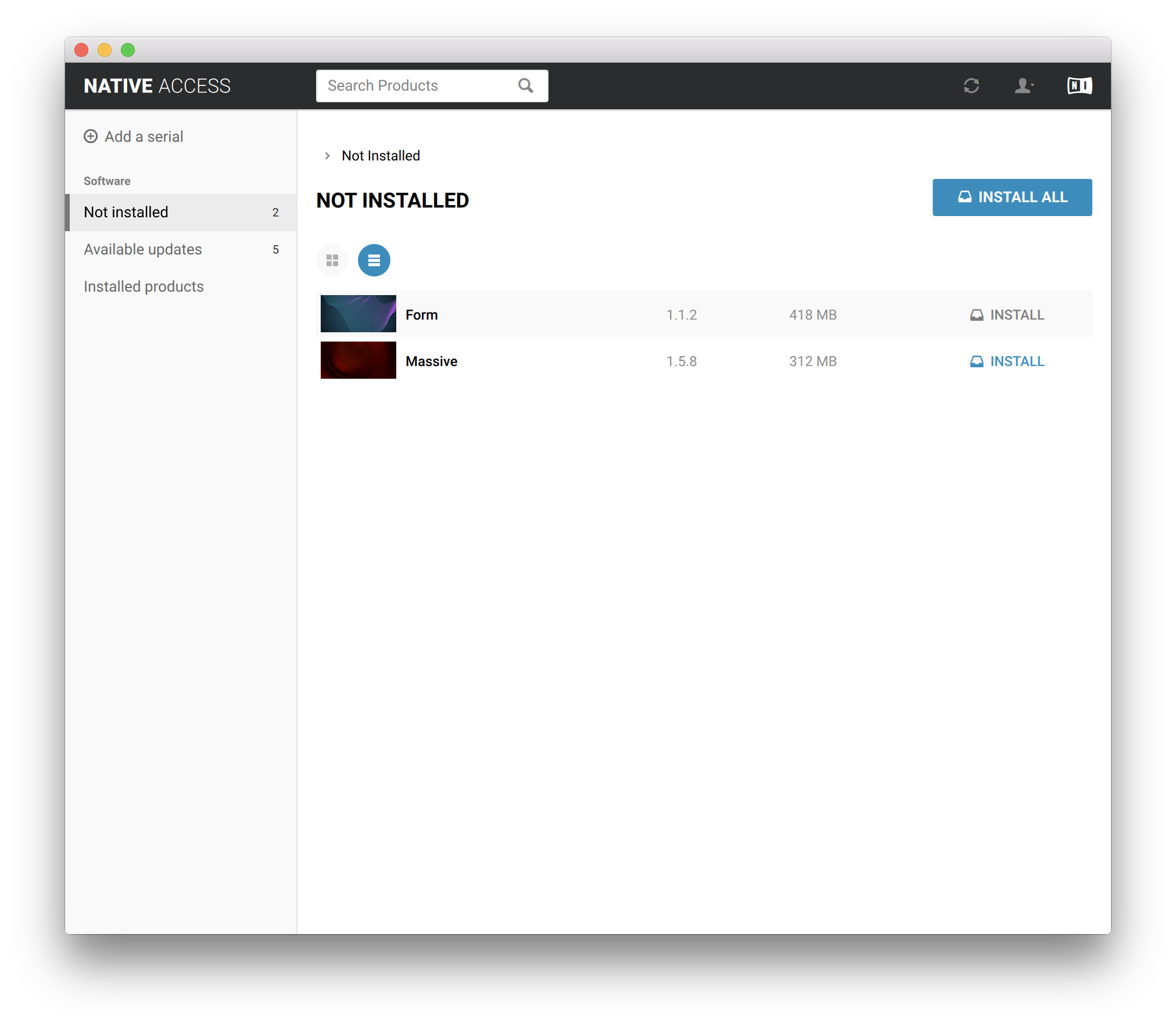
For Super 8 installation, please download and install the free Reaktor 6 Player available from this link - https://www.native-instruments.com/en/products/komplete/synths/reaktor-6-player/free-download/ - once installed, open Reaktor within your DAW and locate Super 8.
Your software is now activated and ready for use within your DAW.