


 Log In

Free gifts available with your purchase

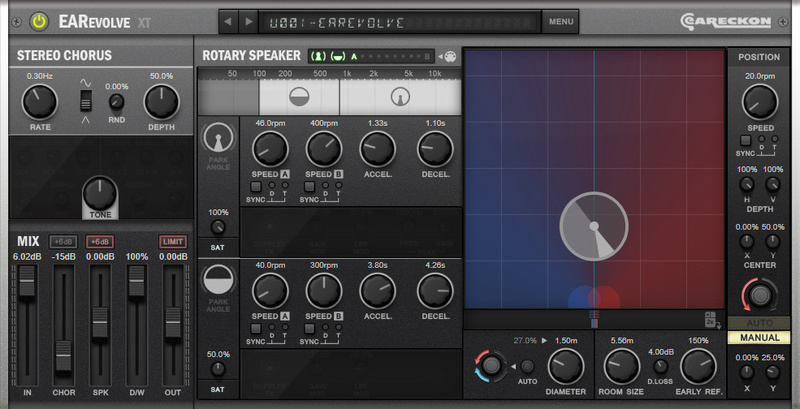
EARevolve is the combination of a stereo chorus and a (mono to stereo) rotary speaker.
All-in-one, this plug-in is a flexible tool that adds depth and/or controlled movement to your sounds. It is particularly effective when you want to turn a mono signal into a dynamic and deep stereo sound.
Stereo Chorus
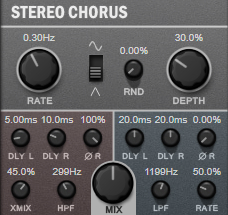
A stereo chorus is a very efficient way to give stereo width to a mono sound (or to enhance it when the source is stereo).
When using a chorus with stereo width in mind, musicians usually want to avoid the sense of movement between the left and the right channels that could be introduced by the effect.
It is not uncommon to hear that a good stereo chorus is the one that you just "forget" until someone turns it off. This kind of chorus effect voluntarily limits the sense of movement and generates a nice stereo depth.
Even though EARevolve's stereo chorus is able to do this, it does not limit you to this single application. It gives you flexibility, by adding a nice amount of selected parameters - to help you to go further with your chorus experimentations.
Rotary Speaker
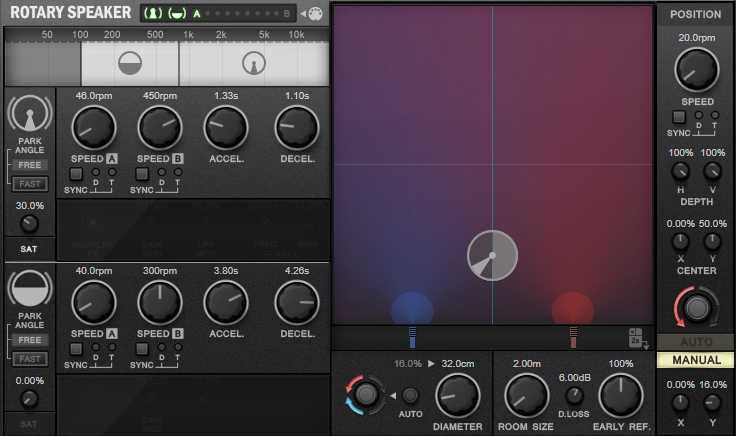
A rotary speaker obviously generates a sense of movement that is not limited to a simple panning.
The Doppler effect, natural filtering and level variations provided by the rotation of two parts, form a complex modulation effect. If we add the characteristics of the room, the position of the microphones and the position of the cabinet itself, we start to get quite a number of parameters to consider.
A logical choice could be to limit the number of parameters available to musicians and technicians, by limiting ourselves to the reality of a hardware rotating speaker. Limiting the number of parameters is also an excellent option if we want to let everyone easily control the effect for the musical use it was formerly intended for.
But...
- What else could we obtain from it if we could freely manipulate the angles of both the horn/drum parts and even the location of the cabinet itself, from a remote control, like controlling a drone?
- Why not control the effects of these movements on the sound, forgetting about physical reality, and use them to our musical advantage?
- Finally, why not synchronize all of this to the tempo of our music, or automate the whole thing?
These are the questions that led to the choice of flexibility for the rotary speaker part of EARevolve.
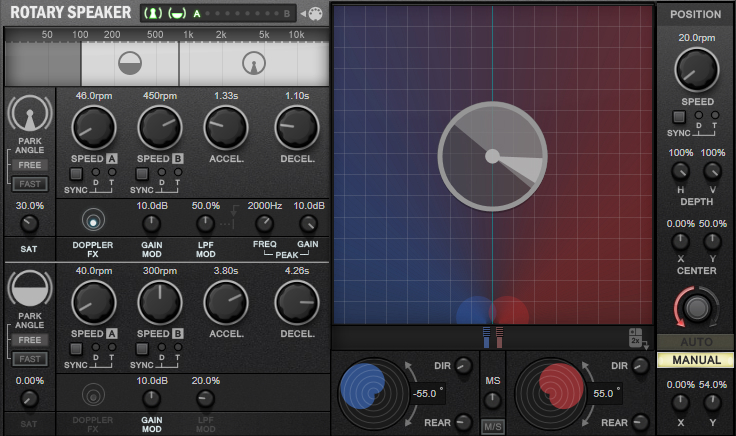
Advanced Control
That said, my intention was not to provide a laboratory tool but a plug-in which is usable in a musical or a multimedia context. The primary goal was to provide a creative modulation effect and not a 100% faithful emulation of an existing device or a realistic positioning tool.
Considering all these aspects, it was therefore important to create an interface which provides enough controls while not being overly intimidating.The controls that have been implemented are not there only to look pretty. Each of them has a role, which you will quickly discover.If you don't want to be visually overwhelmed by too many controls, it is still possible to use it the easy way, by hiding the advanced settings, loading a preset and adjusting it with a limited set of essential controls...
until you feel it's time to go further with the plug-in's capabilities ;-)
System Requirements
Mac
- Supported OS: macOS 10.9 (min) up to macOS 14
- CPU: Intel / Apple Silicon
- Available formats (64-bit only): AAX, AU, VST2, VST3
Windows
- Supported OS: Windows 10 / Windows 11
- CPU: Intel / AMD
- Available formats (32/64-bit): AAX, VST2, VST3
Please Note: EAReverb 2 is used as an example.
Mac
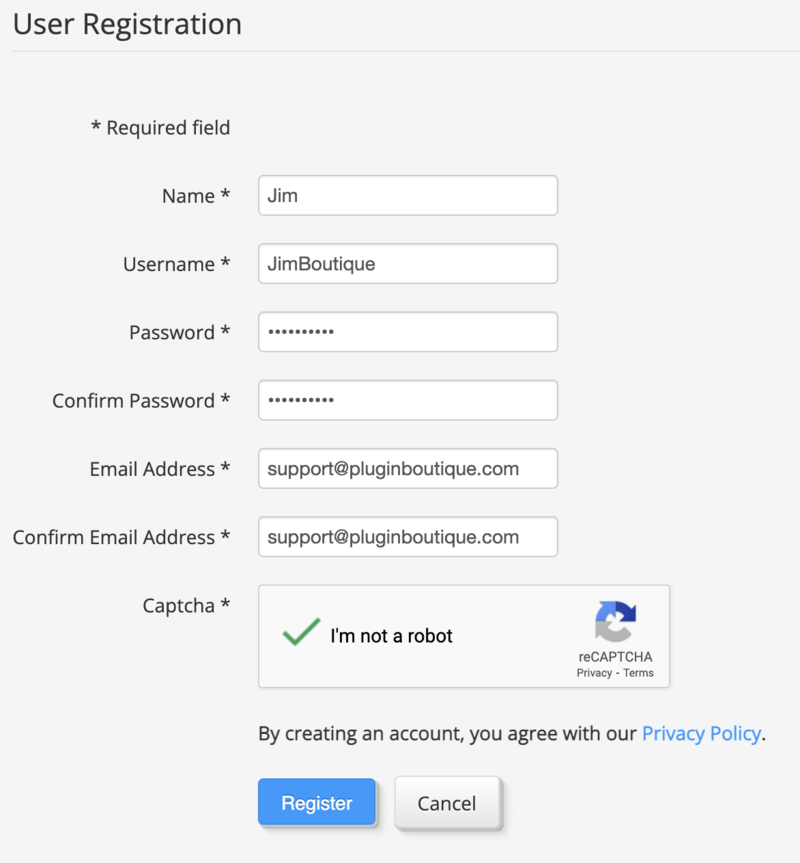
1. If you do not have an eaReckon account, navigate to https://www.eareckon.com/en/login.html?view=registration and sign up > If you do have an eaReckon account, navigate to https://www.eareckon.com/en/login.html and log in and proceed to step 3.
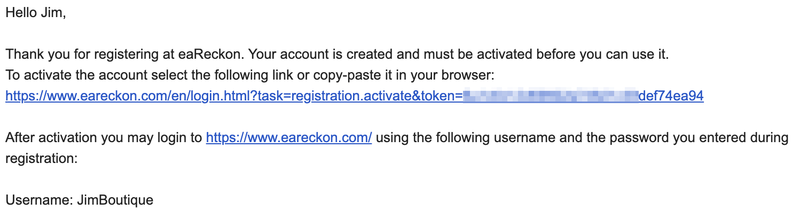
2. Navigate to your email inbox > Click the activation link to activate your eaReckon account > Log in.
3. Enter your serial number found within your Plugin Boutique User Account > Click 'Register'.

4. Download the correct installer(s) for your system.
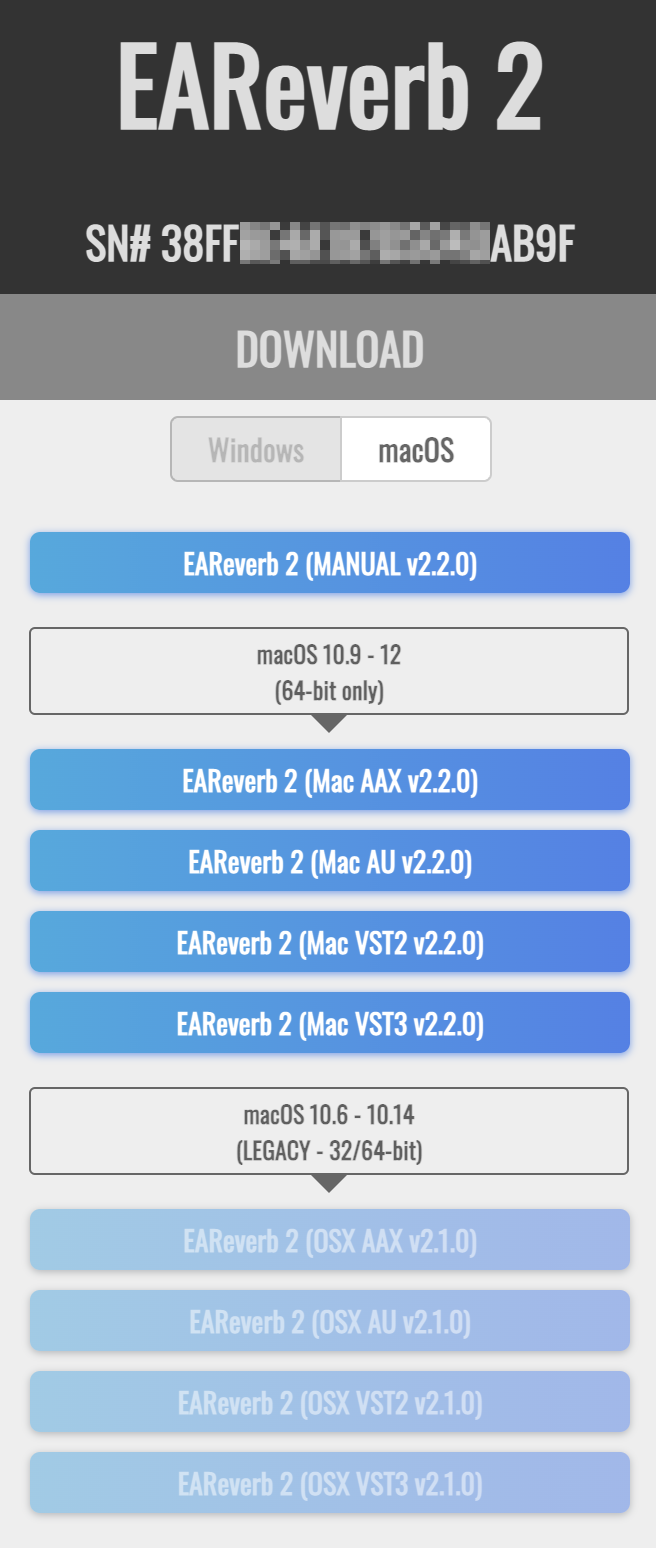
5. Unzip the downloaded installer > Launch the .pkg installer file.

6. Click 'Continue'.
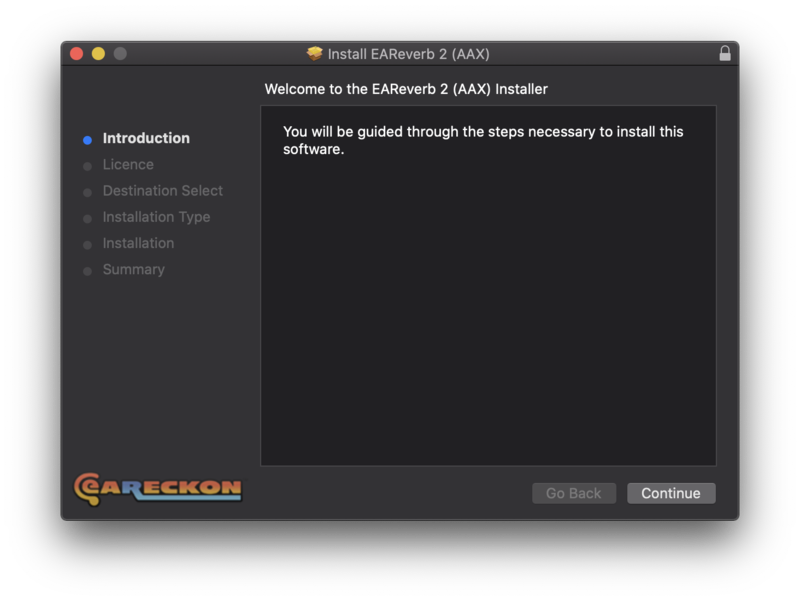
7. Click 'Continue'.
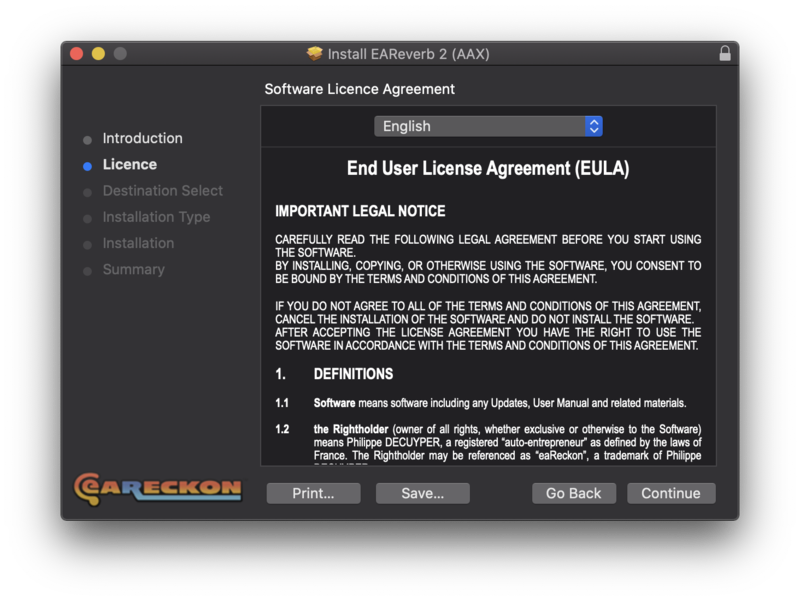
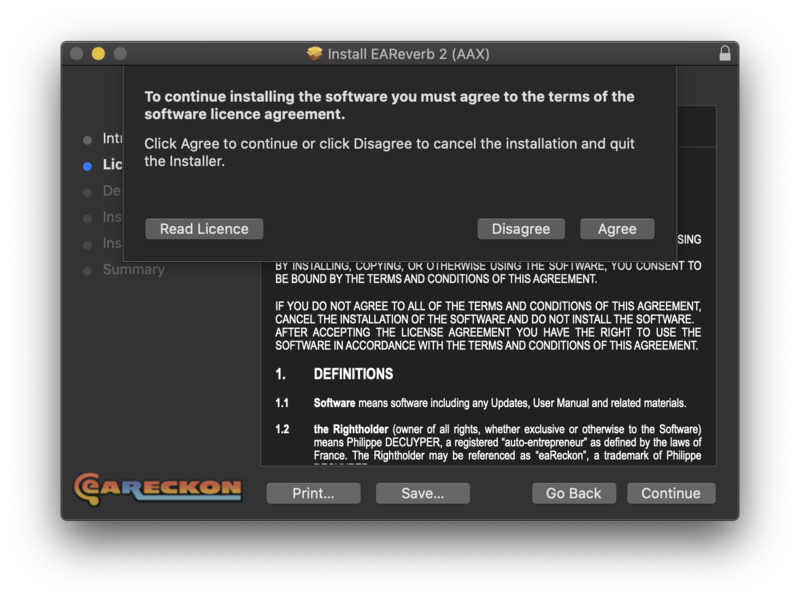
8. Click 'Agree'.
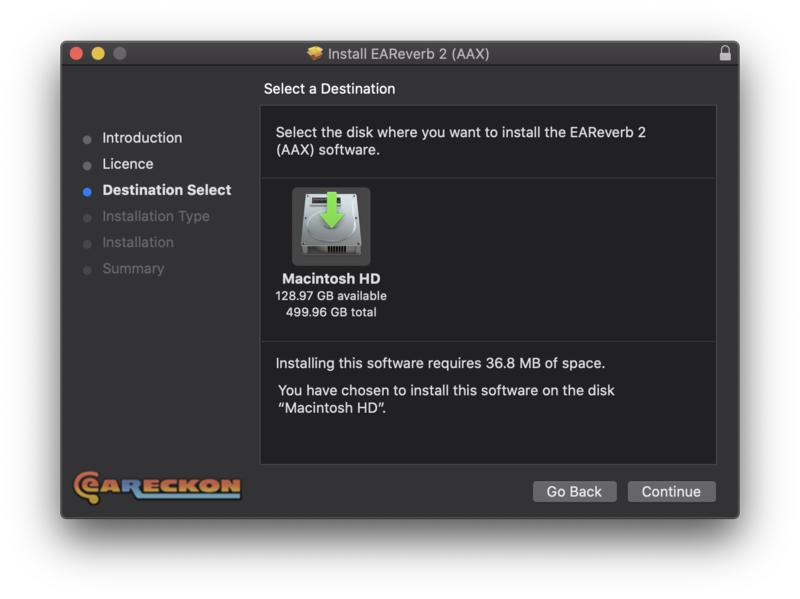
9. Click 'Continue'.
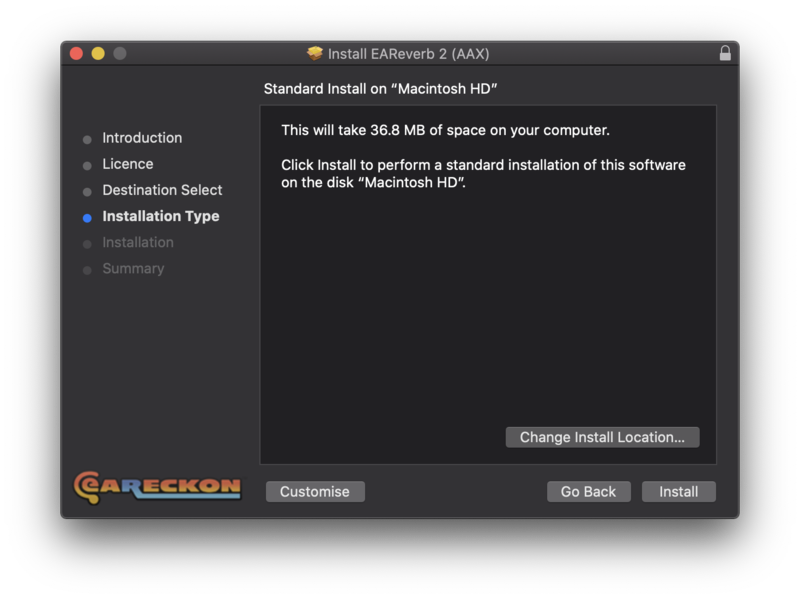
10. Click 'Install'.
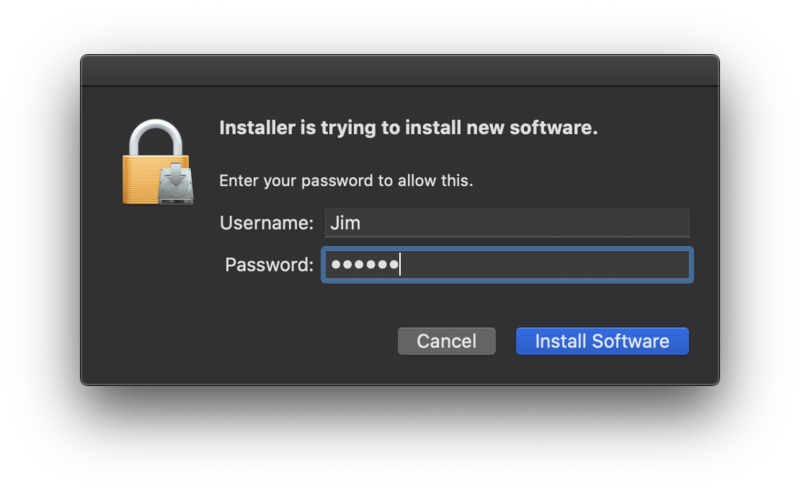
11. Enter your system password > Click 'Install Software'.
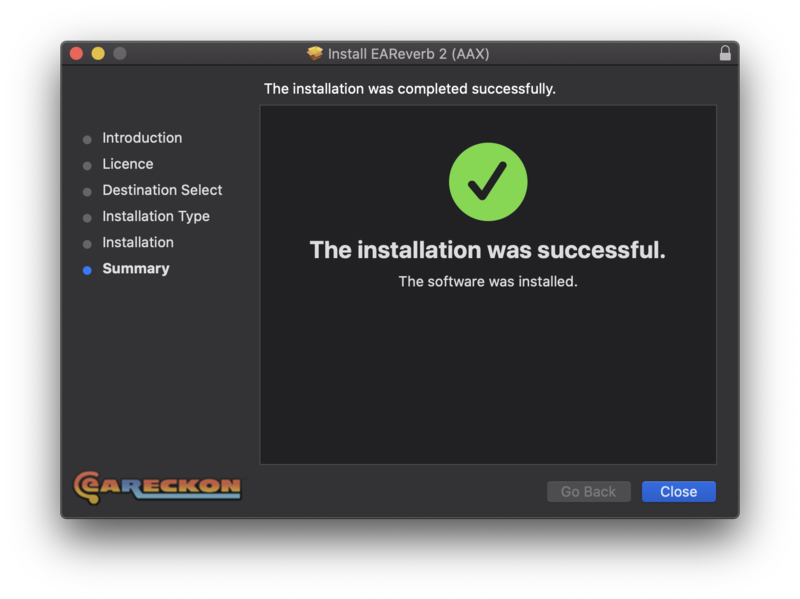
12. Click 'Close'.
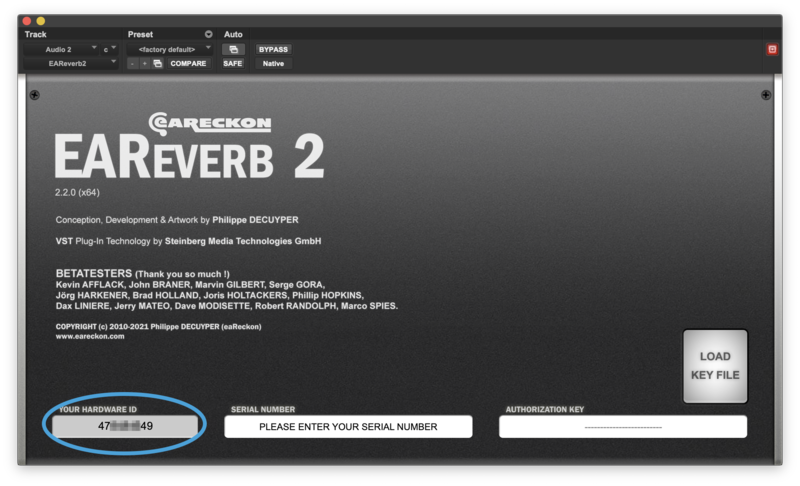
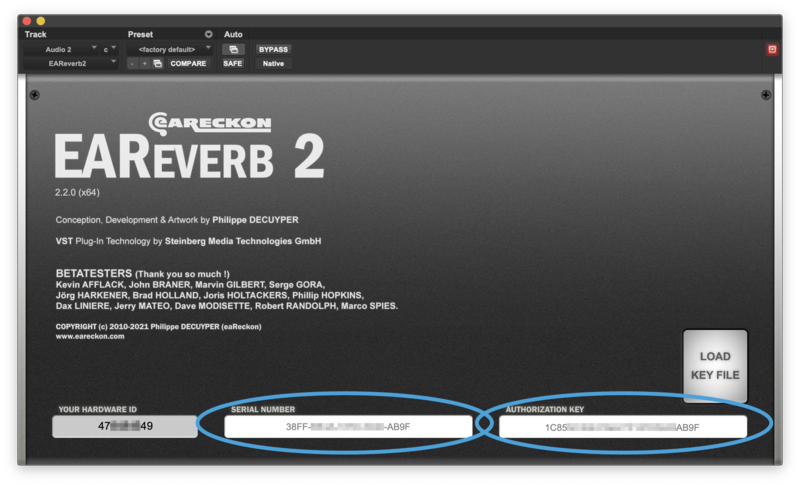
13. Launch your DAW > Insert EAReverb 2 on a new track > Locate your Hardware ID.
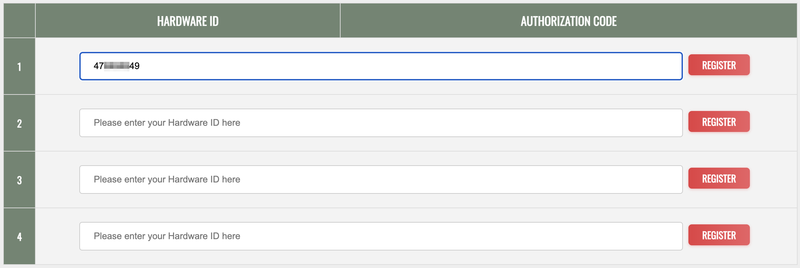
14. Navigate back to the eaReckon website and your account page > Enter your Hardware ID > Click 'Register'.
15. Navigate back to your DAW and the plugin > Enter the serial number found within your Plugin Boutique User Account into the 'Serial Number' box > Enter the Authorization Key that was generated in step 14 on the eaReckon website into the 'Authorization Key' box.
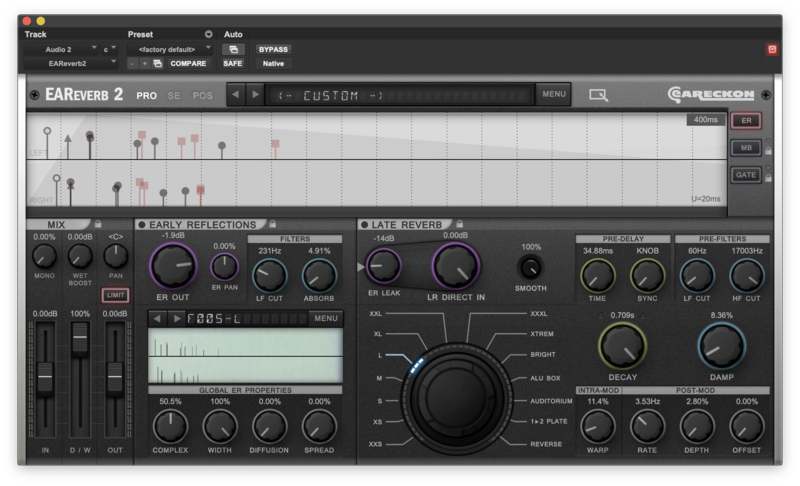
EAReverb 2 is installed, activated and ready to use.
Windows
1. If you do not have an eaReckon account, navigate to https://www.eareckon.com/en/login.html?view=registration and sign up > If you do have an eaReckon account, navigate to https://www.eareckon.com/en/login.html and log in and proceed to step 3.
2. Navigate to your email inbox > Click the activation link to activate your eaReckon account > Log in.
3. Enter your serial number found within your Plugin Boutique User Account > Click 'Register'.
4. Download the correct installer(s) for your system.
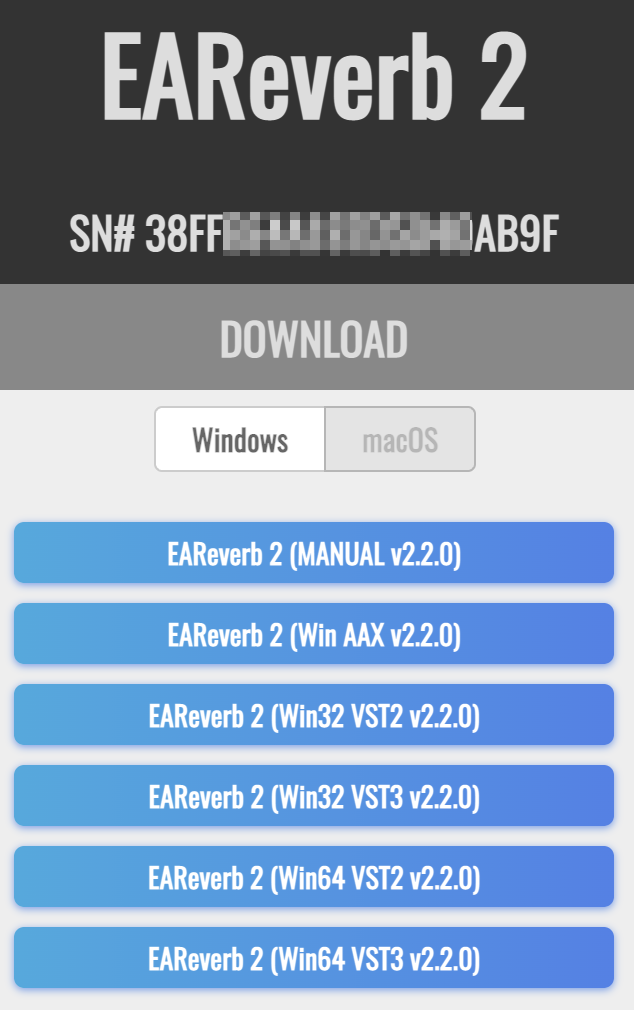
5. Unzip the downloaded installer > Launch the .exe installer file.

6. Select language > Click 'OK'.
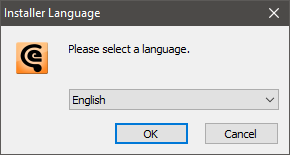
7. Click 'Next'.
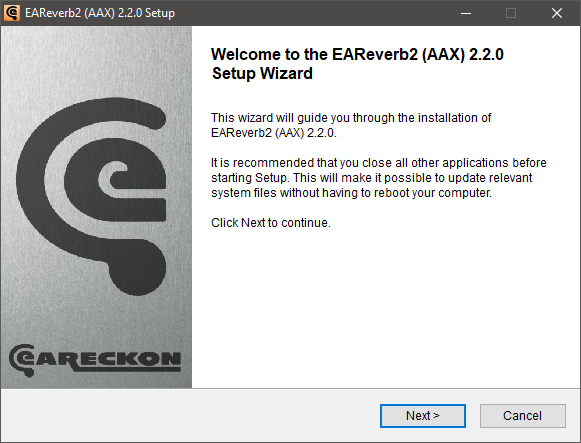
8. Accept the EULA > Click 'Install'.
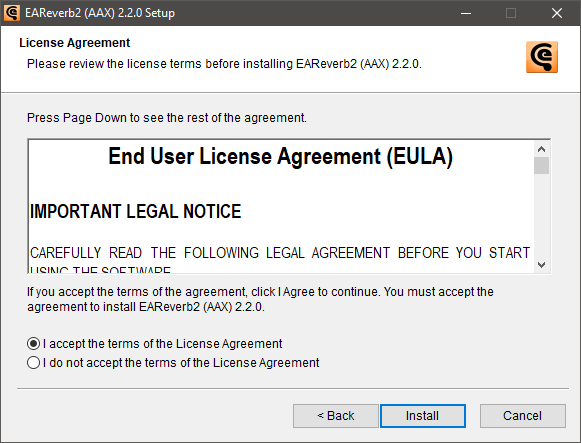
9. Click 'Finish'.
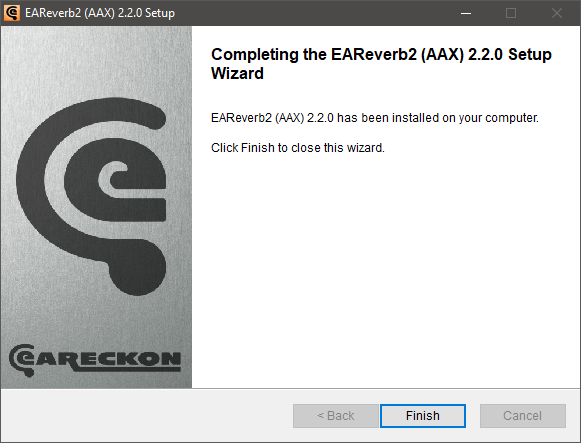
10. Launch your DAW > Insert EAReverb 2 on a new track > Locate your Hardware ID.
11. Navigate back to the eaReckon website and your account page > Enter your Hardware ID > Click 'Register'.
12. Navigate back to your DAW and the plugin > Enter the serial number found within your Plugin Boutique User Account into the 'Serial Number' box > Enter the Authorization Key that was generated in step 11 on the eaReckon website into the 'Authorization Key' box.
EAReverb 2 is installed, activated and ready to use.


