


 Log In
Ultimate Vocal Remover Plugin Guide: Separate Music Like a Pro
Learn about the tricks and tools required to perform pristine vocal separation in music
Finished music tends to contain a number of elements, all mixed together and baked into a single stereo file. The individual vocals, drums, bass, instruments and effects are all fused into one cohesive whole. That’s fine as a common music consumer, but for us creatives, sometimes we want to isolate or extract certain elements from a track so that we can use them in new and unique ways.
The vocals are often the first element to be separated, and luckily there is a whole category of plugins designed to do just that. In this article, we’re looking at vocal remover plugins, how they work and what you might want to use them for.
Real-world applications of vocal remover plugins
There’s a whole host of reasons you might want to remove the vocal from a track. As a DJ, you might want to isolate the acapella for creative mashups during performances, or you might want to re-arrange or remove certain parts of the vocal to create a more DJ-friendly mix. As a producer, acapellas are a great source of inspiration and can be used for creating vocal chops or remixes. Or maybe your intended use case is more subtle, and you just want to tweak the mix of a track or apply some gentle processing to the vocal.
How to use vocal remover plugins – a step-by-step guide
Whatever your plugin or software, here’s a general guide to the process of removing vocals from full songs using your computer.
Step 1: Install and load your software
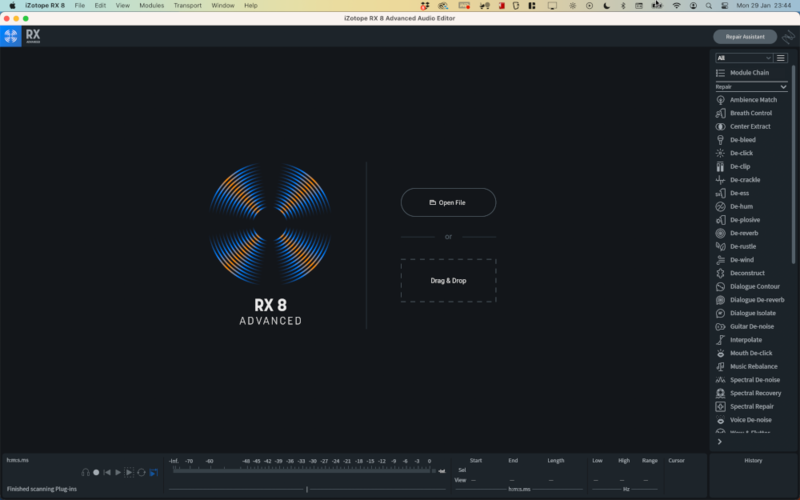
In this guide, we’re going to use iZotope RX to remove vocals from a song. There are other software options available, and we cover several of them later in this article. We’re using a Mac, but Windows is just as effective as a host for this task.
Ensure your software of choice is installed, and open it. If your software functions as a plugin (a VST plugin, Audio Units plugin or CLAP plugin for example), you’ll need to load it within a host program (or DAW).
Step 2: Locate your song as a high-quality audio file
You should have access to your song as a stereo audio file in order to do this properly. This can often be sourced from online stores selling high-quality music files. Recording the output of a streaming service is possible, but the quality of the results will very likely be lower. CD-quality audio (16 bit, 44.1kHz) should be a reasonable minimum quality to seek out.
Step 3: Load your audio file into your software or host
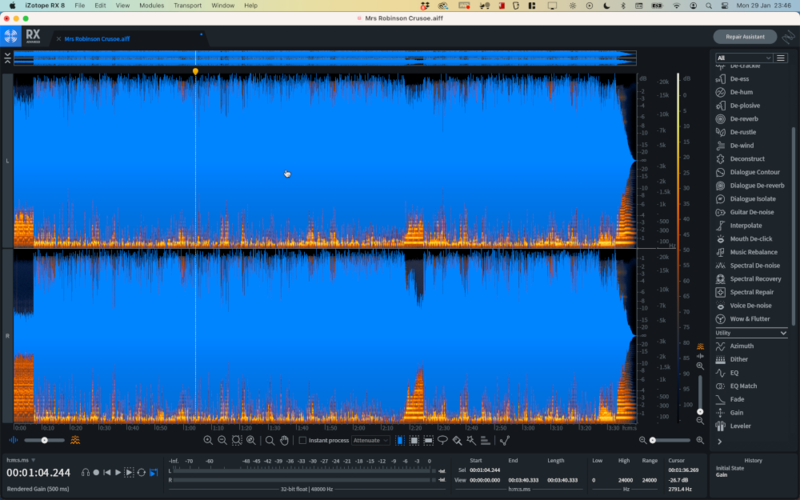
In our case, we’re using iZotope RX, which loads audio files directly before being able to process them. If using a plugin within a DAW, your audio should be imported into your DAW project, and the plugin placed on the channel that’s created for applying processing to the newly imported audio on the new track.
Step 4: Direct your software to remove vocals
This step could be very different depending on the software you’re using. In RX, we call up the Music Rebalance module to find four ‘instrument’ sliders – for Vocals, Bass, Percussion and Other. In our case, we can reduce the sliders for everything except Vocals to zero, and we end up with some compelling results straight away. Your software should come with a guided tutorial or a manual, or you should be able to find information about how to use it online.
Step 5: Experiment with settings to find the best results
Using your software, tweak its parameters to find out how they affect the quality of the vocal removal. Parameters like Sensitivity and Quality can change results but can also put more strain on your CPU when auditioning. You shouldn’t expect the results to be perfect. Often, the highest-quality results aren’t able to be previewed, but will be applied when exporting the resulting file.

Step 6: Export the new audio file with no vocals
Once you’re happy your settings are achieving the best results you can get, it’s time to export the resulting sound within its own file. In RX, we can simply Save the file to overwrite the original. If using a DAW, you’ll have to render the part of the timeline where the audio track plays. Choose a quality as high as the source file you started with.
Choosing the right vocal remover plugin
When choosing a vocal removal plugin, it’s important to consider how you intend to use it. Some plugins only allow you to isolate specific elements, such as vocals, drums and bass, whereas others allow you to dig deeper and isolate elements based on their frequency content or position within the stereo field.
Some plugins come as part of a larger suite of audio processing or editing tools, so it’s worth considering what else you might benefit from when deciding which plugins or suites to invest in.
Recommended vocal remover plugins
zplane: PEEL – £33.54
Best all-round audio editor for isolating individual elements

|
Price: |
£33.54 |
|
Platforms: |
Windows and Mac |
|
Type: |
Audio Editor |
|
Format: |
AU, VST3, AAX |
|
Features: |
Spectral processing plugin with simple user interface, solo or mute any instrument within its stereo field and frequency range, detailed spectral analyser for checking your mix |
PEEL from zplane is a handy multi-purpose audio editing plugin that lets you hone in on specific frequency ranges within the stereo field by drawing a box on the spectral analyser window. You can then mute or solo any element, and route it to a new channel for resampling or further processing. Not only can PEEL be used to isolate or mute vocals in a stereo mix, it can be used to apply processing to independent elements, or to check your own mix on a spectral level.
Stagecraft: Simple Stems – £42.95
Most intuitive audio editor for removing vocals
|
Price: |
£42.95 |
|
Platforms: |
Windows and Mac |
|
Type: |
Audio Editor |
|
Format: |
VST3, AU, AAX, Standalone |
|
Features: |
Uses Spleeter’s established algorithm, 2 / 4 / 5 stem deconstruction modes, simple drag and drop operation and preview functionality |
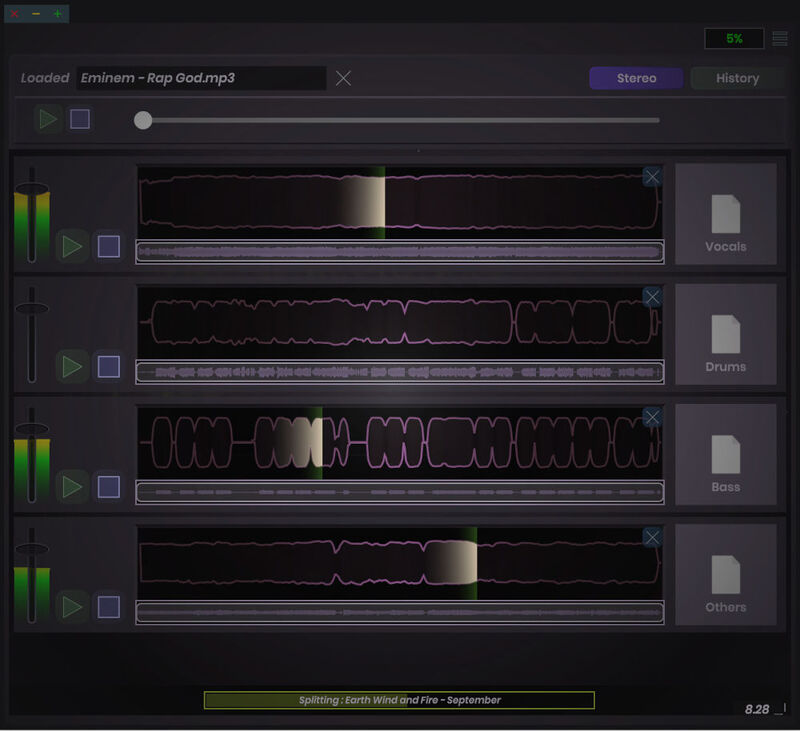
Using Spleeter’s highly-regarded song separation algorithm, Stagecraft Simple Stems is arguably the most straightforward vocal removal plugin on this list. To remove or isolate a vocal, simply select the 2, 4 or 5 Stem Deconstruction Mode from the drop down menu and drag your stereo mix onto the plugin. Simple Stems will then analyse and split your mix into the selected stems where you can preview them to check, or drag each stem directly into your DAW. Simple Stems also stores your processed files in a dedicated folder, so you can come back to them at any time.
Serato: Studio – £245.00
Best complete production package for removing vocals
|
Price: |
£245.00 |
|
Platforms: |
Windows and Mac |
|
Type: |
DAW - Beatmaker Suite |
|
Format: |
DAW |
|
Features: |
VST/AU plugin support, MIDI support, automation, stems exporting, Serato Pitch ‘n Time, Serato Stems, Serato Visualizer, Serato Sounds |
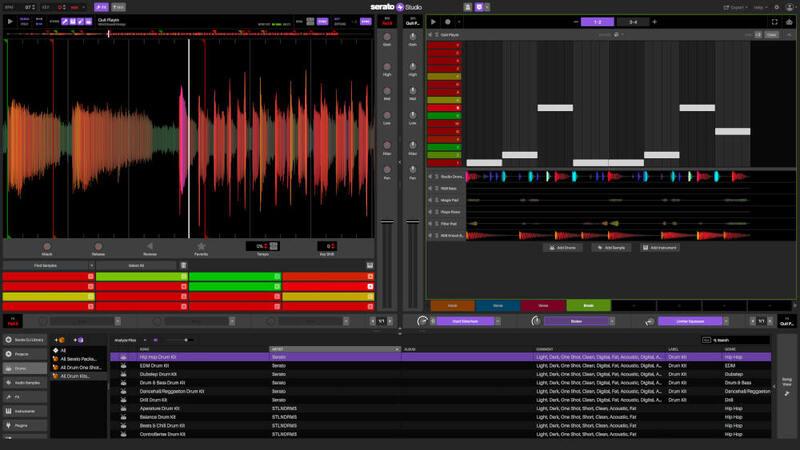
While technically not a plugin in itself, we couldn’t write an article about the best vocal removal tools without including Serato Stems, which is just one of the tools that comes bundled with the Serato Studio DAW. If you’ve got your finger on the pulse of the DJ world, you’ll no doubt have heard about Serato adding the Stems functionality to their DJ software recently. It couldn’t be simpler to separate vocals, melody, bassline and drums from one another, plus you get a highly intuitive DAW which features many more creative tools.
Tips for Getting the Best Results with Vocal Remover Plugins
Here are some quick tips to consider when trying to get the most out of your vocal removal plugin.
Read the manual!
It might seem obvious to some, but when it comes to advanced audio processing techniques such as spectral processing and vocal removal, it’s important to read the manual to ensure you’re getting the most out of your plugin. Each vocal removal plugin will operate slightly differently to the next, and learning the ins and outs of your chosen plugin will ensure that you remove your vocals as cleanly and transparently as possible.
Give your vocal removal plugin a helping hand
Before we were lucky enough to have specialist vocal removal plugins like the ones mentioned above, the only way to remove a vocal involved a convoluted process of soloing the centre of the stereo image, phase inverting and EQing a signal until you were left with a vocal. This was a labour intensive process, and didn’t always result in a cleanly isolated vocal.
That said, even the most advanced vocal removal plugins aren’t always perfect. Removing the sides of the signal or the low end might help to declutter the stereo mix before it’s processed. Place a stereo image utility and an EQ before your vocal removal plugin, and experiment with these to make the plugin’s job as easy as possible.
Use as high quality source material as possible
As mentioned in the tips above, removing a vocal from a mix is no mean feat and there’s a lot going on under the hood of these plugins. If you supply a sub-par audio source, you’re going to get a sub-par result. Noisy recordings with interference, pops and clicks combined with a low bit depth and low sample rate are going to be much harder for your vocal removal plugin to work with. Use lossless file formats like WAV or AIFF and you can be safe in the knowledge that the resulting audio will be as clean, crisp and professional as possible.
Conclusion
Vocal removal plugins are much more accessible and effective than they once were. They take care of the majority of the heavy lifting for you, and make isolating or extracting a vocal from a stereo mix as quick as clicking a few buttons. Depending on your budget, skill level and use case, there are a range of vocal removal solutions available.
As audio technology continues to advance along with the power of artificial intelligence and machine learning, it is likely that automatic vocal removal tools will become faster, more effective and more accessible. Head to Plugin Boutique to explore some of the most advanced audio processing tools on the market today.
Vocal Remover FAQ Summary
What are vocal remover plugins?
Although a music track ends up as one single audio file, in reality it was constructed by combining multiple elements like vocals, drums and bass. Vocal remover plugins let you remove a vocal from a complete stereo mix, and isolate them for sampling or creating acapellas.
How does a vocal remover work?
All vocal removal plugins work differently, so it’s important to read the manual. Some vocal removal plugins allow you to upload a stereo mix, and the plugin will then process the audio and split it into separate stems which can be processed or exported independently. Other vocal removal plugins are placed as an insert on a stereo mix, and various elements can then be extracted or isolated.
Other articles
Unmissable Bundle Deal from Girls Make Beats – Sharing Spotlight
Play it forward with our latest Sharing Spotlight deal – come away with a great deal and give to a good cause while you do so. We are continuing our support for music-making communities with Sharing Spotlight, an initiative that highlights organizations working toward diversifying the music industry. We do this by offering a bespoke bundle of discounted plugins curated by our featured organization. When you purchase through its unique link, 15% of each sale goes towards supporting that comm
Recreating a Classic Analogue Mix Chain with Plugins
Digital audio production is the modern standard, yet it lacks the colour and life of classic analogue hardware. Learn how to breathe life into your mix bus As music production has overwhelmingly shifted to the digital domain over the last few decades, producers and artists now face the reality that working purely in the box often creates cold, dry, harsh, and lifeless recordings. That’s why many producers are turning to analogue-simulating software to breathe life and warmth of classic hardwa
Analogue Emulation Plugins: A Buyer’s Guide for Mixing with Character
These VSTs are some of the top choices to turn your DAW from a cold, sterile piece of software into a warm, colourful, lived-in studio setup Music software has come a long way, and while we used to use technology to remove imperfections and small problems in the real-world studio, today we actively use it to put these things back into our music. The number of analogue emulating plugins that are out there is truly astounding, with each one doing a slightly different thing on your mix channe
The Best Music Software Deals This Week [Live List]
As the music production landscape evolves week by week, so does the opportunity to save on powerful creative tools. New plugin releases, flash sales on VSTs and limited-time deals on music software can appear from any angle, making it harder than ever to keep track of what’s worth your attention. Whether you're looking for the latest bundles on offer, or even deals on exciting virtual instruments, it's as important as ever to stay up to date on what we have to offer. That’s where our live


