/ Filter / OneKnob Filter
Waves

OneKnob Filter

5.0 (1 Reviews)
$24.99 $49.00

49% off until Dec 07

Waves OneKnob Filter
Waves OneKnob Filter gallery thumbnail
Buy Now
Product information

OneKnob Filter

Create the Smoothest Sweeps—Instantly

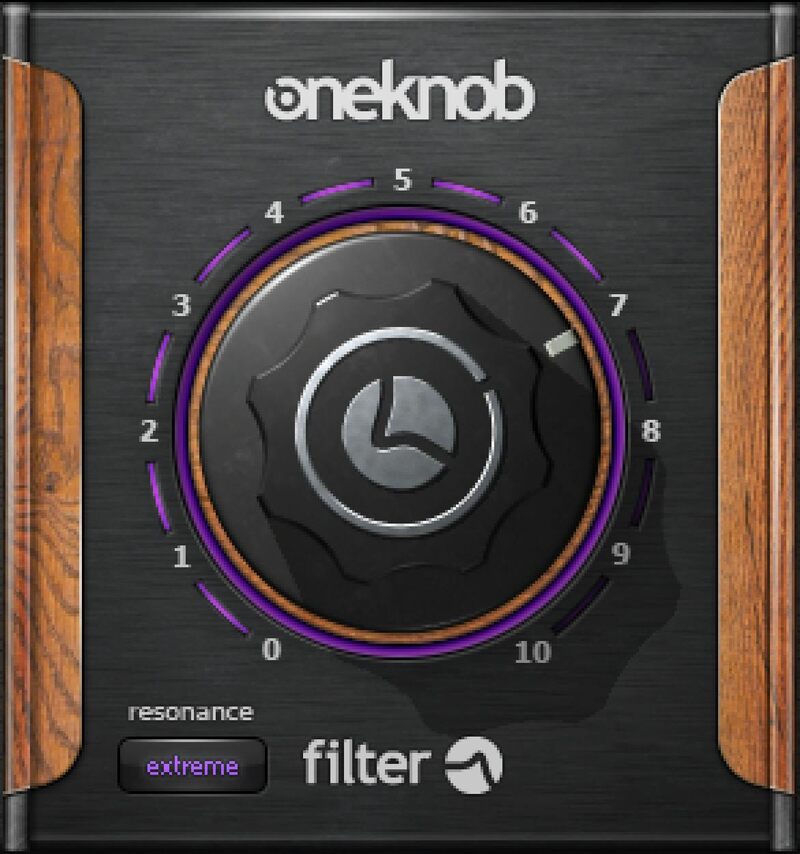
OneKnob Filter transitions so smoothly from low to high frequencies that it sounds like the analog circuits of vintage synthesizers. From frequencies so low OneKnob Filter mutes the audio, to frequencies so high it passes the full audio frequency range, this is the essence of silky filtering.

Perfect in the studio for altering instrumental and vocal tone, OneKnob Filter is also an ideal live DJ tool—automate the knob for classy wah effects, or build dynamics live for the club.

Features

  • Resonance button steps through 4 settings, from none to extreme
  • 12 dB/octave low-pass filter with silky-smooth sound
  • Cutoff frequency from below 20 Hz to above 20 kHz
  • Sweep the filter frequency without quantized “stair-stepping”
  • Fast, easy-setup filter for dance productions and breakdowns
  • The same familiar sound and control as DJ club mixers

System Requirements

Mac

  • macOS Monterey 12, Ventura 13, Sonoma 14, Sequoia 15
  • VST / AU / AAX

PC

  • Windows 10+
  • VST / AAX
Installation Instructions

1. Head to https://www.waves.com/create-account

2. Enter your email and choose a password to create an account (if you already have a Waves account, choose Log in, enter your details and head to Step 5) > click 'Submit'

3. Open your email inbox > click the activation link in the email from Waves

4. Click 'Log in here' > Log in to your Waves account

5. Click 'Register New Products'

6. Enter the Serial Number found in your Plugin Boutique user account > click 'Submit'

7. Click download in your Plugin Boutique user account or head to https://www.waves.com/downloads/central > download the Waves Central app for your operating system

8. Install Waves Central > Open Waves Central

9. Click 'Log in' > enter your log in details

10. Click the 'Install Products' tab

11. Tick the blue dot on all products you wish to install or click the top dot to install all products > click 'Install & Activate'

12. Click 'OK'

13. Open your DAW > open the Waves plugin

Your Waves plugins are installed and ready to use, enjoy!

Plugin Boutique Rewards

Discover the most rewarding loyalty programme among all plugin retailers.

  • Free Loopmasters Samplepacks
  • Discounts on products and courses
  • Extra Virtual Cash claimed immediately at checkout
Find out more

Follow us:

X (Twitter) Facebook YouTube Instagram
Logo Logo

Plugin Boutique Limited, Part of the Beatport Group LLC.

Copyright © 2011-2025 Plugin Boutique. All rights reserved